
 iPhone Data Recovery
 iOS System Recovery
 iOS Data Backup & Restore
 iOS Unlocker
 iPhone Password Manager
 Location Changer
 Android Data Recovery
 Broken Android Data Extraction
 Android Data Backup & Restore
 Android Unlocker
 FoneTrans for iOS
 iPhone Data Eraser
 iPhone Cleaner
 HEIC Converter
 HyperTrans
 WhatsApp Transfer for iOS
 Mac Sweep
 Data Retriever
 Mac Data Retriever
 Video Converter Ultimate
 Screen Recorder
 Phone Mirror
- Part 1. When You Can Restore Deleted Files from Dropbox
- Part 2. How to Restore Deleted Files from Dropbox App & Website
- Part 3. How to Restore Deleted Files from Dropbox With Version History
- Part 4. How to Restore Permanently Deleted Files With FoneLab Data Retriever
- Part 5. Comparison Table of Methods to Recover Deleted Files from Dropbox
- Part 6. FAQs about How to Restore Deleted Files from Dropbox
 Recover PC Data Now
Recover the lost/deleted data from computer, hard drive, flash drive, memory card, digital camera and more.
How to Recover Deleted Files from Dropbox in 2 Proven Ways
 Updated by
 There are different cloud storage services for backing up your data. Dropbox is one of the most widely used. It allows you to save files online, share files with others, sync data across devices, and more.
So, losing data from your devices is not a problem if you have a Dropbox backup. It allows you to restore your data and access it again on your devices. How to recover deleted files on Dropbox? This article will show you the 2 leading ways to perform the process. Please continue reading for full details.

Guide List
- Part 1. When You Can Restore Deleted Files from Dropbox
- Part 2. How to Restore Deleted Files from Dropbox App & Website
- Part 3. How to Restore Deleted Files from Dropbox With Version History
- Part 4. How to Restore Permanently Deleted Files With FoneLab Data Retriever
- Part 5. Comparison Table of Methods to Recover Deleted Files from Dropbox
- Part 6. FAQs about How to Restore Deleted Files from Dropbox
Part 1. When You Can Restore Deleted Files from Dropbox
Can I recover deleted files from Dropbox? Definitely, yes. However, there are important limitations to understand. See the list below for the key restrictions.
1. Time Limits
Dropbox offers different plans. Free and Plus users have 30 days to recover deleted files. Professional and Team plans offer up to 180 days or longer.You need to recover the files within this time frame before they are permanently deleted.
2. Shared Files
Files that you cannot edit cannot be recovered if they are shared or synced. You can only restore a shared file or folder if you have the Can Edit access. Without this access level, you cannot proceed with any modification.
3. Permanent Deletion
Files permanently deleted by a user or team admin cannot be recovered through Dropbox. You may need a third-party app or program to recover them. Most are paid, or you would need professional data recovery services.
Part 2. How to Restore Deleted Files from Dropbox App & Website
Dropbox can be accessed through its app or website. So, the recovery process can be done on its website or app. Both platforms have nearly identical steps. See them with the instructions below.
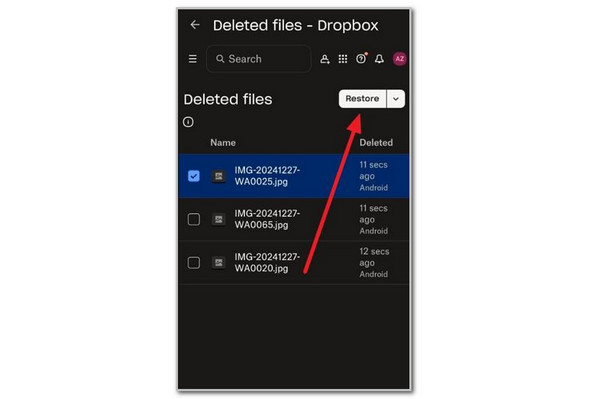
App: Open the Dropbox application. Then, sign in to the account associated with the Dropbox cloud service. Later, tap the Account button from the main interface. Open the Deleted Files section and choose the file you want to retrieve. Finally, tap the Restore button to put them back on your device.
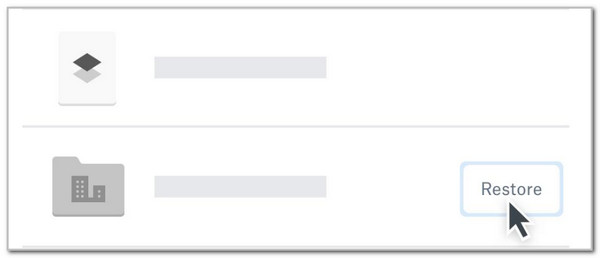
Website: Open your web browser, go to the Dropbox website, and sign in to your account. Then, click the Deleted Files option on the left side of the main interface. Locate the folder or file you want to retrieve. Please right-click the file to see more options. Click the Three Dots button afterward and choose the Restore button.
Part 3. How to Restore Deleted Files from Dropbox With Version History
Dropbox saves previous versions of your files. However, this only works for a limited time. Additionally, it depends on your Dropbox plan. Also, you can only restore recent documents, overwritten files, and similar items. Please learn how to recover deleted Dropbox files with the version history.
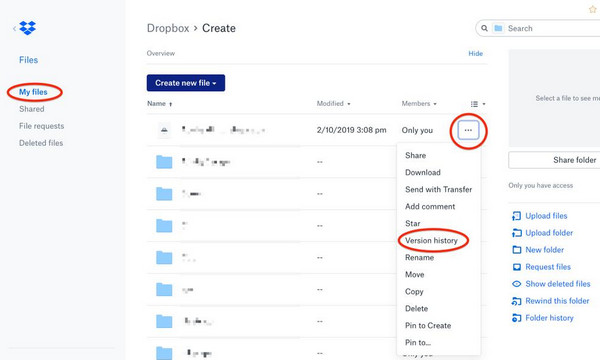
Step 1Go to the main website of Dropbox. Then, sign in to the account associated with the deleted files if needed. Later, go to the files you want to recover. Scroll down on the main interface and choose the Three Dots button.
Step 2Select the Version History button from the drop-down list. Browse the file's available versions and dates. Choose the version you prefer afterward. Finally, please click the Restore button to retrieve the files to your device.
Part 4. How to Restore Permanently Deleted Files With FoneLab Data Retriever
When the methods above don't work, you have another option. If you downloaded your Dropbox files to your Windows or Mac and then accidentally deleted them, FoneLab Data Retriever can help! It can recover an unsaved Word document, images, databases, audio, videos, and more data types. The tool does not need an internet connection to function.
FoneLab Data Retriever - recover the lost/deleted data from computer, hard drive, flash drive, memory card, digital camera and more.
- Recover photos, videos, documents and more data with ease.
- Preview data before recovery.
Additionally, professional skills are not required thanks to its simple interface and process. Beginners can use it without any difficulties. How to recover deleted file on PC? Use the tool with the steps below.
Step 1Choose the Free Download button to get FoneLab Data Retriever. Then, set up the file downloaded on your Mac or Windows. Install it from the small window to let the computer launch it automatically.
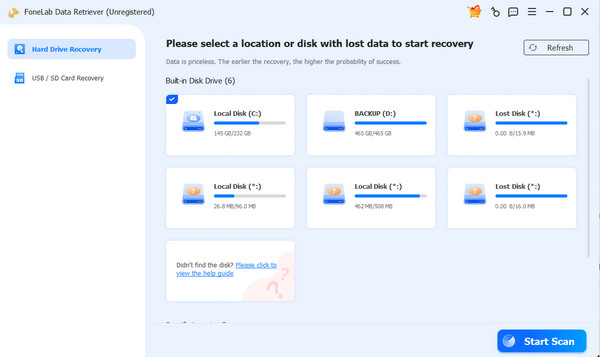
Step 2Please choose the location where you lost the files. Then, select the Start Scan button to start the scanning process for your deleted files. Wait for the results to be prompted on the next screen.
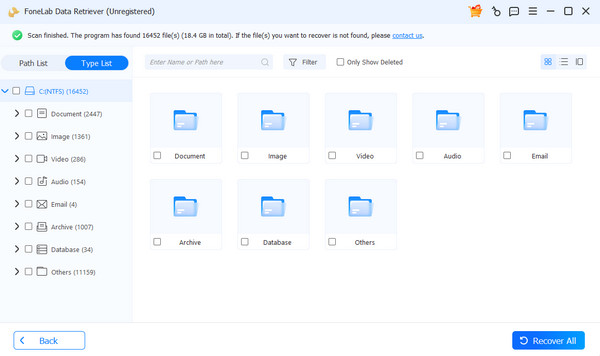
Step 3Choose the data you prefer to recover. Then, click the Recover All button at the bottom right corner. This way, the recovery process will start immediately.
Part 5. Comparison Table of Methods to Recover Deleted Files from Dropbox
| Method | Time Duration | Limitations | Required Skills |
| Deleted Files Folder | The process can be done quickly, but it can last for a couple of minutes locating your files if you have multiple deleted files. | You cannot recover the files from your Dropbox account if they are permanently deleted. | The process only requires beginner skills because it is simple. |
| Version History | The procedure is a bit slow because the file might have a different version, including the modification dates. | The old file of the deleted file must be present on your device. Also, the feature is only accessible on your Windows computer. | The procedure requires intermediate to professional skills because of the demanding steps it has. |
Part 6. FAQs about How to Restore Deleted Files from Dropbox
Does Dropbox keep permanently deleted files?
When the files are permanently deleted and overwritten from your Dropbox account, you cannot recover them anymore. The data will be deleted from the system and the storage servers of Dropbox.
Why would files disappear from Dropbox?
If the files suddenly disappear from Dropbox, the account might be logged out of your device. Also, it might be accidentally hidden from the cloud storage's system settings. Lastly, there are probably syncing issues.
All in all, this post guides you on how to recover deleted files in Dropbox. You will see the 2 leading methods that can do that. Also, FoneLab Data Retriever can be discovered as an alternative to Dropbox. It can recover multiple data types, including images, documents, databases, audio, and more. Download the tool on your computer to know its other features!



