
 iPhone Data Recovery
 iOS System Recovery
 iOS Data Backup & Restore
 iOS Unlocker
 iPhone Password Manager
 Location Changer
 Android Data Recovery
 Broken Android Data Extraction
 Android Data Backup & Restore
 Android Unlocker
 FoneTrans for iOS
 iPhone Data Eraser
 iPhone Cleaner
 HEIC Converter
 HyperTrans
 WhatsApp Transfer for iOS
 Mac Sweep
 Data Retriever
 Mac Data Retriever
 Video Converter Ultimate
 Screen Recorder
 Phone Mirror
 Transfer Phone Data Now
Transfer Data From iPhone, Android, iOS, Computer to Anywhere without Any Loss.
- Transfer Data from One Micro SD Card to Another Android
- How to Transfer Pictures from One Phone to Another
- How to Transfer Photos from Old LG Phone to Computer
- How to Transfer Photos from an Old Samsung to Another Samsung
- Transfer Contacts from Samsung to iPhone
- Transfer Data from LG to Samsung
- Transfer Data from Old Tablet to New
- Transfer Files from Android to Android
- Transfer iCloud Photos to Android
- Transfer iPhone Notes to Android
- Transfer iTunes Music to Android
How to Access iCloud in 3 Dependable Techniques
 Updated by
 Hello! How do I access my iCloud? I want to view my photos and others on iCloud, please tell me how to do this. Thanks!
iCloud is Apple's cloud-based storage service. It stores the data from the said devices with multiple security features, as it offers a free 5 GB of storage space for an Apple ID account, and you can pay for more storage. It supports various data types, including contacts, videos, photos, backups, and more.
You might wonder: How to access iCloud messages, videos, photos, etc? The good thing is that you can do it from different devices, including iPhone, iPad, Android, Windows, and Mac. There are various procedures and requirements you need to learn. Scroll below to discover them.


Guide List
Part 1. How to Access iCloud on iPhone/iPad/Mac
iCloud has the Sync feature that is available to your iPhone, iPad, and Mac. This feature allows your data to be updated. Also, it enables you to access the iCloud data on different Apple devices with the same Apple ID. It only requires you to have an internet connection for the devices to sync.
However, this feature is only accessible to your Apple devices, which are mentioned. It cannot be used on your Windows and Android devices. It also experiences sync errors and delays for some time. How to access photos on iCloud through syncing, as an example? The instructions below are presented.
1. Access iCloud from iPhone/iPad
iPhone and iPad have the same procedure to sync the iCloud data to different Apple devices. Please follow their detailed steps below.
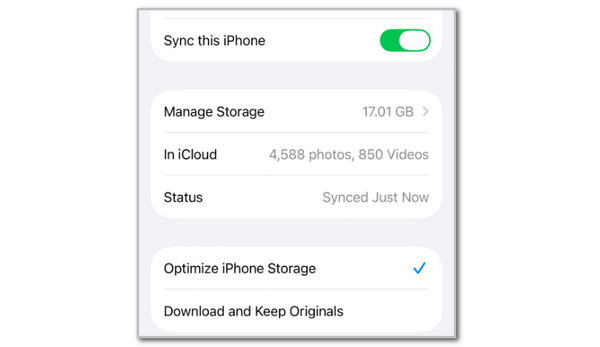
Step 1Open the iPad or iPhone Settings application. After that, tap the account name at the top of the main interface. Then, tap the iCloud button from the list. You will see the supported data types of iCloud. You can choose one of them, like Photos.
Step 2Please tap the Sync This iPhone button. Turn it on by toggling the slider on the right of the screen.
2. How to Access iCloud on Mac
Mac has the same way how to access messages on iCloud and other data through syncing. Please follow the steps below to discover how.
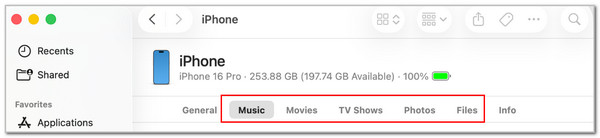
Step 1Open your Finder on Mac. After that, plug the iPhone or iPad into the computer. Then, go to the Location section and choose the iPhone or iPad name. Select the data types at the top of the screen—for example, the Music button.
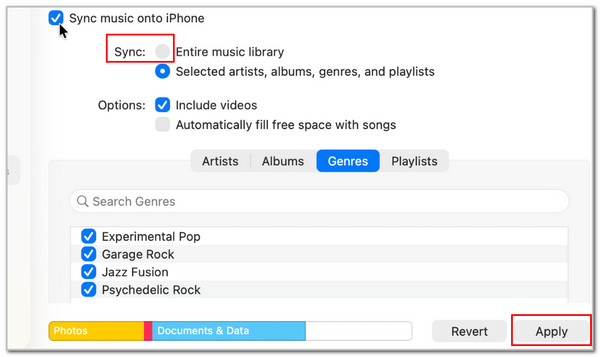
Step 2The options for syncing the data type will appear on the screen. Please click the Sync button and click the Apply button at the bottom right. Wait for the files to be synced afterward.
Part 2. Access iCloud from PC
You might ask: How to access iCloud data on Windows? That's easy! You only need to download iCloud for Windows to access your iCloud account and data. However, this program has iCloud feature limitations. It does not offer a full backup for your iCloud data. Also, it has fewer features compared to the iCloud account accessible from Apple devices. Additionally, the program has a slow performance that can affect the iCloud data. Please follow the steps below to discover how to use iCloud for Windows to access your data.
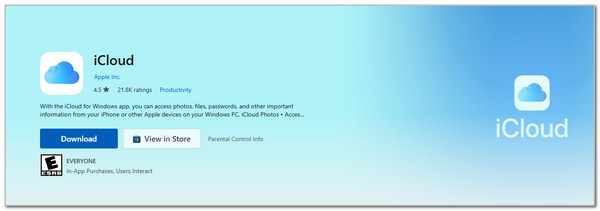
Step 1Search for iCloud for Windows online. Alternatively, you can also search the program from the Microsoft Store. Then, click the Download button under the program's name. Wait for the downloading process to be completed.
Step 2Please set up the file to start the process. Then, click the Get Started button at the bottom right of the main interface.

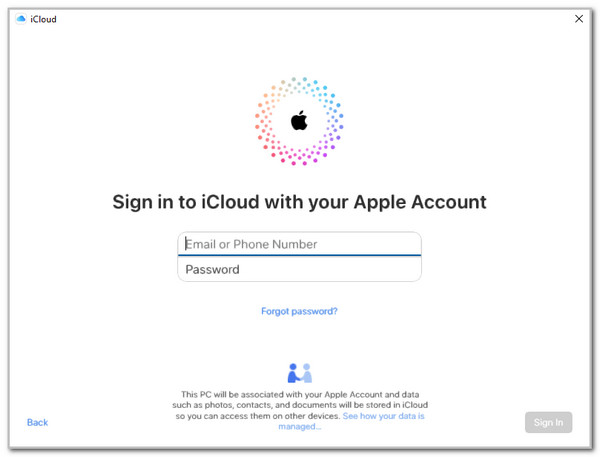
Step 3The software will require you to sign in to your Apple ID or iCloud account. Please enter the credentials and click the Sign In button to sign in. After that, you can access the iCloud account and data.
Part 3. How to Access iCloud on Browser
Can you access iCloud on Android? Or other non-Apple devices? iCloud has a website where you can access your account across devices. This procedure is available on your Android phone, iPhone, iPad, Mac, and Windows. However, this website does not support backups, messages, iCloud Keychain, or more data. It also has a limited offline functionality. How to access my iCloud on the iCloud website? The steps are available below.
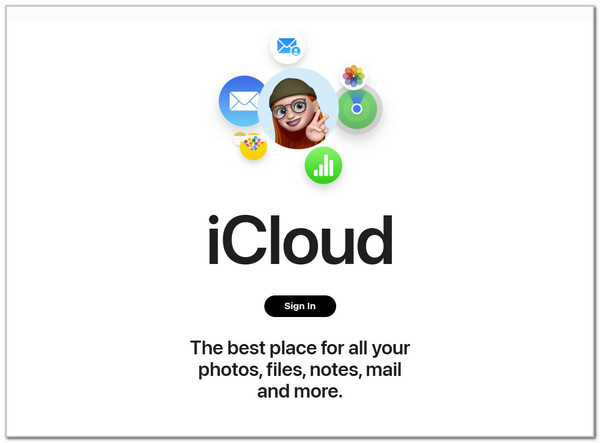
Step 1Visit the official website of iCloud. Then, select the Sign In button in the center. Enter your account credentials afterward to sign in.
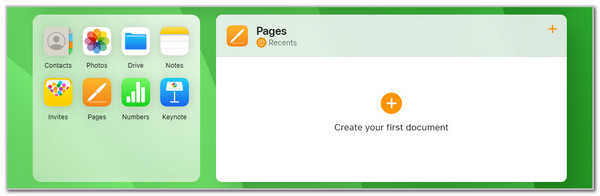
Step 2The website will show you the supported data types at the bottom left. Select the data type you prefer to access afterward.
Part 4. Comparison Table for Accessing iCloud on Different Devices
In case you prefer to have the summary of the methods above, here is the detailed table. Please scroll down below to know the full information on how to access iCloud photos on PC, iPhone, iPad, Android, and Mac using their requirements, including other data.
| Device | Access Method | Requirements | Key Features Accessible | Limitations |
|---|---|---|---|---|
| iPhone | iCloud Settings | Apple ID and Internet Connection | Find My, Sync, Backups, iCloud Drive, and more. | It has limitations in managing iCloud data. |
| iPad | iCloud Settings | Apple ID and Internet Connection | Find My, Backups, iCloud Drive, Sync, and more. | It has limitations in organizing the iCloud data. |
| PC | iCloud for Windows | Apple ID, Internet Connection, and Windows 10 and later versions | Access Photos, Drive, Mail, Contacts, and more. | Limited sync feature compared to Apple devices. |
| Mac | System Settings | Apple ID, Internet Connection, macOS Catalina or later versions | Full iCloud Drive, Mail, Notes, Backups, Safari Sync, and more. | Limited iCloud storage due to the free version. |
| Android | iCloud Website | Apple ID, Internet Connection, Web Browser | View Photos, iCloud Drive, Find My iPhone/iPad, and more. | Cannot install the app, and it has limited sync options. |
Part 5. How to Transfer iCloud Data with FoneLab HyperTrans
Besides accessing the iCloud account and data from different devices, you can also transfer them across devices with FoneLab HyperTrans on your iPhone, iPad, Android, and Windows computer. Some of the Android phones it supports are Nokia, Motorola, Samsung, LG, etc.
Transfer Data From iPhone, Android, iOS, Computer to Anywhere without Any Loss.
- Move Files between iPhone, iPad, iPod touch and Android.
- Import Files from iOS to iOS or from Android to Android.
- Move Files from iPhone/iPad/iPod/Android to Computer.
- Save Files from Computer to iPhone/iPad/iPod/Android.
Furthermore, this tool supports countless data types that exist on your devices. It includes contacts, messages, photos, music, and more. This tool is best for beginners due to the straightforward interface and procedure. Please follow the steps below to use the tool correctly for transferring your iCloud data to different devices.
Step 1Please visit the official website of FoneLab HyperTrans. After that, select the Free Download button from the main interface. This way, you will download the tool, and you will need to wait for the process to be done. Set up the file and launch it afterward.

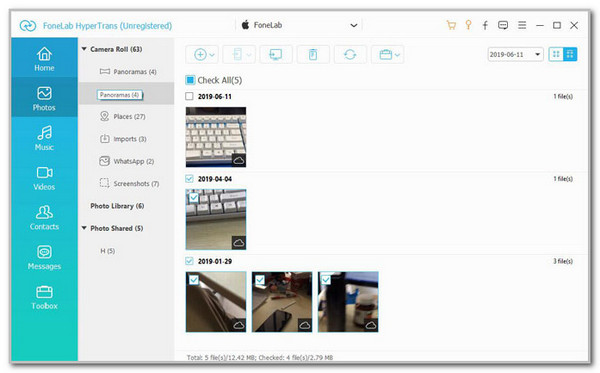
Step 2Please plug the iPad, iPhone, or Android phone into the computer using a USB cable. Then, allow all the permissions required. You must see the mobile phone or tablet name on the screen. Later, select the data type you prefer to transfer afterward on the left side of the screen. The tool will scan them afterward.
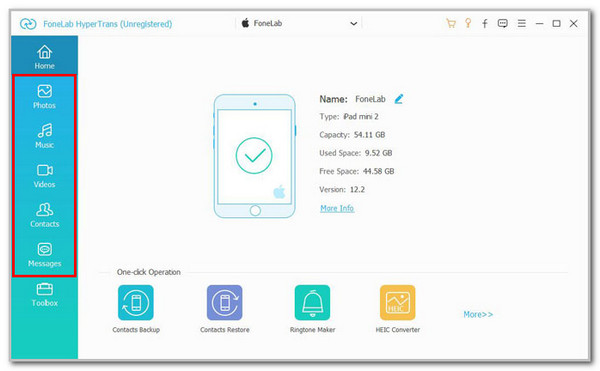
Step 3The iCloud files will appear on the screen with the Cloud button at the bottom right of the files. Please select the files you prefer to transfer. Then, click the Phone or Computer button at the top, depending on your preferred destination. Follow the on-screen instructions to start and complete the transfer process.
Part 6. FAQs about How to Access iCloud
How do I retrieve from iCloud?
Aside from accessing your files from iCloud, you can also retrieve some of the deleted or lost data from the account. Sign in to your iCloud account. Go to the Recovery page of iCloud, and you can choose the Restore Files or Restore Contacts section. Follow their designated procedures to use them.
How do I recover my iCloud account?
Some iCloud accounts cannot be accessed. It might be due to forgotten account credentials or another reason. You may visit the Apple account recovery website of iCloud. Select Reset Password and enter your credentials. Follow the instructions to complete the account recovery.
Why can't I access my iCloud?
First, ensure that you have stable internet connection. Then, you should confirm you have logged into the same Apple account with the one contains data youo want to access.
This post is all about how to access iCloud in 3 ways. We think that you might have considered transferring your iCloud data across your devices. We offer FoneLab HyperTrans. You may download the tool for more features to be discovered!



