
 iPhone Data Recovery
 iOS System Recovery
 iOS Data Backup & Restore
 iOS Unlocker
 iPhone Password Manager
 Location Changer
 Android Data Recovery
 Broken Android Data Extraction
 Android Data Backup & Restore
 Android Unlocker
 FoneTrans for iOS
 iPhone Data Eraser
 iPhone Cleaner
 HEIC Converter
 HyperTrans
 WhatsApp Transfer for iOS
 Mac Sweep
 Data Retriever
 Mac Data Retriever
 Video Converter Ultimate
 Screen Recorder
 Phone Mirror
- Part 1. The Two Meanings of Where is My Recycle Bin?
- Part 2. Restore the Missing Recycle Bin Icon on Your Desktop
- Part 3. How to Open the Recycle Bin Even Without the Icon
- Part 4. The Physical Folder Location – Where Deleted Files Actually Go
- Part 5. Recover Deleted Files from the Recycle Bin
- Part 6. Troubleshooting – Recycle Bin Is Corrupt or Completely Missing
- Part 7. FAQs about Where is My Recycle Bin on My Computer
 Recover PC Data Now
Recover the lost/deleted data from computer, hard drive, flash drive, memory card, digital camera and more.
Where is My Recycle Bin on My Computer? Here’s the Answer
 Updated by
 Where is the Recycle Bin on my computer? I recently deleted a document containing one of my school assignments while cleaning up some files because I thought it was no longer needed. Turns out, I still needed it as a reference to our new project, as it is related. Luckily, I know that the Recycle Bin can help me restore it, but I forgot where it is. Please help.
The Recycle Bin is among the essential features on a computer, acting as a safety net for your files. It serves as a temporary space for deleted items, giving you a chance to restore them when you suddenly have a change of heart or accidentally delete something. However, its location isn't always obvious, especially to those who don’t often try to recover data. This can be frustrating if you quickly need to restore an important document, but don’t worry. This post will walk you through everything you need to know about finding and using the Recycle Bin.

Guide List
- Part 1. The Two Meanings of Where is My Recycle Bin?
- Part 2. Restore the Missing Recycle Bin Icon on Your Desktop
- Part 3. How to Open the Recycle Bin Even Without the Icon
- Part 4. The Physical Folder Location – Where Deleted Files Actually Go
- Part 5. Recover Deleted Files from the Recycle Bin
- Part 6. Troubleshooting – Recycle Bin Is Corrupt or Completely Missing
- Part 7. FAQs about Where is My Recycle Bin on My Computer
Part 1. The Two Meanings of Where is My Recycle Bin?
When someone asks, “Where is my Recycle Bin?” It usually means one of two different things. The first is about the desktop icon. Perhaps you are simply looking for the trash can icon that is usually displayed on the desktop. Sometimes, it’s just so hard to find with all the other icons sitting on the screen. Other times, it actually disappears from view.
On the other hand, it could also mean the actual, physical folder location where Windows stores your deleted files. It is the system folder that exists on your hard drive, separate from the desktop icon. Thus, knowing its location is helpful for advanced tasks, like recovering files via the command line or accessing the folder when the desktop icon is completely broken.
Part 2. Restore the Missing Recycle Bin Icon on Your Desktop
If the Recycle Bin icon has vanished from your desktop, don't worry. It is usually just hidden, and Windows offers a simple way to bring it back through your personalization settings. That's right! The process is done through your computer's Settings, so no special software or technical skill is needed. Once you navigate through it correctly, the icon will return to your computer's desktop.
Follow the process below to learn how to find Recycle Bin by restoring its icon on your desktop:
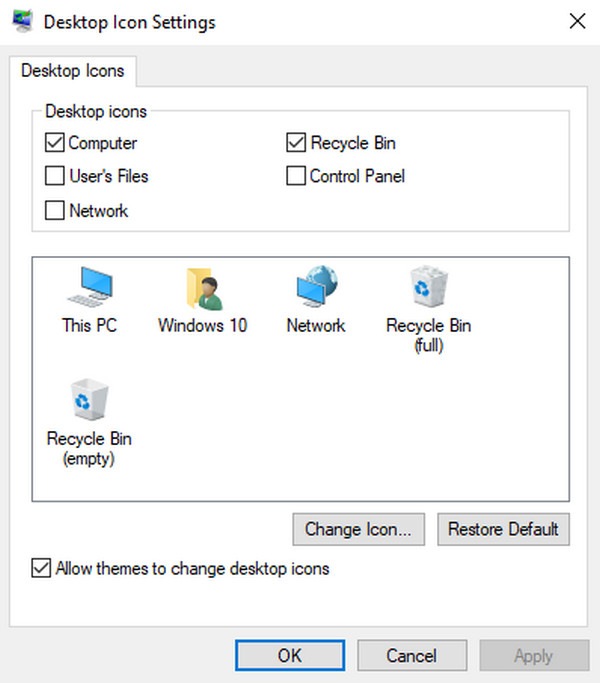
Step 1Start by opening your computer's Settings, click Personalization, then on the following screen, select Desktop icon settings in the right section.
Step 2A dialogue box will pop up. Mark the checkbox next to Recycle Bin under the Desktop Icons section, and its icon will shortly appear on your desktop.
Part 3. How to Open the Recycle Bin Even Without the Icon
Sometimes restoring the desktop icon isn't necessary if you only need to access your deleted files quickly. Windows offers a few alternative ways to open the Recycle Bin, even without seeing it on your desktop, such as using the Windows Run or Start menu. These methods are useful when you are in a hurry or when it still refuses to show up after restoring the icon.
Follow the steps below to open the Recycle Bin even without the icon:
Use Windows Run: Press Windows + R, and when the Run search bar appears, type shell:recyclebinfolder, then Enter.
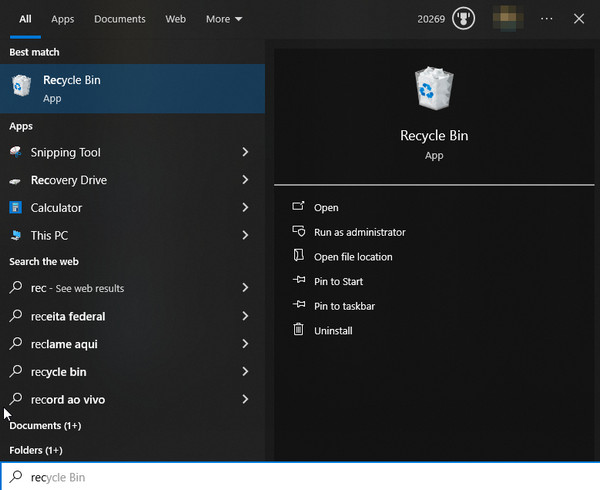
Use Start menu: Click the Start menu first, then in the search field, enter Recycle Bin. The results will show the Recycle Bin app, so click it to open.
Part 4. The Physical Folder Location – Where Deleted Files Actually Go
As mentioned, the Recycle Bin's physical folder also exists in addition to the desktop icon. Knowing its real location can be helpful for advanced recovery or troubleshooting when you fail to open it using the usual methods. Don't worry, though. Finding and opening the folder doesn't require technical expertise. It has a specific name and path that lets you access it more easily.
Follow the steps below to know where to find the Recycle Bin in Windows by accessing its physical folder location
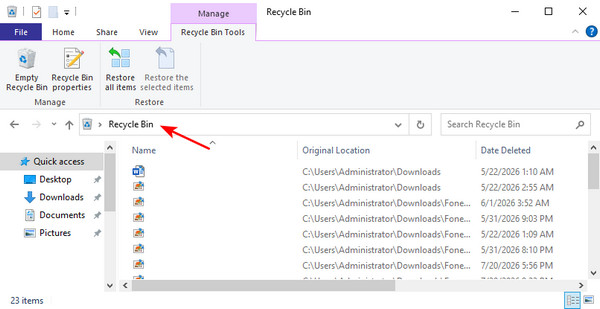
Step 1Launch File Explorer by pressing Windows + E, then click the address bar above.
Step 2Type Recycle Bin, and when it shows up in the dropdown, select it to enter the folder.
Part 5. Recover Deleted Files from the Recycle Bin
Once you successfully enter the folder, the process to recover files from Recycle Bin follows, and the good news is that it only takes a few minutes, or even seconds. Simply browse the deleted files available in the folder to find the document, photo, video, or other data you need. Then, right-click it to choose Restore from the pop-up menu, bringing your file back.
Aside from the Recycle Bin, the competent program, FoneLab Data Retriever, can recover deleted file on PC. It is especially helpful when you have emptied the Recycle Bin and your files are already permanently deleted. It offers the ability to scan your hard drive, digging up lost and deleted data that regular methods no longer find. Thus, you will have another chance to restore your precious files. Some of its advantages include a simple, user-friendly interface, support for various file types and storage drives, a preview feature, and search and filter functions.
FoneLab Data Retriever - recover the lost/deleted data from computer, hard drive, flash drive, memory card, digital camera and more.
- Recover photos, videos, documents and more data with ease.
- Preview data before recovery.
Follow the simple steps below to recover your deleted files with FoneLab Data Retriever:
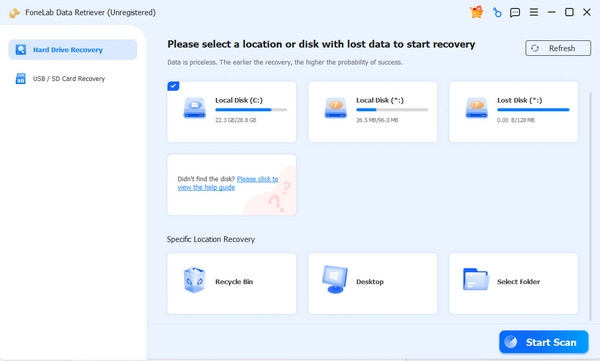
Step 1You can gain a copy of FoneLab Data Retriever’s file via the Free Download button. Use it to install the tool, and once the Start tab is presented, hit it to initialize the interface. Next, pick your hard disk from the options before proceeding with Start Scan.
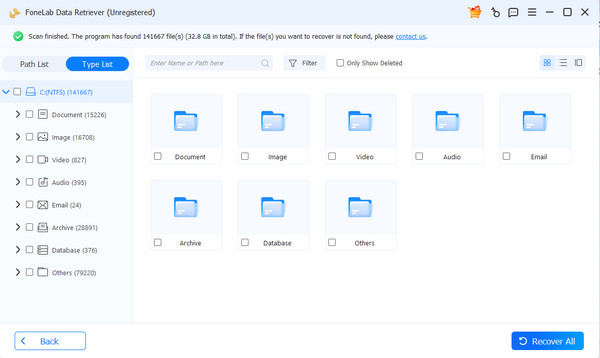
Step 2Shortly, folders will appear in the results. Open the one designated for your deleted file’s data type. This way, you can browse and find the item you hope to recover. When found, check it and select Recover All to restore it.
Part 6. Troubleshooting – Recycle Bin Is Corrupt or Completely Missing
As mentioned, the Recycle Bin may not appear because of corruption, making the usual restoration process fail. Fortunately, this can be fixed by opening your Command Prompt as an administrator. Next, type rd /s /q C:\$Recycle.bin and press Enter to run the command. The Recycle Bin will then reset, deleting and rebuilding the corrupted folder.
Part 7. FAQs about Where is My Recycle Bin on My Computer
Where do restored files go from Recycle Bin?
The restored files go back to their original location, where they were stored before deletion.
Why did my Recycle Bin disappear from the desktop?
The Recycle Bin icon may have been hidden from view due to a system update or accidental change in your desktop icon settings.
The Recycle Bin is a simple but essential tool, and knowing how to find, restore, and troubleshoot it ensures you never lose important files—especially with another competent tool like FoneLab Data Retriever.



