
 iPhone Data Recovery
 iOS System Recovery
 iOS Data Backup & Restore
 iOS Unlocker
 iPhone Password Manager
 Location Changer
 Android Data Recovery
 Broken Android Data Extraction
 Android Data Backup & Restore
 Android Unlocker
 FoneTrans for iOS
 iPhone Data Eraser
 iPhone Cleaner
 HEIC Converter
 HyperTrans
 WhatsApp Transfer for iOS
 Mac Sweep
 Data Retriever
 Mac Data Retriever
 Video Converter Ultimate
 Screen Recorder
 Phone Mirror
- Part 1. The Core Purpose of TMP Files
- Part 2. How and Where TMP Files Are Created
- Part 3. Why Do TMP Files Stay on Your Computer?
- Part 4. Is It Safe to Delete TMP Files?
- Part 5. How to Clean Up TMP Files Safely
- Part 6. Can You Open a TMP File?
- Part 7. How to Recover Files With Fonelab Data Retriever
- Part 8. FAQs about Windows Temporary Files
 Recover PC Data Now
Recover the lost/deleted data from computer, hard drive, flash drive, memory card, digital camera and more.
What are Temporary Files: Everything You Need to Know
 Updated by
 Good day! I told my daughter that I lost some of the progress on my documents this morning. I think I accidentally closed the program without saving it. She told me that I can still open the temporary files from my computer. What is a TMP file? Please help me. Thank you!
TMP files are temporary files that are stored on your computer. But what are their benefits on the mentioned device? We got you! This article will help you know the important details about the TMP files. Continue browsing this post to know the important details.


Guide List
- Part 1. The Core Purpose of TMP Files
- Part 2. How and Where TMP Files Are Created
- Part 3. Why Do TMP Files Stay on Your Computer?
- Part 4. Is It Safe to Delete TMP Files?
- Part 5. How to Clean Up TMP Files Safely
- Part 6. Can You Open a TMP File?
- Part 7. How to Recover Files With Fonelab Data Retriever
- Part 8. FAQs about Windows Temporary Files
Part 1. The Core Purpose of TMP Files
The core purpose of TMP Files is to protect the data from loss. Also, it allows you to have an improved performance for the programs using on the data. Also, it supports recovery after the program crashes or the computer shuts down out of nowhere.
Furthermore, they help the program handle large and complex operations. This way, you can have a smooth experience in editing or accessing the files.
Part 2. How and Where TMP Files Are Created
Programs that create documents or data generate TMP files. They will be triggered when you open or edit documents. Also, they can be generated when you install software. Additionally, browsing websites also creates them without you knowing.
Moreover, your computer will save the TMP files when the program you are using saves your work automatically. Lastly, updating the program can also trigger the TMP files to be saved by your computer.
Part 3. Why Do TMP Files Stay on Your Computer?
The TMP files stay on your computer to save temporary work. In this case, you can recover the unsaved files on the mentioned device. Also, they allow you to speed up the performance of the program used for creating the data. Additionally, it helps the program handle installation and updates.
Part 4. Is It Safe to Delete TMP Files?
In most cases, deleting the TMP files on your computer is safe. They are commonly used for short-term use. They are meant to be deleted after. You can only delete the TMP files when the program that uses them is closed.
Also, you need to close the computer first before you can delete them. Additionally, it is recommended to delete old TMP files, not the recent ones. The most important one is that deleting TMP files is suggested when the document or file is already saved.
Part 5. How to Clean Up TMP Files Safely
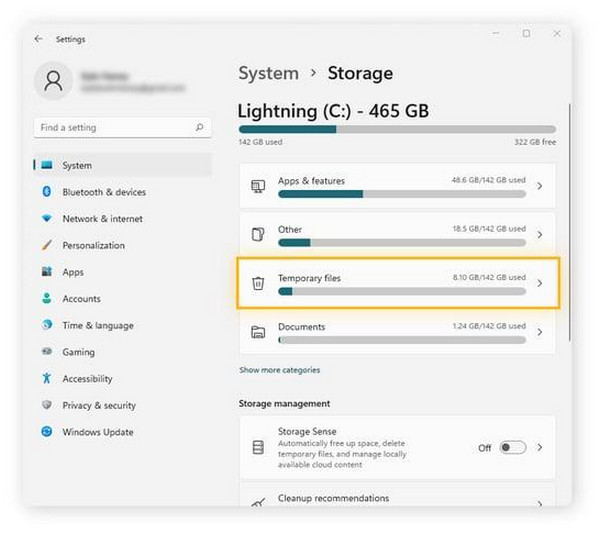
Did you know that you can delete temporary files? This deletion process can help you free up space on your computer. The built-in method is the safest way to perform. Follow the steps below to know how to clean up TMP files on your computer.
Open Settings. Then, you need to choose the System button from the list. Later, click the Storage button. Choose the Temporary Files button afterward. Later, you can review the categories and check the data you want to delete. Finally, click the Remove Files button.
Part 6. Can You Open a TMP File?
A TMP file can be opened on your computer if accessed properly. However, these files can only be opened with either third-party or built-in programs. It includes Adobe Acrobat, Microsoft Word, Microsoft Excel, web browsers, and more. Without them, you cannot access the mentioned files.
Opening them are simple. You can directly open them with the mentioned programs or rename them on your computer. See how below.
1. Open TMP Files With Programs
Microsoft Word, Adobe Acrobat, and Microsoft Excel are some of the famous tools that can open a TMP file. Using them is easy, but it still depends on the type of document you like to access.
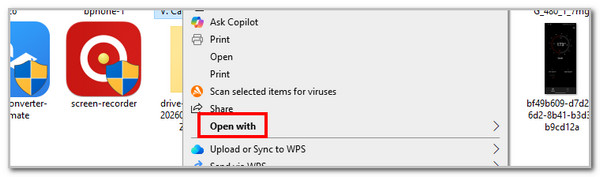
Locate the TMP files on your Windows File Explorer. Then, right-click the file. Options will be prompted, and you only need to click the Open With button. Later, choose the program you prefer to use.
2. Open TMP Files by Renaming Them
Renaming the TMP files is easy. You do not need a third-party tool to do it. See how with the steps below.
Locate the TMP file on your computer. Right-click the file and choose the Rename button from the list. You can change the extension to .docx, .pdf, or more. It depends on the document type.

Part 7. How to Recover Files With Fonelab Data Retriever
However, if you cannot locate the TMP files of your deleted data, you probably need a deleted computer data recovery tool. FoneLab Data Retriever is the best option for you! It is a tool that can recover data from disk drives in your computer. Also, it can recover data from your USB or SD card. Besides that, audio, documents, videos, images, and more data types are supported by the recovery.
FoneLab Data Retriever - recover the lost/deleted data from computer, hard drive, flash drive, memory card, digital camera and more.
- Recover photos, videos, documents and more data with ease.
- Preview data before recovery.
Moreover, the tool allows you to filter the files. In this case, you can locate them based on their creation date, modification date, and more. If you are interested in using the tool, please follow the steps below.
Step 1Please click the Free Download option to download FoneLab Data Retriever. Then, install and open it on the mentioned device to start the process.
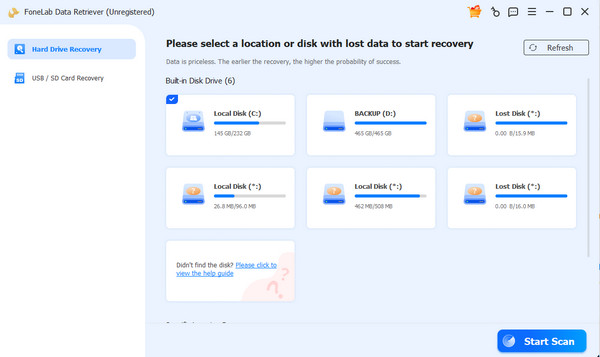
Step 2Choose between the Hard Drive Recovery and USB/SD Card Recovery buttons. Later, choose the location where you lost the data. After that, please click the Start Scan button at the bottom right.
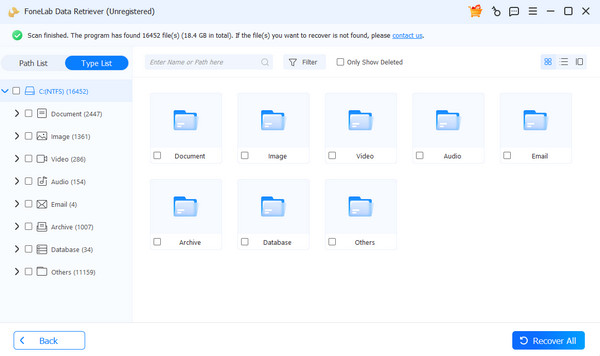
Step 3The results will be prompted on your next screen. Choose the data you want to retrieve. Finally, click the Recover All button at the bottom right. Wait for the process to be completed before closing it.
Part 8. FAQs about Windows Temporary Files
What are temporary internet files?
The temporary internet files are also called the browser cache. They are copies of the web page elements. It includes videos, texts, and images. They are automatically downloaded to your device to speed up the loading of the website next time you visit it.
How to remove the TMP file virus?
It is recommended to install an antivirus tool. This way, it can locate the TMP file virus on your computer, and you will be able to delete it. Also, you can delete the TMP files on your computer, which is shown in Part 5 of this article.
Windows temporary files are indeed important when the progress of your document is not saved. This article explains the mentioned type of file to help you familiarize yourself with it. FoneLab Data Retriever is also here to help you recover multiple data types. It includes emails, audio, videos, images, and more. Download it now on your computer to explore it even more!



