
 iPhone Data Recovery
 iOS System Recovery
 iOS Data Backup & Restore
 iOS Unlocker
 iPhone Password Manager
 Location Changer
 Android Data Recovery
 Broken Android Data Extraction
 Android Data Backup & Restore
 Android Unlocker
 FoneTrans for iOS
 iPhone Data Eraser
 iPhone Cleaner
 HEIC Converter
 HyperTrans
 WhatsApp Transfer for iOS
 Mac Sweep
 Data Retriever
 Mac Data Retriever
 Video Converter Ultimate
 Screen Recorder
 Phone Mirror
- Part 1. Critical First Steps
- Part 2. Check the Recycle Bin
- Part 3. Recover Deleted Files from USB Drive with FoneLab Data Retriever
- Part 4. Check for Built-in Backups
- Part 5. Use Command Prompt (CMD)
- Part 6. Comparison of Ways to Recover Deleted Files from USB Drive
- Part 7. FAQs about Recovering Deleted Files from USB Drive
 Recover PC Data Now
Recover the lost/deleted data from computer, hard drive, flash drive, memory card, digital camera and more.
Supreme Guide to Recover Deleted Files from USB Drive
 Updated by
 Discover how to recover deleted files from USB with the help of the most powerful methods today. Losing important documents, photos, or videos from a USB drive can feel stressful, and sadly, many users accidentally delete files or lose them due to sudden errors. The good news is that deleted files are often not gone forever. With the right method, you can recover your data.
This guide covers everything you need to know about USB file recovery. It covers everything from the critical first steps you must take after losing them to the professional techniques to restore the deleted files. By the end of this article, you will understand the prominent recovery options clearly. No technical background is required to follow along, as our guidelines will assist you throughout.

Guide List
- Part 1. Critical First Steps
- Part 2. Check the Recycle Bin
- Part 3. Recover Deleted Files from USB Drive with FoneLab Data Retriever
- Part 4. Check for Built-in Backups
- Part 5. Use Command Prompt (CMD)
- Part 6. Comparison of Ways to Recover Deleted Files from USB Drive
- Part 7. FAQs about Recovering Deleted Files from USB Drive
Part 1. Critical First Steps
Before you try any method to recover your files, you must take a few simple but important actions. Rushing or making a mistake at this point can ruin all chances of recovery, so you should note the critical initial steps to take to prevent your deleted data from being lost forever.
First, the most critical rule is to stop using the USB drive immediately. Don't open files, save new data, or copy anything to the drive. Every time you write new information, you risk overwriting the deleted files you want to recover. Second, remove the USB drive safely from your computer by ejecting it before unplugging. This way, you can avoid causing further damage to the drive.
Moreover, don't format the USB drive. Your device may prompt you to format it, and thinking it would resolve the problem, you might go along with the process, but it is not recommended. Formatting often makes recovery much harder or impossible. Once you have completed these critical first steps, you are ready to begin the actual recovery process.
Part 2. Check the Recycle Bin
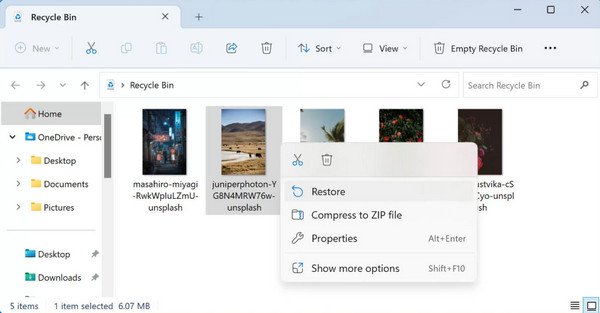
The first thing you should check once you're ready for the recovery is the Recycle Bin. Deleted files from USB drives sometimes end up in this section, and if you indeed find them, it will be the quickest and easiest possible solution. Its icon is usually found on the upper left of the desktop screen, so click it to see your deleted files. See if the USB files you have accidentally erased are there, and if so, select them and right-click to view the menu options. From there, simply choose Restore to recover files from Recycle Bin.
Part 3. Recover Deleted Files from USB Drive with FoneLab Data Retriever
If the Recycle Bin does not contain your missing files, you need a more powerful solution. It is where a dedicated data recovery program, FoneLab Data Retriever, becomes useful. It is designed specifically to find and restore lost files from various storage devices, whether USB drives, external hard disks, memory cards, etc., and it can help you recover with ease.
FoneLab Data Retriever offers a convenient deleted computer data recovery process, so you must only connect your drive, and this program will be able to restore your desired files. Several data types are supported, including videos, documents, photos, emails, and many others. It is also suitable for almost any situation, such as accidental deletion, formatting errors, and more.
FoneLab Data Retriever - recover the lost/deleted data from computer, hard drive, flash drive, memory card, digital camera and more.
- Recover photos, videos, documents and more data with ease.
- Preview data before recovery.
Recognize the trouble-free task below as a pattern to recover deleted files from USB drive with FoneLab Data Retriever:
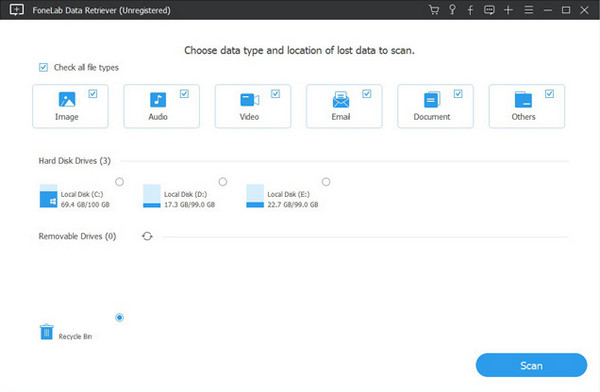
Step 1Tick Free Download to acquire the FoneLab Data Retriever file. It will shortly appear in your Downloads; so, run it from there and follow along with the initial setup prompts. Afterward, hit the pop-up Start tab. Once the key interface is shown, plug in your USB drive and check the file types you wish to recover and their former location, which is the drive.
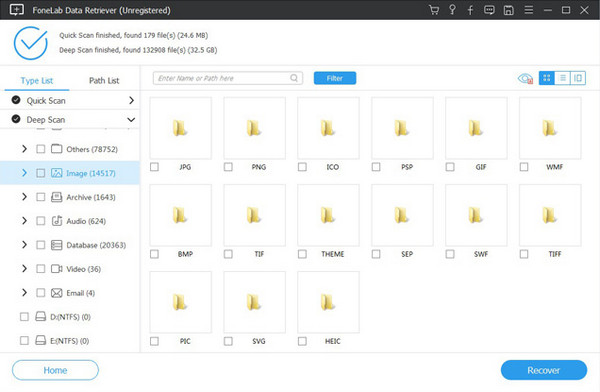
Step 2Following that, click Scan. The program will present data type folders afterward. Explore them to find the files you intend to recover. Once found, mark their checkboxes to select. When you're ready, opt for the Recover option below to start retrieving USB data.
Part 4. Check for Built-in Backups
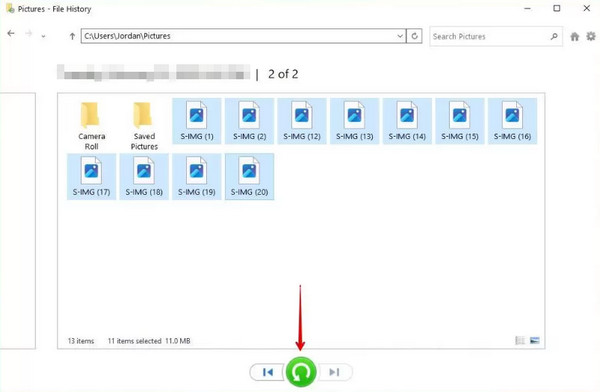
Meanwhile, many users are surprised to learn that their computers sometimes create automatic copies of their data, thanks to built-in backup tools. Among them is File History, which regularly backs up files from specific folders. If you ever connected your USB drive while this feature was active, copies of your data could still be available. All you must do is visit the File History section, and it will let you restore your desired files that have been deleted without a problem.
Follow the guidelines below to recover deleted files from USB free by checking for built-in backups, like File History:
Step 1The easiest way to access File History is to use the Search symbol at the bottom left of the desktop and type the feature. Once it appears, click it to launch the recovery tool.
Step 2The available backup will then shortly appear in the window, so select it and choose the files you intend to recover. Afterward, hit the green Restore button to return them.
Part 5. Use Command Prompt (CMD)
On the other hand, a built-in tool that many people overlook when it comes to recovery situations is the Command Prompt. Despite its simple, text-based appearance, it can perform powerful recovery tasks with the help of the right command. It may only be confusing, especially to a first-time user, because of its looks and how it works, but once you grasp the idea, you will be able to restore the USB files effectively. Besides, it requires no installation or additional tools.
Follow the operation below to recover deleted files from USB using Command Prompt or CMD:
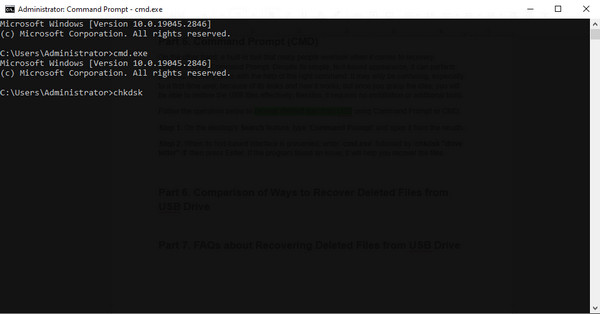
Step 1On the desktop's Search feature, type 'Command Prompt' and open it from the results.
Step 2When its text-based interface is presented, enter 'cmd.exe' followed by 'chkdsk "drive letter" /f' then press Enter. If the program found an issue, it will help you recover the files.
Part 6. Comparison of Ways to Recover Deleted Files from USB Drive
| Feature | Recycle Bin | FoneLab Data Retriever | Built-in Backup (File History) | Command Prompt (CMD) |
| Ease of Use | Very Easy | Easy | Moderate | Difficult |
| Success Rate | Medium | High | Medium | Low to Medium |
| Works After Formatting | No | Yes | No | No |
| Technical Skills Needed | None | Basic computer skills | Understanding of backup settings | Moderate – must type commands correctly |
| Best For | Accidentally deleted files using the normal Delete key | Most situations, including formatting, virus damage, or empty Recycle Bin | Users who planned and enabled backups | Hidden files, minor corruption, or when no other tool is available |
Part 7. FAQs about Recovering Deleted Files from USB Drive
Can I recover files deleted from a USB drive a long time ago?
It depends on different factors and methods. For instance, in the Recycle Bin, you can recover them if you haven't yet emptied it, even after a long time. But with FoneLab Data Retriever, you can recover data even if it was deleted a long time ago.
Is it safe to use data recovery tools on my USB drive?
Yes, it is. Most trusted recovery tools like FoneLab Data Retriever are safe, so choose wisely.
USB drive files can be much harder to recover than usual computer data, but with the correct method, like FoneLab Data Retriever, ecovering them won't be a problem Install it now.



