
 iPhone Data Recovery
 iOS System Recovery
 iOS Data Backup & Restore
 iOS Unlocker
 iPhone Password Manager
 Location Changer
 Android Data Recovery
 Broken Android Data Extraction
 Android Data Backup & Restore
 Android Unlocker
 FoneTrans for iOS
 iPhone Data Eraser
 iPhone Cleaner
 HEIC Converter
 HyperTrans
 WhatsApp Transfer for iOS
 Mac Sweep
 Data Retriever
 Mac Data Retriever
 Video Converter Ultimate
 Screen Recorder
 Phone Mirror
 Recover PC Data Now
Recover the lost/deleted data from computer, hard drive, flash drive, memory card, digital camera and more.
How to Recover Deleted OneDrive Files in a Step-by-Step Way
 Updated by
 Digital files are prone to deletion due to the accessibility of features that can cause it. OneDrive is one of the cloud storage services that allows you to store files online. The good thing about it is that you can access them from different devices.
OneDrive is available on Windows, Mac, Android, iPhone, and iPad due to its online accessibility. However, some individuals do not know how to recover deleted files from OneDrive. This article will serve as your guide to the process. The best alternative to OneDrive is also here! Please continue reading this helpful article to learn the complete details about OneDrive.


Guide List
Part 1. The Official OneDrive Recycle Bin
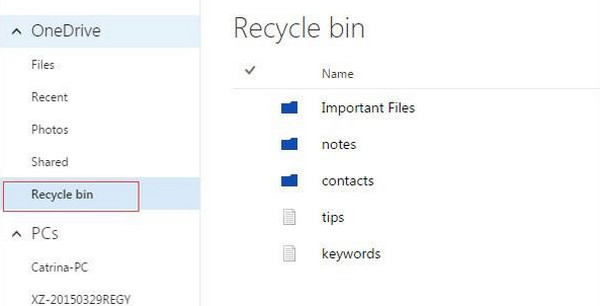
OneDrive stores your files for backup, right? However, there are instances where the files that are included in the backup are also accidentally deleted. Luckily, OneDrive has a Recycle Bin feature where you can recover recently deleted data. But this deleted data will only stay for a limited time, approximately 30 days. Do you want to recover files from Recycle Bin on OneDrive? You may follow the steps below to recover deleted files from OneDrive.
Please visit the OneDrive official website. Then, you need to sign in with your Microsoft account associated with the backup. Click the Recycle Bin section on the left side of the screen. The tool will be accessed. Please select the files you prefer to recover. Then, right-click or long-press your screen and select the Restore button to retrieve them on your device. You can locate them from their original location.
Part 2. Restore Your Entire OneDrive
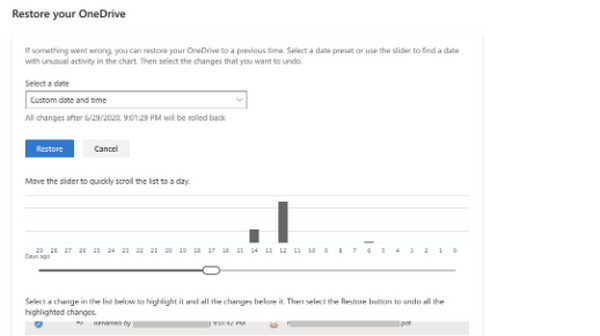
How to recover permanently deleted files from OneDrive? Besides the Recycle Bin tool, OneDrive can restore your entire backup in a few clicks! However, the restore process will take a few minutes or an hour, depending on the strength of your internet connection. Additionally, you should know the Microsoft account used for the backup. Without it, you cannot restore your backup. Please see the steps below to know how to restore the entire backup on OneDrive.
Please visit the website of OneDrive. Then, select the Settings button on the screen. Select the Options or Restore Your OneDrive button. Please choose a restore point for your backup. Review the changes afterward. Finally, click the Restore button on the main interface to start recovering your backup.
Part 3. Best Alternative to OneDrive - FoneLab Data Retriever
If you did not have the chance to back up your data with OneDrive, it might be permanently deleted from your device. You can use its best alternative, which is FoneLab Data Retriever. It is a program that can retrieve multiple data types from your computer. It includes documents, images, videos, music, and more.
Besides that, it can also retrieve data from different locations on your computers, including a hard drive, flash drive, and USB. Unlike OneDrive, this tool does not need an internet connection. Please use the steps below to know how to use the tool.
FoneLab Data Retriever - recover the lost/deleted data from computer, hard drive, flash drive, memory card, digital camera and more.
- Recover photos, videos, documents and more data with ease.
- Preview data before recovery.
Step 1Get FoneLab Data Retriever by clicking the Free Download button. Then, set up, install, and access the tool to open it on your computer.
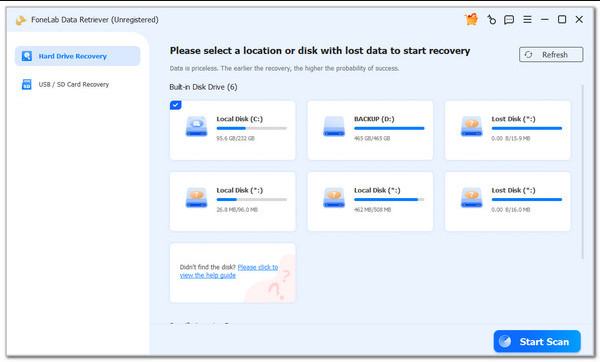
Step 2You will be prompted to choose the location from which you want to recover data. Please select one and click the Start Scan button at the bottom right. Wait for the scanning results to appear on the next screen —this may take a few seconds.
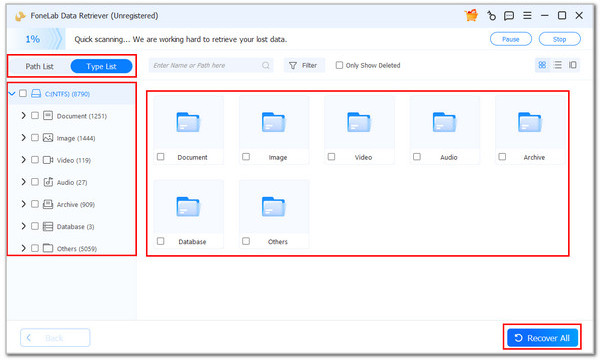
Step 3Locate and choose the files you want to recover on your computer. Later, click the Recover All button at the bottom right. This way, the tool will start recovering the deleted data from your computer.
Part 4. Comparison Table of OneDrive and FoneLab Data Retriever
| Features | OneDrive | FoneLab Data Retriever |
| Main Process | It is a cloud storage, and it is a service that can sync your files. | It is bound to recover data from your computer. |
| Type of Tool | Free Cloud Online Service | A Third-party Data Recovery Tool |
| Backup Process | It automatically backs up and syncs data from your devices. | It recovers data from your computers with or without a backup. |
| Required Connection | Internet Connection | None |
| Compatibility | Windows, Mac, iPhone, iPad, Android, and Web. | Windows and Mac |
Part 5. Tips to Prevent Data Loss
Losing data from your devices is very inconvenient. You cannot access your important files when needed. So, this section of the article will guide you on how to avoid losing your files due to accidental deletion, forgetting, system issues, and more. The list below will help you with it.
1. Back Up Your Files
If you have a backup of your files, there is nothing to worry about when they are accidentally deleted or lost. Backing up your data is a technique to have a copy of it using a cloud storage service and backup tools. You can use OneDrive, Google Drive, and more. Also, you need to ensure that you enable the automatic backups of the mentioned services.
2. Keep Software Version Updated
There are instances where the device faces issues that cause the data to be lost or deleted unexpectedly. To prevent these issues from happening, it is recommended to keep the software version of the devices updated. In this case, there will be no issues that can cause the data to be deleted.
3. Use Reliable Storage Devices
Because of the price, some people buy cheaper drives for their backups. However, these drivers are fragile and easily broken. It is still recommended to buy from trusted brands. You can also replace the aging drives to prevent hardware issues.
4. Protect Your Device from Malware and Viruses
Malware and viruses can cause data corruption. So, installing or downloading antivirus software and firewall protection is a great help. You need to avoid suspicious downloads, pirated software, and unknown links from messages or emails.
Part 6. FAQs about How to Recover Deleted OneDrive Files
Why is the OneDrive app not opening?
If OneDrive cannot be accessed, there might be an issue on your device where you are trying to open it. Restarting the device can help. Additionally, OneDrive requires an internet connection. The connection might be slow, or there might be no network available.
Can permanently deleted files be recovered?
Yes. Permanently deleted files can be recovered. However, they are hard to recover from and may require professional skills. But you can use FoneLab Data Retriever, which has been introduced in this article.
This helpful post focused on how to recover deleted OneDrive files on your devices and provided tips to prevent data loss in the future. FoneLab Data Retriever is a tool that can be used as an alternative to the mentioned cloud storage service. It can restore your deleted data with or without a backup. It includes images, documents, videos, music, and more. Download the tool to explore more about it!



