iPhone Data Recovery
 iOS System Recovery
 iOS Data Backup & Restore
 iOS Unlocker
 iPhone Password Manager
 Location Changer
 Android Data Recovery
 Broken Android Data Extraction
 Android Data Backup & Restore
 Android Unlocker
 FoneTrans for iOS
 iPhone Data Eraser
 iPhone Cleaner
 HEIC Converter
 HyperTrans
 WhatsApp Transfer for iOS
 Mac Sweep
 Data Retriever
 Mac Data Retriever
 Video Converter Ultimate
 Screen Recorder
 Phone Mirror
- Unlock Apple ID
- Bypass iCloud Activation Lock
- Doulci iCloud Unlocking Tool
- Factory Unlock iPhone
- Bypass iPhone Passcode
- Reset iPhone Passcode
- Unlock Apple ID
- Unlock iPhone 8/8Plus
- iCloud Lock Removal
- iCloud Unlock Deluxe
- iPhone Lock Screen
- Unlock iPad
- Unlock iPhone SE
- Unlock Tmobile iPhone
- Remove Apple ID Password
How to Fix iOS System Issues: A Practical Guide
 Posted by
 There is nothing more heart-stopping than waking up to an iPhone that refuses to turn on or seeing your device stuck in an endless boot loop. As someone who has spent years troubleshooting devices for friends, family, and clients, I have seen it all—from botched software updates to "bricked" devices after a mysterious crash.
The good news is that most iOS system errors are software-related, not hardware failures. You don't necessarily need to head to the Apple Store and risk having your device factory reset. In this guide, I'll share my professional-grade workflow for diagnosing and repairing your iPhone, moving from manual troubleshooting to advanced digital recovery.


Guide List
Part 1. Diagnosing Your iOS Symptom
Before you start any repair, you must identify what your iPhone is "telling" you. Based on my experience, errors usually fall into three distinct categories.
- The Boot Loop: The Apple logo appears, disappears, and reappears. This often happens after a faulty firmware update or a system conflict.
- The Black Screen of Death: The device is responsive to vibrations or sounds (when you toggle the silent switch), but the screen remains dark. This is often a display driver or firmware communication error.
- The Update Hang: The device is stuck on a progress bar for hours. This indicates that the installation process has been interrupted, leaving the system in a "half-installed" state.
According to Apple's official documentation, these issues are almost always tied to the integrity of the iOS firmware. If the underlying file system is corrupted, standard operation is impossible.
Part 2. The Forced Restart Protocol
The first and most important step in my diagnostic workflow is the "Forced Restart." It is the digital equivalent of a hard reset. Unlike a standard restart, which asks the OS to shut down properly, a forced restart cuts power to the processor to force a boot sequence from the bootloader.
Step 1Press and quickly release the Volume Up button.
Step 2Press and quickly release the Volume Down button.
Step 3Immediately press and hold the Side Power button. Do not let go even when the "Slide to Power Off" screen appears. Continue holding until the Apple logo reappears on the screen.
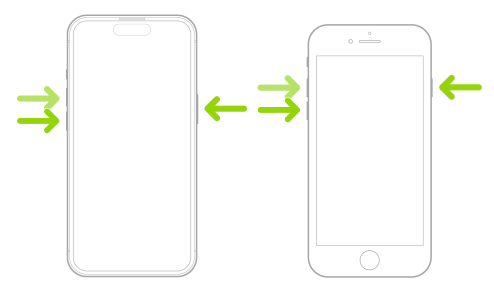
Why this works: This clears the temporary memory cache and forces the OS to re-initialize its core drivers. If your iPhone is just suffering from a memory glitch, this should resolve the issue instantly.

FoneLab enables you to fix iPhone/iPad/iPod from DFU mode, recovery mode, Apple logo, headphone mode, etc. to normal state without data loss.
- Fix disabled iOS system problems.
- Extract data from disabled iOS devices without data loss.
- It is safe and easy to use.
Part 3. Entering Recovery Mode
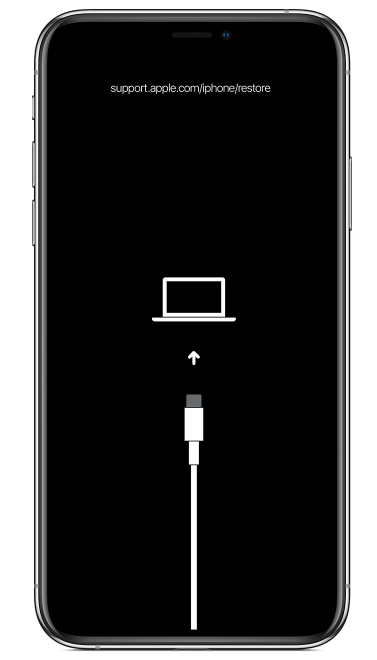
If a forced restart fails, we need to talk to the device through a computer. Recovery Mode is a fail-safe state that allows a computer to communicate with the iPhone's internal hardware to initiate a firmware re-install.
Step 1Ensure you have the latest version of your management software installed. For Windows or older macOS, launch iTunes. For macOS Catalina or later, open Finder. If you are using Windows 10/11, use the Apple Devices app. Connect your iPhone to the computer using a high-quality USB cable.
Step 2While the device is connected, perform the forced restart button sequence (Volume Up, Volume Down, hold Side Button).
Step 3Keep holding the Side Button even after the Apple logo appears, and wait until the "Recovery Mode" screen appears—which shows a computer icon with a cable. Your computer will now recognize that the device requires attention.
Part 4. Official Update or Restore via Apple Tools
Once your device is in Recovery Mode, your management software will automatically detect it and prompt you with a dialog box. This is the official Apple-sanctioned way to recover a "bricked" device.
Step 1When the dialog box appears in iTunes, Finder, or the Apple Devices app, you will see two options: Update and Restore.
Step 2Always select Update first. This instructs the software to download the latest iOS firmware and reinstall it on your device without wiping your personal data (photos, contacts, etc.).
Step 3If "Update" fails or is not available, you may be forced to select Restore. Be aware that this will download the software and erase everything on your iPhone, returning it to factory settings.
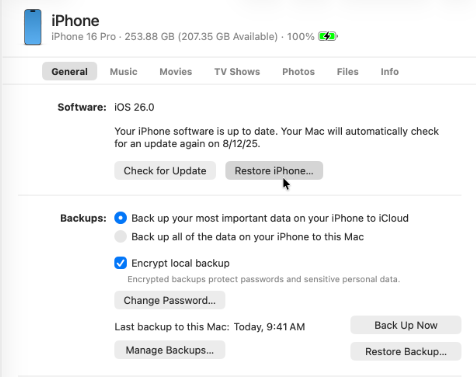
My Expert Tip: If you choose "Restore," you will need to rely on your previous iCloud or computer backups to recover your data afterward. Always check if you have a recent backup before clicking "Restore."
FoneLab enables you to fix iPhone/iPad/iPod from DFU mode, recovery mode, Apple logo, headphone mode, etc. to normal state without data loss.
- Fix disabled iOS system problems.
- Extract data from disabled iOS devices without data loss.
- It is safe and easy to use.
Part 5. Professional Repair with FoneLab iOS System Recovery
If manual methods fail—or if you simply want to avoid the "all-or-nothing" risks of a factory restore—you need a more surgical approach. This is where I rely on FoneLab iOS System Recovery.
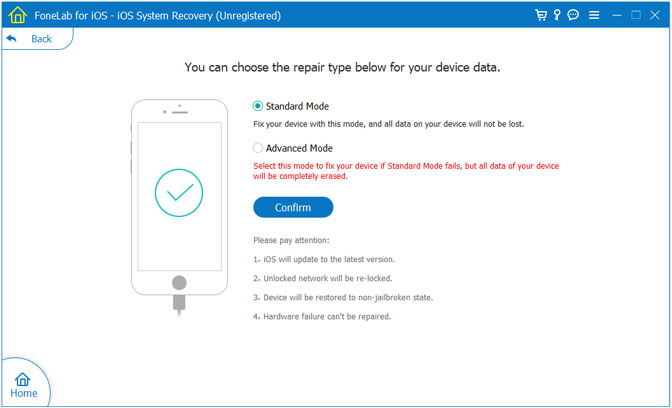
What I appreciate about this tool is its "Standard Mode." It allows you to fix the underlying iOS firmware while keeping your data exactly where it is. It essentially automates the firmware matching process that iTunes or the Apple Devices app often struggles with during severe system corruption.
Step 1Download and install FoneLab iOS System Recovery on your computer. Launch the software and connect your problematic iPhone using a certified USB cable.
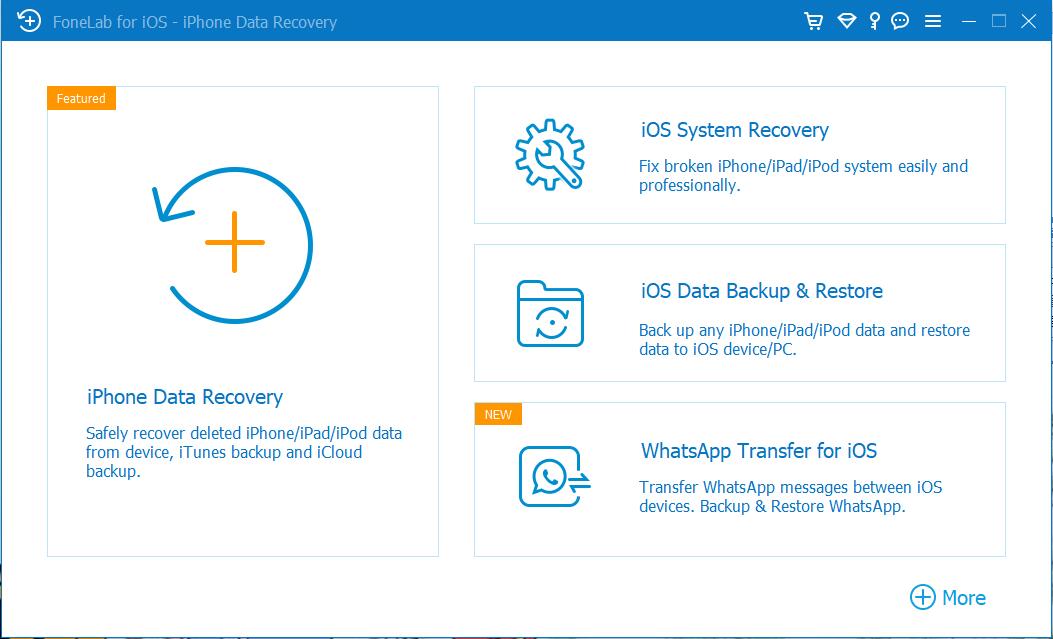
Step 2Select iOS System Recovery from the dashboard. Click Start button. The software will automatically detect your iPhone model, check its status, and identify the correct, stable firmware version needed for your device.
Step 3Choose the repair mode and click the Cinfirm button. The software will download the firmware package and perform the system repair automatically. Your phone will restart once the process is finished, and your data will remain completely intact.
Manual Repair vs. FoneLab Recovery: A Comparison
| Feature | Manual iTunes/Finder Restore | FoneLab Standard Mode |
|---|---|---|
| Data Preservation | Wipes all data (Factory Reset) | Preserves all data |
| Success Rate | Moderate | High |
| Technical Skill | High | Low (Guided UI) |
| Firmware Accuracy | Manual selection required | Automated matching |
FoneLab enables you to fix iPhone/iPad/iPod from DFU mode, recovery mode, Apple logo, headphone mode, etc. to normal state without data loss.
- Fix disabled iOS system problems.
- Extract data from disabled iOS devices without data loss.
- It is safe and easy to use.
Part 6. Frequently Asked Questions
Will this repair affect my iOS version?
Yes, professional repair tools generally update your device to the latest stable iOS version to ensure the file system is optimized, secure, and compatible with the latest app requirements.
What if my iPhone is not recognized by the computer?
If your iPhone is totally dead, ensure you are using a high-quality, data-transfer-capable cable. FoneLab iOS System Recovery is often better at "waking up" unresponsive devices than Apple's standard tools, as it uses deep-level firmware matching to force a connection.
Is it really safer than the Apple Store?
The Apple Store's primary goal is to provide a working device, often through a factory reset. Using a tool like FoneLab allows you to prioritize the integrity of your personal files over a generic system wipe.
Final Thoughts
Repairing an iOS system issue is a logical process of elimination. Start with a forced restart, attempt an official Update via Recovery Mode, and if you are dealing with software corruption that won't budge, use specialized tools like FoneLab iOS System Recovery. By keeping your firmware updated and having a reliable software solution on standby, you can save yourself hours of frustration and expensive service fees. Take it slow, and you'll likely have your device back to normal in less than 30 minutes. If you find your phone is still unresponsive after these steps, it may be time to consult an Apple Authorized Service Provider, but in 9 out of 10 cases, the methods above will get you back online.
FoneLab enables you to fix iPhone/iPad/iPod from DFU mode, recovery mode, Apple logo, headphone mode, etc. to normal state without data loss.
- Fix disabled iOS system problems.
- Extract data from disabled iOS devices without data loss.
- It is safe and easy to use.