
 iPhone Data Recovery
 iOS System Recovery
 iOS Data Backup & Restore
 iOS Unlocker
 iPhone Password Manager
 Location Changer
 Android Data Recovery
 Broken Android Data Extraction
 Android Data Backup & Restore
 Android Unlocker
 FoneTrans for iOS
 iPhone Data Eraser
 iPhone Cleaner
 HEIC Converter
 HyperTrans
 WhatsApp Transfer for iOS
 Mac Sweep
 Data Retriever
 Mac Data Retriever
 Video Converter Ultimate
 Screen Recorder
 Phone Mirror
- Part 1. Check What's Using Your Storage on PC
- Part 2. Free Up Space on PC With Built-In Tools
- Part 3. Move or Delete Large Files and Uninstall Bloat on PC
- Part 4. Add or Upgrade a Hard Drive / SSD on PC
- Part 5. Recover Files If You Deleted Files While Making Room
- Part 6. FAQs about How to Get More Storage on PC
 Recover PC Data Now
Recover the lost/deleted data from computer, hard drive, flash drive, memory card, digital camera and more.
Remarkable Guide on How to Get More Storage on PC Easily
 Updated by
Running out of space can be irritating, especially if you’re not sure how to add storage to PC without incurring costs or losing important data. And if it gets worse, you may see warnings that your disk is full, programs may stop working, or your PC might slow down. Luckily, there are several ways to resolve this problem, whether you want to improve your computer’s performance or simply get more space for future downloads or data.
This guide will discuss notable strategies to increase storage on your PC, whether by freeing up space or upgrading hardware. We will also walk you through the data that takes up the most space in your storage to determine the most suitable method for your situation. Also, keep an eye out for the recovery solutions later in the guide, especially if you accidentally delete something important.

Guide List
- Part 1. Check What's Using Your Storage on PC
- Part 2. Free Up Space on PC With Built-In Tools
- Part 3. Move or Delete Large Files and Uninstall Bloat on PC
- Part 4. Add or Upgrade a Hard Drive / SSD on PC
- Part 5. Recover Files If You Deleted Files While Making Room
- Part 6. FAQs about How to Get More Storage on PC
Part 1. Check What's Using Your Storage on PC
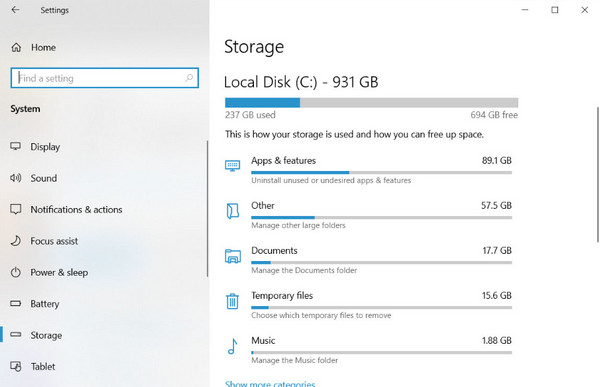
Before deleting or adding anything, it helps to know exactly what’s taking up space on your PC. Don’t worry, though. You don’t have to check each piece of data manually, since Windows has a built-in feature for this. Simply navigate to Settings and click System > Storage. You will see a breakdown of how much space each category uses, like apps, documents, and temporary files. You can also select each category to see more details.
Part 2. Free Up Space on PC With Built-In Tools
Windows offers multiple built-in tools that can help you free up space quickly. So, you no longer have to install anything since they are readily available and are guaranteed safe to use.
Disk Cleanup
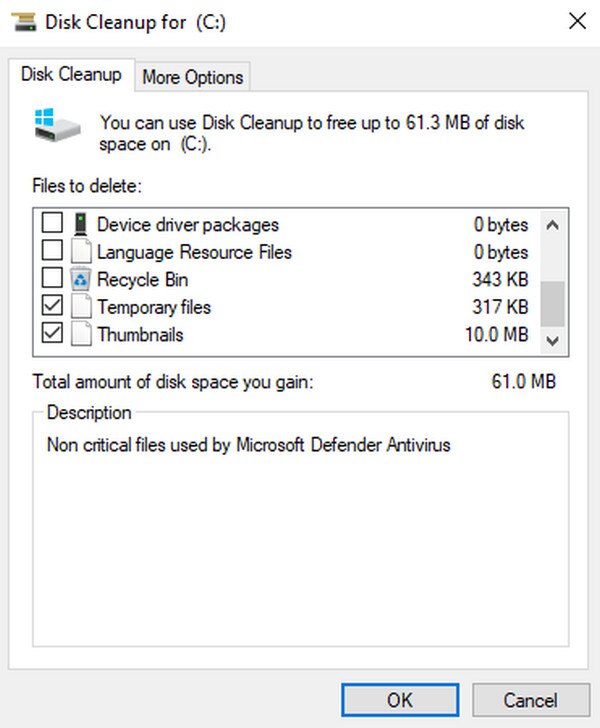
Disk Cleanup removes temporary files, thumbnails, and other unnecessary data from your drive. It's a simple way to free up space without affecting your personal files. You only need to open the Run dialog by pressing Windows + R, then enter cleanmgr. When the designated window displays, check the data you intend to remove, then click OK.
Storage Sense
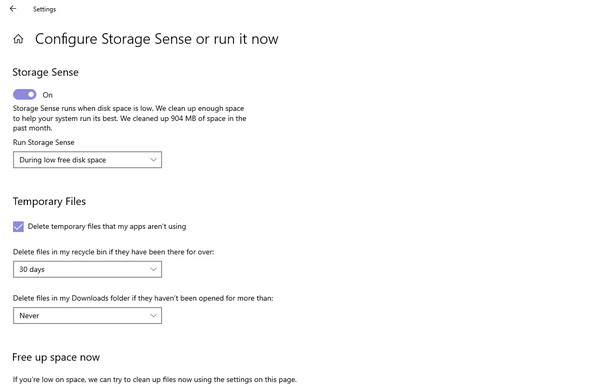
If you’re wondering how to check storage on a PC, Storage Sense can help. It also works automatically in the background, clearing temp files, emptying the Recycle Bin, and removing old downloads on a schedule you set, so you don't have to do it manually. Just go to Settings > System, then open the Storage screen. After that, toggle Storage Sense on, then click its settings to set how often it runs and manage it further.
Clear temp.
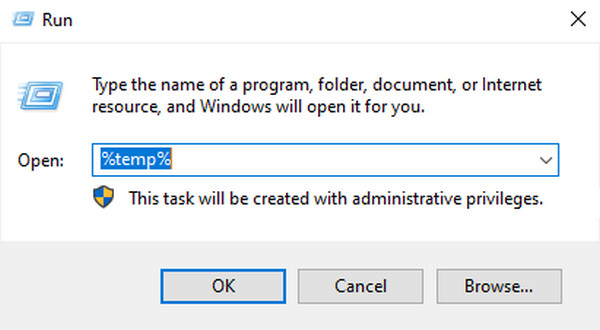
Meanwhile, Windows creates temporary files while your programs are running on the PC. They pile up over time and, if left unattended, take up a surprising amount of space, even though they're no longer needed. Thankfully, these temp files are easy to remove. Press Windows + R, then enter %temp% in the Run dialog. Next, select all files and delete them.
Empty Recycle Bin
You may know the Recycle Bin as the primary location for deleted files. Files usually stay in this folder unless you empty it, so even after your data has been erased, it still takes up space. So, if you want to free up more storage, you should empty the bin to permanently delete the files. Besides, all it takes is a right-click on its desktop icon and selecting Empty Recycle Bin.
Part 3. Move or Delete Large Files and Uninstall Bloat on PC
Once you've cleared the lighter data, let’s look at the bigger files that take up the most space. These are usually the files and programs you've saved over time without realizing how much space they use. Managing them and removing the unnecessary ones will give you more storage for PC.
Media libraries: Photos, videos, and audio files can consume a lot of storage, especially if you take pictures or record at high resolution. If you don’t use them often on PC, it's best to move them to an external drive or cloud storage instead.
Old backups: Backup files from previous systems or devices can also pile up quietly in the background. So, check for old backups you no longer need and delete them.
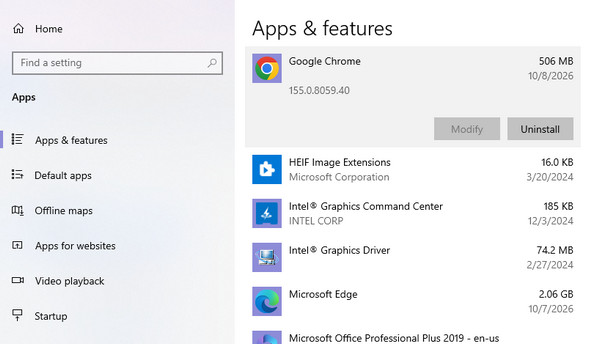
Unused Programs: Sometimes users install a program to use once and then leave it on the PC, forgetting about it over time. But even if they’re unused, they still take up space, so uninstalling them would be the perfect solution. Just go to the Apps section in your Settings and click the program you don’t need. Then, select Uninstall when it appears.
Part 4. Add or Upgrade a Hard Drive / SSD on PC
Unfortunately, cleaning alone is sometimes not enough. In this case, the best fix is to add more storage or upgrade your drive, especially if you want a long-term solution. You can add a second drive for extra space, or upgrade to a larger SSD for more room and faster performance. You can clone your old drive so you don't need to reinstall Windows.
Part 5. Recover Files If You Deleted Files While Making Room
While freeing up space, it's easy to delete something by mistake. You may remove the wrong folder or empty the Recycle Bin without a second thought. Fortunately, it’s still possible to recover your data with a competent tool like FoneLab Data Retriever.
FoneLab Data Retriever - recover the lost/deleted data from computer, hard drive, flash drive, memory card, digital camera and more.
- Recover photos, videos, documents and more data with ease.
- Preview data before recovery.
It can restore documents, audio files, photos, emails, and more on your PC, regardless of the cause of data loss. You can even use it to recover data from a Mac, flash drive, memory card, and more. It is also designed for beginners, offering helpful features such as a preview and a filter.
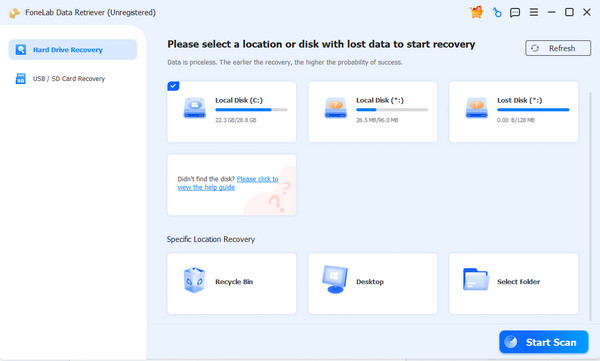
Step 1Download the FoneLab Data Retriever file. Simply hit Free Download, and it will be ready for installation. Once the Start button is available, click it and select your PC drive from the list of storage locations. Afterward, click Start Scan.
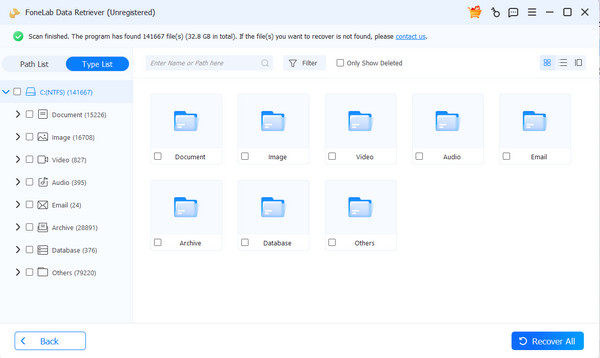
Step 2On the results interface, you will see various folders designated for different data types. Open each, depending on the file you need to recover. When you find your lost or deleted data, click Recover All.
Part 6. FAQs about How to Get More Storage on PC
How do I add storage to my PC?
You can add a second drive if your PC has room, or replace your current drive with a larger SSD. You can also use an external drive for extra space.
Is it better to add a drive or clean?
It depends. Cleaning is free and quick, so trying it first is recommended. However, if you keep running out of space, adding or upgrading a drive is the better long-term fix.
How much storage is enough?
For most users, 512GB is the minimum, and 1TB is comfortable. If you work with large files or games, 2TB would be an ideal storage solution.
With these methods, you can free up space or add more storage to your PC and keep it running smoothly in the long run. Whenever you accidentally lose data, FoneLab Data Retriever is there to help.


