
 iPhone Data Recovery
 iOS System Recovery
 iOS Data Backup & Restore
 iOS Unlocker
 iPhone Password Manager
 Location Changer
 Android Data Recovery
 Broken Android Data Extraction
 Android Data Backup & Restore
 Android Unlocker
 FoneTrans for iOS
 iPhone Data Eraser
 iPhone Cleaner
 HEIC Converter
 HyperTrans
 WhatsApp Transfer for iOS
 Mac Sweep
 Data Retriever
 Mac Data Retriever
 Video Converter Ultimate
 Screen Recorder
 Phone Mirror
- Part 1. How to Empty Recycle Bin on Windows 11 Desktop
- Part 2. How to Empty Recycle Bin on Windows 11 With the Recycle Bin App
- Part 3. How to Empty Recycle Bin on Windows 11 in Settings
- Part 4. How to Empty Recycle Bin on Windows 11 from File Explorer
- Part 5. How to Empty Recycle Bin on Windows 11 Using Command Prompt
- Part 6. Recover Data from Emptied Recycle Bin on Windows
- Part 7. Comparison Table of Methods to Empty Recycle Bin on Windows 11
- Part 8. FAQs about How to Empty Recycle Bin on Windows 11
 Recover PC Data Now
Recover the lost/deleted data from computer, hard drive, flash drive, memory card, digital camera and more.
How to Empty Recycle Bin on Windows 11 in 5 Proven Techniques
 Updated by
 Good day! I deleted some of my files to free up space on my Windows 11 computer. As I check my storage, it is still almost full! My son told me to empty Recycle Bin on Windows 11, but he said he wouldn't do it for me. Can you teach me how? Thank you!
The Recycle Bin on Windows 11 is responsible for storing the recently deleted files. So, it still consumes storage for the deleted data. Emptying it will help free up space on the mentioned device. There are 5 ways to do it. Please continue browsing below to learn about them.


Guide List
- Part 1. How to Empty Recycle Bin on Windows 11 Desktop
- Part 2. How to Empty Recycle Bin on Windows 11 With the Recycle Bin App
- Part 3. How to Empty Recycle Bin on Windows 11 in Settings
- Part 4. How to Empty Recycle Bin on Windows 11 from File Explorer
- Part 5. How to Empty Recycle Bin on Windows 11 Using Command Prompt
- Part 6. Recover Data from Emptied Recycle Bin on Windows
- Part 7. Comparison Table of Methods to Empty Recycle Bin on Windows 11
- Part 8. FAQs about How to Empty Recycle Bin on Windows 11
Part 1. How to Empty Recycle Bin on Windows 11 Desktop
The Desktop on Windows 11 can hold frequently used programs. Users add the programs tfor easy access. One advantage is that you can manage programs directly from the Desktop. It includes emptying Recycle Bin on your Windows 11.
To do that, please locate the Recycle Bin program on your Desktop screen on the Windows 11 computer. Later, right-click on the screen. More options will appear. Please choose the Empty Recycle Bin button.
Part 2. How to Empty Recycle Bin on Windows 11 With the Recycle Bin App
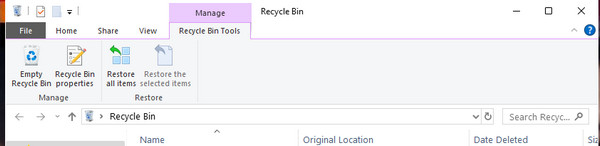
In addition to using the Desktop, you can also empty the Recycle Bin through its program window. The difference from the previous method is that you can delete individual files selectively. Also, you can still recover the deleted data, unlike the previous method. Please use the steps below to know how to empty the Recycle Bin through its program.
Open the Recycle Bin program. Then, you will see the recently deleted files. Please choose the Empty Recycle Bin button at the top left corner of the screen. A confirmation screen will appear on the main interface. Please choose the Yes button to start emptying the mentioned program, which will last depending on the quantity and file size of your Windows 11 data.
Part 3. How to Empty Recycle Bin on Windows 11 in Settings
The Settings program on your Windows 11 is responsible for storing your built-in and third-party tools. It allows you to change program permissions and other configurations. This program can also empty the Recycle Bin.
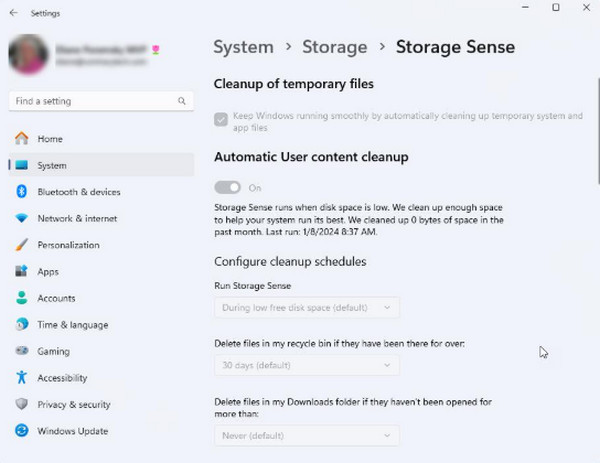
However, it cannot do it immediately. It can do the process for 1 day because it will only set an automatic time frame, where it automatically deletes your deleted data. This method can be confusing, so follow the detailed steps below.
Please open the Settings program on your Windows 11. You can click the Windows button and search for its name. Later, click the System button. On the next options, please select the Storage button. Turn on the Storage Sense section. Go to the deleted files in the Recycle Bin. Choose the 1 Day time duration afterward.
Part 4. How to Empty Recycle Bin on Windows 11 from File Explorer
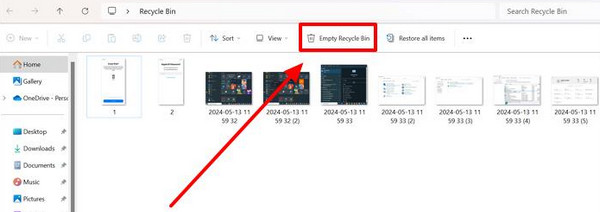
The File Explorer is the built-in program that can manage different types of data on your Windows 11. Besides that, it can also view data from different programs on your Windows 11, including File Explorer. Please see the steps below on how to empty the Recycle Bin using the mentioned program.
Access File Explorer. Then, choose the Recycle Bin button on the left side. Please click the Empty Recycle Bin button at the top. Click the Yes option to confirm the process.
Part 5. How to Empty Recycle Bin on Windows 11 Using Command Prompt
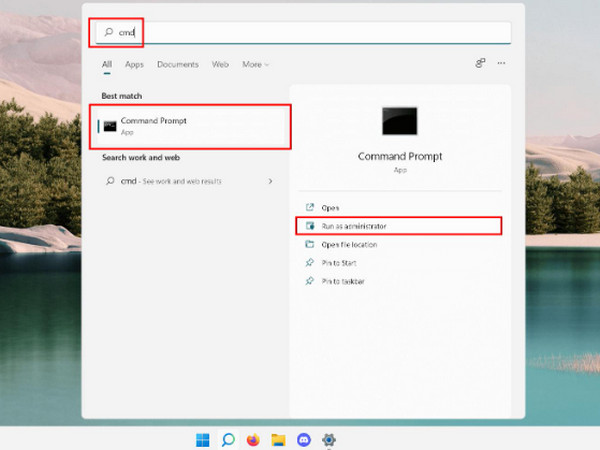
Command Prompt is a built-in tool that uses code to make changes to your Windows 11 computer. So, professional skills are required. Ensure that the codes are correct to prevent other commands. The steps below will guide you.
Open your Command Prompt on Windows 11. Then, enter the rd /s /q C:\$Recycle.bin code. Later, hit the Enter key to apply the code. Later, restart your computer.
Part 6. Recover Data from Emptied Recycle Bin on Windows
But what if you've already emptied the Recycle Bin and lost files permanently? FoneLab Data Retriever got your back! It is a third-party tool that can retrieve various data types, even after the Recycle Bin has been emptied. It includes images, videos, music, documents, and more. You can also retrieve data from your hard drive, USB, and other devices. Please use the steps below to know how to use the tool.
FoneLab Data Retriever - recover the lost/deleted data from computer, hard drive, flash drive, memory card, digital camera and more.
- Recover photos, videos, documents and more data with ease.
- Preview data before recovery.
Step 1Click the Free Download option to get FoneLab Data Retriever. Then, choose the file from the web browser to set it up. Install and open it to start the process.
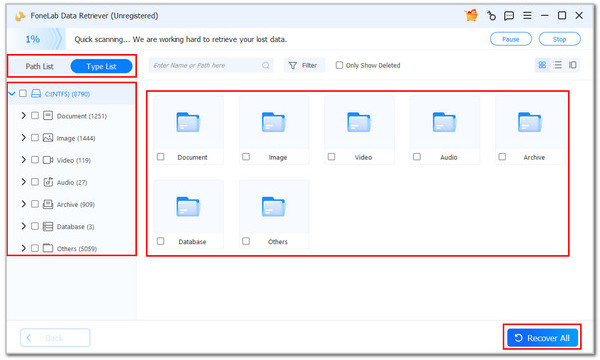
Step 2Select the Recycle Bin button from the main interface. Then, click the Start Scan option at the bottom right. The results will be revealed on the next screen. Please locate the data types on the left.
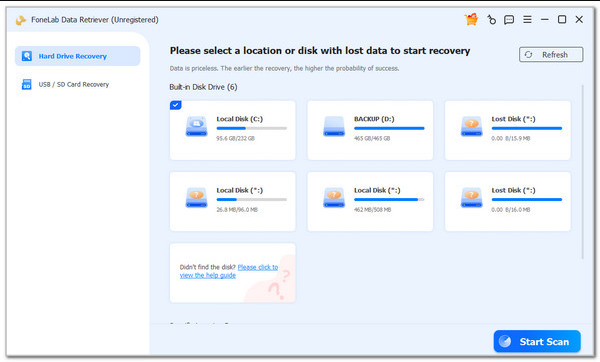
Step 3The contents will appear on the screen. Please choose the data you want to retrieve to your Windows 11 computer. Finally, click the Recover All button at the bottom right.
Part 7. Comparison Table of Methods to Empty Recycle Bin on Windows 11
| Method | Difficulty | Required Skills | Time Duration |
| Desktop | Easy | Beginner | A Few Seconds |
| Recycle Bin Program | Moderate | Intermediate | A Few Seconds or Minutes |
| Settings | Hard | Professional | 1 Day to 30 Days |
| File Explorer | Moderate | Intermediate | A Few Minutes |
| Command Prompt | Hard | Professional | A Few Minutes or Hours |
Part 8. FAQs about How to Empty Recycle Bin on Windows 11
Can Ctrl + Z delete files in the Recycle Bin?
Definitely, no. The Ctrl + Z key combination cannot delete files in the Recycle Bin. In fact, it can undo or retrieve the recently deleted data from the mentioned program.
Why can't I empty my Recycle Bin on Windows 11?
The files you might want to delete are still running in the background. Sometimes, we cannot determine how to close it. So, it is recommended to restart your Windows 11 computer. Then, you can try emptying the Recycle Bin again.
In conclusion, you can empty Recycle Bin on Windows 11 in 5 ways. All of them are built-in methods. FoneLab Data Retriever can also be used to help you retrieve data that has been accidentally deleted. It could be a document, video, image, or other data types. Download it now!



