
 iPhone Data Recovery
 iOS System Recovery
 iOS Data Backup & Restore
 iOS Unlocker
 iPhone Password Manager
 Location Changer
 Android Data Recovery
 Broken Android Data Extraction
 Android Data Backup & Restore
 Android Unlocker
 FoneTrans for iOS
 iPhone Data Eraser
 iPhone Cleaner
 HEIC Converter
 HyperTrans
 WhatsApp Transfer for iOS
 Mac Sweep
 Data Retriever
 Mac Data Retriever
 Video Converter Ultimate
 Screen Recorder
 Phone Mirror
 Recover PC Data Now
Recover the lost/deleted data from computer, hard drive, flash drive, memory card, digital camera and more.
Outstanding Guide on How to Fix Laptop Overheating
 Updated by
 Why is my laptop overheating? I understand I must have done something to cause this, but I’m not exactly sure what. Moreover, I have no idea how to fix it, so I hope somebody here can help. I’m currently working on an important school project, but I’m afraid the laptop will be damaged if I keep using it without addressing the issue first. Please help me.
Have you noticed your laptop running hotter than normal? Maybe the fan makes more noise than usual, the bottom feels uncomfortable to touch, or your device suddenly slows down for no clear reason. Even so, don’t be too alarmed; overheating is a common problem many users face, and there are multiple solutions to help you handle it. Besides, you don’t need to be an expert to fix the issue. In most cases, the simple yet effective methods in the following sections are enough to get your laptop working again without a problem. Review them below.

Guide List
Part 1. Why Is My Laptop Overheating?
An overheating laptop was caused for various reasons. One of the most common causes is dust building up inside the vents and fan, which blocks airflow and traps heat. Another cause is placing the laptop on soft surfaces like your couch or bed, which can cover the vents and prevent cooling. Or you may be running too many programs at once or using resource-intensive software that pushes your laptop's processor to work harder than usual, producing more heat.
Meanwhile, in some cases, an old or damaged cooling fan, dried-out thermal paste, or a worn-out battery can also be the reason your laptop is overheating or make the problem worse. Hence, it’s also important to be mindful of the environment when working on the laptop, since using it in a hot room or in direct sunlight can quickly raise its temperature. Understanding these can help you determine the right solution. Once ready, proceed to the following sections.
Part 2. Monitor Your Temperatures
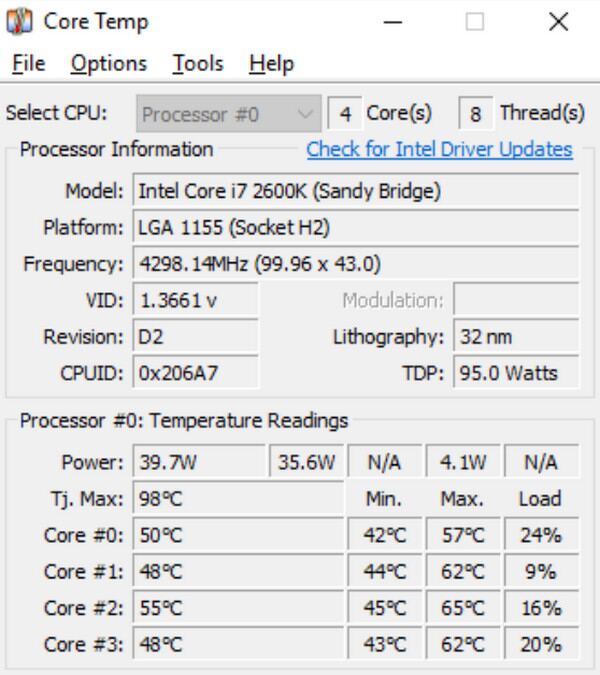
Before fixing an overheating laptop, you should first know how hot it’s actually getting by monitoring its temperature. This way, you will know whether it’s still within the safe range or if the situation is already causing damage. Simply install a tool like Core Temp to monitor the temperatures of your processor, graphics card, and more in real time. Then you will see whether there are any unusual temperature spikes or whether your laptop's cooling system is working.
Follow the procedure below to monitor the temperature of your laptop getting hot:
Step 1Browse the web to visit Core Temp’s official site and install it on your laptop.
Step 2Afterward, launch the temperature monitoring tool and let it run while you use your laptop normally. Briefly, you can check the readings to see the laptop’s temperature.
Part 3. Optimize System Performance
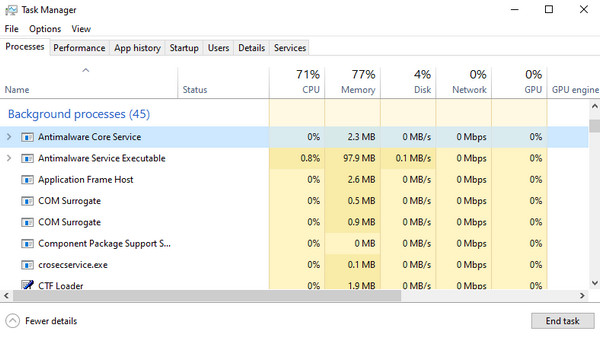
Now, an effective way to reduce overheating on your laptop is to optimize the system's performance. Perhaps the laptop is running many background tasks, startup programs, and resource-heavy applications all at the same time, pushing your hardware to work harder and generating more heat. So, managing these by adjusting a few settings and clearing unnecessary processes will help your laptop run more efficiently at the right temperature.
Follow the steps below for a laptop overheating fix by optimizing system performance:
End background tasks: Open Task Manager and close any unnecessary processes or programs by selecting them from the list and clicking End task.
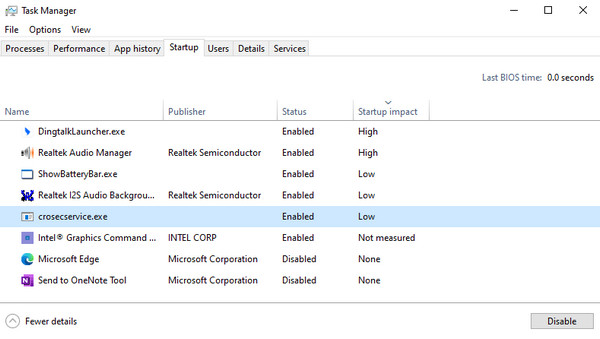
Disable startup programs: In Task Manager, select the Startup tab at the top. When startup programs appear, select the unnecessary ones and click Disable.
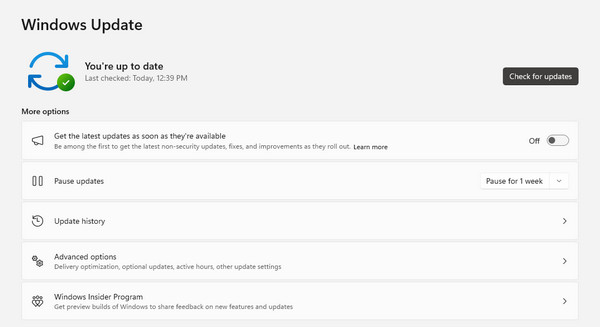
Update Windows: Head to Settings > Windows Update, then Check for updates. If an update is available, choose Download & install.
Part 4. The Surface Test
As mentioned, it matters where you place your laptop. That’s because some surfaces, such as beds and couches, trap heat and block airflow. On the other hand, hard, flat surfaces allow your laptop to release heat more effectively. In this case, the surface test is the method that can help, as it lets you check whether the surface your laptop is on is helping or hurting its cooling. Simply place your laptop on a flat, hard surface, such as a desk or table, and use it normally for a while. Afterward, check the temperature to see if it has cooled down and resolved your laptop overheating issue.
Part 5. Cleaning Your Vents
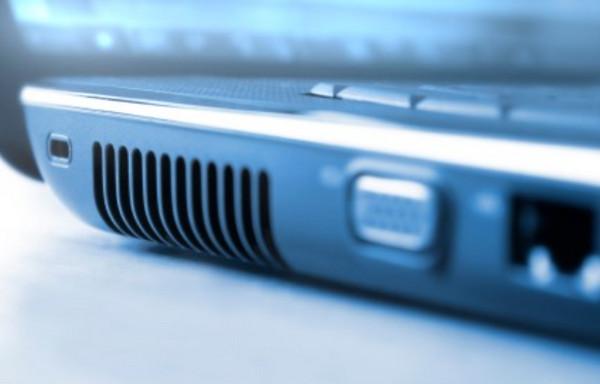
Sometimes, software is not enough to handle overheating. You may also need to deal with physical components, like your laptop’s vents. Cleaning them is also among the best methods, since dust and debris build up inside, preventing proper airflow. To do this, you must first shut down the laptop and unplug it from any power source for safety. Then, use compressed air to blow dust out of the vents and fan openings. You can also gently remove dust with a soft brush or cotton swab. Once done, your laptop should cool more easily.
Part 6. Professional Deep Clean
If basic cleaning didn’t work for an overheating laptop, it’s time to seek help from a professional technician. The dust may have already built up deep inside the laptop, or the thermal paste has dried out. So, the cleaning now involves opening the laptop to thoroughly remove dust from the internal components and, if needed, replacing the old thermal paste. Besides, it requires special tools and technical knowledge, so it would be best to find a reputable professional near you.
Part 7. Recover Lost Data Using FoneLab Data Retriever
As you have seen, optimizing the laptop to avoid overheating involves removing processes, tasks, and sometimes even files to free up system resources. Unfortunately, some users accidentally delete important files. If this happens to yous as well, we have prepared FoneLab Data Retriever to help with your Windows data recovery.
FoneLab Data Retriever - recover the lost/deleted data from computer, hard drive, flash drive, memory card, digital camera and more.
- Recover photos, videos, documents and more data with ease.
- Preview data before recovery.
This tool can effectively recover deleted files on PC, and you don’t have to be an expert to use it. You can expect a user-friendly interface with helpful features such as Secure Preview, Advanced Search & Filter, and more. It lets you restore files in a wide range of formats.
Follow the guide below to recover your lost data using FoneLab Data Retriever:
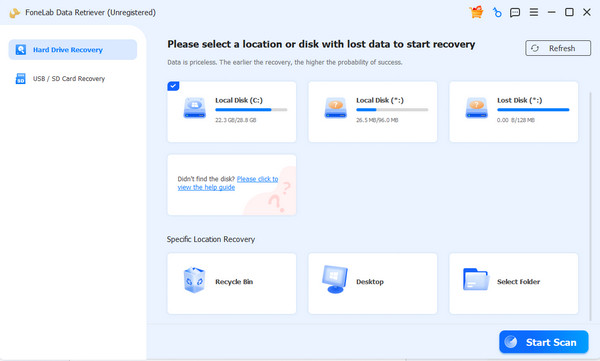
Step 1First, click Free Download. It will help you acquire the installer file for FoneLab Data Retriever. Once it’s in your Downloads folder, double-click it to launch the installation, then start the program when done. Next, pick your drive in the key interface and select Start Scan.
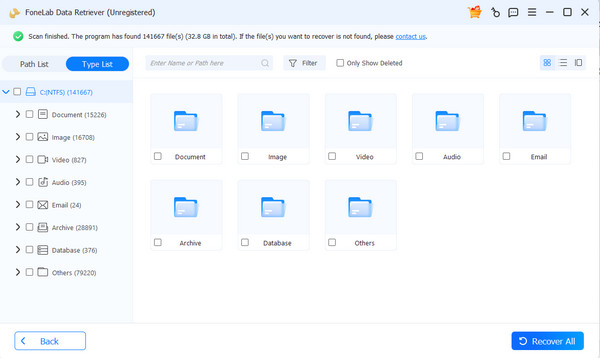
Step 2Following that, folders designated for every data type will be presented. Open them based on the lost or deleted data you wish to recover. Once you find the items you want, check their boxes and opt for Recover All.
Part 8. FAQs about How to Fix Laptop Overheating
Is a laptop overheating dangerous?
Yes, it is in most cases. Overheating, especially for a prolonged time, can damage internal components and shorten your laptop's lifespan.
How frequently should I clean my laptop's vents?
It's recommended to clean them every few months, especially if you use your laptop daily.
By following the simple steps in this guide, you can keep your laptop cool and protect it from damage over time. FoneLab Data Retriever can even safeguard your files.



