
 iPhone Data Recovery
 iOS System Recovery
 iOS Data Backup & Restore
 iOS Unlocker
 iPhone Password Manager
 Location Changer
 Android Data Recovery
 Broken Android Data Extraction
 Android Data Backup & Restore
 Android Unlocker
 FoneTrans for iOS
 iPhone Data Eraser
 iPhone Cleaner
 HEIC Converter
 HyperTrans
 WhatsApp Transfer for iOS
 Mac Sweep
 Data Retriever
 Mac Data Retriever
 Video Converter Ultimate
 Screen Recorder
 Phone Mirror
 Recover PC Data Now
Recover the lost/deleted data from computer, hard drive, flash drive, memory card, digital camera and more.
4DDiG Data Recovery Review with A Useful Alternative
 Updated by
What is 4DDiG Data Recovery? For many, it is the program they rely on when experiencing data loss. Losing important files can be stressful, whether it's a deleted document, a formatted drive, or a corrupted media file. Regardless, such situations prompt people to seek ways to recover their files, and recovery software is usually the go-to solution. Among the many options available, 4DDiG is one of the names that often comes up, and for good reason.
In this guide, we will take a closer look at Tenorshare’s recovery tool and help you decide if it's the right one for your situation. We will cover its key information, how it works, and its strengths and drawbacks so you can determine whether it matches your needs. Apart from that, a useful alternative will be introduced in a later section, so you can choose the best one for your needs.

Guide List
Part 1. What Is 4DDiG Data Recovery
Tenorshare 4DDiG Data Recovery is specialized software designed for both Windows and Mac computers. It helps users retrieve files that have been accidentally deleted, lost due to formatting, or made inaccessible by a lost or damaged drive. The tool supports many file types and storage devices, like internal and external hard drives, flash drives, and SD cards. Beyond basic recovery, it also offers multiple useful features. It can preview files before you recover them, recover files while a scan is still running, and support smart filtering.
Part 2. How 4DDiG Works
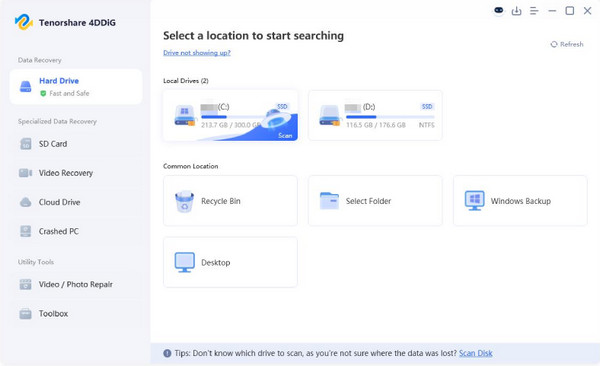
4DDiG works by scanning a storage device for deleted, formatted, or lost files, allowing you to recover them. The process is simple enough for non-technical users, guiding you through every step. You can even use its features, such as preview and filtering, to make it more convenient. However, one notable disadvantage is that some content it shows may be incomplete or corrupted, giving you false hope even if the data is already gone.
Step 1Download and launch 4DDiG from its website. Once you start the tool, select the drive or location where you lost your files, then click Start to begin searching for recoverable data.
Step 2Once the scan finishes, preview the found files to confirm they are the ones you need, then click Recover and choose a different location to save them safely.
Part 3. 4DDiG Pros and Cons
Although it is already known as an effective recovery tool, this 4DDiG Data Recovery review will list the pros and cons below to help you weigh its strengths against its weaknesses.
Pros
- • User-friendly: The interface is simple and guides you through the recovery process step by step, making it easy for beginners to navigate without confusion.
- • Many file types: It supports a broad range of files, including photos, videos, documents, audio, and more, so you can recover various data in a single process.
- • Free preview: You can scan and preview recoverable files before deciding to purchase, so you can confirm they are intact and worth recovering.
- • Extra features: Apart from basic recovery, it offers additional functions, such as read-only recovery, which lets you view files without restoring them, helping avoid overwriting data.
Cons
- • Expensive full version: The free trial only allows scanning and previewing. You must pay for a license to recover files, and the price is relatively high compared to others.
- • Slow deep scan: A deep scan can take a long time, especially on large drives, and some users report that the scan gets stuck and never completes.
- • Mixed reviews: Some users report corrupted or unusable recovered files, failed scans, and difficulty obtaining refunds, making the software less reliable than it suggests.
Part 4. 4DDiG Alternative: FoneLab Data Retriever
If the mixed reviews and other drawbacks make you second-guess 4DDiG Data Recovery, FoneLab Data Retriever is a solid alternative worth considering. It is another data recovery option that offers the same core features, including the ability to retrieve deleted, formatted, corrupted, or lost files from computers, hard drives, USB drives, memory cards, and even digital cameras. It supports multiple data types and countless formats for each.
In terms of experience, reviewers have noted that its scanning is faster than that of other recovery software. Its interface is also cleaner and easy to navigate, making it friendly for non-technical users. Like 4DDiG, it provides a free preview so you can make sure you’re recovering the correct file. So, for users who want the same recovery results without the concerns that come with 4DDiG, this is a practical option to explore.
Part 5. How to Recover Deleted Files with FoneLab Data Retriever
Now that you’re familiar with FoneLab Data Retriever, learn how to recover deleted files on PC or Mac with its main process. As mentioned, it offers a user-friendly interface with helpful features that make the recovery effortless. Feel free to use the deep scan to detect your deleted files more thoroughly, the search and filter to find specific data faster, or the preview to double-check them before recovery. You can restore multiple files in just a single session.
FoneLab Data Retriever - recover the lost/deleted data from computer, hard drive, flash drive, memory card, digital camera and more.
- Recover photos, videos, documents and more data with ease.
- Preview data before recovery.
Follow the beginner-friendly directions below to recover files with the best Tenorshare 4DDiG Data Recovery alternative, FoneLab Data Retriever:
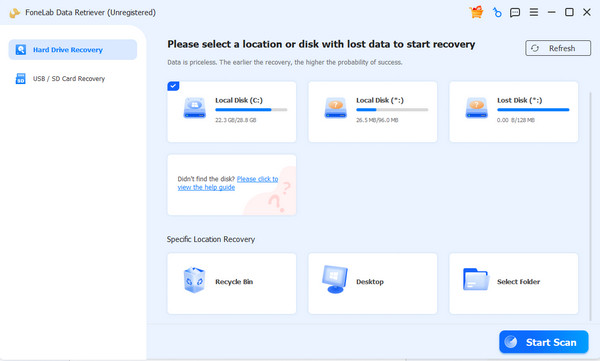
Step 1Download FoneLab Data Retriever’s file to begin. Simply click Free Download, and once it’s completed, open it and proceed with the installation. Grant the necessary permissions. A few moments later, you can start the tool, select the drive containing your file in the interface, and then click Start Scan.
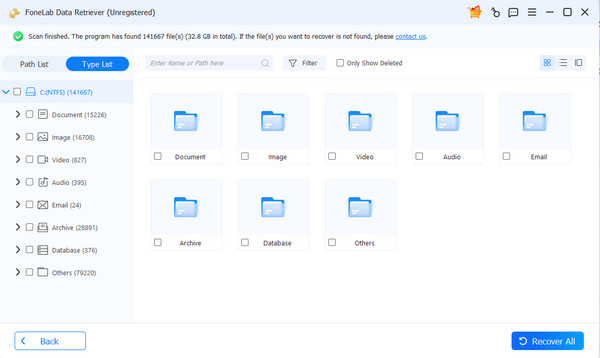
Step 2Scanning will be quick, presenting data-type folders on the following screen. Open the relevant ones based on the deleted files you plan to recover. Then, browse the available content accordingly to find your desired items. Feel free to use the search bar or the filtering feature at the top to locate files more quickly. Once found, click their checkboxes and then click Recover All.
Part 6. FAQs about 4DDiG Data Recovery
Is 4DDiG really free?
Not entirely. 4DDiG offers a free version that lets you recover up to 2GB of data. The regular trial version mainly lets you scan and preview files. You actually need to purchase a license to recover them. So, you can use it for free, but with these restrictions.
Which is better: 4DDiG or FoneLab?
It depends on your priorities. Both are capable recovery tools, but they differ in a few key areas. If you're looking for a recommendation, FoneLab Data Retriever is often noted for its cleaner interface, faster scanning, and more transparent pricing.
Can 4DDiG recover permanently deleted files?
Yes, it can. 4DDiG can recover permanently deleted files as long as new files on the drive have not overwritten the data. However, if the storage sectors have been overwritten, recovery may not be possible.
Whether you choose 4DDiG Data Recovery or FoneLab Data Retriever, the right recovery tool can help you get your lost files back with ease.


