
 iPhone Data Recovery
 iOS System Recovery
 iOS Data Backup & Restore
 iOS Unlocker
 iPhone Password Manager
 Location Changer
 Android Data Recovery
 Broken Android Data Extraction
 Android Data Backup & Restore
 Android Unlocker
 FoneTrans for iOS
 iPhone Data Eraser
 iPhone Cleaner
 HEIC Converter
 HyperTrans
 WhatsApp Transfer for iOS
 Mac Sweep
 Data Retriever
 Mac Data Retriever
 Video Converter Ultimate
 Screen Recorder
 Phone Mirror
 Recover PC Data Now
Recover the lost/deleted data from computer, hard drive, flash drive, memory card, digital camera and more.
Everything about Windows System Restore with a Guide
 Updated by
 Are you interested in learning how to system restore Windows? If so, you have just found the right place. System Restore is a built-in Windows tool that acts like a time machine for your PC, taking snapshots of your system files, settings, and installed programs at specific points in time. This way, you can revert your computer to an earlier state without affecting your personal files, such as photos or documents, making it a valuable safety net when troubleshooting issues.
However, it’s critical to note that you shouldn’t perform it on your computer without any preparation. System Restore is generally safe, but it is not a backup solution that protects your personal data; thus, it’s important to safeguard your data first with a backup drive or cloud service before proceeding. That said, start browsing the following parts.

Guide List
Part 1. What Actually Happens During a System Restore?
You can think of System Restore like an undo button for your computer. When you run it, Windows replaces the current system files, drivers, and settings with those from your chosen restore point. It also uninstalls any programs or updates added after that point was created and reinstalls those that were removed.
That’s why many users rely on it when facing issues on their Windows computers; it allows them to revert to a version of their computer when the problem didn’t exist yet. Meanwhile, if you're worried about your data, don’t. Your personal files, including documents, photos, music, and emails, remain untouched, though it’s still best to be careful and create a backup.
Part 2. How to Trigger System Restore
System Restore can be triggered in 2 ways, depending on whether your PC is working. The first scenario uses the basic method, which applies when you can access Windows. The second is the advanced route, for when you're locked out.
Scenario A: If Windows Boots Normally
As the scenario suggests, this approach applies when your computer starts up without any issues, and you can log in to your desktop. Maybe you just experienced minor glitches or mild sluggishness, or a new program is causing random crashes, but Windows is still functional enough to navigate. In this case, you can access and use System Restore directly from Windows using the standard method. It will run just like any other program on your computer.
Follow the steps below to use Windows System Restore if Windows boots normally:
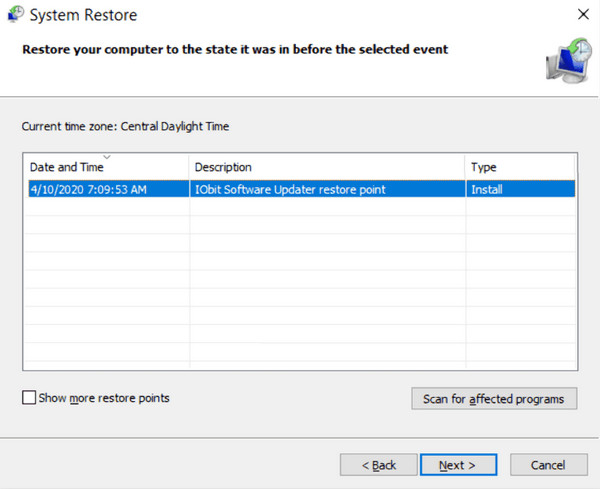
Step 1Type Create a restore point in your desktop search bar and click the appearing result. It will open the System Properties window, where you can click System Restore.
Step 2Afterward, let the on-screen prompts lead you to the available restore points. From there, choose the point you need and confirm your selection to start the restoration process.
Scenario B: If Windows Fails to Boot
On the other hand, the normal approach won’t work when problems occur before you even see the login screen. Perhaps a critical system file got corrupted, a bad update was installed, or your PC keeps restarting in an endless loop. Regardless, you won’t be able to get to your desktop if Windows fails to boot. Thankfully, Windows also provides the Recovery Environment as an alternative, which operates outside the system and still allows you to access System Restore.
Follow the guides below to learn how to system restore Windows if it fails to boot:
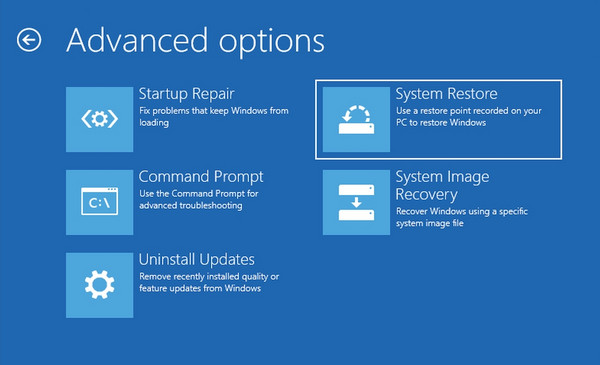
Step 1Turn your computer on and off three times in a row by pressing the Power button during startup. It will force Windows to enter the Automatic Repair mode the third time.
Step 2From the blue recovery screen, select Troubleshoot, then Advanced Options. After that, select System Restore, then follow the prompts to restore your chosen point.
Part 3. Why System Restore Might Fail
System Restore is helpful, but it doesn't always work for various reasons. Here are the most common ones, so you can determine which one your computer may be experiencing.
- • Corrupted Restore Points - If disk errors or power outages damage your restore point files, System Restore will likely fail halfway through the process.
- • Antivirus Interference - Some security tools block System Restore from making system changes, mistaking it for a threat. Temporarily disabling your antivirus can help.
- • Low Disk Space - System Restore needs free space to store files during the process. If your hard drive is too full, it might stop with an error.
- • Severe System Corruption - If system files are too damaged, System Restore might not be able to replace them properly because it can't work with irreparable files.
- • Software Conflicts - Certain tools, especially deep-level system utilities, sometimes lock files that System Restore needs to modify, causing conflicts.
Part 4. What If System Restore Doesn't Work?
As mentioned, success is not always guaranteed. System Restore may not work and, worse, may even cause data loss, especially if not properly executed. For this reason, FoneLab Data Retriever is the best solution, supporting Windows Data Recovery for multiple file types, including documents, music, photos, emails, and videos.
FoneLab Data Retriever - recover the lost/deleted data from computer, hard drive, flash drive, memory card, digital camera and more.
- Recover photos, videos, documents and more data with ease.
- Preview data before recovery.
Besides, some users rely on System Restore, hoping it will recover their files, only to be disappointed that the feature doesn’t support personal files. If you are among them, this program is the perfect solution you’re seeking, especially if you're a beginner. FoneLab Data Retriever doesn’t require technical knowledge, since it’s already user-friendly.
Follow the instructions below to restore your lost or erased files with FoneLab Data Retriever:
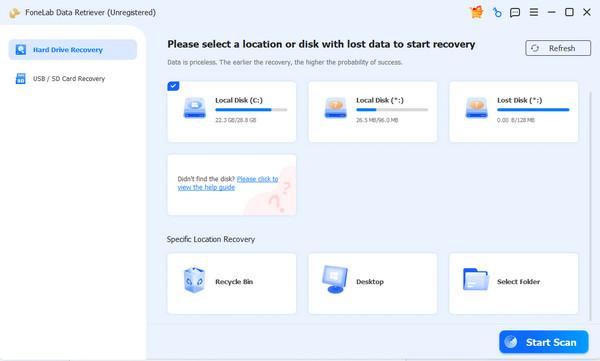
Step 1Click Free Download first. You will receive the FoneLab Data Retriever file shortly; when that happens, use it for the installation. A Start button will appear once the program is installed, so select it to display the interface. Next, pick your drive, then the Start Scan tab.
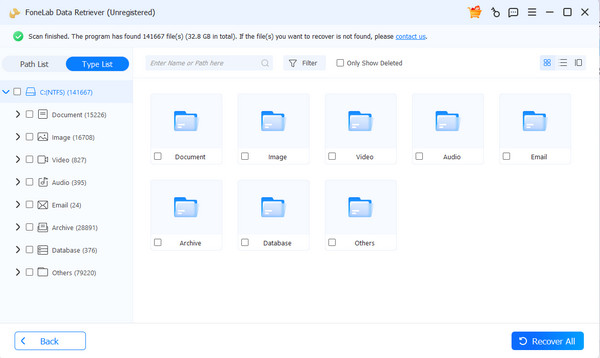
Step 2Folders for the supported data types will greet you after scanning. Open them to view your computer’s lost and deleted files. Once you locate your desired data files, check them, then select Recover All to finish.
Part 5. Comparison of Recovery Methods
| Features | System Restore | FoneLab Data Retriever |
| Purpose | Reverts system files and settings to an older state | Recovers lost or deleted personal files |
| Affects Personal Files | No. It only handles system files, settings, etc. | Yes. It is specifically designed to recover personal data |
| Recovers Deleted Files | No. It only restores system snapshots | Yes. It recovers permanently deleted or lost files |
| Best Use Case | Fixing system crashes, driver issues, or bad updates | Recovering important documents, photos, or videos after deletion or formatting |
| Data Preview | No. You cannot see what will change before restoring | Yes. You can preview files before recovering them |
Part 6. FAQs about Windows System Restore
Can I undo my System Restore?
Yes, you can. If the restore didn't fix your problem or made things worse, you can undo it, but only if you haven't yet created a new restore point since.
How many restore points can I keep?
Windows allows users to keep as many restore points as disk space allows.
System Restore is great for fixing Windows, but for recovering lost personal files, consider FoneLab Data Retriever instead, as it is specifically designed for such situations.



