
 iPhone Data Recovery
 iOS System Recovery
 iOS Data Backup & Restore
 iOS Unlocker
 iPhone Password Manager
 Location Changer
 Android Data Recovery
 Broken Android Data Extraction
 Android Data Backup & Restore
 Android Unlocker
 FoneTrans for iOS
 iPhone Data Eraser
 iPhone Cleaner
 HEIC Converter
 HyperTrans
 WhatsApp Transfer for iOS
 Mac Sweep
 Data Retriever
 Mac Data Retriever
 Video Converter Ultimate
 Screen Recorder
 Phone Mirror
 Recover PC Data Now
Recover the lost/deleted data from computer, hard drive, flash drive, memory card, digital camera and more.
SSD Data Recovery: 5 Trustworthy Tools with An Easy Guides
 Updated by
 Are you seeking the best SSD data recovery software? As Solid State Drives or SSDs become the standard for storage because of their speed and durability, they also introduce new data recovery challenges that differ from traditional hard disk drives. For instance, unlike HDDs, SSDs now use the TRIM command that deletes data faster and more permanently. It is actually an efficient capability; however, that’s not the case for those who often try to recover data.s
Luckily, there are tools you can use to retrieve various file types you have deleted, whether intentionally or accidentally. Hence, learn the most reliable programs for data recovery in the following sections and use the given details to find the suitable one for your situation or preference. We have already tested each tool’s effectiveness, so all you must do is follow the guidelines carefully to perform your chosen program’s process and return your deleted files.s

Guide List
Part 1. FoneLab Data Retriever
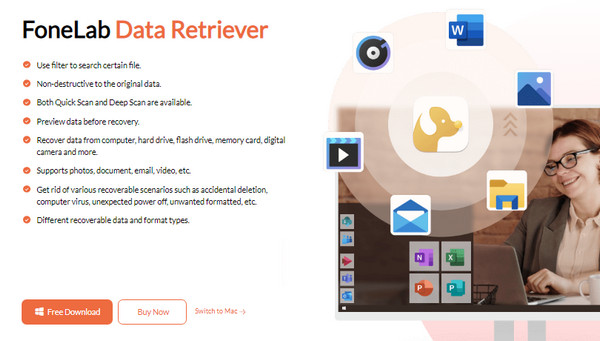
Leading our list is FoneLab Data Retriever. Whether you’re a novice or an experienced user, this program is the premier choice when discussing the most reliable and effective data recovery tools. Once you obtain it on your computer, it will not matter if you’re restoring data from an SSD or HDD, since it can recover different types of files or data regardless. Having advanced or technical knowledge is also not required, as this tool is designed for all users.
FoneLab Data Retriever - recover the lost/deleted data from computer, hard drive, flash drive, memory card, digital camera and more.
- Recover photos, videos, documents and more data with ease.
- Preview data before recovery.
Hence, FoneLab Data Retriever is our top recommendation if you want a guaranteed yet user-friendly data recovery process. Besides, it won’t disappoint you with the supported data types. With this program, you can retrieve photos, documents, emails, audio, videos, and more in numerous formats. It can recover files you may have lost due to an unwanted format, accidental deletion, unexpected power off, etc., so take advantage of its functions anytime.
Identify the secure operation below to perform SSD data recovery with FoneLab Data Retriever:
Step 1Opt for Free Download when you access FoneLab Data Retriever’s site. This action will get the installer into your Downloads, so manage the installation from there and launch the interface shortly.
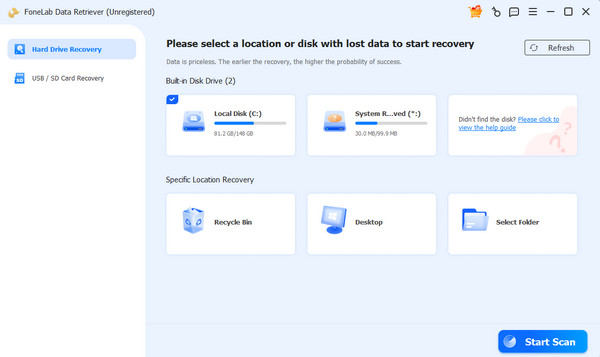
Step 2The available drives on your iPhone will initially be displayed; hence, choose the SSD and pick Start Scan for the program to scan your chosen storage drive’s content. The files will then be categorized into folders on the following display, helping you find your target files more easily. Aside from that, the search bar is also available to locate specific data faster.
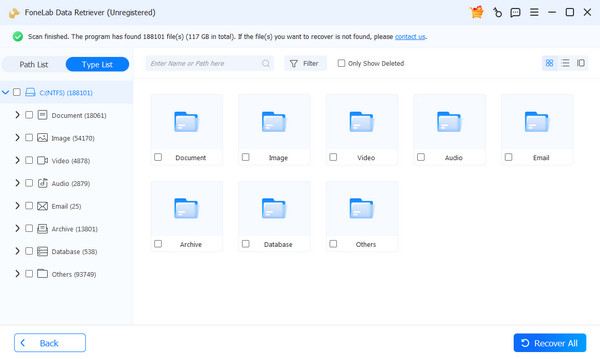
Step 3Browse the folders to present the deleted files on your computer. Then, find and mark the checkboxes of the files you wish to recover. Finally, hit the Recover All tab to retrieve them.
Part 2. Disk Drill Data Recovery
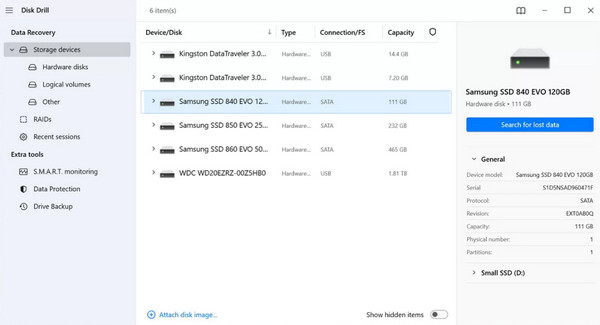
Another reliable contender is Disk Drill Data Recovery. Like the previous top program, it is capable of handling various data loss scenarios on SSDs, from simple deletions to more complex scenarios. Its primary advantages lie in its accessibility. It can be easily acquired from its website; however, it comes with a disadvantage that it only allows you to recover up to 500MB of data at no cost, making it beneficial only for minor data loss incidents.
Act under the proper directions below for data recovery SSD using Disk Drill Data Recovery:
Step 1Get Disk Drill Data Recovery’s file via its website and set it up for installation. Afterward, initialize its interface to choose your SSD from the storage options, then hit Search for lost data.
Step 2The program will then scan the drive and present its data on the interface. Simply find and mark your desired deleted data from there before clicking Recover to retrieve it on the computer.
Part 3. EaseUS Data Recovery
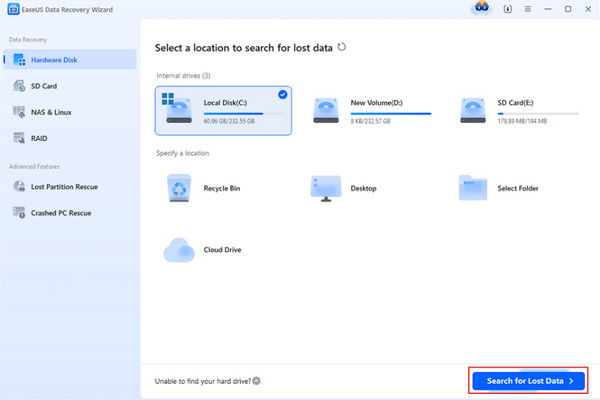
Meanwhile, you might be familiar with EaseUS Data Recovery, as it is already a widely recognized name in the field. Its greatest strength lies in its polished and intuitive interface that carefully guides users through each phase of the process, making it a popular choice for those seeking a straightforward recovery experience. But while it is suitable for common deletion cases, it can sometimes lack advanced features or capabilities needed for more complex recovery situations.
Bear in mind the stress-free steps below to use the SSD data recovery software, EaseUS Data Recovery:
Step 1Visit EaseUS Data Recovery’s website for its installer and launch its interface after you set it up. The initial screen contains your computer’s drives and data locations, so pick your SSD.
Step 2Click Search for Lost data afterward to scan and view your deleted files on the following interface. Like before, mark the checkboxes of the files you wish to return, then select Recover All.
Part 4. Stellar Data Recovery
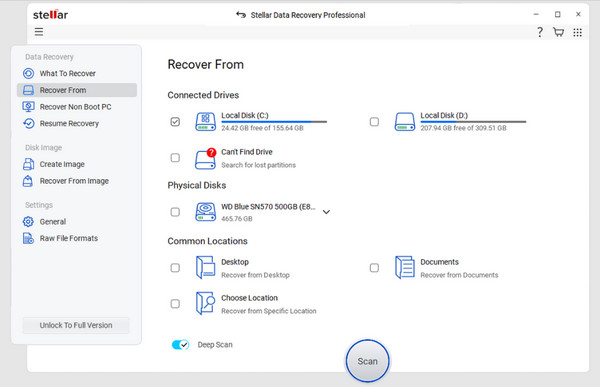
Stellar Data Recovery is also a capable data recovery tool that can be used for your deleted SSD data. It is known for its incredible range of supported file formats and useful file recovery functions. This tool is designed for users who need to recover not just standard files, but also specialized data types, making it a favored choice for professionals and technical users. It excels in its deep scan technology, meticulously finding data on SSDs, even with severely corrupted drives. The only disadvantage is that it can be slower compared to the other tools.
Imitate the appropriate task below for an SSD data recovery process through Stellar Data Recovery:
Step 1Use the designated option to get Stellar Data Recovery’s installer from its website. Then, set up the program to install and launch it. On the main interface’s What To Recover section, hit All Data.
Step 2After that, select Next and hit your SSD > Scan on the next display. Once the scanned files appear, check your chosen data and opt for the Recover button at the bottom.
Part 5. Recuva
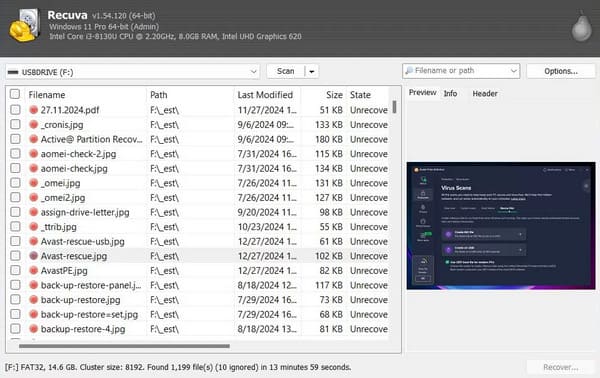
On the other hand, Recuva is an entry-level choice, offering a completely free and straightforward solution for basic data recovery needs. So, if you are only facing simple deletion scenarios, this would be a suitable program, especially since it can be quickly obtained from the Microsoft Store. However, its effectiveness in recovering data from SSDs is less certain than with HDDs since its functions are extremely basic. It’s not like the others that are capable of performing advanced and deep scanning. Thus, we suggest it is best only when retrieving basic files.
Abide by the suitable guide below for data recovery SSD using Recuva:
Step 1Acquire Recuva from the Microsoft Store and open its interface. From there, tick Next and select the sort of files you want to recover before clicking the Next button.
Step 2The following display will prompt you to choose your deleted file’s location, so click it and click Next > Start. Later, your data will appear after scanning; so, mark the ones you want and hit Recover.
Part 6. Comparison of SSD Data Recovery Tools
| Tool | FoneLab Data Retriever | Disk Drill Data Recovery | EaseUS Data Recovery | Stellar Data Recovery | Recuva |
| Overall Standing | Best Overall | Best Versatility | Best for Beginners | Best for Advanced Formats | Basic Use Only |
| SSD Optimization | Excellent | Good | Good | Very Good | Poor |
| Ease of Use | Excellent | Very Good | Excellent | Good | Good |
Part 7. FAQs about SSD Data Recovery
Can I recover corrupted SSD data?
Yes, you can. It may not be possible with a basic recovery process, but with the help of a professional tool, like the ones above, you can recover even corrupted SSD data.
How long is the lifespan of an SSD?
In normal circumstances, SSDs last from 5 to 10 years, but no worries. There are also many cases where it lasts longer.
Handle your SSD data recovery process with ease using the reliable solutions in this post. The leading tools above, especially FoneLab Data Retriever, have already been tested and proven, so install them and experience the program’s capabilities yourself.



