
 iPhone Data Recovery
 iOS System Recovery
 iOS Data Backup & Restore
 iOS Unlocker
 iPhone Password Manager
 Location Changer
 Android Data Recovery
 Broken Android Data Extraction
 Android Data Backup & Restore
 Android Unlocker
 FoneTrans for iOS
 iPhone Data Eraser
 iPhone Cleaner
 HEIC Converter
 HyperTrans
 WhatsApp Transfer for iOS
 Mac Sweep
 Data Retriever
 Mac Data Retriever
 Video Converter Ultimate
 Screen Recorder
 Phone Mirror
- Part 1. Can You Recover Deleted Emails
- Part 2. Find Deleted Emails from Trash Bin: Gmail, Outlook, Apple Mail
- Part 3. Recover Deleted Emails from Backup: Gmail, Outlook, Apple Mail
- Part 4. Restore Deleted Emails With Fonelab Data Retriever
- Part 5. Comparison Table of Methods to Recover Deleted Emails
- Part 6. FAQs about How to Recover Deleted Emails
 Recover PC Data Now
Recover the lost/deleted data from computer, hard drive, flash drive, memory card, digital camera and more.
Recover Deleted Emails on Gmail, Outlook, & Apple Mail in 3 Ways
 Updated by
 Gmail, Outlook, and Apple Mail are some of the most popular email services available on different devices. They are commonly available on Android phones, iPhone, iPad, Windows, or Macs. Besides that, they are trusted for their security in handling your emails.
However, there are instances, such as human error, in which the emails are accidentally deleted. In this case, the users cannot access the emails due to the deletion. You might wonder: How do I retrieve deleted emails? We recommend that you scroll below to know the 3 easy ways to recover emails from Gmail, Outlook, and Apple Mail.


Guide List
- Part 1. Can You Recover Deleted Emails
- Part 2. Find Deleted Emails from Trash Bin: Gmail, Outlook, Apple Mail
- Part 3. Recover Deleted Emails from Backup: Gmail, Outlook, Apple Mail
- Part 4. Restore Deleted Emails With Fonelab Data Retriever
- Part 5. Comparison Table of Methods to Recover Deleted Emails
- Part 6. FAQs about How to Recover Deleted Emails
Part 1. Can You Recover Deleted Emails
Emails are important for our daily lives, especially if they are part of a job or school work. Can you retrieve deleted emails? Definitely, yes! Retrieving emails from your devices is possible. The easiest deleted emails that can be retrieved are the ones that are recently deleted from the device.
But if they are permanently deleted, the procedures require a backup. Without the backup, third-party tools are needed. The best one is included in the section below. Do you want to know the procedures? Continue browsing in this post to know the process.
Part 2. Find Deleted Emails from Trash Bin: Gmail, Outlook, Apple Mail
Gmail, Outlook, and Apple Mail allow you to recover your emails quickly without the need for a backup or third-party tools. When you recently deleted your emails, they are stored in the Trash Bin folder. In this case, the user has a chance to recover them within 30 to 40 days. How to recover emails deleted from Trash folder?
Now, let us recover emails from Gmail, Outlook, and Apple Mail. Please use the steps below for the different email providers.
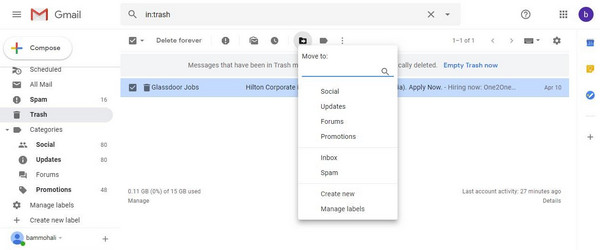
Gmail: Open the Gmail website. Then, select the More button on the left side of the main interface. Later, choose the Trash button from the appearing list. Then, click the Move To button. Please choose the folder where you want to restore the emails.
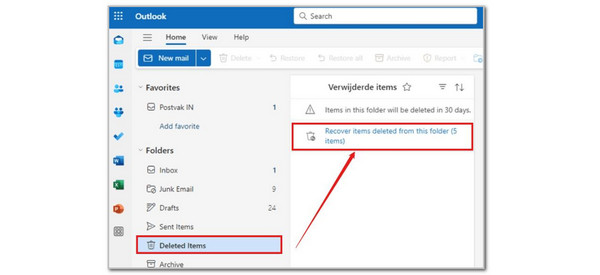
Outlook: Search for the main website of Outlook Mail. Then, select the Deleted Items button on the left side of the main interface. Select the email you prefer to recover. Finally, click the Restore button on the screen to put it back in its folder.
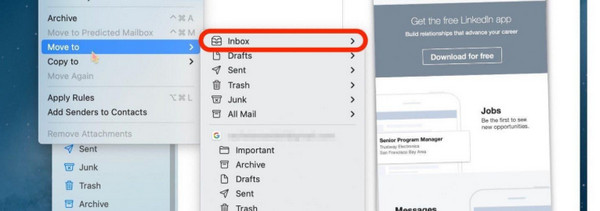
Apple Mail: Open the Mail program on your Apple device. Then, go to the Mailboxes section. After that, select the All Trash button. Tap the email you want to retrieve. Later, tap the Move button. Choose the folder where you want to store it afterward.
Part 3. Recover Deleted Emails from Backup: Gmail, Outlook, Apple Mail
Gmail, Outlook, and Apple Mail automatically delete the deleted emails from the Trash Bin section. If that’s the case, how to recover permanently deleted emails? A backup is needed. The mentioned email services have different backup methods that can be used. See them from the list below, including their procedure.
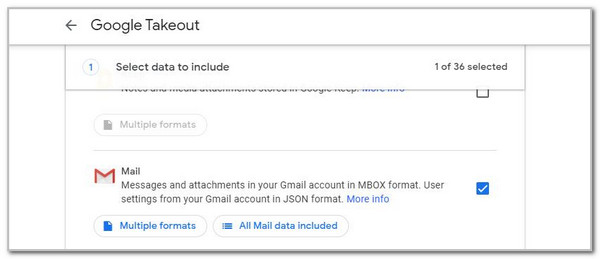
Google Takeout Backup for Gmail: Open Google Takeout on your device. Then, download your Gmail archive from the main interface. Later, look for the .mbox files that contain your emails. You can open them with your chosen email service provider.
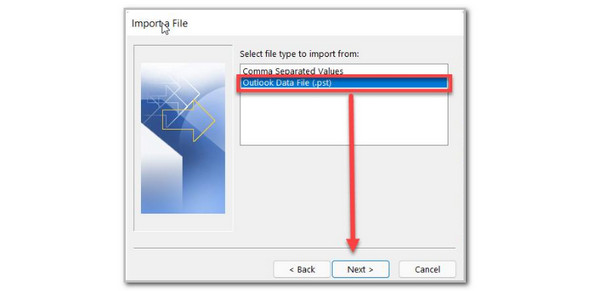
Outlook PST Backup: Open Outlook. Then, click the File button and choose the Open & Export button from the list. Later, choose the Import/Export button. Select the Import from Another Program or File button. Please choose the Outlook Data File button. Browse the backup you prefer to restore to start retrieving your emails.
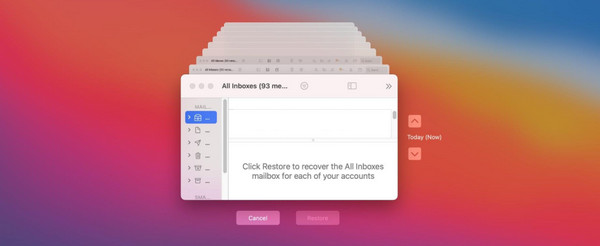
Time Machine for Apple Mail: Connect the backup drive from your Time Machine. Then, select the Apple Mail button. Open the folder where the email exists. Then, open Time Machine. Browse the older backups and click the Restore button to retrieve your data.
Part 4. Restore Deleted Emails With Fonelab Data Retriever
Not all users have backups of their deleted emails. If not, you can use FoneLab Data Retriever to recover emails on Windows and Mac without a backup. It can recover emails from different email service providers, including Gmail, Outlook, and Apple Mail.
FoneLab Data Retriever - recover the lost/deleted data from computer, hard drive, flash drive, memory card, digital camera and more.
- Recover photos, videos, documents and more data with ease.
- Preview data before recovery.
Besides emails, the tool can also be used to retrieve images, documents, audio, databases, and more. Also, you can scan the deleted emails from the hard drive, USB, and SD card. If you want to use the tool, you can refer to the steps below.
Step 1Click the Free Download button. Then, the downloading process will immediately start. Later, set up the downloaded file. Later, install the tool from the small window. Finally, the computer will launch the tool automatically.
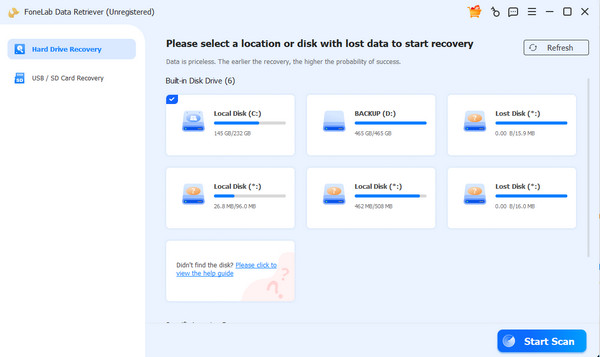
Step 2Choose the location where you want to scan the deleted emails. Later, please click the Start Scan button at the bottom right. The tool will scan the deleted files on your computer, including your emails. The results will appear on the main interface afterward.
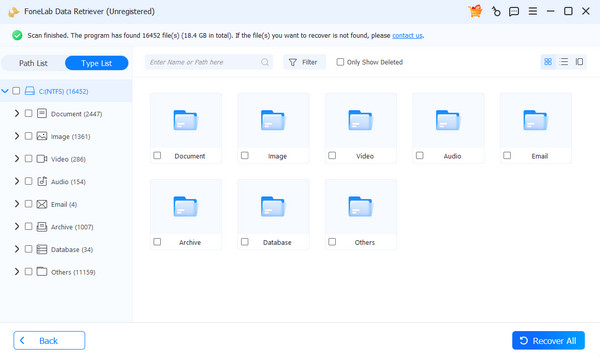
Step 3The data types will appear on the left side of the screen. Please select the Email button on the left side of the screen. The recoverable deleted emails will appear on the right side of the screen. Please select the emails you want to retrieve. Finally, click the Recover All button at the bottom right. Do not close the program. Wait until the recovery process is completed.
Part 5. Comparison Table of Methods to Recover Deleted Emails
| Method | Time Duration | Difficulty | Required Connection |
| Trash Bin | A Few Minutes | Moderate | None |
| Backup | 30 Minutes to Hours | Hard | Internet Connection or Hardware Connection |
| FoneLab Data Retriever | A Few Seconds or Minutes | Easy | USB Connection |
Part 6. FAQs about How to Recover Deleted Emails
Where do emails go when you permanently delete them?
The deleted emails from the services are gone for good from your point of view or perspective. However, they are still on the servers of the email providers. They will be kept until they are overwritten.
Can I recover deleted emails from 10 years ago?
Emails from 10 years ago are hard to recover. But some professionals can still recover them. In most cases, they cannot be recovered since they are already overwritten by the server of the email providers.
Can I retrieve deleted emails? To sum it up, yes. Retrieving deleted emails is possible. This post allows you to retrieve them from Gmail, Outlook, and Apple Mail. FoneLab Data Retriever is here to help you restore emails with the 3 mentioned email services. The tool can also be used for retrieving images, videos, audio, documents, and more data types. Download it now to know more about its features!



