
 iPhone Data Recovery
 iOS System Recovery
 iOS Data Backup & Restore
 iOS Unlocker
 iPhone Password Manager
 Location Changer
 Android Data Recovery
 Broken Android Data Extraction
 Android Data Backup & Restore
 Android Unlocker
 FoneTrans for iOS
 iPhone Data Eraser
 iPhone Cleaner
 HEIC Converter
 HyperTrans
 WhatsApp Transfer for iOS
 Mac Sweep
 Data Retriever
 Mac Data Retriever
 Video Converter Ultimate
 Screen Recorder
 Phone Mirror
- Part 1: What Is a Hard Reset and When Should You Do It?
- Part 2: How to Hard Reset iPhone – By Model
- Part 3: What Happens After a Hard Reset
- Part 4: If You're Stuck at the Passcode Screen – FoneLab iOS Unlocker
- Part 5: What If the Problem Is Bigger? – FoneLab iOS System Recovery
- Part 6: Other Types of Resets – Soft Reset and Factory Reset
- Part 7. FAQs about How to Do Hard Reset on iPhone
- Unlock Apple ID
- Bypass iCloud Activation Lock
- Doulci iCloud Unlocking Tool
- Factory Unlock iPhone
- Bypass iPhone Passcode
- Reset iPhone Passcode
- Unlock Apple ID
- Unlock iPhone 8/8Plus
- iCloud Lock Removal
- iCloud Unlock Deluxe
- iPhone Lock Screen
- Unlock iPad
- Unlock iPhone SE
- Unlock Tmobile iPhone
- Remove Apple ID Password
Everything You Need to Know About Hard Resetting Your iPhone
 Updated by
 You're mid-scroll and suddenly nothing happens. The screen is frozen, apps won't open, and even the power button feels unresponsive. We've all been there. Your iPhone is stuck in a glitch, and the only way out is a hard reset.
I've had to do this more times than I'd like to admit—most recently with my own iPhone when it decided to freeze during a software update. The good news? A hard reset (also called a force restart) is quick, easy, and doesn't erase any of your data.
But here's the thing most guides don't tell you: after a hard reset, your iPhone will restart and ask for your passcode to unlock. And if you've forgotten that passcode? You're locked out. I learned this the hard way when helping a friend whose kid had changed the passcode and forgotten it. The phone restarted fine, but then we couldn't get back in.
So in this guide, I'll walk you through exactly how to hard reset every iPhone model—and what to do if you find yourself staring at a passcode screen you can't get past.


Guide List
- Part 1: What Is a Hard Reset and When Should You Do It?
- Part 2: How to Hard Reset iPhone – By Model
- Part 3: What Happens After a Hard Reset
- Part 4: If You're Stuck at the Passcode Screen – FoneLab iOS Unlocker
- Part 5: What If the Problem Is Bigger? – FoneLab iOS System Recovery
- Part 6: Other Types of Resets – Soft Reset and Factory Reset
- Part 7. FAQs about How to Do Hard Reset on iPhone
Part 1: What Is a Hard Reset and When Should You Do It?
A hard reset (or force restart) is a way to physically restart your iPhone when it's completely unresponsive. Unlike a normal restart where you slide to power off, a hard reset uses the physical buttons to force the phone to reboot.
When to hard reset:
- Screen is frozen and won't respond to touch
- Apps keep crashing or won't open
- Phone is stuck on the Apple logo
- Device feels sluggish and unresponsive
What a hard reset DOESN'T do:
- It does not delete your data, photos, or apps
- It does not remove your passcode or Apple ID
- It does not fix major software corruption (for that, you need system recovery tools)
Think of it as giving your phone a quick kickstart—not wiping it clean.

FoneLab Helps you unlock iPhone screen, Removes Apple ID or its password, Remove screen time or restriction passcode in seconds.
- Helps you unlock iPhone screen.
- Removes Apple ID or its password.
- Remove screen time or restriction passcode in seconds.
Part 2: How to Hard Reset iPhone – By Model
The button combinations vary depending on which iPhone you have. Here's exactly how to do it.
For iPhones with Face ID (and iPhone 8, iPhone SE 2nd/3rd gen):
These models all use the same button sequence, even though some have Face ID and others have Touch ID. The key is they don't have a physical Home button.
Step 1Quickly press and release the Volume Up button.
Step 2Quickly press and release the Volume Down button.
Step 3Press and hold the Side button until the Apple logo appears (about 10-15 seconds). Release when you see the logo.

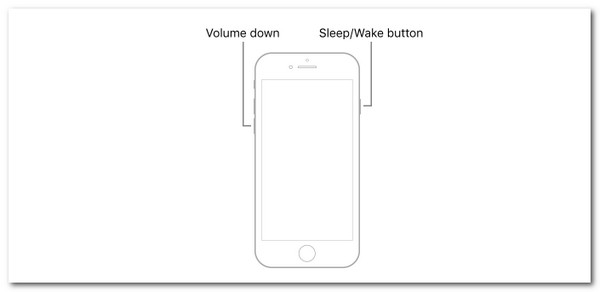
For iPhone 7 and iPhone 7 Plus:
These are the odd ones—they have a different button layout than both older and newer models.
Step 1Press and hold both the Volume Down button and the Sleep/Wake (Side) button at the same time.
Step 2Keep holding both until you see the Apple logo (about 10 seconds).
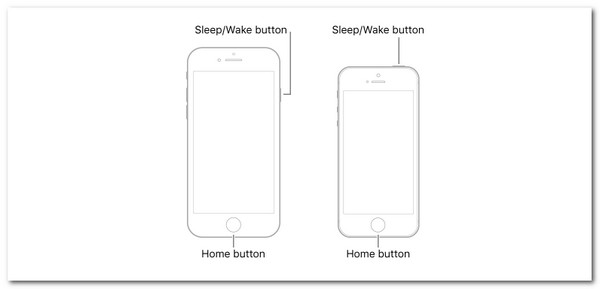
For iPhones with a Home Button (iPhone 6s, iPhone SE 1st gen, and older):
This includes any iPhone that still has the physical circular Home button on the front.
Step 1Press and hold both the Home button and the Top (or Side) button at the same time.
Step 2Keep holding until the Apple logo appears.
Part 3: What Happens After a Hard Reset
Once the Apple logo appears and your phone restarts, you'll be greeted by the lock screen asking for your passcode.
If you know the passcode, great—just enter it and you're back in. The phone will resume exactly where it left off, with all your data intact.
But if you've forgotten the passcode—or if you're helping someone who has—you're now staring at a locked device. And unlike Touch ID or Face ID, the passcode is required after a restart. No way around it.
That's exactly what happened with my friend's iPhone. The hard reset fixed the freezing issue, but then we couldn't get past the lock screen. That's when I had to bring in the bigger guns.
Part 4: If You're Stuck at the Passcode Screen – FoneLab iOS Unlocker
When a hard reset leaves you locked out because you don't remember the passcode, you need a way to remove that lock screen entirely. That's where FoneLab iOS Unlocker comes in.
I used this tool to help my friend get back into her iPhone after the hard reset. Unlike the hard reset itself (which preserves data), this process does erase the phone—but it's the only way to get past a forgotten passcode.
FoneLab Helps you unlock iPhone screen, Removes Apple ID or its password, Remove screen time or restriction passcode in seconds.
- Helps you unlock iPhone screen.
- Removes Apple ID or its password.
- Remove screen time or restriction passcode in seconds.
How FoneLab iOS Unlocker Works:
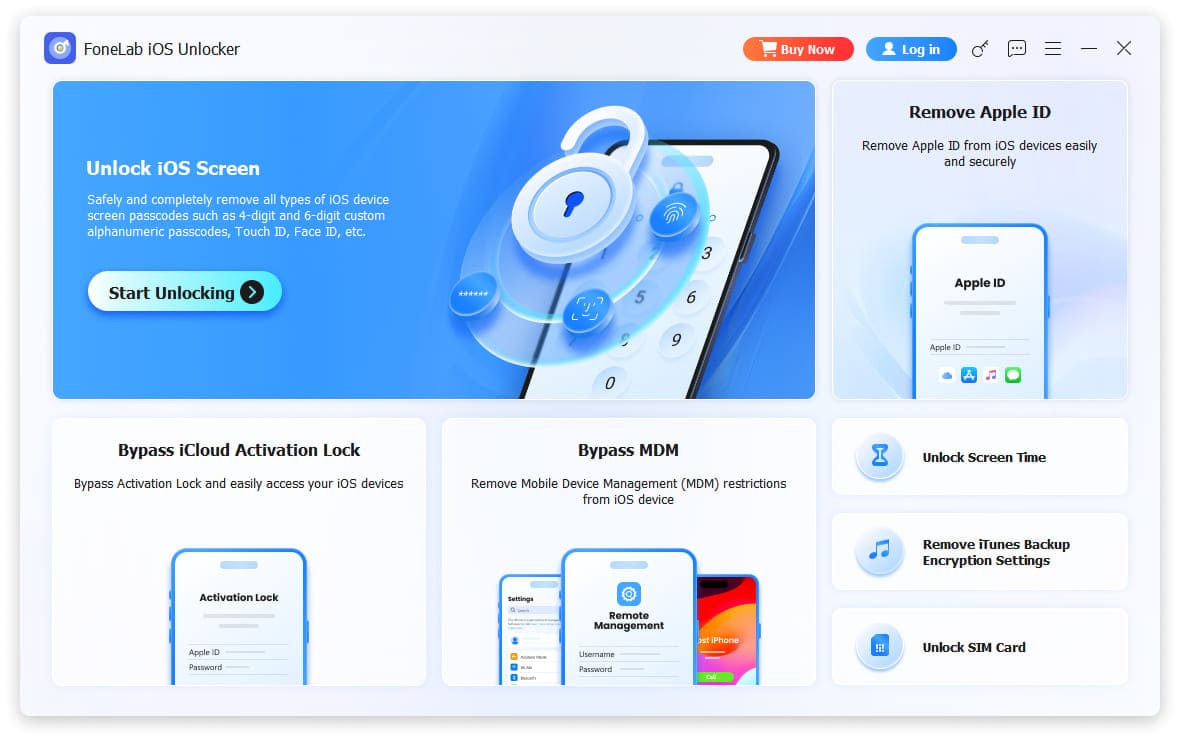
Step 1Download and install FoneLab iOS Unlocker on your computer. Launch it and select Unlock iOS Screen from the main menu.
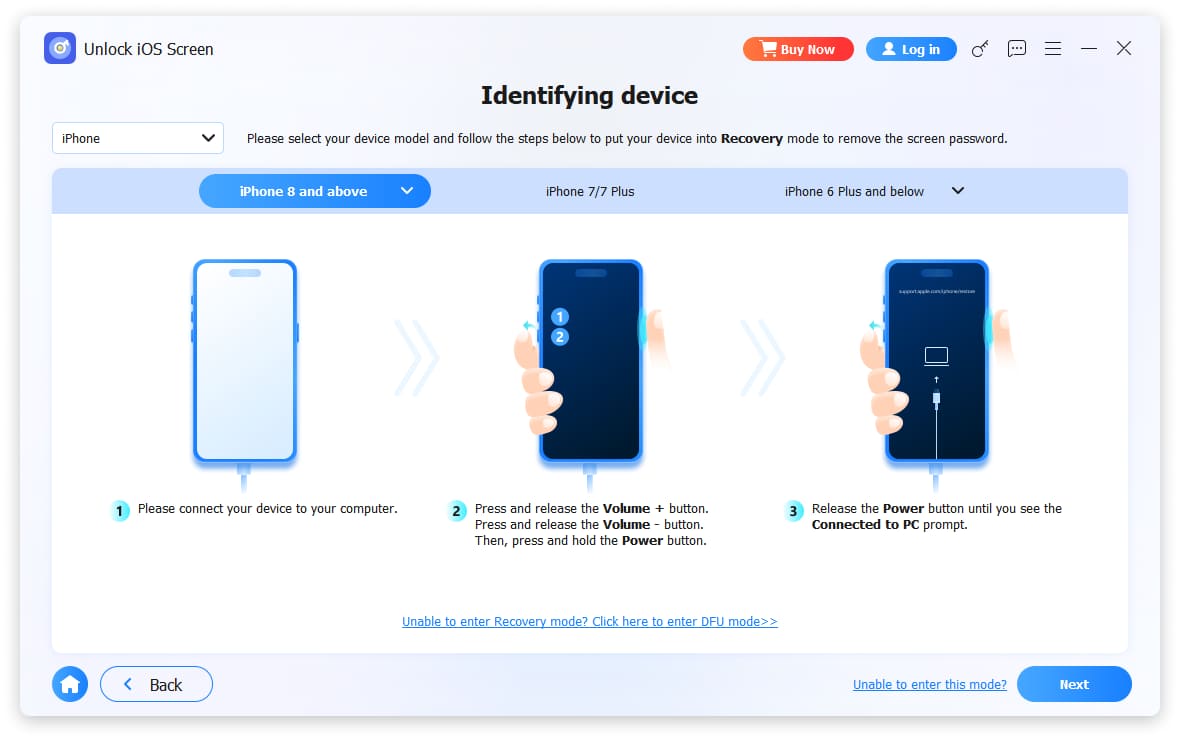
Step 2Connect your locked iPhone to the computer using a USB cable. The software will prompt you to put the device into recovery mode. It shows clear instructions for your specific model—just follow them.
Step 3Once the device is detected, the software displays its info (model, iOS version). Click Start Now to download the firmware package matching your iOS.
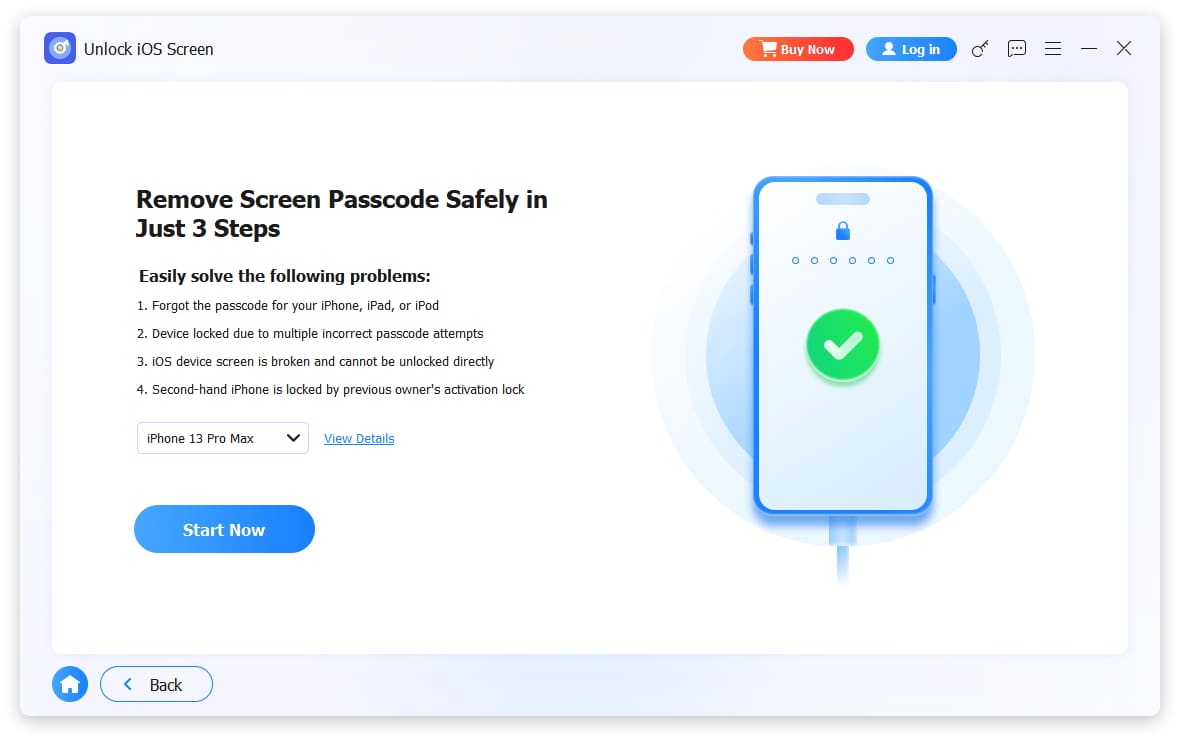
Step 4After the download completes, read the on-screen notes carefully and click OK then Confirm Again to begin unlocking. The software warns you that all data will be erased—this is necessary to remove the passcode.
Step 5The process takes about 10 minutes. Keep the USB cable connected the whole time. When it finishes, the phone restarts and shows the Hello setup screen—completely free from the old passcode.
Note: This erases everything on the phone. If you have an iCloud or iTunes backup, you can restore after setup. If not, you're starting fresh.
FoneLab Helps you unlock iPhone screen, Removes Apple ID or its password, Remove screen time or restriction passcode in seconds.
- Helps you unlock iPhone screen.
- Removes Apple ID or its password.
- Remove screen time or restriction passcode in seconds.
Part 5: What If the Problem Is Bigger? – FoneLab iOS System Recovery
Sometimes a hard reset isn't enough. If your iPhone keeps freezing, randomly restarting, or stuck in a boot loop, the issue might be deeper than just a temporary glitch.
That's when I turn to FoneLab iOS System Recovery. Unlike a hard reset (which just reboots the phone) or FoneLab iOS Unlocker (which removes passcodes), this tool actually repairs the underlying iOS system.
I used this recently when my own iPhone got stuck in a boot loop after an update. Recovery Mode wasn't working, and I was hours away from an Apple Store appointment. This saved me.

FoneLab enables you to fix iPhone/iPad/iPod from DFU mode, recovery mode, Apple logo, headphone mode, etc. to normal state without data loss.
- Fix disabled iOS system problems.
- Extract data from disabled iOS devices without data loss.
- It is safe and easy to use.
How It Works:
Step 1Download and install FoneLab iOS System Recovery on your computer. Launch it and click iOS System Recovery from the main menu.
Step 2Connect your iPhone to the computer with a USB cable. Click Start to begin.
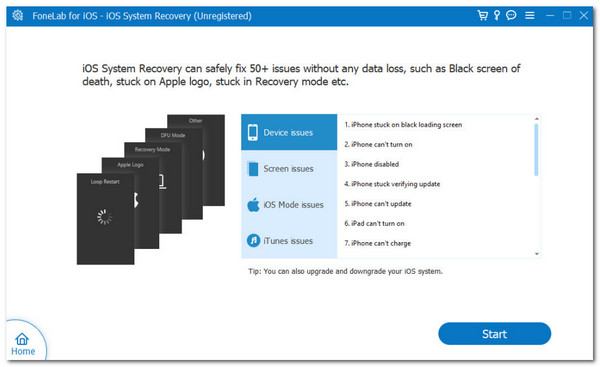
Step 3Choose your preferred repair mode:
- Standard Mode: Fixes common issues without erasing data (try this first)
- Advanced Mode: Fixes more serious problems but erases all data
Step 4Click Confirm to see the firmware package for your device. Click Next to download it.
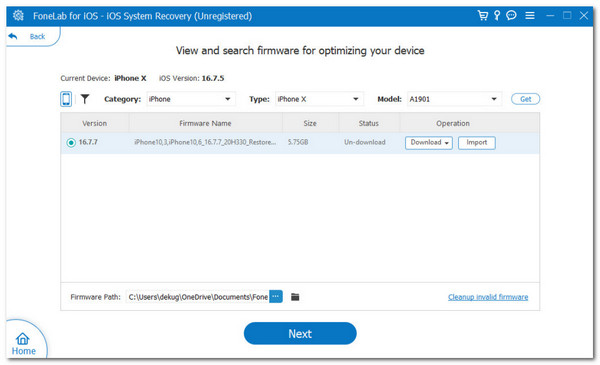
Step 5Once downloaded, the tool will start repairing your iOS system. Keep the phone connected until the process completes.
Step 6: When finished, your iPhone will restart normally—hopefully without the issues you were having.
FoneLab enables you to fix iPhone/iPad/iPod from DFU mode, recovery mode, Apple logo, headphone mode, etc. to normal state without data loss.
- Fix disabled iOS system problems.
- Extract data from disabled iOS devices without data loss.
- It is safe and easy to use.
My take: This is my go-to when a hard reset fails. It's saved me multiple trips to the Apple Store.
Part 6: Other Types of Resets – Soft Reset and Factory Reset
Since we're talking about resets, it's worth understanding all your options. Here's how the three compare:
| Type | What It Does | Data Loss? | When to Use |
|---|---|---|---|
| Hard Reset (Force Restart) | Forcefully reboots the phone using buttons | None | Frozen screen, unresponsive apps, minor glitches |
| Soft Reset (Normal Restart) | Standard power-off and restart using on-screen slider | None | Minor sluggishness, everyday restart |
| Factory Reset (Erase All Content) | Wipes everything and restores to出厂 settings | All data erased | Selling phone, major software issues, starting fresh |
Soft Reset (Normal Restart) – How to Do It:
For iPhones without Home button:
Step 1Press and hold either the Volume button and the Side button together until the power-off slider appears.
Step 2Drag the slider to turn off the phone.
Step 3Wait 30 seconds, then press and hold the Side button until the Apple logo appears.
For iPhones with Home button:
Step 1Press and hold the Side (or Top) button until the power-off slider appears.
Step 2Drag the slider to turn off the phone.
Step 3Wait 30 seconds, then press and hold the Side (or Top) button until the Apple logo appears.
Factory Reset – How to Do It:
Step 1Open Settings > General > Transfer or Reset iPhone.
Step 2Tap Erase All Content and Settings.

Step 3Enter your passcode and Apple ID password when prompted.
Step 4Confirm that you want to erase everything. The phone will restart and show the Hello setup screen.
Important: Back up your data before a factory reset. You'll lose everything.
FoneLab enables you to fix iPhone/iPad/iPod from DFU mode, recovery mode, Apple logo, headphone mode, etc. to normal state without data loss.
- Fix disabled iOS system problems.
- Extract data from disabled iOS devices without data loss.
- It is safe and easy to use.
Part 7: FAQs About Hard Reset iPhone
Will a hard reset delete my photos, apps, or data?
No. A hard reset (force restart) does not delete anything. It simply reboots the phone. Your photos, messages, apps, and settings remain exactly as they were.
What if the hard reset doesn't work?
If your iPhone won't respond to the button combinations, try a different method or check your USB connection if you're using a computer. If the phone still won't restart, you may need to put it into recovery mode and use a tool like FoneLab iOS System Recovery to fix deeper software issues.
I did a hard reset and now I'm stuck at the passcode screen. Help?
This happens if you've forgotten your passcode. The hard reset didn't cause it—it just revealed it. You'll need to use a tool like FoneLab iOS Unlocker to remove the lock screen. Yes, it erases data, but it's the only way back in.
Is there any way to hard reset without losing data if I forgot the passcode?
No. If you forgot the passcode, the only way to get back into the phone is to erase it. That's an Apple security feature—there's no backdoor. Tools like FoneLab iOS Unlocker do exactly that: erase the phone so you can set it up fresh.
The Bottom Line
A hard reset is your first line of defense when your iPhone freezes or acts up. It's quick, safe, and keeps all your data intact. Just remember:
- Use the right button combo for your model – Face ID and iPhone 8/SE use Volume Up/Down + Side. iPhone 7 is different. Home button models use Home + Side/Top.
- A hard reset doesn't erase data – It's just a forceful reboot.
- After the reset, you'll need your passcode – If you don't have it, you're locked out.
- If you're locked out, use FoneLab iOS Unlocker – It will erase the phone so you can start fresh.
- If problems persist, try FoneLab iOS System Recovery – It fixes deeper iOS issues without always needing a factory reset.
I keep these steps saved on my computer now, just in case. And after helping my friend recover her iPhone, I also make sure everyone in my family knows their passcode—or has it written down somewhere safe.
FoneLab enables you to fix iPhone/iPad/iPod from DFU mode, recovery mode, Apple logo, headphone mode, etc. to normal state without data loss.
- Fix disabled iOS system problems.
- Extract data from disabled iOS devices without data loss.
- It is safe and easy to use.



