
 iPhone Data Recovery
 iOS System Recovery
 iOS Data Backup & Restore
 iOS Unlocker
 iPhone Password Manager
 Location Changer
 Android Data Recovery
 Broken Android Data Extraction
 Android Data Backup & Restore
 Android Unlocker
 FoneTrans for iOS
 iPhone Data Eraser
 iPhone Cleaner
 HEIC Converter
 HyperTrans
 WhatsApp Transfer for iOS
 Mac Sweep
 Data Retriever
 Mac Data Retriever
 Video Converter Ultimate
 Screen Recorder
 Phone Mirror
- Part 1. How to Recover Deleted Files from Google Drive by Checking the Trash Folder
- Part 2. How to Recover Deleted Files from Google Drive by Checking Orphaned Files
- Part 3. How to Recover Deleted Files from Google Drive in Google Workspace
- Part 4. How to Recover Deleted Files from Google Drive by Checking Google Photos
- Part 5. How to Recover Deleted Files from Google Drive by Restoring Previous Versions
- Part 6. How to Recover Deleted Files from Google Drive by Contacting Google Drive Support
- Part 7. How to Recover Deleted Files from Google Drive With FoneLab Data Retriever
- Part 8. Comparison Table of Methods to Recover Deleted Files from Google Drive
- Part 9. How to Avoid Future Data Loss from Google Drive
- Part 10. FAQs about How to Recover Deleted Files from Google Drive
 Recover PC Data Now
Recover the lost/deleted data from computer, hard drive, flash drive, memory card, digital camera and more.
Recover Deleted Google Drive Files in 7 Simple Techniques
 Updated by
 Greetings! Can Google Drive restore deleted files? I hope it can, because I lost some of my important files that were stored on it. They are about my work project, which is due next week. Please help me with this issue. Thank you!
Google Drive is commonly used as a cloud storage service for work or school. You can import your videos, documents, images, and other data types. It also serves as a backup solution for many users. However, there are instances where data from Google Drive is deleted. Did you experience it? Luckily, this post has 7 easy ways to help you. Kindly scroll below to know their full details.

Guide List
- Part 1. How to Recover Deleted Files from Google Drive by Checking the Trash Folder
- Part 2. How to Recover Deleted Files from Google Drive by Checking Orphaned Files
- Part 3. How to Recover Deleted Files from Google Drive in Google Workspace
- Part 4. How to Recover Deleted Files from Google Drive by Checking Google Photos
- Part 5. How to Recover Deleted Files from Google Drive by Restoring Previous Versions
- Part 6. How to Recover Deleted Files from Google Drive by Contacting Google Drive Support
- Part 7. How to Recover Deleted Files from Google Drive With FoneLab Data Retriever
- Part 8. Comparison Table of Methods to Recover Deleted Files from Google Drive
- Part 9. How to Avoid Future Data Loss from Google Drive
- Part 10. FAQs about How to Recover Deleted Files from Google Drive
Part 1. How to Recover Deleted Files from Google Drive by Checking the Trash Folder
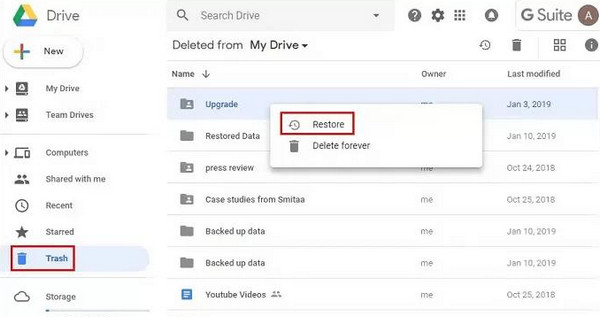
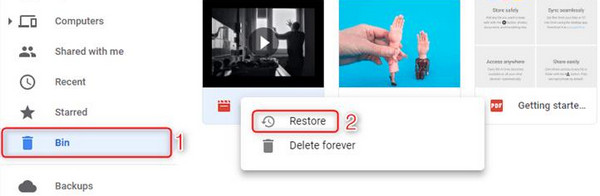
Google Drive stores your deleted files in its Trash folder, which is the same as other cloud storage's Recycle Bin. You may restore the deleted files within 30 days. Recover deleted files from Recycle Bin or the Trash Bin on Google Drive with the steps below.
Go to the Google Drive website and sign in to your account. Select the Trash or Bin button on the left side of the screen. Later, find the deleted files you want to recover. Right-click the file and choose the Restore button.
Part 2. How to Recover Deleted Files from Google Drive by Checking Orphaned Files
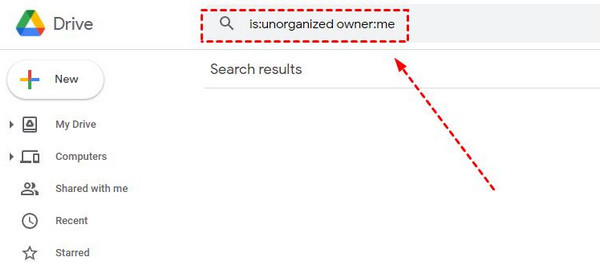
Sometimes, Google Drive files aren't actually deleted – they just become orphaned. TSee how to locate these files and recover them afterward.
Go to the website of Google Drive. Click the search bar and type is:unorganized owner: me. Press Enter. Right-click the file and choose the Organize or Move To button. Finally, choose a folder.
Part 3. How to Recover Deleted Files from Google Drive in Google Workspace
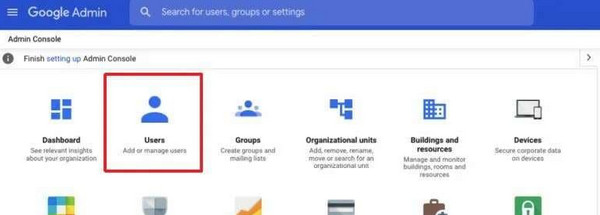
Google Workspace can recover your Google Drive files if you are the admin. However, you must recover them within the limited recovery period. See how below.
Open the admin console from the main website of Google. Then, sign in with the administrator account. Click the Directory button from the list. Select the Users button and choose the affected account. Choose the More Options button. Click the Restore Data button. Finally, select the Restore button.
Part 4. How to Recover Deleted Files from Google Drive by Checking Google Photos
Google Photos is another free service of Google. If photos are deleted from Google Drive, you can still check them from the mentioned service. The steps below will show you how.
Go to the Google Photos website. Then, sign in to the Google account used for the photos. Later, choose the Trash or Bin button. Alternatively, you can select the file directly from the main screen. Finally, choose the Restore button.
Part 5. How to Recover Deleted Files from Google Drive by Restoring Previous Versions
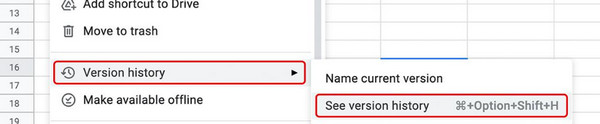
Google Drive stores previous versions of your files. In this case, you can restore the previous version of the files when needed.
Open a web browser and search for Google Drive. Open the file. For example, if you open an Excel or Word file, please choose the File button at the top. Drop-down options will appear. Then, select the Version History button. Later, select the See Version History button. Find the version you prefer. Choose the Restore This Version afterward.
Part 6. How to Recover Deleted Files from Google Drive by Contacting Google Drive Support
Contacting Google Drive Support is difficult – they do not offer a hotline or live chat. You only need to visit the Google Drive Help Center and search for recovery-related guides.
Part 7. How to Recover Deleted Files from Google Drive With FoneLab Data Retriever
A third-party tool can also be used to recover Google Drive files. FoneLab Data Retriever is one of the best! It can recover documents, images, videos, databases, emails, and other types of data. The tool does not require professional skills to operate. Also, the recovery process of the tool can last for a few seconds or minutes only. How to recover deleted file on PC and Mac? The steps are available below.
FoneLab Data Retriever - recover the lost/deleted data from computer, hard drive, flash drive, memory card, digital camera and more.
- Recover photos, videos, documents and more data with ease.
- Preview data before recovery.
Step 1Click the Free Download button. Then, set up, install, and open FoneLab Data Retriever.
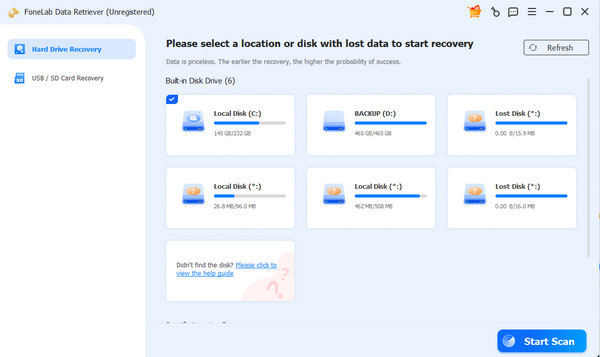
Step 2Choose a location. Then, click the Start Scan button. The results will be prompted on the next interface.
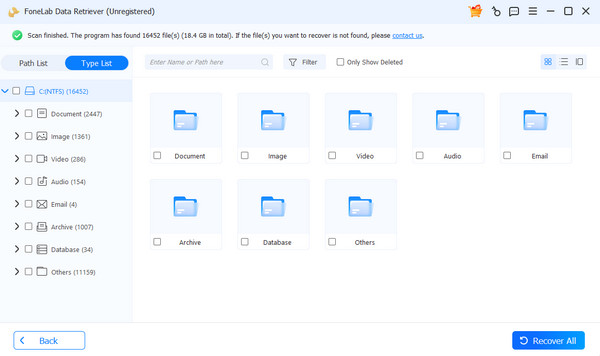
Step 3Select the data you want to retrieve. Finally, click the Recover All button at the bottom right of the interface.
Part 8. Comparison Table of Methods to Recover Deleted Files from Google Drive
| Method | Requires Backup? | Skills Required | Recovery Duration |
| Trash/Bin/Recycle Bin | No | Beginner | A Few Seconds |
| Checking Orphaned Files | No | Intermediate | 5 to 10 Minutes |
| Google Workspace | Yes | Professional | 20 to 40 Minutes |
| Google Photos | Yes | Intermediate | 20 to 40 Minutes |
| Restoring Previous Versions | No | Professional | 30 to 50 Minutes |
| Google Drive Support | No | Professional | 30 to Hours |
| FoneLab Data Retriever | NO | Beginner | A Few Seconds or Minutes |
Part 9. How to Avoid Future Data Loss from Google Drive
To avoid future data loss from Google Drive, ensure your important files are properly backed up. Besides Google, you can also use Dropbox or OneDrive for the backup process. Additionally, you can utilize external hard drives to keep your data safe with copies.
Part 10. FAQs about How to Recover Deleted Files from Google Drive
Why did all my Google Drive files disappear?
There are instances where the Google Drive files have gone out of nowhere. It might be due to accidental deletion. It is also possible that the account has been logged out. In this case, the files are not accessible.
How long does Google Drive keep files?
Google Drive can keep your files forever. They will only disappear if you delete them intentionally. There is no time duration for how long the cloud service will store your data.
In conclusion, you can restore deleted files on Google Drive using the 7 methods above. FoneLab Data Retriever is included as a powerful alternative for recovering permanently deleted or locally stored files. It can recover images, videos, documents, emails, databases and more. It is ideal for beginners. Get the tool on your Mac or Windows to know its full operations!



