
 iPhone Data Recovery
 iOS System Recovery
 iOS Data Backup & Restore
 iOS Unlocker
 iPhone Password Manager
 Location Changer
 Android Data Recovery
 Broken Android Data Extraction
 Android Data Backup & Restore
 Android Unlocker
 FoneTrans for iOS
 iPhone Data Eraser
 iPhone Cleaner
 HEIC Converter
 HyperTrans
 WhatsApp Transfer for iOS
 Mac Sweep
 Data Retriever
 Mac Data Retriever
 Video Converter Ultimate
 Screen Recorder
 Phone Mirror
- Part 1. How to Recover Unsaved PDF by Checking Recycle Bin or Trash
- Part 2. How to Recover Unsaved PDF by Checking Auto-Recovery Folders in Adobe Acrobat
- Part 3. How to Recover Unsaved PDF by Checking Browser Cache
- Part 4. How to Recover Unsaved PDF by Finding Temporary Files on Windows/macOS
- Part 5. How to Recover Unsaved PDF by Using the Previous Versions Feature
- Part 6. How to Recover Unsaved PDF With FoneLab Data Retriever
- Part 7. Comparison Table of Methods to Recover Unsaved PDF
- Part 8. How to Never Lose a PDF Again
- Part 9. FAQs about How to Recover Unsaved PDF
 Recover PC Data Now
Recover the lost/deleted data from computer, hard drive, flash drive, memory card, digital camera and more.
How to Recover PDF Files Unsaved in 6 Quick Practices
 Updated by
 Good day! Can you help me recover unsaved PDF? I did not have the chance to save it because I accidentally closed the program where I was making it. I hope I can still retrieve it. It is important for my job. Thank you!
Portable Document Format, also known as a PDF, is a document commonly used for serious situations. These include contacts, reports, invoices, and more. It is used because of the security it offers to the user’s data or information. Losing them can be a disaster. So, you can refer to this article to know how to retrieve the unsaved PDFs on your Windows or Mac. Continue browsing to know the full details about the topic.

Guide List
- Part 1. How to Recover Unsaved PDF by Checking Recycle Bin or Trash
- Part 2. How to Recover Unsaved PDF by Checking Auto-Recovery Folders in Adobe Acrobat
- Part 3. How to Recover Unsaved PDF by Checking Browser Cache
- Part 4. How to Recover Unsaved PDF by Finding Temporary Files on Windows/macOS
- Part 5. How to Recover Unsaved PDF by Using the Previous Versions Feature
- Part 6. How to Recover Unsaved PDF With FoneLab Data Retriever
- Part 7. Comparison Table of Methods to Recover Unsaved PDF
- Part 8. How to Never Lose a PDF Again
- Part 9. FAQs about How to Recover Unsaved PDF
Part 1. How to Recover Unsaved PDF by Checking Recycle Bin or Trash
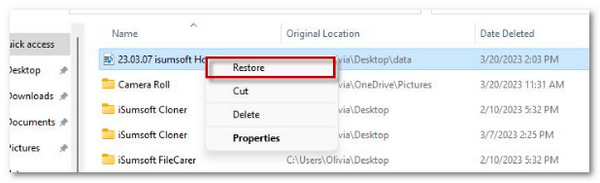
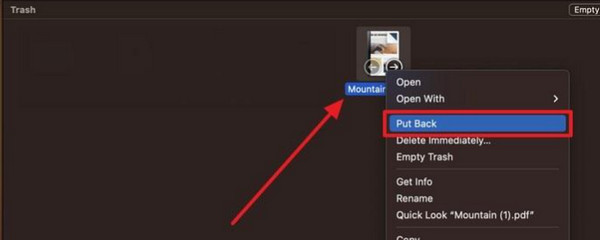
The Windows Recycle Bin and Mac Trash Bin are tools that can hold recently deleted files. You can check them for your unsaved PDF files. However, since the PDFs are unsaved, not deleted, there is only a small chance of retrieving them from the mentioned tools. Recover deleted files from Recycle Bin or the Trash Bin with the steps below.
Windows Recycle Bin: Open Recycle Bin. Locate the unsaved PDF files you want to retrieve. Right-click the file and choose the Restore button.
Mac Trash Bin: Open Trash. Then, locate the files you want to retrieve. Then, right-click them and choose the Put Back button.
Part 2. How to Recover Unsaved PDF by Checking Auto-Recovery Folders in Adobe Acrobat
There are countless PDF makers that users can use. Adobe Acrobat is one of them. The good thing about this tool is that it allows you to recover unsaved PDF files. How to recover unsaved Adobe PDF? The steps below will guide you.
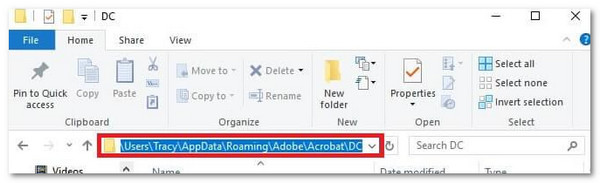
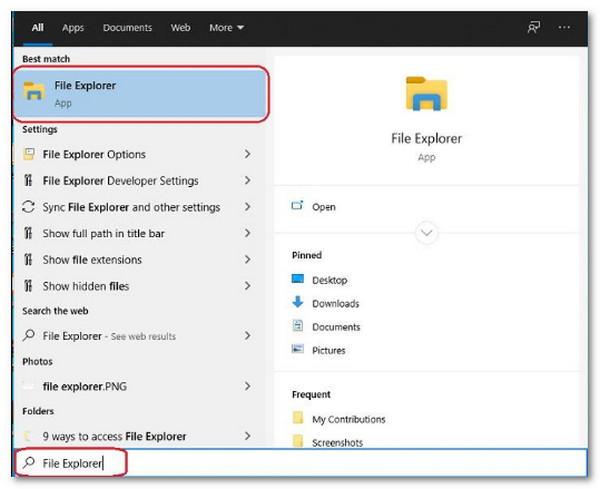
Windows: Open File Explorer. Click View and choose Show. Later, enable the Hidden Items section. Type C:\Users\YourName\AppData\Roaming\Adobe\Acrobat\ or C:\Users\YourName\AppData\Local\Adobe\. Right-click the files and choose the Rename button. Change the extension to .pdf.
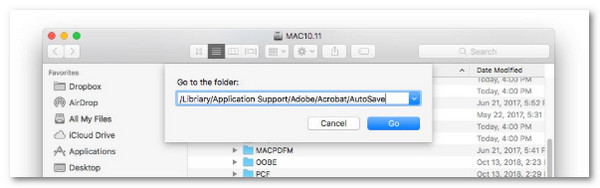
Mac: Open Finder. Click Go and hold Option. Later, choose Library. Search for ~/Library/Application Support/Adobe/ or ~/Library/Caches/Adobe/.
Part 3. How to Recover Unsaved PDF by Checking Browser Cache
If you are editing PDFs online, web browsers are used with the online PDF makers' tools. Did you know that your computer also stores them in a cache folder? You can browse the folder if you want to retrieve the PDF.
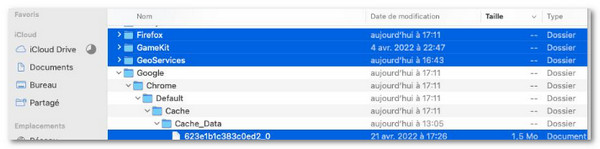
Windows: Open File Explorer. Then, open the cache folder, which is C:\Users\YourName\AppData\Local\Google\Chrome\User Data\Default\Cache. Right-click the files and choose the Copy button. Paste the PDF files into other folders afterward.

Mac: Open Finder. Then, search for the ~/Library/Caches/com.apple.Safari/ or ~/Library/Caches/Google/Chrome/. Find the unsaved PDF files. Then, right-click the files. Choose the Rename button. Change the extension to .pdf.
Part 4. How to Recover Unsaved PDF by Finding Temporary Files on Windows/macOS
The temporary files for your PDF file can be accessed from the Mac Finder or Windows File Explorer. The computer stores the temporary files for various crash-related issues for your computer. You will find these files in .tmp or .temp file extension. See how to recover these temporary files below.
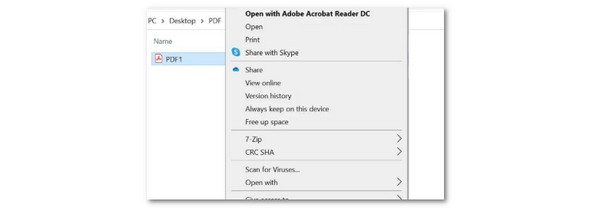
Windows: Press the Windows + R combination. Then, search for %temp%. Locate the files on the screen. Change the files to the .pdf extension. Later, choose Open With and open it with Microsoft Edge or Adobe Acrobat Reader.
Mac: Go to Finder. Then, choose Go and Go to Folder. Then, enter /private/var/folders. Search for .pdf or .tmp files. Then, you will see the PDF files you prefer to
Part 5. How to Recover Unsaved PDF by Using the Previous Versions Feature
The created PDF files on your Windows have previous versions. However, this feature is only accessible on your Windows computers.
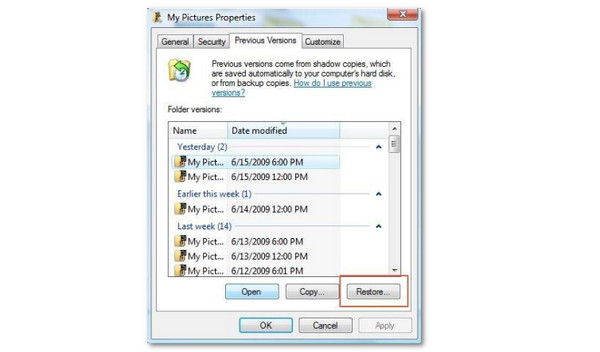
Step 1Open File Explorer. Then, locate the PDF file. Then, right-click the file and select the Properties button.
Step 2Open the Previous Version tab. Select the file’s older version.
Part 6. How to Recover Unsaved PDF With FoneLab Data Retriever
How to recover deleted file on PC? FoneLab Data Retriever is the best choice! It can retrieve your PDF files and other documents. Besides that, you can also recover images, videos, music, and other files. This tool does not need an internet connection to function. Also, it has a simple interface that novices will love. Use the steps below to know how to use the tool.
FoneLab Data Retriever - recover the lost/deleted data from computer, hard drive, flash drive, memory card, digital camera and more.
- Recover photos, videos, documents and more data with ease.
- Preview data before recovery.
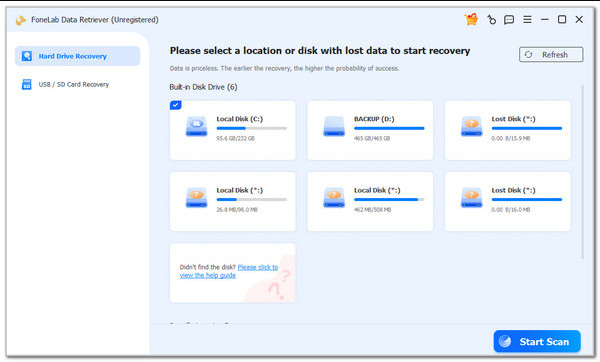
Step 1Click the Free Download button. Install and open the tool afterward.
Step 2Choose a location. Then, click the Start Scan option at the bottom right.
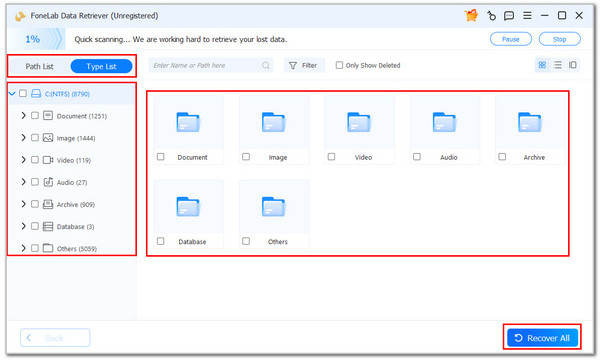
Step 3Select the Document button on the left. You can choose the other data types afterward. Choose the PDF files you want to retrieve. Then, click the Recover All button.
Part 7. Comparison Table of Methods to Recover Unsaved PDF
| Method | Time Duration | Skills Required | Difficulty |
| Checking Recycle Bin or Trash | A Few Seconds | Intermediate | Moderate |
| Checking Auto-Recovery Folders in Adobe Acrobat | 10 to 30 Minutes | Professional | Hard |
| Checking Browser Cache | 15 to 30 Minutes | Intermediate | Moderate |
| Finding Temporary Files on Windows/macOS | 20 to 40 Minutes | Intermediate | Moderate |
| Using the Previous Versions Feature | 10 to 20 Minutes | Intermediate | Moderate |
| FoneLab Data Retriever | A Few Seconds or Minutes | Beginner | Easy |
Part 8. How to Never Lose a PDF Again
If you do not want to lose your PDF files again, it is recommended to back them up. You can use different cloud services, including iCloud, OneDrive, and Google Drive. External hard drives can also help. Additionally, you need to ensure that you will not experience a computer shutdown to be able to save your PDF files. You should ensure that your laptop has enough battery percentage or a good performance.
Part 9. FAQs about How to Recover Unsaved PDF
Where do unsaved PDF files go?
Regardless of the state of your PDF files, they will be stored on your computers. They can be stored in the temporary folders, AutoRecover folders, and more.
Can we recover the crashed PDF?
Yes. You only need to fix the PDF files. You can do this by reopening the PDF files on the computer. This method fixes the bug in the mentioned documents.
All in all, this article guides you on how to recover unsaved PDF. 6 of the best methods are here to achieve the process quickly. FoneLab Data Retriever is here to retrieve the unsaved PDF files on your Mac or Windows in a span of a few minutes. Download the tool on your computer to experience its process.



