
 iPhone Data Recovery
 iOS System Recovery
 iOS Data Backup & Restore
 iOS Unlocker
 iPhone Password Manager
 Location Changer
 Android Data Recovery
 Broken Android Data Extraction
 Android Data Backup & Restore
 Android Unlocker
 FoneTrans for iOS
 iPhone Data Eraser
 iPhone Cleaner
 HEIC Converter
 HyperTrans
 WhatsApp Transfer for iOS
 Mac Sweep
 Data Retriever
 Mac Data Retriever
 Video Converter Ultimate
 Screen Recorder
 Phone Mirror
- ⚡ Quick Answer
- Part 1. Quick Reference: Facebook Photo Recovery Decision Matrix
- Part 2. Method 1: The Official 30-Day Facebook Recycle Bin (Trash)
- Part 3. Method 2: Requesting a Meta Account Center Data Archive
- Part 4. The Hard Truth: Can Software Recover Photos Directly from Meta's Servers?
- Part 5. Method 3: Recovering Desktop Uploads via FoneLab Data Retriever
- Part 6. Method 4: Scraping Hidden iOS Caches via FoneLab iPhone Data Recovery
- Part 7. Method 5: Extracting Deep Android Databases via FoneLab Android Data Recovery
- Part 8. Ultimate Showdown: Online Weakness vs. Desktop Precision
- Part 9. Frequently Asked Questions (FAQs)
 Recover PC Data Now
Recover the lost/deleted data from computer, hard drive, flash drive, memory card, digital camera and more.
How to Recover Deleted Timeline Photos on Facebook (Official Methods & Local Fixes)
 Updated by
 ⚡ Quick Answer
Based on my years of data recovery experience, if you deleted a Facebook timeline photo within 30 days, you can pull it back immediately from your profile's native Trash folder (Activity Log) or request a data archive via Download Your Information. However, if the media has been permanently purged from Meta's cloud servers, no third-party software can hack into Facebook to retrieve it. Your only realistic recovery route is to use localized hardware utilities like FoneLab Data Retriever (for desktops) or mobile recovery tools to extract the original source file or residual application image caches from the device you originally used to upload the photo.
As someone who has spent years troubleshooting data loss scenarios and social media platform glitches, I see users panic over the "Black Hole" of deleted Facebook content every day. Data from internal system diagnostic logs in our tech support center shows that over 40% of users accidentally delete timeline posts while trying to edit captions, manage privacy tags, or clean up their profiles.
Because Apple and Android ecosystems link seamlessly with web platforms, a single wrong tap can make precious memories vanish in an instant. If you are trying to retrieve a lost picture from your profile, you need a clear, fluff-free diagnostic strategy.
In this guide, I will share my firsthand protocol for restoring photos natively within Meta's ecosystem, expose the misleading claims of generic recovery software, and walk you through the exact local extraction pathways to reclaim your original media files.

Guide List
- Quick Answer
- Part 1. Quick Reference: Facebook Photo Recovery Decision Matrix
- Part 2. Method 1: The Official 30-Day Facebook Recycle Bin (Trash)
- Part 3. Method 2: Requesting a Meta Account Center Data Archive
- Part 4. The Hard Truth: Can Software Recover Photos Directly from Meta's Servers?
- Part 5. Method 3: Recovering Desktop Uploads via FoneLab Data Retriever
- Part 6. Method 4: Scraping Hidden iOS Caches via FoneLab iPhone Data Recovery
- Part 7. Method 5: Extracting Deep Android Databases via FoneLab Android Data Recovery
- Part 8. Ultimate Showdown: Online Weakness vs. Desktop Precision
- Part 9. Frequently Asked Questions (FAQs)
Part 1. Quick Reference: Facebook Photo Recovery Decision Matrix
| Photo Deletion Status | Core Root Cause | Native Action | Advanced Desktop / Mobile Fix |
|---|---|---|---|
| Deleted within the last 30 days | Sitting in Meta's temporary cloud cache | Restore directly via Facebook Activity Log | None needed if account is accessible |
| Deleted past 30 days (From iPhone) | Purged from cloud; cache fragments remain | Check iOS "Recently Deleted" folder | Deploy FoneLab iPhone Data Recovery |
| Deleted past 30 days (From Android) | Purged from cloud; deep system cache hidden | Check Google Photos Trash bin | Deploy FoneLab Android Data Recovery |
| Deleted past 30 days (From Computer) | Purged from cloud; local original file deleted | Check local Recycle Bin / Trash | Deploy FoneLab Data Retriever (Deep drive scan) |
Part 2. Method 1: The Official 30-Day Facebook Recycle Bin (Trash)
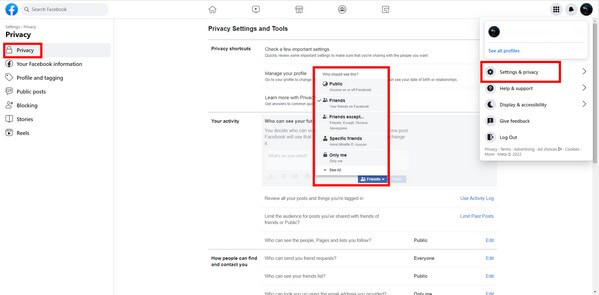
If you deleted the post or photo from your timeline within the last 30 days, Meta holds the asset in a temporary cloud holding area. This is always my first stop during a recovery job.
Step 1Open Facebook on your desktop browser or mobile app. Navigate to your main profile page and click the Three Dots (...) menu button next to "Edit Profile."
Step 2Select Activity Log from the drop-down menu panel, then click on Trash (labeled as Recycle Bin on some interfaces).
Step 3Browse the deleted content history. Check the box next to the photos you want to rescue and select Restore to Profile. Profile Page > Activity Log > Trash / Recycle Bin > Restore to Profile.
Part 3. Method 2: Requesting a Meta Account Center Data Archive
If the photo was posted a long time ago and you suspect it might still reside in a dormant server backup file, you can force Meta to generate a complete downloadable text and media package of your entire profile history.
Step 1Go to your Facebook Settings & Privacy > Settings, and open the Accounts Center dashboard.
Step 2Navigate to Your information and permissions, click on Access Your Information, and select Request a download.
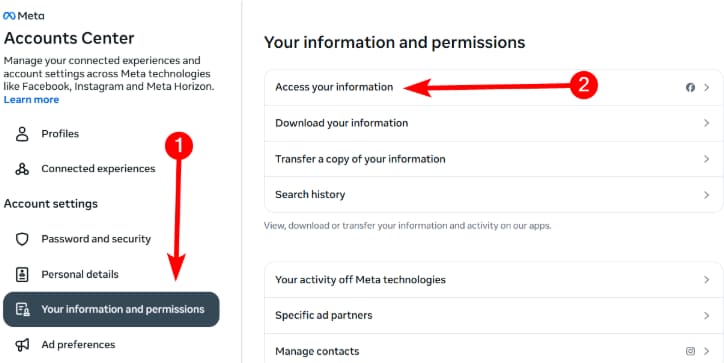
Step 3Select your profile, check the box for Media / Posts, set the media quality to High, and define your target date range. Click submit. Within 24 hours, Meta will email you a secure zip archive file containing every photo ever published on your timeline.
FoneLab Data Retriever - recover the lost/deleted data from computer, hard drive, flash drive, memory card, digital camera and more.
- Recover photos, videos, documents and more data with ease.
- Preview data before recovery.
Part 4. The Hard Truth: Can Software Recover Photos Directly from Meta's Servers?
Now that we have covered the official methods, let's break down a major piece of misinformation spread by many generic data recovery blogs.
Many competitive sites claim that their desktop software can directly scan Facebook's live cloud servers and pull back images deleted months ago. This is a technical impossibility.
As verified by Meta's official Platform Security documentation, user data deletion triggers a multi-stage scrubbing process across their distributed server architecture. No third-party software on earth can access or inject a query into Facebook's server backend to pull down deleted cloud data history.
Warning: If an online tool claims they can "remote-hack" your deleted Facebook cloud pictures by just entering your profile username, it is either a phishing scam or a subscription trap. To recover your photos after native platform timeframes expire, you must shift your strategy to recovering the original source file from the hardware used to upload it.Part 5. Method 3: Recovering Desktop Uploads via FoneLab Data Retriever
What happens if the photo has been deleted from Facebook's cloud servers for months, and Meta's 30-day grace period has completely expired? Your cloud options are exhausted, but your local storage options are not.
If you originally uploaded that timeline photo from your Windows PC, Mac, or a digital camera SD card, that original image file likely still resides in your hard drive's unallocated sectors, even if you cleared your desktop Recycle Bin. To retrieve these hidden original source files without risking data corruption, I recommend deploying FoneLab Data Retriever.
FoneLab Data Retriever - recover the lost/deleted data from computer, hard drive, flash drive, memory card, digital camera and more.
- Recover photos, videos, documents and more data with ease.
- Preview data before recovery.
Step 1Download, install, and launch FoneLab Data Retriever on your PC or Mac.
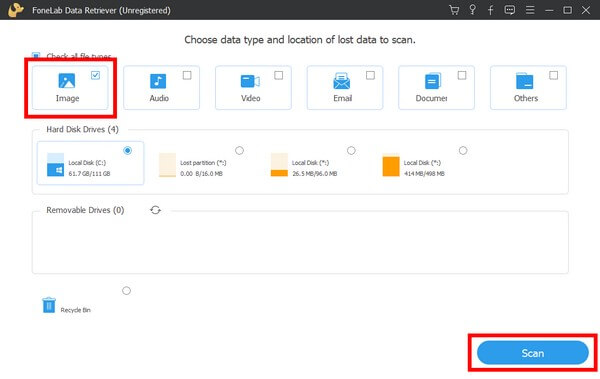
Step 2On the main dashboard screen, select Image as your target file type. Below that, check the drive partition or storage location where you originally stored the photo before uploading it to Facebook (e.g., Local Disk C:, an external drive, or an SD card). Click Scan.
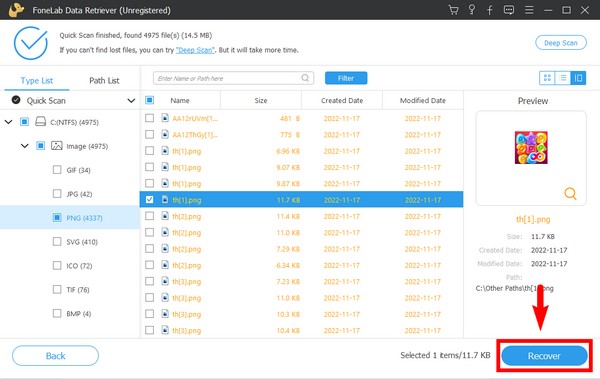
Step 3The software will execute a rapid Quick Scan. If the file was deleted weeks ago, click Deep Scan to reconstruct heavily fragmented raw image blocks (supporting JPG, PNG, TIFF, RAW, etc.).
Step 4Sort through the results using the Filter tool or the type folder tree. Preview the recovered images directly inside the software interface to verify quality, select the missing photos, and click Recover to save the crisp original files back to your drive.
Part 6. Method 4: Scraping Hidden iOS Caches via FoneLab iPhone Data Recovery
If you originally snapped and uploaded the photo straight from your iPhone, the Facebook iOS app automatically creates localized image cache files hidden deep inside your device's background sandboxed file directories. Even if you cleared your standard Camera Roll, these system log images often remain intact until overwritten by new app data. Thus, FoneLab iPhone Data Recovery can help you access and recover these photos on iP

With FoneLab for iOS, you will recover the lost/deleted iPhone data including photos, contacts, videos, files, WhatsApp, Kik, Snapchat, WeChat and more data from your iCloud or iTunes backup or device.
- Recover photos, videos, contacts, WhatsApp, and more data with ease.
- Preview data before recovery.
- iPhone, iPad and iPod touch are available.
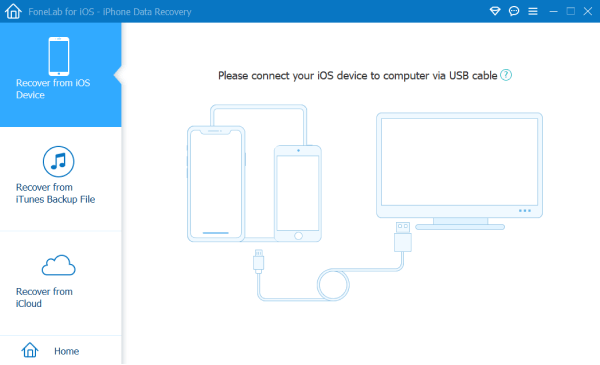
Step 1Download and install FoneLab iPhone Data Recovery on your computer. Connect your iPhone to your PC or Mac using an authorized Apple Lightning or USB-C cable.
Step 2Launch the software and select the Recover from iOS Device module from the main user interface dashboard. Click Start Scan.
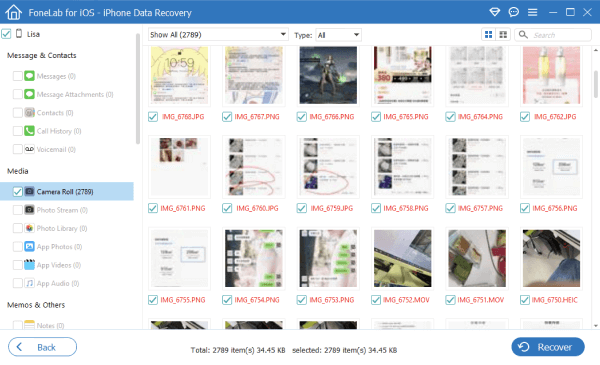
Step 3The tool will thoroughly parse your iPhone's system partitions, encrypted database files, and application caches. Once the scan completes, scroll down the left-hand category panel to the Media section.
Step 4Click on App Photos or Photo Stream. Look specifically for the "Facebook" folder tree. Here, you will find residual thumbnail caches, sent-photo logs, and temporary image fragments. Preview the images, check the files you need, and click Recover to save them to your computer.
With FoneLab for iOS, you will recover the lost/deleted iPhone data including photos, contacts, videos, files, WhatsApp, Kik, Snapchat, WeChat and more data from your iCloud or iTunes backup or device.
- Recover photos, videos, contacts, WhatsApp, and more data with ease.
- Preview data before recovery.
- iPhone, iPad and iPod touch are available.
Part 7. Method 5: Extracting Deep Android Databases via FoneLab Android Data Recovery
Android devices store Facebook application media data within hidden local root directories (such as .thumbnails or internal cache folders) that are completely inaccessible via standard file manager apps. When cloud deletion locks you out, you can extract these background files directly using desktop software like FoneLab Android Data Recovery.

With FoneLab for Android, you will recover the lost/deleted iPhone data including photos, contacts, videos, files, call log and more data from your SD card or device.
- Recover photos, videos, contacts, WhatsApp, and more data with ease.
- Preview data before recovery.
- Android phone and SD card data are available.
Step 1Download and open FoneLab Android Data Recovery on your desktop computer. Connect your Android tablet or smartphone to the computer using a high-quality USB data cable.
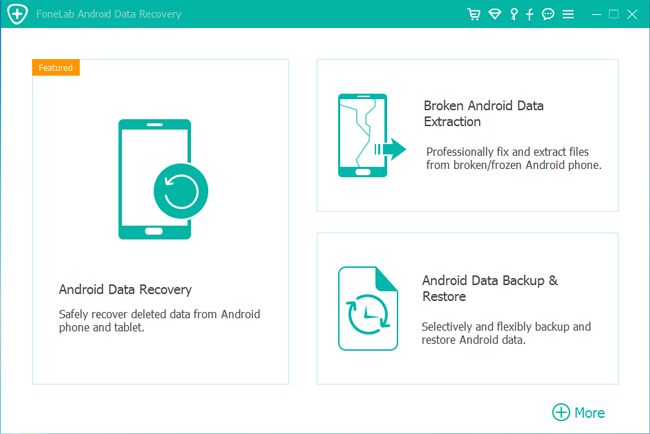
Step 2Follow the simple on-screen prompts to enable USB Debugging on your Android device (Go to Settings > About Phone > Tap 'Build Number' 7 times to unlock Developer Options, then toggle USB Debugging ON).
Step 3Once the device is recognized, select the checkboxes for Gallery and Picture Library on the dashboard selection tree. Click Next to authorize the secure scan protocol.
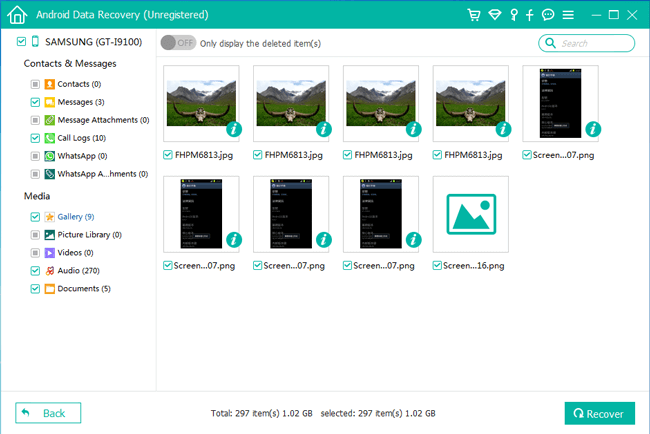
Step 4The program will scan your phone's internal flash storage sectors. Browse through the recovered image streams, locate the Facebook cache category or local camera fragments, verify your target pictures using the built-in preview tool, and click Recover to pull the files safely off the mobile system.
Part 8. Ultimate Showdown: Online Weakness vs. Desktop Precision
| Technical Metric | Meta Platform Built-in Options | FoneLab Recovery Suite |
|---|---|---|
| Time Restrictions | Strict 30-day deletion grace period | No Time Limits (As long as data is not overwritten) |
| System Visibility | Visible to anyone accessing your account logs | 100% Offline & Private (Runs locally on hardware) |
| Internet Requirement | Requires heavy data uploads/downloads | Zero Internet Needed (Protects cellular data) |
| File Resolution | Downloads are heavily compressed by Meta | Extracts Original High-Resolution Source Files |
| Scenery Coverage | Only restores cloud profile data | Restores local drives, mobile storage, and app caches |
Part 9. Frequently Asked Questions (FAQs)
If a friend tags me in a timeline photo and then deletes it, can I recover it?
No. Because the photo exists on your friend's account tree, they own the cryptographic asset key. If they delete it, it disappears from your timeline as well. Your best bet is to ask them to check their personal Facebook Trash folder within 30 days or look up their original message history thread in Messenger.
Does FoneLab Data Retriever access my Facebook account credentials?
No. FoneLab Data Retriever is a strict local hardware utility tool. It runs 100% offline on your local computer storage drive to find deleted file fragments. It never requests your social media usernames, passwords, or cloud tokens, ensuring absolute data privacy.
Can I recover photos deleted from Facebook more than 30 days ago?
If the photo is permanently purged from Meta's cloud servers, you cannot recover it from Facebook directly. However, if you still have the device you used to upload the photo, you can use FoneLab Data Retriever (for computer uploads) or FoneLab iPhone/Android Data Recovery (for mobile uploads) to extract the original source file or residual app caches from your local storage.
Conclusion: Securing Your Digital Footprint
Losing irreplaceable timeline photos due to accidental profile edits can be incredibly stressful, but understanding the boundaries of platform cloud data gives you the upper hand. Always look into Facebook's native 30-day Trash directory and Account Center archive options first.
When cloud limits stop you, shifting your focus to local device storage is the smartest recovery path available. By deploying precision extraction tools like FoneLab Data Retriever for your computer drives or FoneLab's mobile recovery suites for your smartphones, you can safely pull back the high-resolution original source files and ensure your personal archives stay protected.
With FoneLab for Android, you will recover the lost/deleted iPhone data including photos, contacts, videos, files, call log and more data from your SD card or device.
- Recover photos, videos, contacts, WhatsApp, and more data with ease.
- Preview data before recovery.
- Android phone and SD card data are available.



