
 iPhone Data Recovery
 iOS System Recovery
 iOS Data Backup & Restore
 iOS Unlocker
 iPhone Password Manager
 Location Changer
 Android Data Recovery
 Broken Android Data Extraction
 Android Data Backup & Restore
 Android Unlocker
 FoneTrans for iOS
 iPhone Data Eraser
 iPhone Cleaner
 HEIC Converter
 HyperTrans
 WhatsApp Transfer for iOS
 Mac Sweep
 Data Retriever
 Mac Data Retriever
 Video Converter Ultimate
 Screen Recorder
 Phone Mirror
 FoneLab iPhone Cleaner
Easily erase all contents and settings on iPhone, iPad or iPod completely and permanently.
- Clear iPhone Junk Files
- Clear iPad Cache
- Clear iPhone Safari Cookies
- Clear iPhone Cache
- Clear iPad Memory
- Clear iPhone Safari History
- Delete iPhone Contacts
- Delete iCloud Backup
- Delete iPhone Emails
- Delete iPhone WeChat
- Delete iPhone WhatsApp
- Delete iPhone Messages
- Delete iPhone Photos
- Delete iPhone Playlist
- Delete iPhone Restrctions Passcode
How iTunes Reset iPad or iPhone in The Beginner Way
 Updated by
 iTunes is a tool that is commonly used to reset your Apple devices, like an iPhone or iPad. There are various reasons why people want to reset an iPhone or iPad using iTunes. They might want to fix the performance issues that the iPhone or iPad has. Also, they may want to remove the personal data stored on the mentioned Apple devices.
However, some individuals are having difficulties using iTunes due to its complex features. This post will show you how to reset iPad with iTunes, including an iPhone. Please scroll below to see the information.

Guide List
Part 1. How to Reset iPhone or iPad with iTunes
iTunes is one of the most helpful tools on your Windows and earlier versions of macOS. It can be a media management tool, backup feature, restore program, or syncing feature. It can also update your iPhone or iPad software version. It also allows you to purchase and download music, TV shows, and movies. The best thing about it is that it can reset your iPhone or iPad to its factory settings.
How to reset iPhone on iTunes, including an iPad? The steps will be your best guide for this tool. Please imitate them accordingly for the best results.
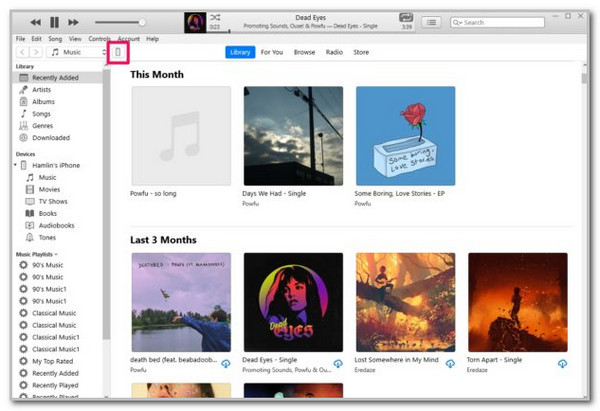
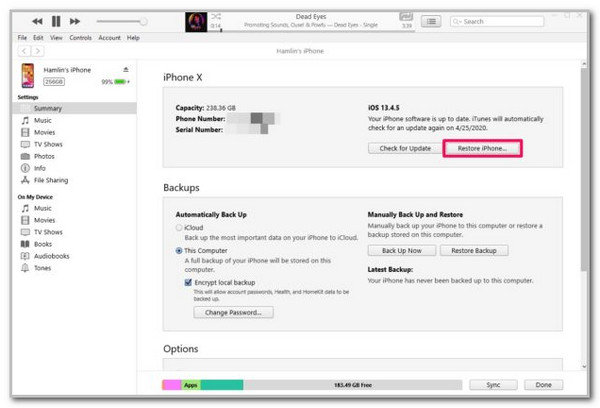
Step 1Open iTunes and plug the iPhone or iPad into the computer. Click the iPhone or iPad button at the top. After that, the iPhone or iPad information will appear. Go to the iPhone/iPad [Model] section and look at the software version.
Step 2 Click the Restore iPhone/iPad button under it. Then, the confirmation box will appear on the screen. Please click the Restore button to authenticate the procedure. Your iPhone or iPad will start resetting afterward.
Part 2. How to Reset iPhone or iPad with Finder
iTunes is beneficial for the earlier versions of Mac and all models of Windows. However, what if you have the latest version of macOS and want to use iTunes? That is impossible. You cannot reset iPhone with iTunes, including iPad, because the tool is not supported in these versions.
Luckily, you can use Finder as an alternative. They possess the same functionalities when it comes to resetting your iPhone or iPad. Please follow the same procedure below for using Finder to reset your iPhone and iPad.
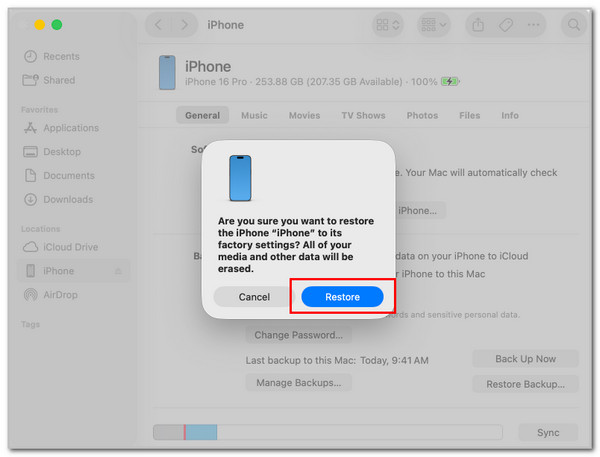
Step 1Open the Finder tool on your Mac and plug the iPhone or iPad into it. Then, go to the Locations button on the left side of the screen. Please click the iPhone or iPad button under the section. Then, select the General button at the top left, and the iPhone or iPad information will be shown. Go to the Software section and click the Restore iPhone/iPad button.
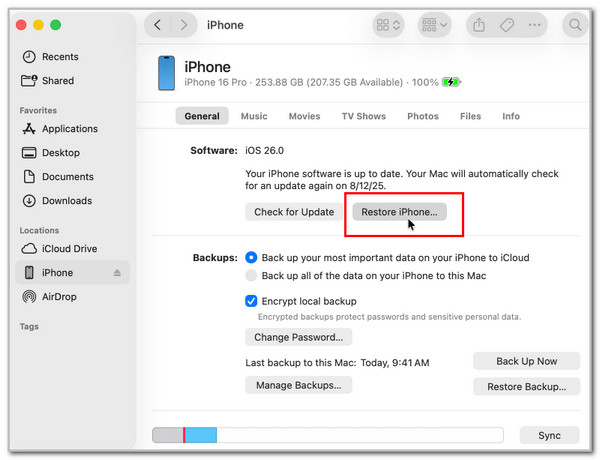
Step 2A small window will be prompted on the screen. It requires you to confirm the action. You only need to click the Restore option at the bottom right to do that.
Part 3. How to Clear iPhone/iPad Data
Besides iTunes and Finder, there are other ways to clear your iPhone or iPad data. This section will show you the top 3 ways to do that. Please scroll down to discover them.
1. Delete iPhone/iPad Data Manually
You can clear the iPhone or iPad data by manually deleting it. However, this method will last hours, depending on the data you will delete. Also, there are multiple ways to do it. We recommend using the Files app on your iPhone or iPad because it holds most of the data on the mentioned Apple devices.
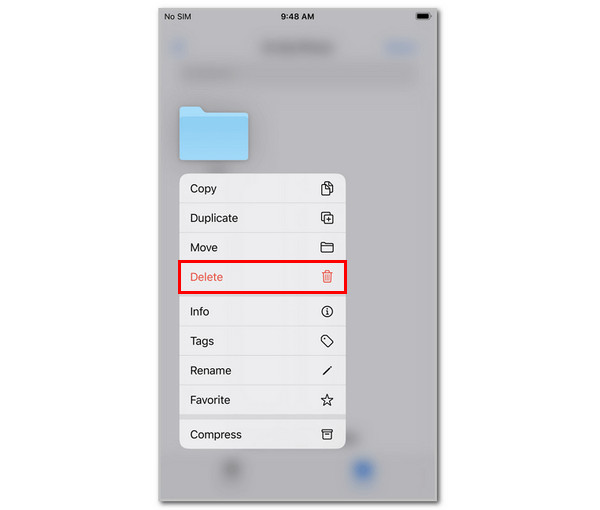
Open the Files app on an iPhone or iPad. Then, tap the On My iPhone/iPad button and locate the files you need to delete. Long-press them and tap the Delete button from the options list.
Note: You can also delete files from your Photos app. Open it and select all the photos you want to delete by long-pressing them. Tap the Delete button and confirm the action.
2. Factory Reset
A manual and individual deletion of data on your iPhone or iPad costs a lot of time. The best thing about it is that you can factory reset iPhone or iPad to delete all the data from the mentioned Apple devices. Ensure that the essential data is backed up. Please follow the steps below to factory reset your devices.
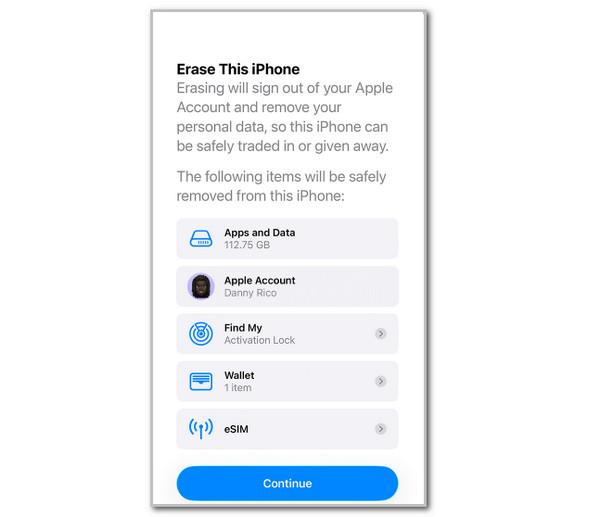
Open the Settings app. Then, tap the General and Transfer or Reset iPhone button. Tap Erase All Content and Settings option. Authenticate the process and select the data you need to erase. Tap the Continue button to start the process.
3. FoneLab iPhone Cleaner
Factory resetting the iPhone or iPad is indeed easy with iTunes. It does not require an internet connection. Did you know that a third-party tool can do that? FoneLab iPhone Cleaner is that tool! This tool can erase iPhone and an iPad at the same time. The best thing about this tool is that it allows you to choose a security level for the process. You need to follow the other instructions of the tool. How to reset iPhone without iTunes? Please follow the steps below on how to use the tool.
FoneLab iPhone Cleaner is the best iOS data cleaner which can easily erase all contents and settings or specific data on iPhone, iPad or iPod Touch.
- Clean unwanted data from iPhone, iPad or iPod touch.
- Erase data quickly with one-time overwriting, which can save you time for plenty of data files.
- It is safe and easy to use.
Step 1Download FoneLab iPhone Cleaner on your computer. After that, plug the iPhone or iPad into the computer using a USB cable. Then, click the Erase All Data button at the top left of the screen. Later, select a security level and click the Start option at the bottom right to proceed.

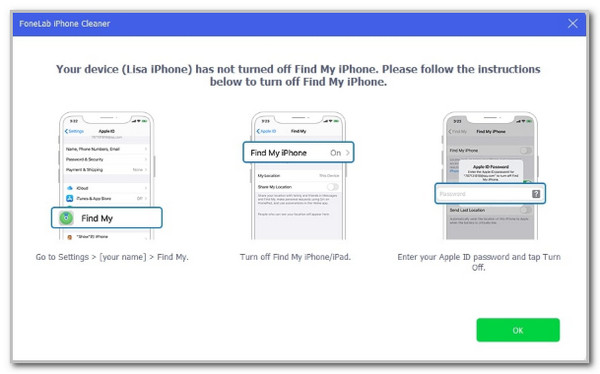
Step 2Follow the on-screen instructions that your iPhone or iPad must perform. Then, click the OK option at the bottom right of the screen to apply and confirm the changes. You will be prompted to a new screen afterward.
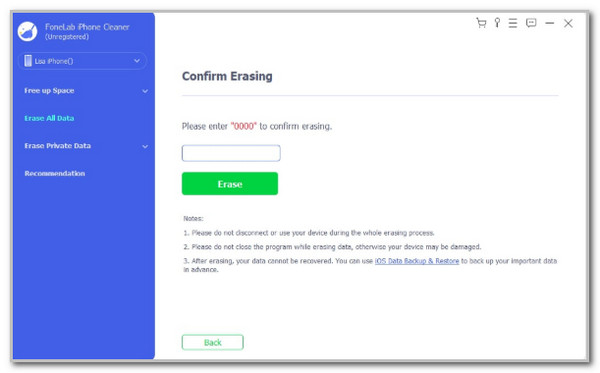
Step 3You need to confirm the erasing procedure. You need to enter the 0000 code from the box and click the Erase button under it. Wait for the procedure to be completed before you unplug the iPhone or iPad from the computer.
Part 4. FAQs about How to Reset iPhone or iPad with iTunes
Why can't I reset my iPhone on iTunes?
iTunes requires the newest update from its developer to function correctly. If so, you need to update iTunes to its latest version to be able to reset your iPhone or iPad. Also, iTunes requires you to use a USB connection. Check for damage from the chord if that’s the case.
How long does it take to reset an iPhone through iTunes?
The factory reset interval for resetting your iPhone or iPad through iTunes depends on its stored data. Commonly, the reset process using iTunes only lasts 10 minutes. However, some individuals last for more than 20 minutes.
How to reset iPad with iTunes, including an iPhone? This article explains this issue in detail! FoneLab iPhone Cleaner is also here to help you clear or wipe the iPhone or iPad data. There are more features you can discover about this tool. Download it to explore more of its functionalities!



