
 iPhone Data Recovery
 iOS System Recovery
 iOS Data Backup & Restore
 iOS Unlocker
 iPhone Password Manager
 Location Changer
 Android Data Recovery
 Broken Android Data Extraction
 Android Data Backup & Restore
 Android Unlocker
 FoneTrans for iOS
 iPhone Data Eraser
 iPhone Cleaner
 HEIC Converter
 HyperTrans
 WhatsApp Transfer for iOS
 Mac Sweep
 Data Retriever
 Mac Data Retriever
 Video Converter Ultimate
 Screen Recorder
 Phone Mirror
How to Screen Record on Samsung Tablet and Phone in 3 Ways
 Updated by
 Hi, guys! I was playing my favorite game on my Samsung device this morning. I am planning to invite my cousins to play with them virtually. I want to send it to them by showcasing my gameplay. However, I do not know how to screen record Samsung. I hope you can help me with this. Thank you!
Screen activities on your Samsung can be important. There are times when you might need to record it for documentation. In this post, you will see the 3 leading practices to record your Samsung phone. Please scroll below to know how to use them efficiently.

Guide List
Part 1. How to Screen Record on Samsung with Quick Panel
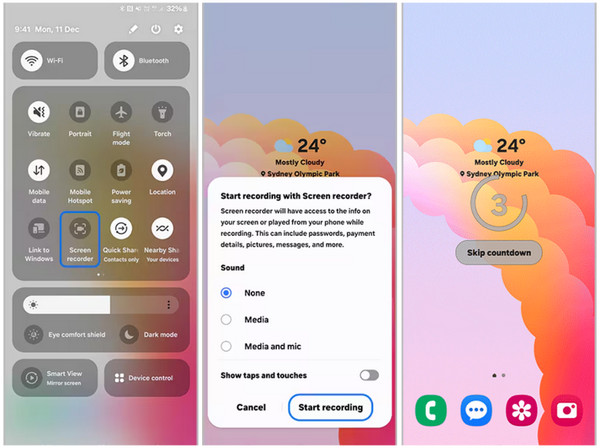
Quick Panel is the top section of the Samsung screen to help you quickly access some of its features and tools. It is commonly accessible from the Home and Lock Screen section. You can see the Wi-Fi, Bluetooth, brightness, volume, and more features. The screen recorder is also supported with it. The screen recorder of Samsung phones and tablets is always shown as a big circle dot. Without seeing this button, your Samsung device might not support the feature.
The screen recorder feature can easily be used. It is the quickest way to access it on your Samsung device. However, the tool does not support additional settings that can be applied to your recordings. The steps below will show you how to use the screen recorder tool on Quick Panel.
Step 1Open your Samsung phone and unlock it if it requires a passcode. Go to the screen where you want to record. After that, please swipe down at the top right of the screen. The Quick Panel will be accessed, and you can swipe it down once more to see the entire active tiles list. Please locate the Screen Recorder button on the screen and tap it to proceed.
Step 2A small window will be prompted on the main interface. You can select the Sound settings at the bottom of the screen. Please tap the Start Recording button at the bottom right. Then, a countdown will start. You can tap the Skip Countdown button to skip the 3-second countdown on the screen.
Step 3Please wait for the screen recording to be completed. Finally, when you want to end the session, tap the Box button from the small toolbar. The screen recordings will be saved automatically to your album. You can access it by locating it from your Samsung phone or tablet.
Part 2. How to Screen Record on a Samsung with FoneLab Screen Recorder
If your Samsung phone does not have a screen recorder, you might ask: Can Samsung screen record with a computer? Definitely! Some tools can help you, and FoneLab Screen Recorder is one of the best. This tool can also serve as an iPhone screen recorder. It can record your Samsung phone in high quality. You can also adjust the quality, depending on your preference. You can set hotkey shortcuts for a smoother screen recording. Please follow the steps below to know how the tool works.

FoneLab Screen Recorder allows you to capture video, audio, online tutorial, etc on Windows/Mac, and you can easily customize size, edit the video or audio, and more.
- Record video, audio, webcam and take screenshots on Windows/Mac.
- Preview data before saving.
- It is safe and easy to use.
Step 1Click the Free Download button from the first interface. After that, set up, install, and launch the tool on your computer. Later, choose the Phone Recorder button at the top left. A small window will be prompted on your computer screen afterward.

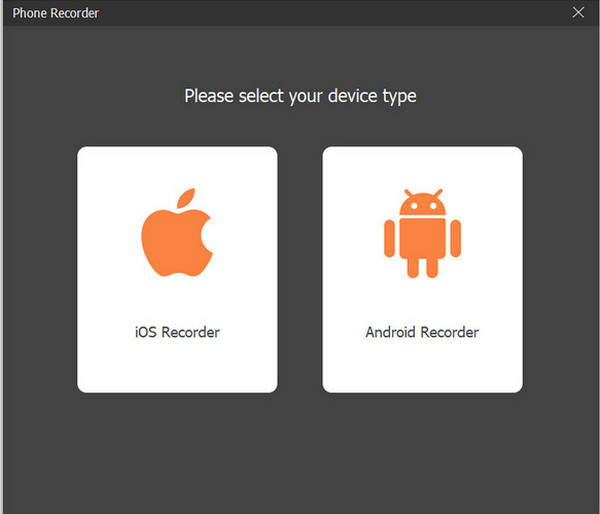
Step 2The supported operating systems of the tool will appear. Please select the Android Recorder button on the right side. Then, the connecting interface will appear immediately. Please choose your preferred connection type.
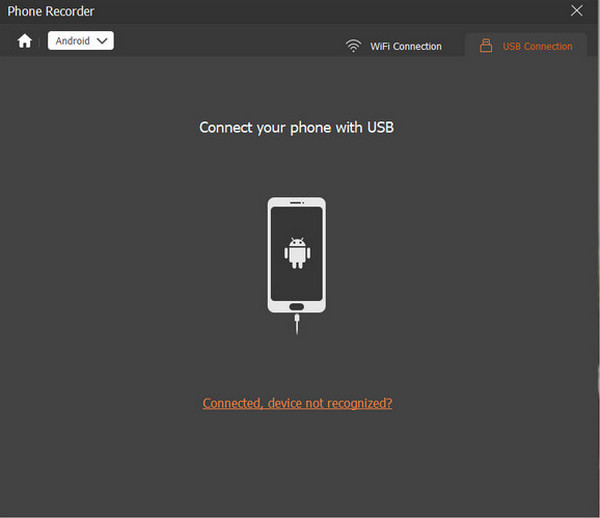
Step 3You can use the USB Connection section at the top right. Then, use a USB cable and plug your Samsung phone. Alternatively, you can click the Wi-Fi Connection button at the top. Then, follow the on-screen instructions to complete the connection process. Finally, click the Record option to start recording your Samsung phone with your computer.
Part 3. How to Screen Record Samsung with Third-party Apps
Third-party tools are indeed helpful, like the previous tools. On top of that, there are also third-party apps that can help you perform a Samsung record screen. Glip Screen Recorder is one of the applications that can do that. This app has multiple settings and customizations to adjust the video quality and other features.
However, this tool is not recommended for users who cannot last long with the interruptions from the ads. The reason is that they can be included in the screen recording. Please use this Android screen recorder with the steps below to record your Samsung screen.
Step 1Open the Google Play Store and search for the app’s name. After that, tap the Install button from the app and tap the Open button to access it. Later, please tap the Start Recorder button from the first interface. Later, you will be asked to set up the permissions from the application to your Samsung phone.
Step 2Tap the Give Recording Permission button at the bottom center of the screen. After that, you will be directed to the applications list of your Samsung phone or tablet. Please choose the app from the list, and more options will appear. Finally, toggle on the Allow button on the screen to grant the permissions required.
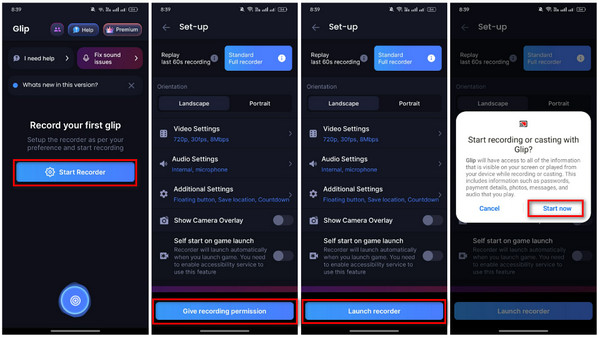
Step 3The app’s interface will be shown once again. You can set up the settings intended for the screen recording. After that, please tap the Launch Recorder button at the bottom of the main interface.
Step 4A small window will appear, including the information that is needed for the procedure. Please tap the Start Now button on the screen. The screen recording will start immediately. End the session by tapping the Stop button from the toolbar.
Part 4. FAQs about How to Screen Record on Samsung
How can I activate my screen recorder on Samsung?
You do not need to activate the screen recorder feature on your Samsung phone or tablet. It is automatically enabled after the setup of your Samsung phone when it is new. If you think that the Samsung screen recorder is disabled, your Samsung phone or tablet might not support the mentioned feature.
Do all Androids have screen recording?
No. Not all Android phones support a screen recording feature, especially the earlier versions. The best alternative to these models is to download an application. The built-in screen recorder of Samsung and other Android phone brands is standard with Android OS 11.
Can you screen record on Samsung? This article proves to you that it is attainable! It supports the 3 leading ways to record your Samsung phone and tablet’s screen. FoneLab Screen Recorder is one of the best. It can record your Samsung phone and tablet on a computer in high quality.



