
 iPhone Data Recovery
 iOS System Recovery
 iOS Data Backup & Restore
 iOS Unlocker
 iPhone Password Manager
 Location Changer
 Android Data Recovery
 Broken Android Data Extraction
 Android Data Backup & Restore
 Android Unlocker
 FoneTrans for iOS
 iPhone Data Eraser
 iPhone Cleaner
 HEIC Converter
 HyperTrans
 WhatsApp Transfer for iOS
 Mac Sweep
 Data Retriever
 Mac Data Retriever
 Video Converter Ultimate
 Screen Recorder
 Phone Mirror
- How to Mirror iPhone to PC
- Cast Android to Windows
- Mirror iPhone to Windows
- Samsung Screen Mirror Not Working
- Mirror App for iPhone
- Mirror App for Android
- Use AirServer
- Mirror iPhone to Computer
- Cast from Phone to Computer
- iPhone Screen Mirror Not Working
- Mirror iPad to PC
- Mirror iPhone to Laptop
- Set Up Screen Mirror on iPhone
- Mirror iPhone
- Android Mirror to Mac
Easy and Leading Screen Mirroring on Samsung to TV and PC
 Updated by
 Good day! I have a demonstration this afternoon. I want to practice how to deliberate it to my audience. However, the content is still on my Samsung phone. How to screen mirror on Samsung? This way, I can show them the content on a larger screen. Can you help me? Thank you!
You can mirror your Samsung phone in different ways, including on your TV and PC. In this article, you can encounter the easiest ways for screen mirroring on your Samsung phone. You can proceed below by scrolling for the full details about the topic.

Guide List
Part 1. Samsung Screen Mirror to TV
Screen mirroring to a TV from your Samsung phone is easy as Samsung has its built-in or pre-installed apps and features that can do that. Smart View and SmartThings apps are the best. Their full details are posted below.
Smart View
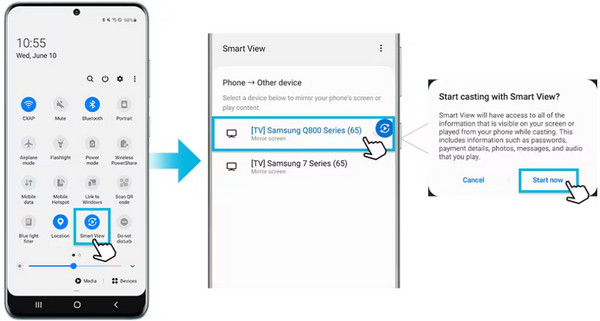
Smart View is a built-in screen mirroring feature on your Samsung Galaxy phone and other devices. It lets you see the Samsung phone contents on a bigger screen. It can be used on your TV, monitors, and PC. You can use this feature on a Smart TV that supports screen mirroring. However, some streaming applications might not be supported, including Netflix, Amazon, Disney+, and more. The contents will be blocked on the TV screen. Use Samsung Smart View screen mirroring with the steps below.
Step 1Swipe down on the screen and open the Quick Panel section. After that, select the Smart View button from the screen. Select the TV where you want to mirror the Samsung phone.
Step 2A small window will be prompted on the screen. Please tap the Start Now button at the bottom right. Confirm the action afterward from the screen to proceed with the screen mirroring.
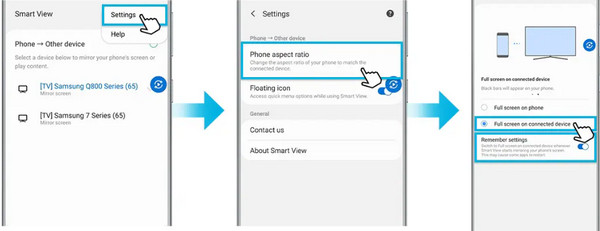
Alternatively, you can also use the Smart View app on your Samsung phone. However, it is way more demanding and time-consuming compared to the previous process. Follow the steps below to know how.
Step 1Open Smart View. After that, tap the More Options button from the main interface. Then, select the Settings button from the small screen. More options will be shown afterward. Tap the Phone Aspect Ratio button on the screen.
Step 2Select the Full Screen on Connected Device button from the screen. Imitate the on-screen instructions to start the screen mirroring.
SmartThings App
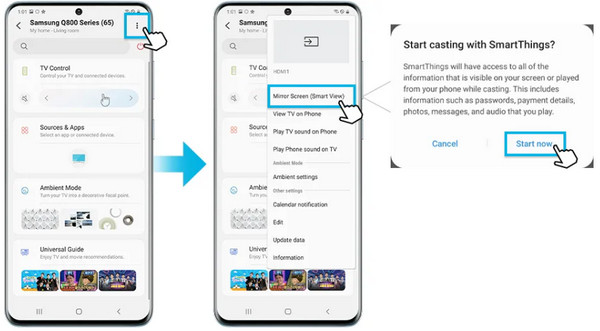
SmartThings app is commonly known for controlling Samsung devices, including TVs. You can also use it to mirror your Samsung phone to a TV. It allows you to trigger Smart View and the Mirror screen feature on the devices. However, you need to take note that SmartThings is not an actual screen mirroring tool. It does not do full-screen mirroring on your Samsung devices. It is only a shortcut to Smart View that was introduced in the previous section. Use SmartThings as a Samsung screen mirroring app with the steps below.
Step 1Turn on the SmartThings app on your Samsung phone. After that, select the TV where you want to mirror your Samsung phone. Then, tap the More button at the top right corner. Then, tap the Mirror Screen or Smart View button.
Step 2A small window will be prompted on your screen. Please tap the Start Now button to start the screen mirroring of your Samsung phone to your TV.
Part 2. How to Screen Mirror Samsung to PC
Besides the Smart TVs, you can also perform the screen mirroring on Samsung tablet or phone on your PC. In this section, we will show you the 3 best ways to do that. Please continue browsing in this post to discover them.
FoneLab Phone Mirror
It is recommended to use a third-party tool to mirror Android to PC, such as Samsung phones. This way, you can enhance your screen mirroring experience. FoneLab Phone Mirror is the best choice! Besides Android phones, this tool can also mirror your iOS devices. And the tool can mirror your mobile phone via wired and wireless connections. The tool has a simple interface that will be an advantage for novices. You can choose from its 4 modes to connect your mobile phones. It includes a USB cable, Wi-Fi, QR code, and PIN code. It can also record your screen.
With FoneLab Phone Mirror, you will mirror iPhone or Android to computer efficiently.
- Allows you to mirror iPhone or Android screen to a PC.
- Connect your devices through Wi-Fi, QR code, PIN code or USB cable connection.
- Take screenshots and record screen activities with ease.
Follow the steps below to know how to use the tool.
Step 1Go to the main website of the tool. After that, click the Free Download button from the description interface. Then, wait for the downloading procedure to be completed. Later, set up the downloaded file, and a small window will appear on the screen. Please open the tool on your PC afterward.

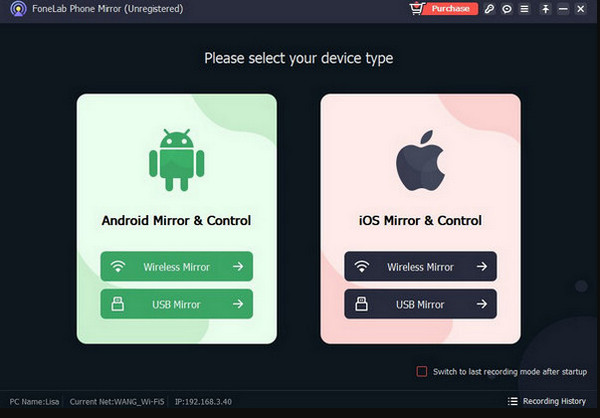
Step 2The 2 main features of the tool will be prompted on the screen. Please go to the Android Mirror & Control section on the left side of the main screen. You select between the Wireless Mirror or USB Mirror button under the descriptions.
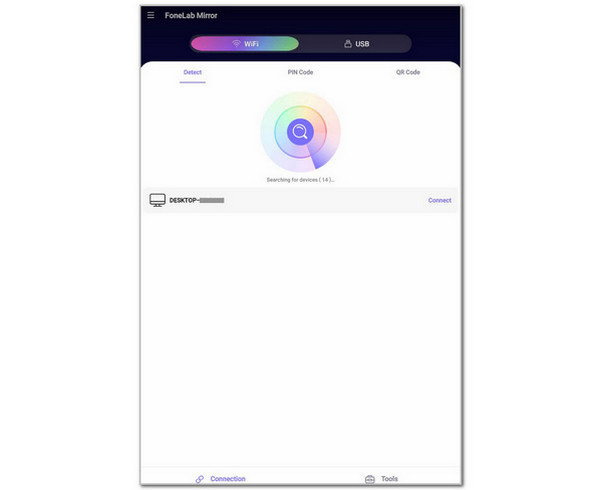
Step 3Download FoneLab Mirror from your Samsung phone. The mode of connection will appear on the main interface. Please select between the Detect, PIN Code, and QR Codev tabs. Imitate the on-screen instructions to start the screen mirroring process.
Screen Mirroring Online Receiver
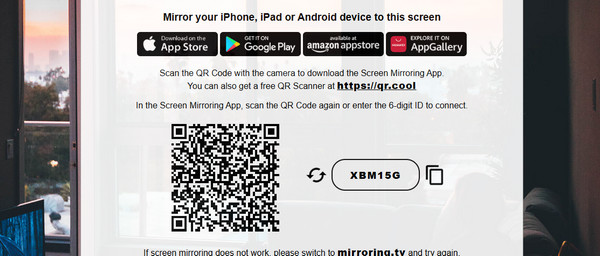
Screen Mirroring Online Receiver is an online tool that allows you to mirror your Samsung phone to your PC without an internet connection. This tool works by scanning the QR code. However, it does not work with the built-in scanner of your Samsung phone. You need to download the application on your phone. Also, the tool pops up unwanted advertisements on the interface. It might be inconvenient for some of you.
Perform Samsung screen mirroring on PC with this online tool using the steps below.
Step 1Download the QR Scanner App first. You can get it from the official website of the application. You can also download it from your Google Play Store. Wait for the downloading process to be completed and open the app.
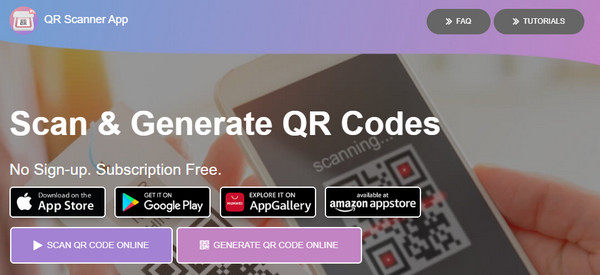
Step 2Use the downloaded application to scan the QR code from the main website of the screen mirroring tool. If the QR code does not work, you only need to click another link to get a new QR code. Once scanned, the screen mirroring will start immediately.
Cast to TV & Screen Mirroring
Cast to TV & Screen Mirroring is a screen mirroring app that can mirror your Samsung phone to a TV and PC. It can also be used as a Samsung screen mirroring on iPhone since it is available on the device. This application has a controller that allows you to control the screen mirroring to another screen. However, the buttons do not have labels to show you their function. This way, you need to try them first before knowing their function.
Additionally, this application pops up multiple advertisements on the screen. In this case, you will also see the ads on the TV or PC screen, which will be annoying for some of you. Use the steps below as your guide for this app.
Step 1Open the Google Play Store on a Samsung phone. After that, search for Cast to TV & Screen Mirroring. After that, please tap the Install button and wait for the download process to be completed. Tap the Open button afterward to access the application.
Step 2You need to set up the application first. Please allow all the permissions it requires from the interface. After that, choose a language and exit all the advertisements that will appear on the main interface.
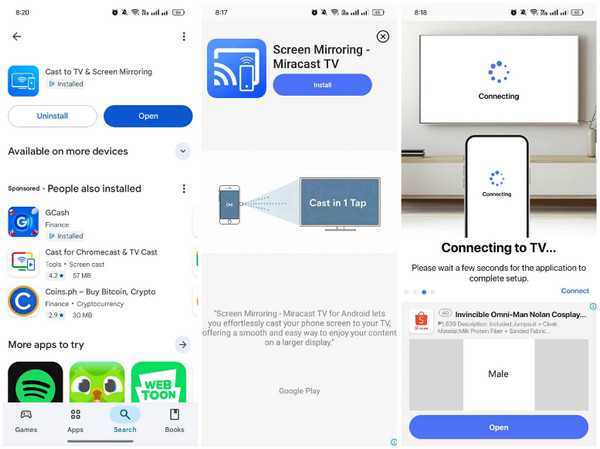
Step 3The application will automatically search for an available device near it. Wait for the connecting procedure to complete automatically. Then, tap the device where you want to mirror your Samsung phone. Finally, tap the Connect button to start the screen mirroring.
Part 3. FAQs about Samsung Screen Mirroring
What are the disadvantages of screen mirroring?
Screen mirroring is convenient for seeing content on a larger screen. However, screen mirroring can drain your battery on your devices. Also, this procedure causes lagging issues on the Samsung on other devices.
How can I know if someone is watching my screen remotely through screen mirroring?
There is no exact way to know if someone is watching your screen through screen mirroring. On the other hand, you can monitor an unusual mouse cursor and window.
The Samsung screen mirror is well explained in this article. You can mirror it on your TV and PC. FoneLab Phone Mirror is here to help you quickly mirror your Samsung phone to your PC. Do you want to know more about the tool? You can download it on your PC and explore its features!



