
 iPhone Data Recovery
 iOS System Recovery
 iOS Data Backup & Restore
 iOS Unlocker
 iPhone Password Manager
 Location Changer
 Android Data Recovery
 Broken Android Data Extraction
 Android Data Backup & Restore
 Android Unlocker
 FoneTrans for iOS
 iPhone Data Eraser
 iPhone Cleaner
 HEIC Converter
 HyperTrans
 WhatsApp Transfer for iOS
 Mac Sweep
 Data Retriever
 Mac Data Retriever
 Video Converter Ultimate
 Screen Recorder
 Phone Mirror
- Part 1. Can You Screen Record on Android
- Part 2. How to Screen Record on Android with Quick Settings
- Part 3. Screen Recording App to Record Screen on Android
- Part 4. How to Screen Record on Android through FoneLab Screen Recorder
- Part 5. Comparison Table about Screen Record on Android Methods
- Part 6. FAQs about How to Screen Record on Android
How to Record Screen on Android in 3 Proven Practices
 Updated by
 An Android phone can perform various screen activities through its features and apps. It can play games, watch videos, and more. Some Android phone users want to capture these activities for some reasons. It could be for work, personal, school, or other purposes. This way, they can use the screen recordings based on their needs.
Can you screen record on Android? This is a good question. Let us explain this topic to you in detail using this article. Kindly scroll below to see the full answer and information on this query for your convenience.

Guide List
- Part 1. Can You Screen Record on Android
- Part 2. How to Screen Record on Android with Quick Settings
- Part 3. Screen Recording App to Record Screen on Android
- Part 4. How to Screen Record on Android through FoneLab Screen Recorder
- Part 5. Comparison Table about Screen Record on Android Methods
- Part 6. FAQs about How to Screen Record on Android
Part 1. Can You Screen Record on Android
The latest versions of all Android phones have built-in screen recorder features. However, the screen recording on Android still depends on the brand of your Android phone. The good thing here is that there are applications or third-party tools that can record your Android phone screen if the built-in screen recorder is not supported. Some of them will be seen if you continue browsing in this post.
Part 2. How to Screen Record on Android with Quick Settings
The Android phone's Quick Settings is a beneficial feature that allows you to access some of its features quickly, including a built-in screen recorder. However, some Android phones can use the Notification Center from the screen as an alternative because they have the same procedure. How to screen record Android with Quick Settings? The steps below will be your guide.
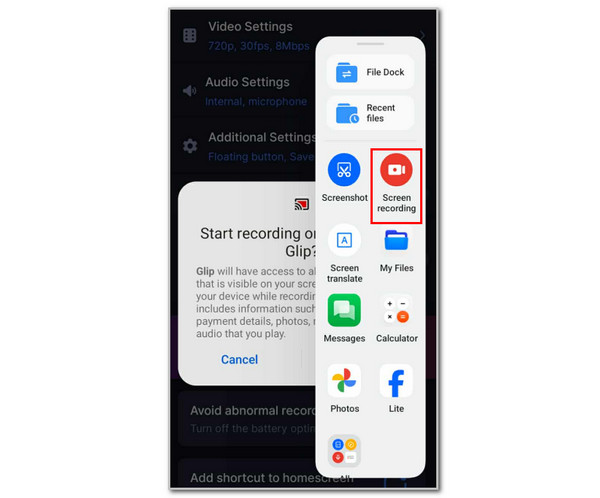
Step 1Open the screen where you want to take the screen recording. After that, swipe the Android phone section, where you can access the Quick Settings feature. Then, the active features it supports will appear on the screen. Please tap the Screen Recording button from the list to access its features.
Step 2The features of the built-in screen recorder will appear on the screen. Please tap the Start button to start the screen recording. Then, tap the Check button in the section to stop the screen recording. The recording will be saved automatically on an Android phone afterward.
Part 3. Screen Recording App to Record Screen on Android
Besides the built-in screen recorder on your Android phone, there are Android screen recorders you can download from the Google Play Store. Screen record on Android using the 2 applications listed below.
1. Glip Screen Recorder
Glip Screen Recorder is a third-party app that is famous due to the 60fps it offers. Also, it has streaming support for some famous streaming platforms. However, this application reportedly experiences an audio delay. Additionally, it requires multiple customizations on your Android phone. Also, it will pop up various ads on the screen while you use the app. How do I screen record on Android? You can follow the steps below to use Glip Screen Recorder.
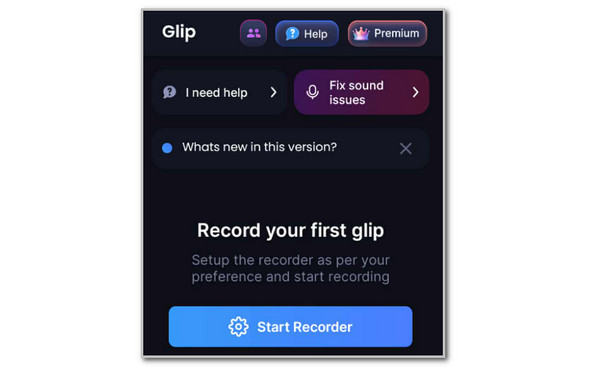
Step 1Open Google Play Store on the Android phone. After that, please search for the Glip Screen Recorder. After that, choose the Install button from the list to download the app on your Android phone. Tap the Open button to open it. Tap the Start Recorder button at the center of the first interface.
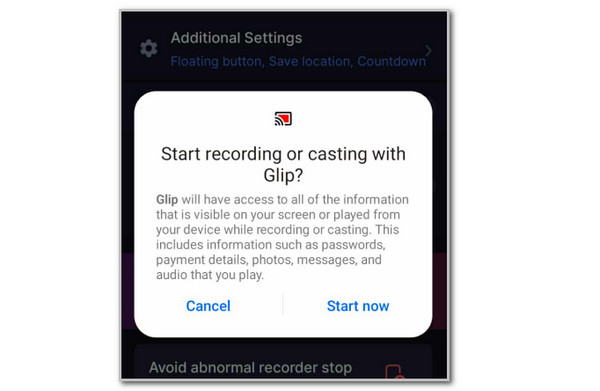
Step 2The apps will allow you to adjust the settings for the screen recording procedure. Please access the settings based on your preference. Then, tap the Launch Recorder button at the bottom. A small window will be prompted on the screen. Tap the Start Now button at the bottom right, and the screen recording will start immediately.
2. Mobizen Screen Recorder
Mobizen Screen Recorder is a simple application that can record your Android phone screen. Users love using this application due to the straightforward method and features it utilizes. However, this third-party app is not for beginners. It requires a lot of screen recording permissions that are hard to navigate if you do not have experience with it. Also, the free trial requires you to watch advertisements that can be captured during the screen recording.
Additionally, this app automatically adds a watermark to the screen recordings for its free version. Its screen recording performance also depends on the plan you purchase. How do you screen record on Android? Discover how to use Mobizen Screen Recorder to do that.
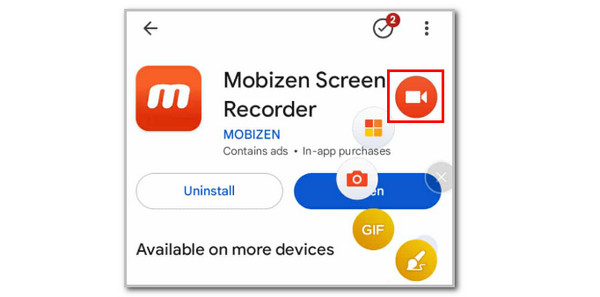
Step 1Search for Mobizen Screen Recorder on the Google Play Store. After that, tap the Install option to start the download process. Then, wait for the small circle, which is the interface of the app, to appear on the screen. Tap the Circle button and tap the Video button.
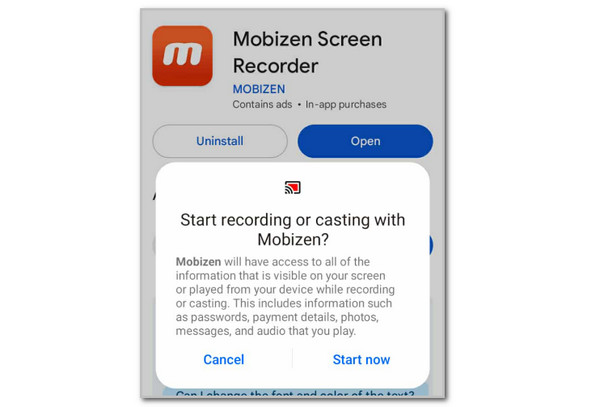
Step 2A small window will be prompted on the screen. Please tap the Start Now button at the bottom right. After that, the screen recording will start.
Part 4. How to Screen Record on Android through FoneLab Screen Recorder
Do you want to know how to record your screen on Android with a computer? Use FoneLab Screen Recorder! This third-party tool can record your Android phone screen via USB connection and wirelessly. Also, this tool can be used as an iPhone screen recorder. This tool has built-in basic editing tools for the recordings. It also captures the Android phone screen in high quality. It enables you to customize the recording size, depending on the capacity of your device. You can also hide the taskbar while you are screen recording from your Android phone. How to screen record on an Android? Use this tool by following the steps below.

FoneLab Screen Recorder allows you to capture video, audio, online tutorial, etc on Windows/Mac, and you can easily customize size, edit the video or audio, and more.
- Record video, audio, webcam and take screenshots on Windows/Mac.
- Preview data before saving.
- It is safe and easy to use.
Step 1Go to the main website of FoneLab Screen Recorder. Click the Free Download button. Set up the tool and launch it afterward.

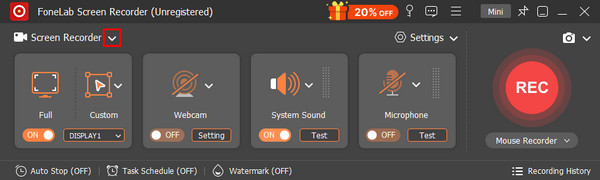
Step 2Click the Arrow button beside the Screen Recorder button. Then, drop-down options will appear on the screen. Click the Phone Recorder button from the options list.
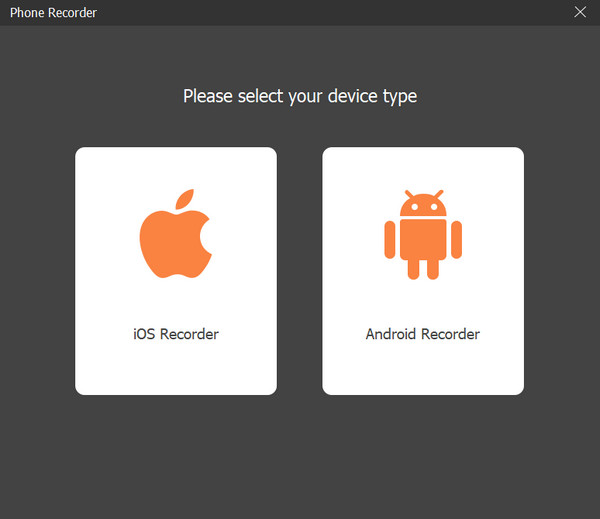
Step 3The tool will show you another interface. Please click the Android Recorder button on the right to see the proper features for the Android phone screen recording.
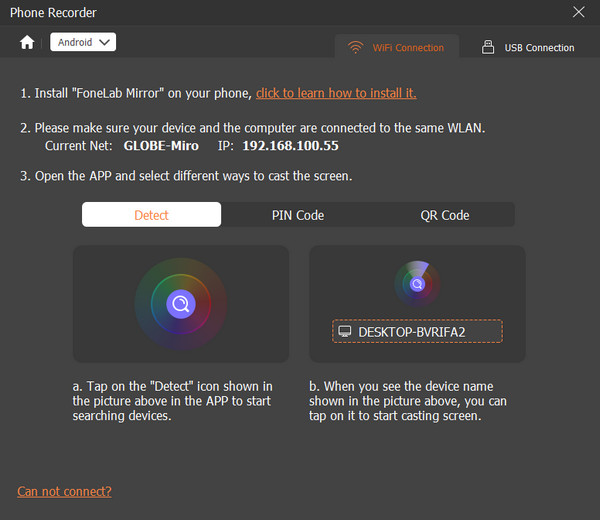
Step 4You can click the USB Connection button at the top right. Then, plug the Android phone into the computer. Alternatively, you can also click the Wi-Fi Connection button at the top right. Download the FoneLab Mirror app to complete the process. Then, the Android phone screen will appear on the software. Click the Record button afterward.
Part 5. Comparison Table about Screen Record on Android Methods
The methods from the previous sections are indeed helpful for Android screen recording. Here is their simple information. See the comparison table below for the quick details about the methods in this post.
| App/Tool | Pros | Cons | Requirements |
| Quick Settings | No installation needed, good stability, and basic features. | It has limited advanced features, and it does not work for the latest Android phone models. | Android 11 and later versions. |
| Glip Screen Recorder | 60fps and it has streaming support. | It experiences audio delays, and it requires more permission monetization. | Internet connection. |
| Mobizen Screen Recorder | It is a trusted screen recorder app for multiple users. | It automatically adds a watermark to the free version, and its performance depends on the plan. | Internet connection. |
| FoneLab Screen Recorder | It is a powerful tool for desktops, it has many customization settings for your screen recording, and it has basic editing tools. | It has no mobile version. | PC or Mac. |
Part 6. FAQs about How to Screen Record on Android
Why can't I find the screen record button on my Android?
There are countless reasons why you cannot find the screen record button on your Android phone. First, the Android phone might not have a built-in screen recorder. Also, you might be using a restricted profile from your Android phone. However, you can use FoneLab Screen Recorder to record your Android phone screen.
Which Samsung phones have screen recording?
Most Samsung phones have a screen recording feature. However, older versions do not contain it. Some of the Samsung phones that have screen recording are Samsung Galaxy S24 Ultra, Samsung Galaxy S23 Ultra, Samsung Galaxy S22 Ultra, Samsung Galaxy S21 Ultra, Samsung Galaxy S20 Ultra, and more.
This article includes the trusted screen recorder on Android. FoneLab Screen Recorder is one of the best ones due to the simple features and interface it can offer. Do you want to explore more about this screen recording tool? Download it on your computer and experience it yourself!



