
 iPhone Data Recovery
 iOS System Recovery
 iOS Data Backup & Restore
 iOS Unlocker
 iPhone Password Manager
 Location Changer
 Android Data Recovery
 Broken Android Data Extraction
 Android Data Backup & Restore
 Android Unlocker
 FoneTrans for iOS
 iPhone Data Eraser
 iPhone Cleaner
 HEIC Converter
 HyperTrans
 WhatsApp Transfer for iOS
 Mac Sweep
 Data Retriever
 Mac Data Retriever
 Video Converter Ultimate
 Screen Recorder
 Phone Mirror
 FoneLab iPhone Cleaner
Easily erase all contents and settings on iPhone, iPad or iPod completely and permanently.
- Clear iPhone Junk Files
- Clear iPad Cache
- Clear iPhone Safari Cookies
- Clear iPhone Cache
- Clear iPad Memory
- Clear iPhone Safari History
- Delete iPhone Contacts
- Delete iCloud Backup
- Delete iPhone Emails
- Delete iPhone WeChat
- Delete iPhone WhatsApp
- Delete iPhone Messages
- Delete iPhone Photos
- Delete iPhone Playlist
- Delete iPhone Restrctions Passcode
Eminent Guide on How to Clear Cache on Spotify Easily
 Updated by
 Are you having trouble with your Spotify cache? If so, you are lucky because you have just found the perfect platform to help you get rid of this junk on your devices. As you may know, caches, whether on Spotify or other apps, accumulate with the primary goal of making them load faster. However, if too many caches pile up, it can cause the app to slow down or even lag. Hence, wanting to clear your Spotify app’s cache is entirely understandable.
After all, letting caches accumulate without ever clearing them can do more harm to the device’s performance than good. The question is, what are the proper methods to clear or eliminate this junk safely from your Spotify app and device? Well, you no longer have to think hard because each part of this article conveys the renowned strategies for cleaning Spotify caches on different devices, whether mobile devices or computers. So, don’t miss them and start learning below.


Guide List
Part 1. How to Clear Spotify Cache on Android
Do you use an Android device? The methods below are suitable processes for clearing caches on your Android’s Spotify app. The first one is on the app itself. Like other platforms, Spotify has its own Settings containing the option to clear its cache directly. Meanwhile, the second one is on your Android’s Settings app, where you may manage all the installed apps on the device.
Heed the trouble-free directions below for Spotify clear cache procedures on Android:
On the Spotify App
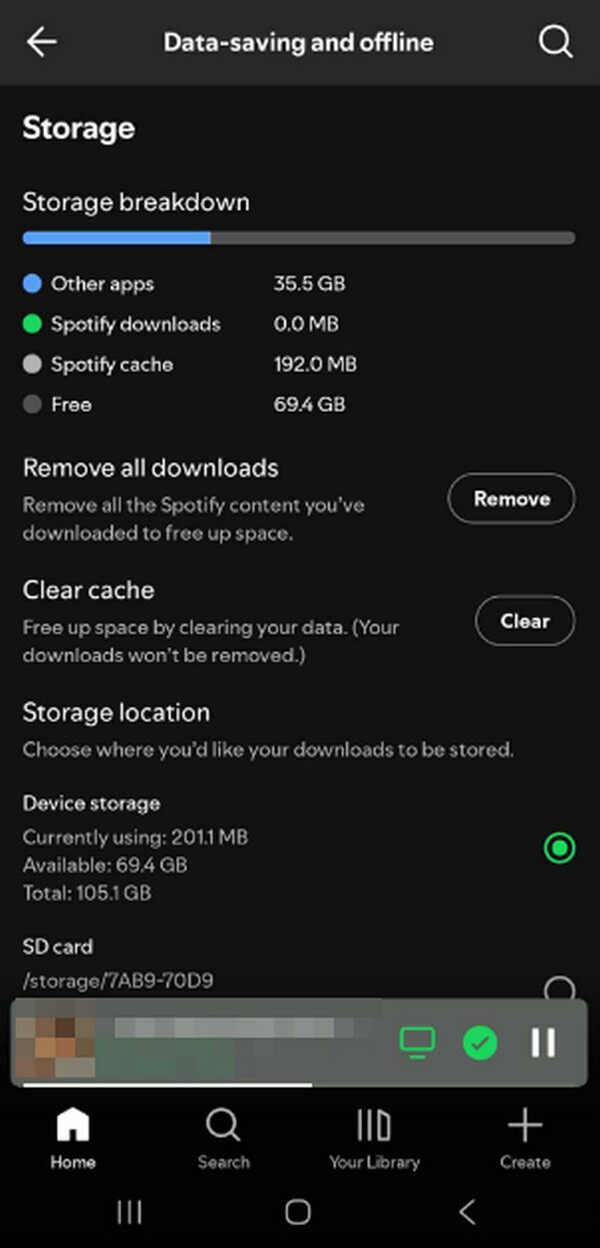
Step 1Step 1. On the interface of your Spotify app, tap your profile symbol on the upper left and choose Settings and privacy. This way, the necessary options will be presented.
Step 2Step 2. Next, proceed to the Data-saving and offline selection and scroll for more options. You will eventually see Clear cache, so hit the Clear tab aligned with it to finish.
On Settings App
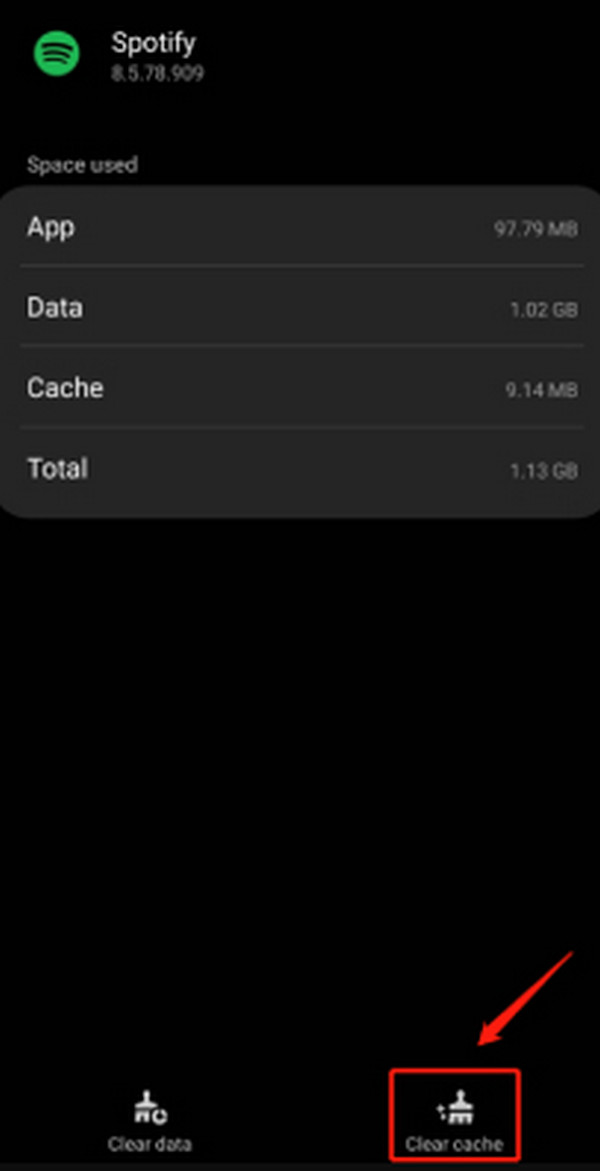
Step 1Step 1. Initialize Settings on your Android device to see and tap the Apps option. The installed apps will then immediately appear on the subsequent screen.
Step 2Step 2. From there, scroll to find Spotify and select it. When more selections are presented, hit Storage and choose Clear cache in the lowermost section to clear the caches on your Spotify.
Part 2. How to Clear Cache on Spotify on iPhone
The processes you can use to clear the caches on your iPhone’s Spotify are almost the same as the methods on Android. Since you have also acquired the app on your iOS device, the same option in Spotify’s Settings will be available. On the other hand, reinstallation is the available solution in your iPhone’s Settings, unlike Android, which offers a direct option for clearing caches. Additionally, don’t hesitate to check out Fonelab iPhone Cleaner if you would like a more professional approach.
FoneLab iPhone Cleaner is the best iOS data cleaner which can easily erase all contents and settings or specific data on iPhone, iPad or iPod Touch.
- Clean unwanted data from iPhone, iPad or iPod touch.
- Erase data quickly with one-time overwriting, which can save you time for plenty of data files.
- It is safe and easy to use.
Go along with the easy operations below to clear cache Spotify on iPhone:
On the Spotify App
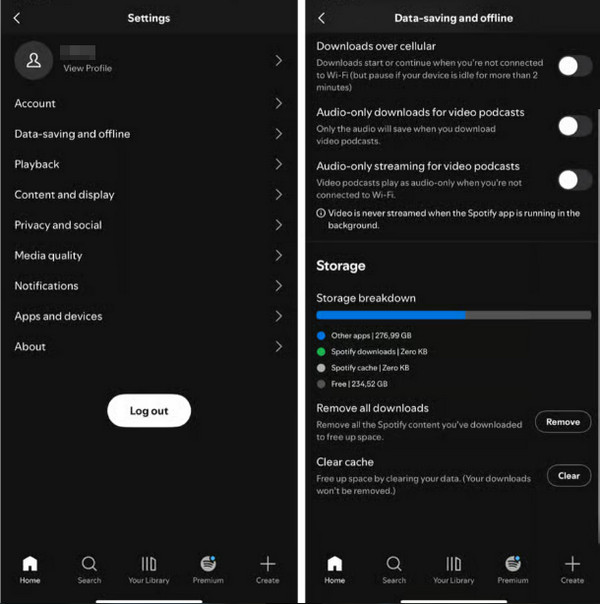
Step 1Like before, opt for the profile button on your iPhone’s Spotify interface, then tap Settings and privacy. Afterward, select Data-saving and offline.
Step 2On the following screen, select the Clear option next to Clear cache under the Storage section to eliminate caches on your iPhone’s Spotify.
Reinstall App
Step 1Head to Settings on the iPhone, then go directly to its General section. Among the options is iPhone Storage, so select it and tap Spotify on the succeeding screen.
Step 2After that, pick Offload App to erase the Spotify app’s caches, keeping only its documents and data. Finally, reinstall it on your Play Store to return the app to your device.
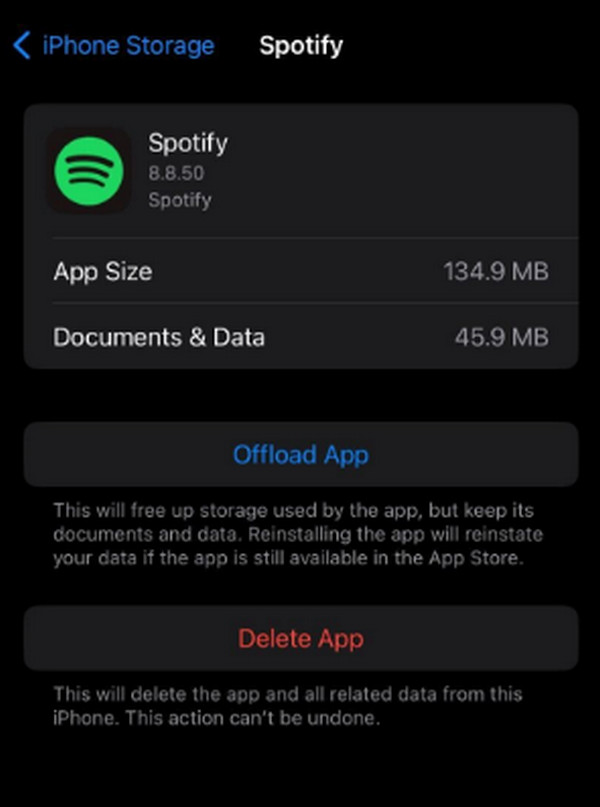
As you can see, you may also delete iPhone apps using the other available tab on the screen, Delete App. Feel free to use it if needed later.
Option 3. FoneLab iPhone Cleaner
Another way to clear the caches on the Spotify app of your iPhone is the in-demand tool, Fonelab iPhone Cleaner. As its name indicates, you can clean your iOS device with this program, with the helpful cleaning features it offers. In this case, the suitable option that can resolve your concern is Erase Junk Files. This specific section of the program can clear various junk on an iPhone, including caches, temp files, cookies, and more, making it the perfect solution for your Spotify app.
Recognize the painless instructions below as a pattern of how to clear Spotify cache with FoneLab iPhone Cleaner:
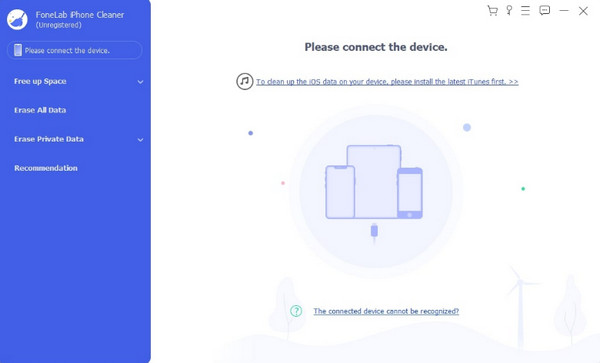
Step 1Install FoneLab iPhone Cleaner from its official page, then set it up until the Start button pops up. Click it to launch the interface, and when prompted, use a Lightning cable to attach your iPhone. Then, when ready, click Free Up Space in the left section.
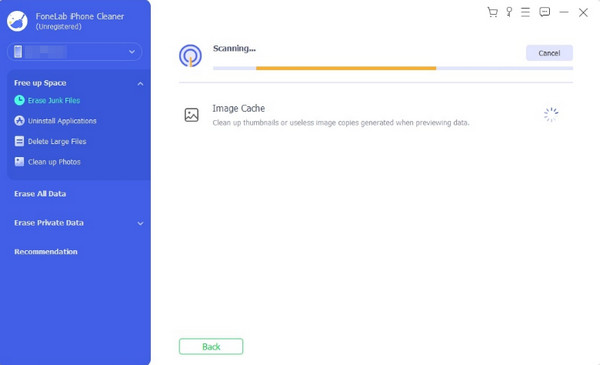
Step 2Choose Erase Junk Files that appear below, and various iPhone junk, including your app caches, will be presented. Hence, mark the junk you wish to clear on your Spotify and device before proceeding to the Erase button to eliminate them.
Part 3. Clear Spotify Cache on Windows
Meanwhile, two solutions are available for Windows users who want to clear Spotify’s cache. Like before, you won’t have problems clearing this data on the platform itself since it has its own Settings containing the option to clear caches. However, if you prefer to do the process outside the Spotify program, you must perform an uninstallation first to erase and clear all its caches.
Mirror the effortless tasks below to clear cache on Spotify on Windows:
On Spotify Program
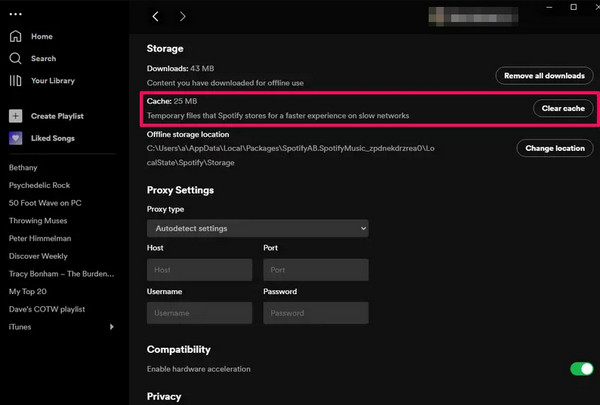
Step 1Click your profile in the upper corner of your Spotify program, then hit Settings.
Step 2Following that, pick Storage and select Clear cache aligned to the Cache option.
Uninstall Spotify
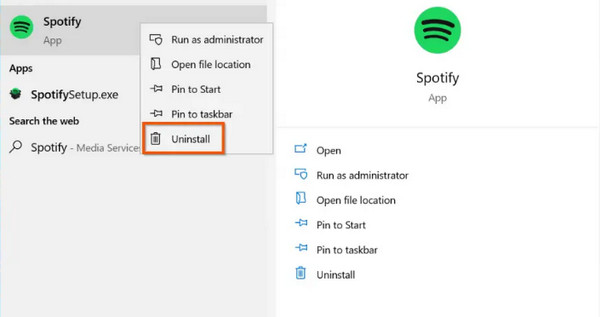
Step 1Hit the Windows symbol on your desktop and choose All apps.
Step 2Next, right-click Spotify to view the options and select Uninstall. Once done, reinstall the Spotify program in the same way you acquired it from the Microsoft Store before.
Part 4. Clear Cache on Spotify on Mac
The Spotify program offers the same Settings, consisting of the cache-clearing option on Mac, so you must only go through the official process accordingly. But apart from that, another professional cleaner, FoneLab Mac Sweep, can be installed to help you clear the caches on your Spotify more efficiently.

With FoneLab Mac Sweep, you will Clear system, email, photo, iTunes junk files to free up space on Mac.
- Manage similar photos and dulplicate files.
- Show you the detailed status of Mac with ease.
- Empty trash bin to get more storage.
Emulate the simplified procedures below as samples of how to clear cache on Spotify on Mac:
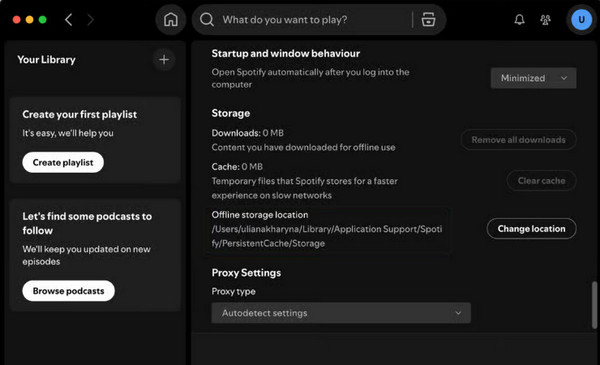
On Spotify Program
Step 1Click Settings after you select the profile symbol on your Mac’s Spotify program.
Step 2When the following interface appears, opt for the Clear cache selection next to Cache.
Try FoneLab Mac Sweep
If you haven’t heard about it yet, here is the sought-after FoneLab Mac Sweep tool that many rely on because of its excellent performance. It specializes in cleaning Mac computers, including program caches; thus, it would be a great help to you. Don’t worry, though. Its proficiency shouldn’t intimidate you, as it won’t lessen the program’s convenience. You can still expect a user-friendly process with an excellent cache-clearing performance.
Step 1Obtain FoneLab Mac Sweep’s installer from its primary site, then set up the installation. Later, you can hit Start to launch the program. Then, pick the Cleaner feature on the initial interface.
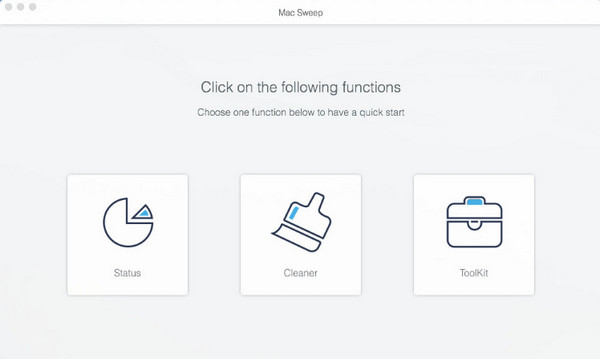
Step 2Various cleaning functions will be presented, so choose the appropriate one for clearing the caches on your Spotify program. Finally, let the following prompts guide you until you finish the clearing process.
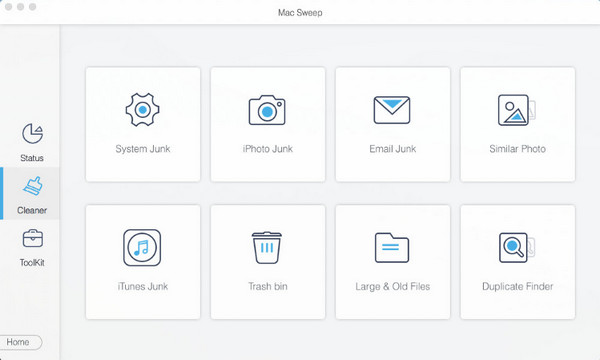
FoneLab Mac Sweep also allows users to delete apps on Mac in its ToolKit section, so check it out if you want to clean your macOS computer further.
Part 5. FAQs about How to Clear Spotify Cache
Why does Spotify take so much storage?
Spotify consumes significant storage, as it accumulates cache and other data for offline playback, allowing users to experience a smoother music playback.
Is deleting the cache on Spotify safe?
Yes, it is. It won’t affect your music library, so you can clear the cache anytime you like.
Clearing caches on your devices’ apps and programs, like Spotify, can make their performance faster. Thus, make the most of the cleaning programs above, such as Fonelab iPhone Cleaner and FoneLab Mac Sweep, to enjoy a smoother device performance. Install them anytime.



