
 iPhone Data Recovery
 iOS System Recovery
 iOS Data Backup & Restore
 iOS Unlocker
 iPhone Password Manager
 Location Changer
 Android Data Recovery
 Broken Android Data Extraction
 Android Data Backup & Restore
 Android Unlocker
 FoneTrans for iOS
 iPhone Data Eraser
 iPhone Cleaner
 HEIC Converter
 HyperTrans
 WhatsApp Transfer for iOS
 Mac Sweep
 Data Retriever
 Mac Data Retriever
 Video Converter Ultimate
 Screen Recorder
 Phone Mirror
Backup iPhone to iCloud in Effective and Easy Practice
 Updated by
 How do I backup my iPhone to iCloud? I’m afraid that I lost my data because my iPhone is too old. Anytime soon, it might be broken and inaccessible. I believe that backing up my iPhone data is the best way to preserve my data. Please help me with this issue. Thank you!
You can indeed use iCloud to back up your iPhone data. It is the best choice to have a copy of your iPhone data. This way, you can get them back when they are accidentally deleted or the iPhone experiences a hardware issue.
You will discover how iCloud backup an iPhone in this article. The most convenient way for the procedure are posted for your reference.


Guide List
Part 1. What Can iCloud Backup on iPhone Do
iCloud is the built-in backup and restore cloud-based service of all Apple devices and it can back up and restore your iPhone, iPad, and Mac data. It ensures that you can restore your data in case you lose your Apple device, perform a factory reset, accidentally delete some critical files, or encounter other similar situations. The table below is a summary of the data that can be backed up with iCloud on your Apple devices.
| Included Data | Excluded Data |
| Data and Settings of Applications | Keychain Passwords |
| Voicemail Password | Apple Pay Information |
| Ringtones | Biometric Locks Settings |
| Apple Device Built-in Settings | Any Data Stored in iCloud |
| Videos | |
| Photos | |
| Messages and Attachments | |
| Call History | |
| Health and Apple Watch Data Backups |
The best thing about the iPhone iCloud backup is that it provides each user with 5GB of free storage. Some might find this storage small. If that’s the case, you may avail yourself of some of their upgraded storage at a budget-friendly price.
Part 2. How to Backup iPhone to iCloud without a Computer
The iCloud backup process has different requirements you need to meet before performing it on your iPhone. So, how does it work? First, you are required to have a stable internet connection. You also need to plug the iPhone into the power outlet to prevent it from shutting down because the backup procedure might be too long. If the iPhone shuts down, the backup procedure will be interrupted.
Additionally, iCloud backup runs once per day automatically when you have an internet connection and enough storage space. Apple stores the iPhone backups to the official server of iCloud, where you can restore them later. Let’s back up iPhone to iCloud, the primary way, using the steps below. Please follow them accordingly for the best result.
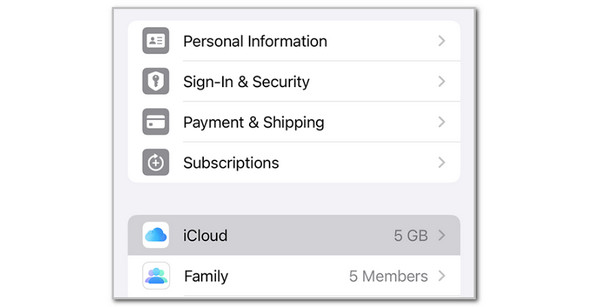
Step 1Ensure that the iPhone is connected to a strong internet connection. After that, open the Settings application on your iPhone and tap the iCloud account at the top of the screen. Tap the iCloud button from the options list to continue.
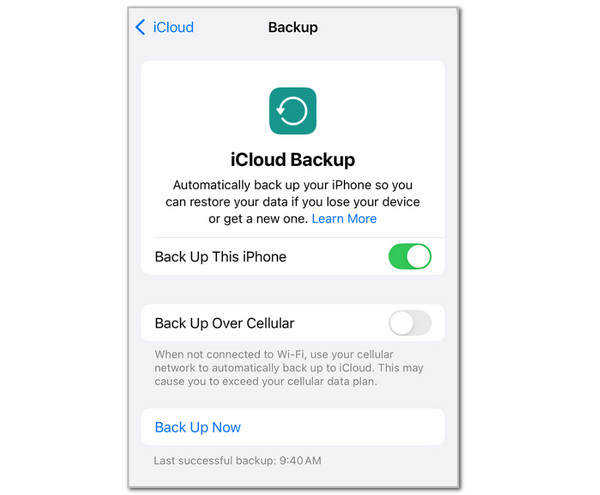
Step 2Tap the iCloud Backup button on the screen to proceed with the process. Tap the Back Up Now option at the bottom, and the process will start immediately. If you want an automatic backup for your iPhone, tap the Back Up This iPhone button at the top.
Part 3. Bonus Tip: How to Back Up an iPhone on a Computer
Some iPhone users want an alternative way to back up their data. Good news! You can back up your iPhone data with Finder or iTunes! However, they cannot back up selected data, which you can do with the previous method. However, iTunes and Finder cannot back up some of the other data from the iPhone, like iCloud-associated data.
How to backup iPhone on a computer? The steps for doing it on your iTunes or Finder tools are below.
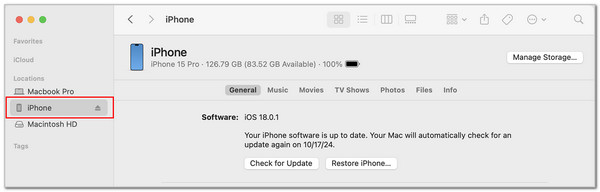
Step 1Launch iTunes or Finder on your Mac or Windows computer. Connect your iPhone using a USB cable. If prompted, enter your device passcode or tap Trust This Computer. Once connected, select the iPhone button or name at the top to continue.
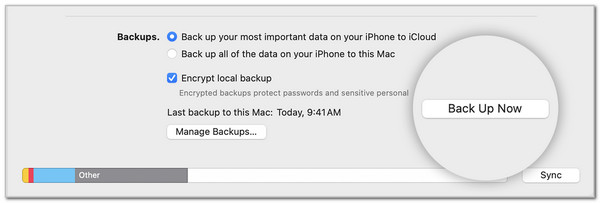
Step 2In iTunes, select the Summary option on the left. If you’re using Finder, click the General tab. On the right side of the window, you’ll see your iPhone details. To begin, click Back Up Now at the bottom right. The backup will start immediately, and once it’s finished, the most recent backup will be displayed.
Part 4. Best Alternative to Backup iPhone with iCloud
FoneLab iOS Data Backup & Restore is the best alternative to iCloud! This tool can back up your iPhone data on your Mac or PC. The supported data are messages, notes, videos, photos, reminders, and more. The best thing about it is that it can create a selective backup of iPhone data, and it allows you to preview the data before backing it up. Additionally, it can back up your iPhone data with or without a backup passcode. How to backup iPhone on iCloud’s best alternative? The steps are provided below for using the third-party program.
FoneLab enables you to backup and restore iPhone/iPad/iPod without data loss.
- Backup and restore iOS data to your PC/Mac easily.
- Preview data in detail before you restore data from backups.
- Backup and restore iPhone, iPad and iPod touch data Selectively.
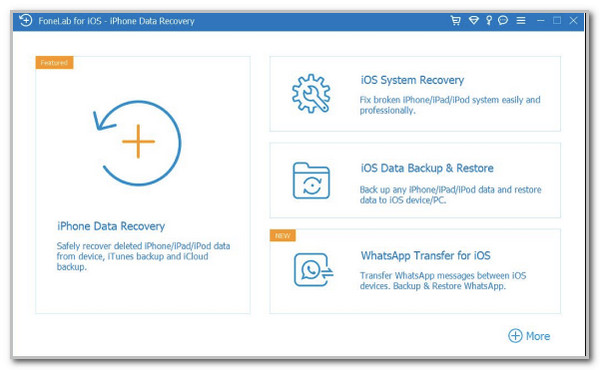
Step 1Download the tool on your computer. Set up, install, and launch it afterward. Four tools will appear on your screen. Please click the iOS Data Backup & Restore button on the right to see the proper tools for the process.
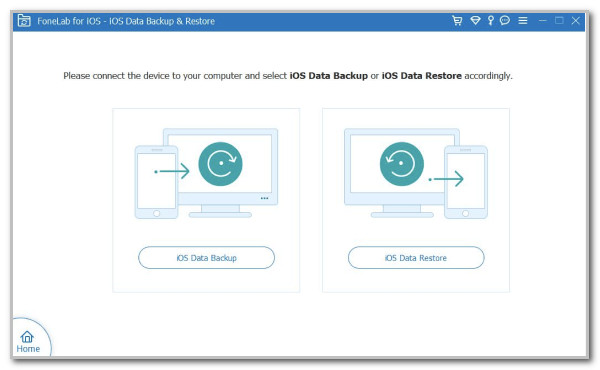
Step 2The two main functions of the tool will appear on the screen. Please click the iOS Data Backup button on the left side of the main interface. Plug the iPhone into the computer afterward to continue with the process.
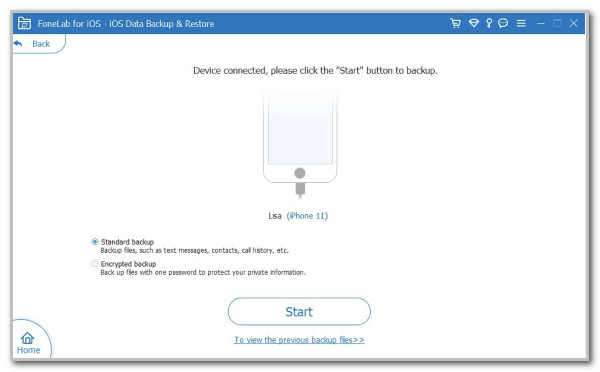
Step 3Select between the Local Backup and Encrypted Backup. Then, follow the on-screen steps and click the Start button at the bottom center to start the backup procedure for your iPhone data.
Part 5. FAQs about Backing Up iPhone to iCloud
Why won't my iPhone backup to iCloud?
There are several popular reasons why you cannot back up your iPhone using iCloud. You should first check the requirements to back up your iPhone data with the mentioned cloud-based storage. Check if you have a stable internet or Wi-Fi connection, as a slow one can be the reason iCloud does not back up. Insufficient iCloud storage, a down iCloud service, and signing out of iCloud are other factors that affect the backup process.
Why is my iPhone stuck on backup?
Unfortunately, some iPhone users experience that their backup procedure gets stuck. It means that the iCloud backup process stops. When this happens, the iCloud storage might be full, and the iCloud backup cannot store more data. Additionally, you should check the internet connection. Without one, you cannot continue backing up your iPhone data, even though the process is already halfway.
In conclusion, this article explains how to back up an iPhone to iCloud. It lists down the most convenient and straightforward practice to back up your iPhone data to your iCloud account. Additionally, the best alternative to iCloud backup and restore is also posted in this article. The tool is FoneLab iOS Data Backup & Restore. It is a way to back up iPhone without iCloud. Download it to know more about its features. Thank you!



