iPhone Data Recovery
 iOS System Recovery
 iOS Data Backup & Restore
 iOS Unlocker
 iPhone Password Manager
 Location Changer
 Android Data Recovery
 Broken Android Data Extraction
 Android Data Backup & Restore
 Android Unlocker
 FoneTrans for iOS
 iPhone Data Eraser
 iPhone Cleaner
 HEIC Converter
 HyperTrans
 WhatsApp Transfer for iOS
 Mac Sweep
 Data Retriever
 Mac Data Retriever
 Video Converter Ultimate
 Screen Recorder
 Phone Mirror
How to Access iCloud Backup Files (Photos, Contacts, Messages)
 Posted by Boey Wong / September 21, 2026 09:00
iCloud backup is one of the most convenient features of the iPhone ecosystem. It automatically backs up your phone data to Apple's servers, so you can restore it if you get a new phone or lose your old one. But what if you want to access specific files from an iCloud backup without restoring the entire phone? Maybe you need to recover a deleted message, find an old photo, or extract some contacts. The built-in iCloud tools are limited, but there are ways to access and extract data from your backups.
In this guide, I will show you how to access iCloud backup files using the built-in methods on iPhone and iCloud.com, and how to extract specific data using FoneLab iPhone Data Recovery. Let us get started.

Guide List
Part 1. What Is in an iCloud Backup?
Before we dive into accessing backups, it is important to understand what an iCloud backup actually contains. An iCloud backup includes almost all data and settings on your iPhone, but there are some exceptions.
What is included:
- App data and settings, including app layouts and home screen organization
- iMessage, SMS, and MMS messages (unless you use Messages in iCloud)
- Photos and videos (unless you use iCloud Photos)
- Contacts, calendars, and reminders (unless synced separately to iCloud)
- Call history, voicemail, and Safari bookmarks/history
- Home screen and app organization
- Device settings, including wallpaper, accessibility settings, and network settings
- Purchase history for apps, music, movies, and books (not the actual files, just the history)
What is NOT included:
- Data already stored in iCloud (Contacts, Calendars, Notes, iCloud Photos, Messages in iCloud)
- Email stored in iCloud or other email accounts
- Apple Pay information and settings
- Face ID or Touch ID settings
- Content stored in other cloud services (Google Drive, Dropbox, etc.)
- App data that is already synced to the app's own cloud service
Understanding what is in your backup helps you know where to look for specific data. For example, if you use iCloud Photos, your photos are not in the iCloud backup; they are in iCloud Photos directly. If you use Messages in iCloud, your messages are not in the backup either.
Part 2. Method 1: Access iCloud Backup on iPhone
On your iPhone, you can check your iCloud backup status and manage backups, but you cannot browse individual files in the backup directly. The backup is designed to be restored as a whole, not browsed file by file.
Step 1Go to Settings > your name > iCloud > iCloud Backup.
Step 2Here you can see when the last backup was made, whether iCloud Backup is enabled, and how much storage is available.
Step 3To see what is being backed up, go back to iCloud and tap Show All under the Apps Using iCloud section. This shows which apps are storing data in iCloud.
Step 4To restore from an iCloud backup, you need to erase your iPhone first (Settings > General > Transfer or Reset iPhone > Erase All Content and Settings), then follow the setup process and choose "Restore from iCloud Backup."
The limitation of this method is that you cannot view or extract individual files from the backup. You have to restore the entire backup to a phone, which overwrites all current data. If you just need to find one message or photo, this is overkill. For selective access, use Method 3.

With FoneLab for iOS, you will recover the lost/deleted iPhone data including photos, contacts, videos, files, WhatsApp, Kik, Snapchat, WeChat and more data from your iCloud or iTunes backup or device.
- Recover photos, videos, contacts, WhatsApp, and more data with ease.
- Preview data before recovery.
- iPhone, iPad and iPod touch are available.
Part 3. Method 2: Access iCloud Data on iCloud.com
iCloud.com lets you access some of your iCloud data directly from a web browser, but it does not let you browse the backup file itself. You can access data that is synced to iCloud separately from the backup.
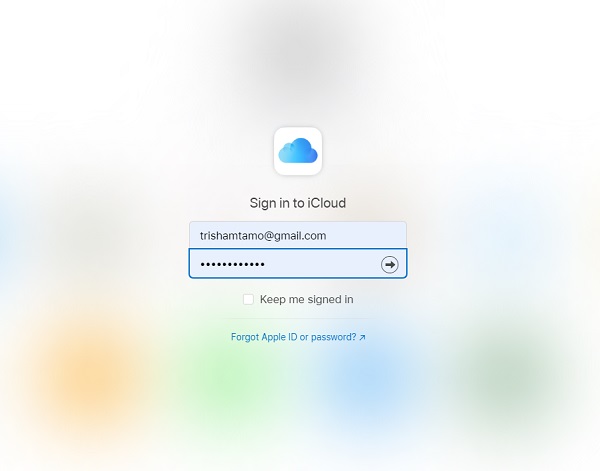
Step 1Open a web browser on any computer and go to icloud.com. Sign in with your Apple ID and password.
Step 2You will see icons for the iCloud services you use, such as Photos, Mail, Contacts, Calendar, Notes, Reminders, and Find My.
Step 3Click on any icon to access that data. For example, click Photos to view and download your iCloud Photos, or click Contacts to view and export your contacts.
Step 4To download photos, select the photos you want and click the download icon (a cloud with a downward arrow). To export contacts, select a contact, click the gear icon, and choose Export vCard.
Step 5You can also access iCloud Drive files, Pages/Numbers/Keynote documents, and your iCloud email from iCloud.com.
The limitation of iCloud.com is that it only shows data that is actively synced to iCloud, not data that is only in the backup. For example, if you do not use iCloud Photos, your photos are in the backup but not accessible on iCloud.com. Similarly, text messages are not accessible on iCloud.com unless you use Messages in iCloud. To access data that is only in the backup, you need Method 3.
Part 4. Method 3: Extract iCloud Backup with FoneLab iPhone Data Recovery
FoneLab iPhone Data Recovery is the most powerful way to access iCloud backup files. It can download your iCloud backup, parse it, and let you browse, preview, and extract specific data types without restoring the entire backup to a phone. This is perfect when you need to recover just a few messages, contacts, or photos.
Step 1Download and install FoneLab iPhone Data Recovery on your Windows PC or Mac. Open it and choose Recover from iCloud Backup File from the left sidebar.
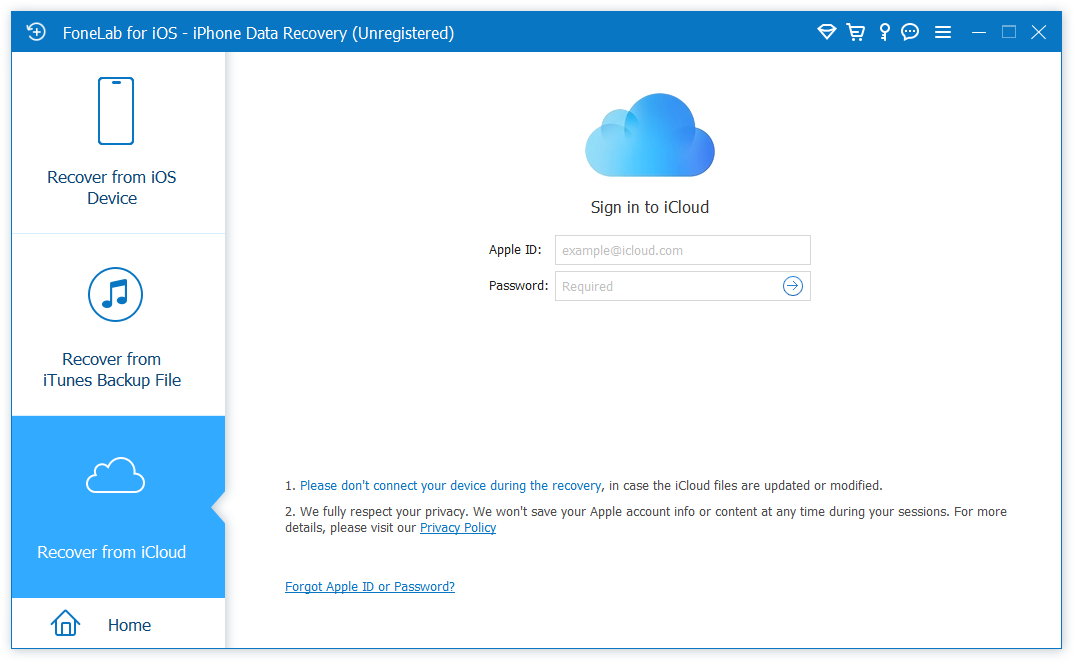
Step 2Sign in with your Apple ID and password. If you have two-factor authentication enabled, enter the verification code sent to your trusted device.
Step 3The software will display a list of all iCloud backups associated with your account, including the device name, backup date, and iOS version. Select the backup you want to access and click Download.
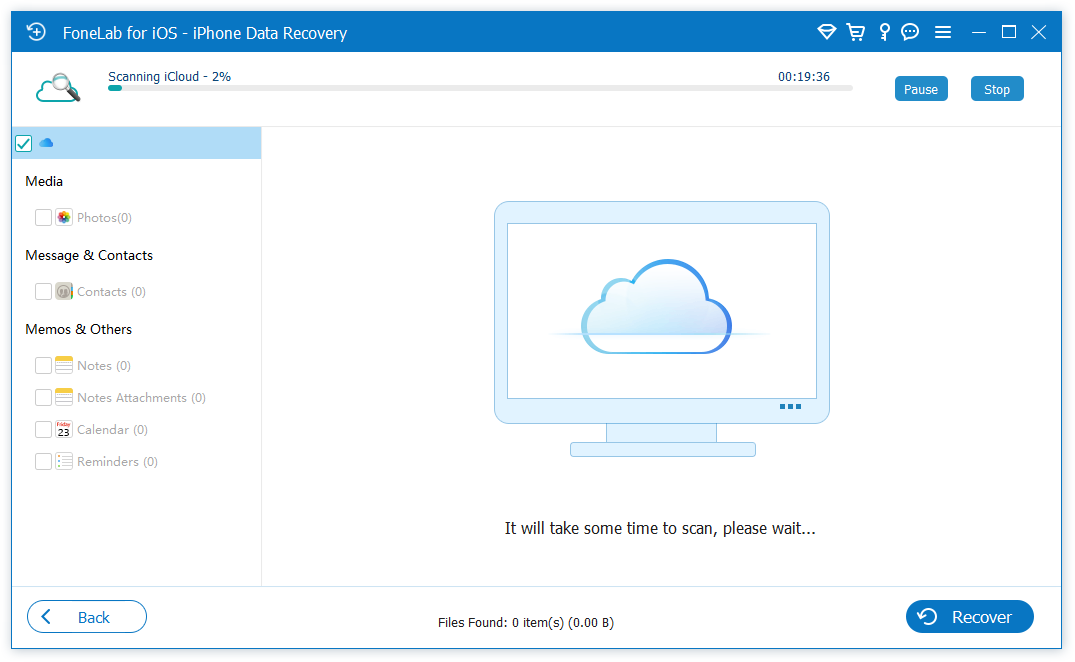
Step 4Choose the data types you want to extract (Messages, Contacts, Photos, Notes, Call History, Safari History, WhatsApp, etc.). Click Next to start downloading and scanning the backup.
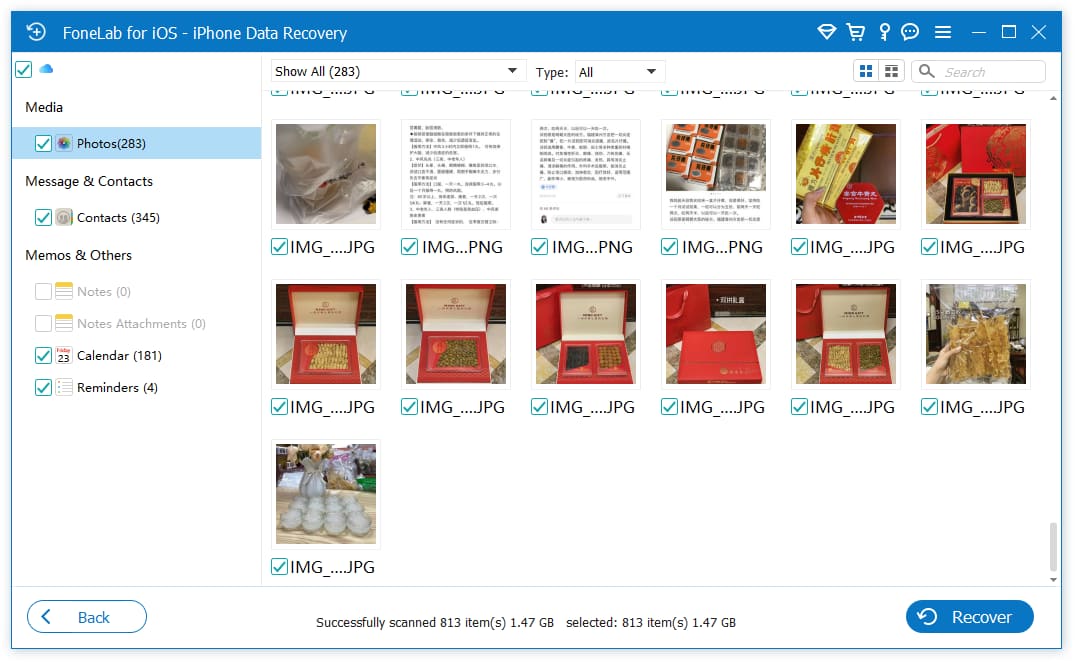
Step 5When the scan is complete, browse the extracted data by category. Preview each item, select what you want to keep, and click Recover to save it to your computer.
What makes FoneLab iPhone Data Recovery so useful is that it gives you full access to the backup contents. You can read text messages, view photos, listen to voicemails, and export contacts as vCards or CSV files. You do not need to restore the backup to a phone, and you do not risk overwriting any current data. It also supports extracting data from encrypted iTunes/Finder backups and directly scanning an iPhone for deleted data.
On Windows, iTunes was replaced by the Apple Devices app (available from Microsoft Store) for backing up and restoring your iPhone. On macOS Catalina or later, use Finder instead of iTunes.
Not sure which way to access your iCloud backup? Here is a quick comparison.
| iPhone Settings | iCloud.com | FoneLab iPhone Data Recovery | |
|---|---|---|---|
| When to use | You want to restore the whole device | You want to browse data in a browser | You want to extract data without restoring |
| Restores the whole device | Yes | No | No |
| View individual items | No | Limited | Yes |
| Needs Apple ID | Yes | Yes | Yes |
| Cost | Free | Free | Paid software |
With FoneLab for iOS, you will recover the lost/deleted iPhone data including photos, contacts, videos, files, WhatsApp, Kik, Snapchat, WeChat and more data from your iCloud or iTunes backup or device.
- Recover photos, videos, contacts, WhatsApp, and more data with ease.
- Preview data before recovery.
- iPhone, iPad and iPod touch are available.
Part 5. How to Manage iCloud Storage
iCloud only gives you 5GB of free storage, which fills up quickly with backups, photos, and documents. Here is how to manage your iCloud storage effectively.
- Check what is using space. Go to Settings > your name > iCloud > Manage Account Storage to see a breakdown of what is using your iCloud storage.
- Delete old backups. If you have backups for devices you no longer use, delete them to free up space. Go to iCloud > Manage Account Storage > Backups, select the old backup, and tap Delete & Turn Off Backup.
- Use iCloud Photos optimization. Enable "Optimize iPhone Storage" in Photos settings to keep smaller versions of photos on your phone and full-resolution versions in iCloud.
- Clean up iCloud Drive. Delete old files and documents from iCloud Drive that you no longer need.
- Upgrade if needed. If you consistently run out of space, consider upgrading to a paid iCloud+ plan (50GB, 200GB, or 2TB). The 50GB plan is cheap and usually enough for one device's backup plus photos.
- Use alternative storage. For large files like videos, consider using Google Photos, Dropbox, or an external hard drive instead of iCloud.
With FoneLab for iOS, you will recover the lost/deleted iPhone data including photos, contacts, videos, files, WhatsApp, Kik, Snapchat, WeChat and more data from your iCloud or iTunes backup or device.
- Recover photos, videos, contacts, WhatsApp, and more data with ease.
- Preview data before recovery.
- iPhone, iPad and iPod touch are available.
Part 6. FAQs about Accessing iCloud Backups
Can I view individual files in an iCloud backup?
Not with Apple's built-in tools. iCloud backups are designed to be restored as a whole. To browse and extract individual files, you need a third-party tool like FoneLab iPhone Data Recovery that can parse the backup file.
How long does iCloud keep backups?
iCloud keeps your most recent backup for each device as long as you have enough storage. If you turn off iCloud Backup, the last backup is kept for 180 days before being deleted. Older backups are automatically replaced by newer ones.
Can I access someone else's iCloud backup?
Only if you have their Apple ID and password, and you can pass two-factor authentication. Accessing someone else's iCloud account without permission is illegal and a violation of privacy. Always get explicit consent before accessing another person's data.
What is the difference between iCloud backup and iCloud sync?
iCloud backup is a point-in-time snapshot of your device that you can restore from. iCloud sync keeps data (Contacts, Photos, Notes, etc.) updated in real-time across all your devices. Synced data is not included in the backup because it is already stored separately in iCloud.
Accessing iCloud backup files is easy once you know the right tools. Use iCloud.com for synced data, restore from backup for full device recovery, and use FoneLab iPhone Data Recovery when you need to extract specific files without restoring. For more tips, check how to recover Safari history from iCloud or restore iPhone from iCloud backup.
With FoneLab for iOS, you will recover the lost/deleted iPhone data including photos, contacts, videos, files, WhatsApp, Kik, Snapchat, WeChat and more data from your iCloud or iTunes backup or device.
- Recover photos, videos, contacts, WhatsApp, and more data with ease.
- Preview data before recovery.
- iPhone, iPad and iPod touch are available.