
 iPhone Data Recovery
 iOS System Recovery
 iOS Data Backup & Restore
 iOS Unlocker
 iPhone Password Manager
 Location Changer
 Android Data Recovery
 Broken Android Data Extraction
 Android Data Backup & Restore
 Android Unlocker
 FoneTrans for iOS
 iPhone Data Eraser
 iPhone Cleaner
 HEIC Converter
 HyperTrans
 WhatsApp Transfer for iOS
 Mac Sweep
 Data Retriever
 Mac Data Retriever
 Video Converter Ultimate
 Screen Recorder
 Phone Mirror
- Unlock Apple ID
- Bypass iCloud Activation Lock
- Doulci iCloud Unlocking Tool
- Factory Unlock iPhone
- Bypass iPhone Passcode
- Reset iPhone Passcode
- Unlock Apple ID
- Unlock iPhone 8/8Plus
- iCloud Lock Removal
- iCloud Unlock Deluxe
- iPhone Lock Screen
- Unlock iPad
- Unlock iPhone SE
- Unlock Tmobile iPhone
- Remove Apple ID Password
4 Leading iPhone Parental Control Apps You Need to Know
 Updated by
 Good day! My son will be having his first iPhone this week. It's a gift for his first day as a teenager. However, I still want to manage the content, features, and apps he uses. Can you recommend an iPhone parental monitoring app? Thank you in advance!
Managing and controlling the operations of your child’s iPhone is important to monitor what they access. In this article, you will find the 4 best iPhone parental control apps to help you manage your child's device. Continue reading below to learn more.

Guide List
Part 1. Family Sharing
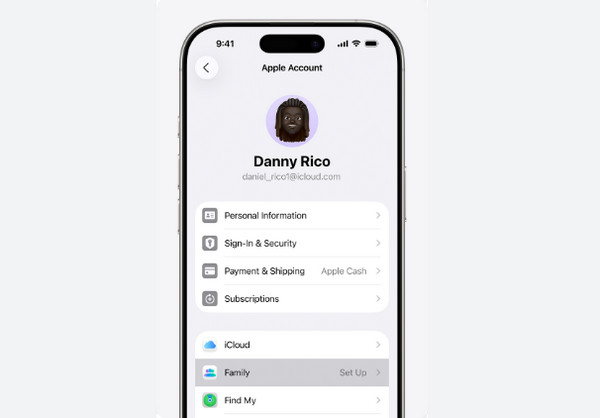
Family Sharing is a built-in feature that is included in Screen Time. It allows a family, which has 6 members, to share purchases, storage, and subscriptions. This feature also enables parents to monitor and control their children's iPhone. It works on most Apple devices, including Mac, iPad, and iPhone.
Turning on and off Family Sharing requires a Screen Time passcode. If you do not know it, you need to bypass Screen Time passcode to create a new one.
Pros
- • It has centralized control from one device.
- • It supports a purchase approval system.
- • Helps you save money for sharing subscriptions.
- • It has an automatic child account protection.
Cons
- • It is limited to the Apple ecosystem.
- • It needs Apple ID management.
- • It only supports basic monitoring.
Part 2. Qustodio Parental Control App
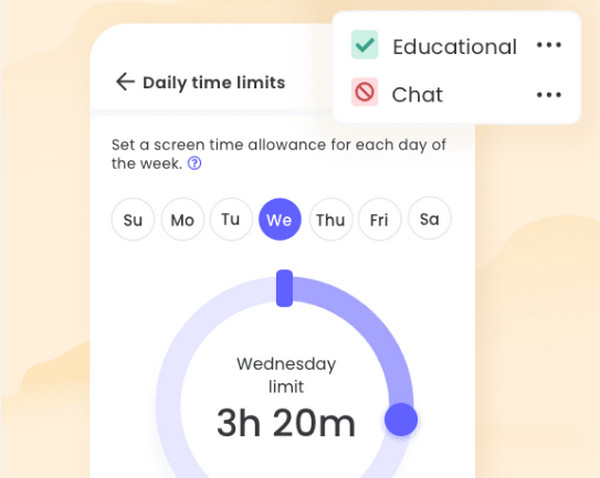
Qustodio is one of the best parental apps for iPhone due to its compatibility. You can manage your child’s iPhone from iOS, Android OS, Windows, and macOS devices. It allows you to track screen time, app usage, filter websites, etc. This app offers advanced monitoring features compared to Family Sharing. It includes text tracking, YouTube activity monitoring, and more.
Pros
- • Known for wide-range compatibility.
- • Supports strong screen time management tools.
- • Provides detailed alerts and customer support.
- • Provides real-time location tracking.
Cons
- • It has limited support and features on iOS devices.
- • Web filtering is not always available.
- • Its cost is expensive compared to other parental control apps.
- • It has privacy issues due to deep monitoring procedures.
Part 3. Bark
Bark is different from the previous parental control apps. This app is an app that uses Artificial Intelligence, or AI. It can monitor 30 social media platforms from your child’s iPhone. It can also scan text, photos, videos, email, and other data. The app supports an alert-based monitoring approach. It only means that parents do not need to read all the messages from their child's iPhone. They will only be notified when the app detects potential dangers in the text.
Pros
- • It uses an advanced algorithm to identify the iPhone's serious issues.
- • It supports extensive social media platforms.
- • It allows multiple children to be monitored.
- • Supports safe insights.
Cons
- • It has limited support on iOS devices.
- • It supports weak direct control features.
- • It can send false reports.
- • Tech-savvy kids can bypass it.
Part 4. OurPact
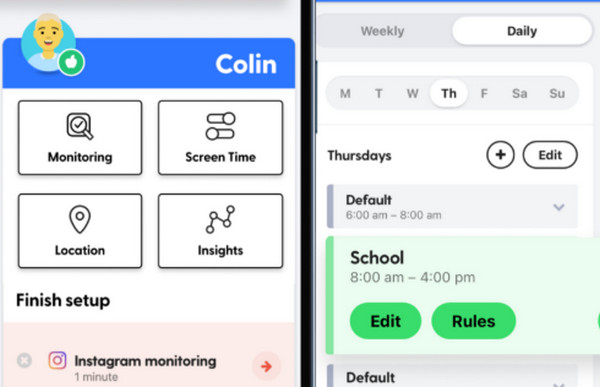
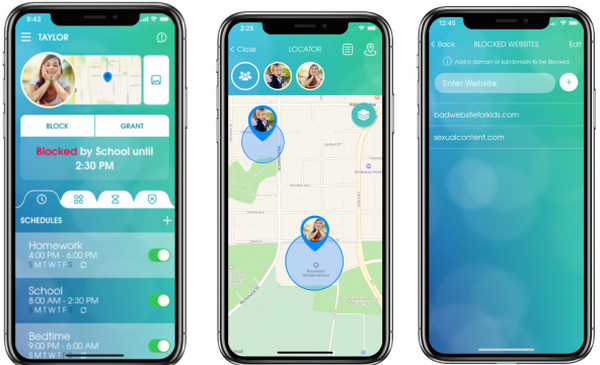
OurPact focuses on managing and controlling children's screen time on an iPhone. It helps the parents to set boundaries on the content they access. It allows you to block applications, schedule downtime, and perform other operations. Besides iOS, the application is also available on Android devices.
Pros
- • It supports a scheduling system and allows powerful app blocking.
- • Compared to the previous apps, this app has strong iOS support.
- • It has the Allowance feature for screen time management.
- • It supports location tracking with geofencing.
Cons
- • It has weak monitoring features.
- • It is expensive for some users.
- • It has limited web filtering support.
- • It does not offer a detailed activity report.
- • The setup process might be overwhelming for some beginners.
Part 5. Comparison Table of Parental Control Apps for iPhone
| Method | Screen Time Control | Social Media Monitoring | Web Filtering |
| Family Sharing | Good | No | Basic |
| Qustodio Parental Control App | Basic | Limited Support on iOS | Strong |
| Bark | Advanced | Strong | Moderate |
| OurPact | Advanced | Very Limited | Moderate |
Part 6. How to Remove Screen Time from iPhone
Screen Time is part of the parental controls on your iPhone. Some cannot turn it off due to a forgotten passcode. FoneLab iFoneWiz is here to help you bypass it! You will not experience any data loss on your iPhone. All of your data and settings will remain intact after the Screen Time bypassing process.

iFoneWiz Helps you unlock iPhone screen, Removes Apple ID or its password, Remove screen time or restriction passcode in seconds.
- Helps you unlock iPhone screen.
- Removes Apple ID or its password.
- Remove screen time or restriction passcode in seconds.
You need to ensure that you have the latest version of iTunes on your computer for this process to work. Also, the Find My iPhone feature must be turned off. The tool can be used to remove MDM from iPhone, iCloud Activation Lock, Apple ID, and more. Do you want to use the tool for bypassing the Screen Time passcode? Continue browsing to see its detailed steps below.
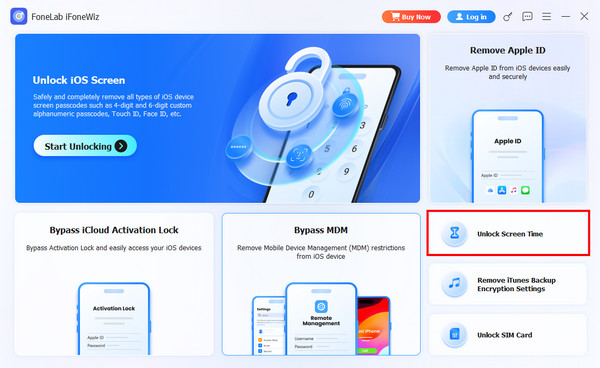
Step 1Download FoneLab iFoneWiz on your computer. Click the Free Download button to do that. Later, set up, install, and open the tool on your computer to proceed. After that, the supported features of the tool will appear.

Step 2Please click the Unlock Screen Time feature. On the next screen, select your desired method and click Start Now after connecting your iPhone to the computer.
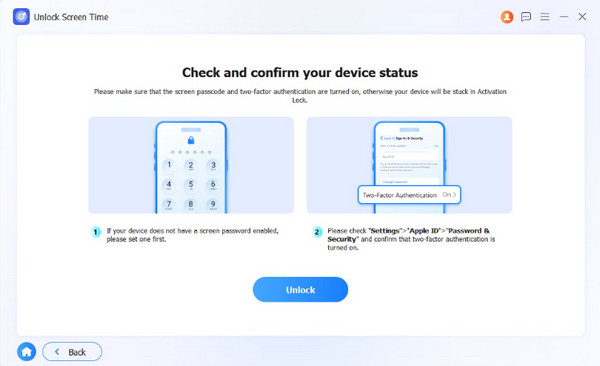
Step 3Follow the on-screen steps to turn off Find My iPhone. Click the Continue button to proceed. Click the Unlock button at the bottom center. This way, the tool will start to bypass your Screen Time passcode on iPhone. Finally, click the Finish button on the next screen to end the unlocking process.
Part 7. FAQs about Parental Control Apps for iPhone
Does parental control turn off at 18 on iPhone?
The parental controls on your iPhone do not turn off when your child turns 18. It will not be automatically disabled. They are required to leave the Family Sharing feature. To do that, tap the Settings app and select the name at the top. Tap the Family Sharing button and select the Leave Family button.
Does removing parental controls delete everything?
No. Removing the parental controls on your iPhone will not delete even a single piece of data. The restrictions from the apps and features will be removed, but not the data. Your personal data, installed apps, customized settings, and other data are safe.
This post covers the 4 best parental control apps for iPhone. They are focused on the restrictions that can be added to your child’s iPhone.FoneLab iFoneWiz is also here to help you remove the Screen Time restrictions if the passcode is unknown. You can also bypass MDM, remove Apple ID, and remove more security features, using it. Downloading the tool will help you discover everything it can do!!



