
 iPhone Data Recovery
 iOS System Recovery
 iOS Data Backup & Restore
 iOS Unlocker
 iPhone Password Manager
 Location Changer
 Android Data Recovery
 Broken Android Data Extraction
 Android Data Backup & Restore
 Android Unlocker
 FoneTrans for iOS
 iPhone Data Eraser
 iPhone Cleaner
 HEIC Converter
 HyperTrans
 WhatsApp Transfer for iOS
 Mac Sweep
 Data Retriever
 Mac Data Retriever
 Video Converter Ultimate
 Screen Recorder
 Phone Mirror
- Part 1. Turn Off Parental Control on iPhone Settings
- Part 2. Turn Off Parental Control on iPhone via Family Sharing
- Part 3. Turn Off Parental Control on iPhone Using Forgot Passcode
- Part 4. Turn Off Parental Control on iPhone via iCloud
- Part 5. Turn Off Parental Control on iPhone Using Recovery Mode
- Part 6. Turn Off Parental Control on iPhone with Fonelab iOS Unlocker
- Part 7. Comparison of Ways to Turn Off Parental Controls on iPhone
- Part 8. FAQs about How to Turn Off Parental Controls on iPhone
- Unlock Apple ID
- Bypass iCloud Activation Lock
- Doulci iCloud Unlocking Tool
- Factory Unlock iPhone
- Bypass iPhone Passcode
- Reset iPhone Passcode
- Unlock Apple ID
- Unlock iPhone 8/8Plus
- iCloud Lock Removal
- iCloud Unlock Deluxe
- iPhone Lock Screen
- Unlock iPad
- Unlock iPhone SE
- Unlock Tmobile iPhone
- Remove Apple ID Password
How to Turn Off Parental Controls on iPhone Properly
 Updated by
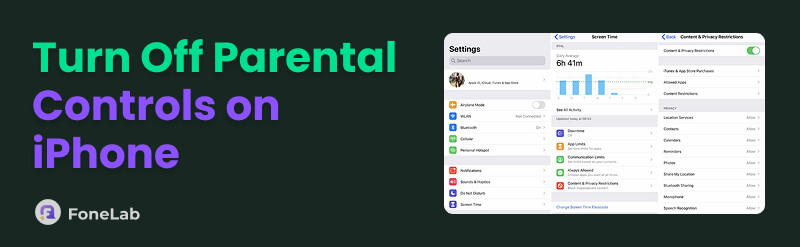
 Do you wonder how to disable parental controls on iPhone? Whether your child has outgrown the restrictions or you plan to sell the device, turning the feature off is a necessary step. The question is, how will you perform the process correctly? Although you have already managed Screen Time’s parental controls before, forgetting the steps is completely understandable, as it may have already been a long time since. Hence, we prepared 6 ways to help you turn the feature off. Check each of them out in the following sections.

Guide List
- Part 1. Turn Off Parental Control on iPhone Settings
- Part 2. Turn Off Parental Control on iPhone via Family Sharing
- Part 3. Turn Off Parental Control on iPhone Using Forgot Passcode
- Part 4. Turn Off Parental Control on iPhone via iCloud
- Part 5. Turn Off Parental Control on iPhone Using Recovery Mode
- Part 6. Turn Off Parental Control on iPhone with Fonelab iOS Unlocker
- Part 7. Comparison of Ways to Turn Off Parental Controls on iPhone
- Part 8. FAQs about How to Turn Off Parental Controls on iPhone
Part 1. Turn Off Parental Control on iPhone Settings
Like other device management options, parental controls can be handled in your iPhone’s Settings app. And since it’s a feature under Screen Time, that’s also the section you must access, whether to turn it on or off. This process is the most straightforward, so you can expect to turn parental controls on your iPhone within a few minutes. Just note that the device’s Screen Time passcode is essential, as it will be your key to turning the feature off without complications.
Abide by the instructions below to understand how to take parental controls off iPhone in Settings:
Step 1Navigate to Settings on the iPhone and enter the Screen Time section. If prompted, you must provide the passcode you have set for the feature.
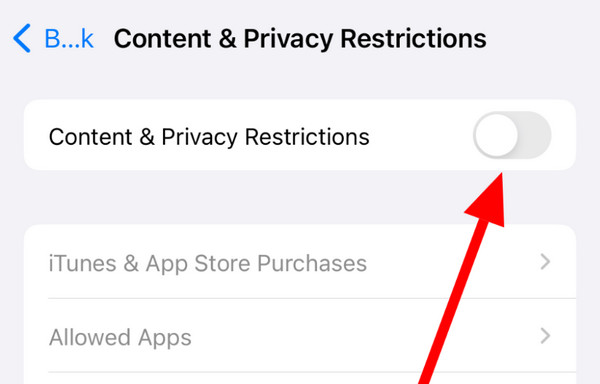
Step 2Once you’re in, tap Content & Privacy Restrictions under the Restrictions section. Then, toggle off Content & Privacy Restrictions at the top to turn off parental controls.
Part 2. Turn Off Parental Control on iPhone via Family Sharing
What if you’re turning the parental controls off on your child’s device using your own iPhone? In this case, Family Sharing would be the most helpful feature you can turn to. Like the last process, this can be managed in the Screen Time section, so access it, and you can find your child’s iPhone from the list of your family’s devices. Then, you will be able to control it, including turning the parental controls off. It will also only need your Screen Time passcode.
Act according to the directions below to grasp how to take off parental controls on iPhone via Family Sharing:
Step 1On the Settings interface, tap Screen Time and enter its passcode.
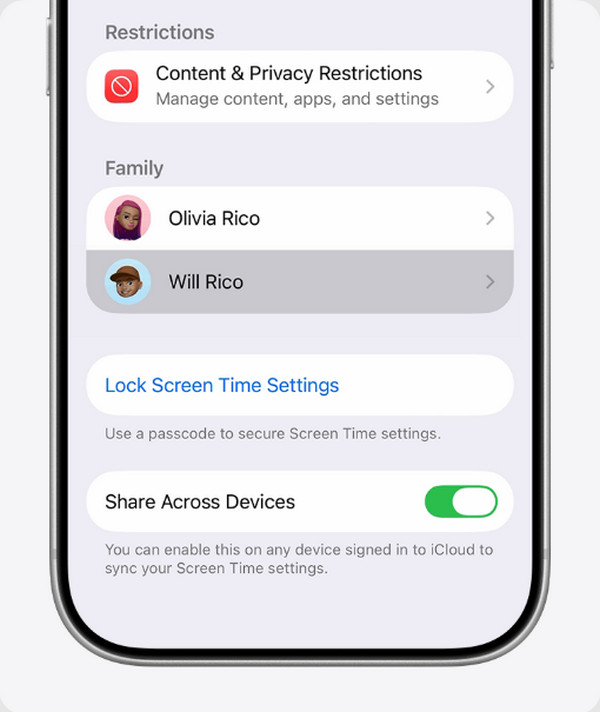
Step 2Next, choose your child’s device profile under the Family section to reveal further management options. From there, disable the Content & Privacy Restrictions option.
Part 3. Turn Off Parental Control on iPhone Using Forgot Passcode
Sometimes, users face unfortunate situations like forgetting their Screen Time passcode, preventing them from turning parental controls off. Luckily, Apple has prepared for such circumstances and developed the Forgot Passcode? option. You may be familiar with this, as almost, if not all, devices and accounts offer this selection when users can’t remember their passcode. It lets you reaccess the feature by entering your Apple credentials instead. However, note that this function is only available on iPhones running iOS 15.2 and later.
Stick to the process below to master how to get rid of parental controls on iPhone using Forgot Passcode:
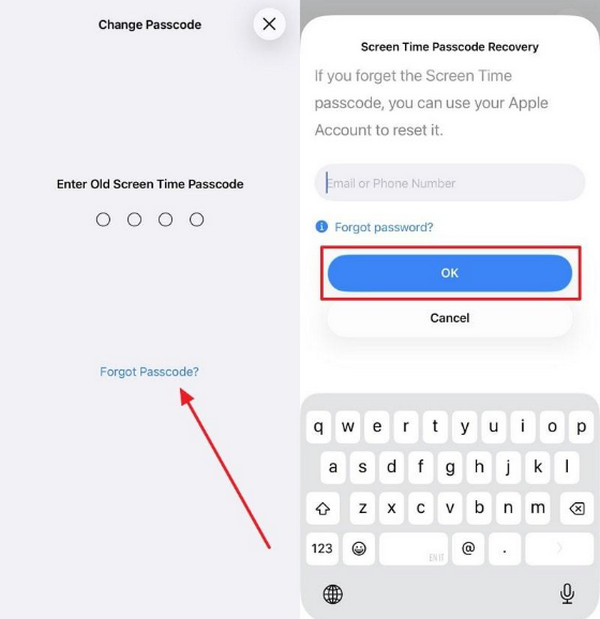
Step 1Like before, choose the Screen Time selection on your iPhone’s Settings interface. Since you can’t recall the passcode, tap Forgot Passcode?.
Step 2Provide your Apple ID credentials when asked, and afterward, the screen will let you set a new passcode and turn off Screen Time, including parental controls.
Part 4. Turn Off Parental Control on iPhone via iCloud
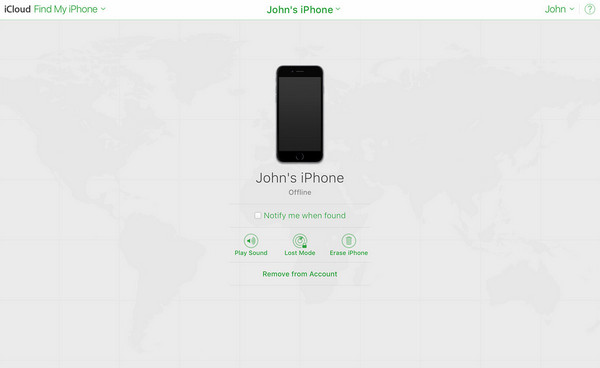
On the other hand, relying on iCloud to erase iPhone and turn parental controls off will also be helpful, especially if you plan to sell or give the device away afterward. This way, all the other restrictions will be removed as well, aside from parental controls. Meanwhile, the process will be done on the platform’s Find My section, so having this specific feature turned on in your iPhone is necessary. Otherwise, your device with parental controls won’t appear in your devices list.
Take to heart the guide below to turn off parental controls iPhone via iCloud:
Step 1Start on iCloud’s official site by entering your Apple credentials in their designated text fields. After logging in, access Find My and click its All Devices tab above.
Step 2Your device list will quickly appear, so pick the iPhone to proceed. Then, select Erase iPhone on the succeeding page to delete the device, turning parental controls off.
Part 5. Turn Off Parental Control on iPhone Using Recovery Mode
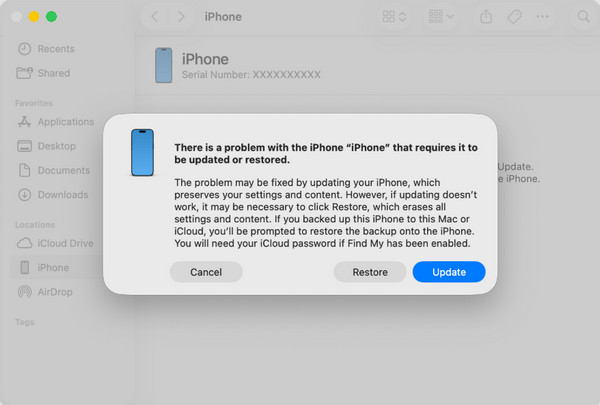
Another strategy to turn your device’s parental controls off is to put iPhone into Recovery mode. Whatever issue or concern you encounter on your Apple device, Recovery mode is the built-in diagnostic state you can boot into for a general solution, which is, in this case, to restore the iPhone. It will erase all your device’s content, including the parental control restrictions, making it an effective process to turn the feature off. It only requires the designated button combination and an appropriate program, whether iTunes, Finder, or Apple Devices on Windows or Mac.
Emulate the steps below to grasp how to remove parental controls on iPhone without password using Recovery mode:
Step 1Attach your iPhone to a computer with iTunes, Finder, or Apple Devices opened. Then, enter Recovery mode using the button combination.
On iPhone without Home button: Push the iPhone’s Volume Up and Down buttons quickly and successively. Then, push the Power key longer until it boots into Recovery mode.
On iPhone with Home button: Simply push and hold the iPhone’s Power and Home keys at the same moment, and shortly, it will boot into Recovery mode.
Step 2The program will detect your action, shortly presenting the Restore selection on the interface. Hence, select it to restore your iPhone and turn parental controls off.
Part 6. Turn Off Parental Control on iPhone with Fonelab iOS Unlocker
If you would prefer a more professional approach, here is FoneLab iOS Unlocker at your service. Among the unlockers and restriction removers we have encountered, this program offers the safest and most efficient function. Its Unlock Screen Time feature will be your perfect solution, as it can effortlessly eliminate and turn off parental controls on your iPhone without losing data. You also don’t have to worry about technicalities since this unlocker is designed even for beginners, offering a user-oriented interface and functions.

FoneLab Helps you unlock iPhone screen, Removes Apple ID or its password, Remove screen time or restriction passcode in seconds.
- Helps you unlock iPhone screen.
- Removes Apple ID or its password.
- Remove screen time or restriction passcode in seconds.
Accept the unexacting task below as a model of how to remove parental controls on iPhone with FoneLab iOS Unlocker:
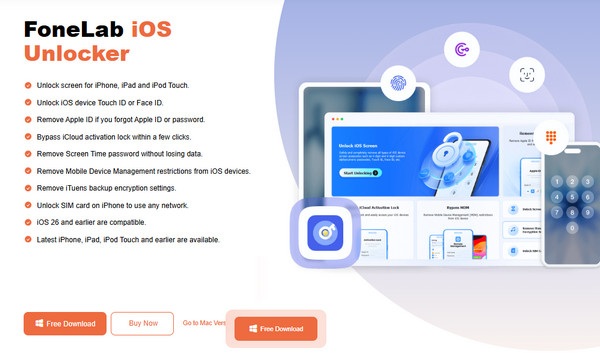
Step 1Install FoneLab iOS Unlocker by choosing Free Download on its website and setting up the downloaded installer file from your computer’s Downloads. Then, hit Start once it appears.
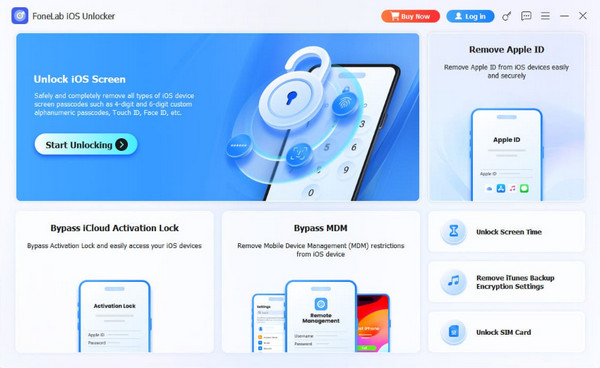
Step 2Once the interface launches, click Unlock Screen Time in the right portion and use a Lightning cable to attach your iPhone. Next, choose from the How is your screen time password set options and handle the following prompts until you finish the process.
Part 7. Comparison of Ways to Turn Off Parental Controls on iPhone
| Features | Requirements | Difficulty Level | Data Loss Risk | Best For |
| iPhone Settings | Screen Time passcode. | Very Easy | None | Users who know the existing Screen Time passcode. |
| Family Sharing | Screen Time passcode. | Easy | None | Organizers managing a child’s device or their own. |
| Forgot Passcode | Apple ID & password associated with the device. | Very Easy | Erases all data. | Users who have forgotten their Screen Time passcode. |
| iCloud | Apple ID & password. | Easy | Erases all data. | A full wipe when you know your iCloud credentials. |
| Recovery Mode | A computer, Lightning cable, and internet. | Moderate | Erases all data. | Users who forgot their iPhone passcode and not just parental controls. |
| FoneLab iOS Unlocker | A computer and Lightning cable. | Very Easy | None | Users who want a professional and safe approach without losing data. |
Part 8. FAQs about How to Turn Off Parental Controls on iPhone
Are parental controls turned on by default?
No, they aren’t. Parents must turn the feature on manually if they want to establish parental controls on their children’s devices.
At what age should I remove parental controls?
You may remove parental controls once your child is over 13 or the applicable age of consent in your country.
Parental controls are a huge help in handling your child’s device, but once it’s time to turn it off, don’t hesitate to rely on the secure techniques above. Install FoneLab iOS Unlocker anytime, as it can be functional in handling different concerns.



