
 iPhone Data Recovery
 iOS System Recovery
 iOS Data Backup & Restore
 iOS Unlocker
 iPhone Password Manager
 Location Changer
 Android Data Recovery
 Broken Android Data Extraction
 Android Data Backup & Restore
 Android Unlocker
 FoneTrans for iOS
 iPhone Data Eraser
 iPhone Cleaner
 HEIC Converter
 HyperTrans
 WhatsApp Transfer for iOS
 Mac Sweep
 Data Retriever
 Mac Data Retriever
 Video Converter Ultimate
 Screen Recorder
 Phone Mirror
- Unlock Apple ID
- Bypass iCloud Activation Lock
- Doulci iCloud Unlocking Tool
- Factory Unlock iPhone
- Bypass iPhone Passcode
- Reset iPhone Passcode
- Unlock Apple ID
- Unlock iPhone 8/8Plus
- iCloud Lock Removal
- iCloud Unlock Deluxe
- iPhone Lock Screen
- Unlock iPad
- Unlock iPhone SE
- Unlock Tmobile iPhone
- Remove Apple ID Password
Parental Controls on iPhone: Easy Guide on How It Works
 Updated by
 Parental control on iPhone is a feature that many parents rely on to manage how their children use their devices. Hence, it’s no longer surprising when several adults want to learn what this feature is all about and how it works. If you are among them, you are lucky, as we gathered all the necessary information that will introduce you to iPhone’s parental controls. Thus, to curate your kid’s iPhone to one that’s suitable for their age, don’t hesitate to browse the parts below.

Guide List
Part 1. What is Parental Controls on iPhone
To put it simply, parental control iPhone refers to a set of features designed to help parents manage and monitor their child’s device usage. These controls are part of the Screen Time settings, giving parents the ability to administer how the iPhone will be used daily. You may want to restrict access to specific platforms, features, or services to protect your child from inappropriate content, whether online videos, posts, games, or more.
Therefore, you can ensure that your child is only exposed to age-appropriate material while using their iPhone. Aside from that, parental controls will also let you prevent the child from taking unnecessary actions, such as purchases, downloads, subscriptions, etc. You can even limit the amount of time they spend on apps and more. The more you understand and optimize Screen Time’s functions, the more efficient it will be to monitor your kid’s device activities. That said, it is undeniable that turning on these controls on the iPhone is helpful in parents’ lives.
Part 2. How to Put Parental Controls on iPhone
After learning the iPhone’s parental controls’ advantages, we understand if you want to enable them immediately on your child’s device. Thus, let this section guide you with its initial setup. As mentioned, these controls are part of Screen Time, so expect the process to be in this feature’s designated section in the Settings app. No worries about complications, though, as putting parental controls doesn’t require technical knowledge. Choosing the correct options on the Settings interface is enough to turn on and modify Screen Time’s parental controls with ease.
Have regard to the official process below to learn how to put parental controls on iPhone:
Step 1Initially, ensure your device is linked to your child’s iPhone via Family Sharing. If it isn’t yet, select your profile name on Settings and tap Family > Continue. From there, set up the feature by following the prompts until you add your child’s device to your family members.
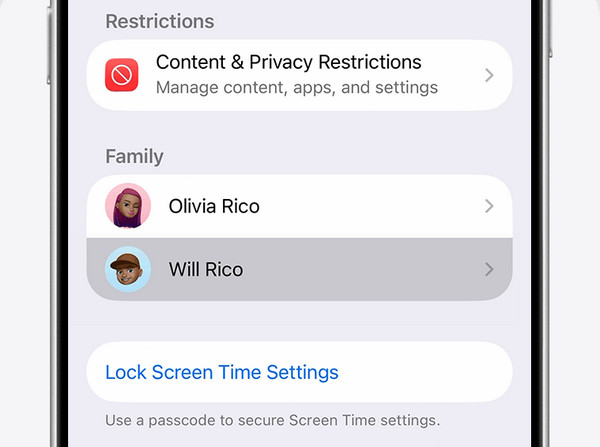
Step 2After connecting, it’s time to enter Screen Time and turn it on. Set it up with a passcode if prompted, and when ready, tap your child’s name under Family, then Content & Privacy Restrictions to also turn it on. Finally, explore and manage parental controls, like the apps you allow them to open, install, and the content you want to restrict.
Part 3. How to Turn Off iPhone Parental Controls in Settings
As much as we deny it, children will inevitably reach the age where they will no longer need this type of guidance on their devices. As they get older, privacy becomes necessary, as it also allows them to grow. In this case, you will need to turn the parental controls off on their iPhone and let them manage it by themselves. By then, you must wonder, how will you deactivate these controls correctly? Well, it’s actually far from complicated since, like before, the straightforward process will also be in Settings. You must only provide or bypass Screen Time passcode for the device to let you deactivate or make changes to the Screen Time feature’s parental controls.
Take to heart the suitable instructions below to turn off your parental controls for iPhone in Settings:
Step 1Visit the Screen Time section from the Settings app’s initial interface. Since you have already set a passcode, input it when prompted to access the feature successfully.
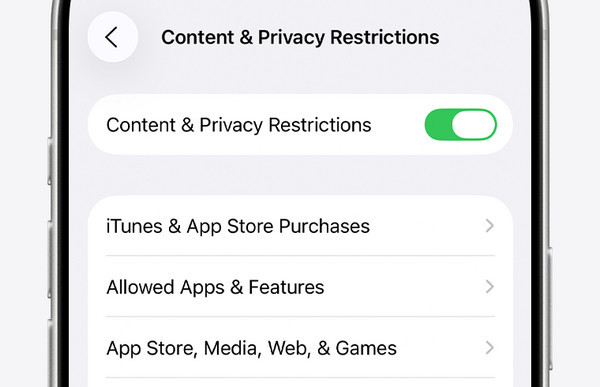
Step 2Once you’re in, look under Family to see and choose your child’s name. Then, tap Content & Privacy Restrictions and disable its toggle to turn the parental controls off.
Part 4. How to Turn Off iPhone Parental Controls with FoneLab iOS Unlocker
Usually, users turn the parental controls on, and it takes a long time before the time to turn them off comes around. As a result, forgetting the Screen Time passcode has become a common concern for many. The fortunate thing is that it is still possible to turn the parental controls off if you turn off restrictions on iPhone with a reliable tool like FoneLab iOS Unlocker. For those who are new to this program, don’t be intimidated, as it doesn’t require technical skills to function.

FoneLab Helps you unlock iPhone screen, Removes Apple ID or its password, Remove screen time or restriction passcode in seconds.
- Helps you unlock iPhone screen.
- Removes Apple ID or its password.
- Remove screen time or restriction passcode in seconds.
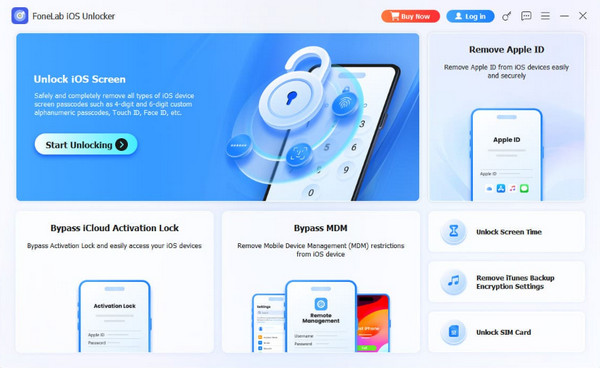
If you will notice FoneLab iOS Unlocker’s interface, it offers a user-oriented design and functions, as it has been developed to cater to all users. Other than that, its features work, even on other devices, which are different iPod Touch and iPad models and versions. That’s not the best part. Its Unlock Screen Time feature’s attribute that you will love the most is its ability to keep your data safe. Yes, that’s right! This tool won’t erase anything on your iPhone.
Identify the proper operation below as an example to turn off your parental control for iPhone with FoneLab iOS Unlocker:
Step 1Select FoneLab iOS Unlocker’s Download option. This action will help you acquire the installer in your Downloads, letting you manage the initial setup immediately. Simply follow the prompts, and you can expect around a minute to pass before it finishes and displays the Start tab. Click it to run the tool.
Step 2You can utilize the displayed key functions on the main interface anytime, but at this moment, proceed to the Unlock Screen Time first. You will then be welcomed with directions to attach the iPhone using a suitable Lightning cable. Follow along until further guides materialize on the interface. Then, let them prompt you with the processes, unlocking the feature afterward.
Part 5. FAQs about Parental Controls on iPhone
How to change parental controls on iPhone?
Changing parental controls on your iPhone is almost the same process as setting it up, but easier. Use the same guidelines in this article’s Part 2, and you can freely modify your desired parental controls in the Screen Time section. The only difference is that you don’t have to set up various options, like the first time, anymore.
Are parental controls effective for my child’s iPhone?
Yes, they are. Many users who have tried these controls find them helpful, as they reduce their children’s exposure to potentially harmful content, and as mentioned, they can control which apps, services, or activities will be allowed on the children’s devices.
Keep your children safe from the negative effects of devices by managing their iPhones using parental controls. And in case you encounter issues regarding restrictions later, no worries, as FoneLab iOS Unlocker has you back.



