
 iPhone Data Recovery
 iOS System Recovery
 iOS Data Backup & Restore
 iOS Unlocker
 iPhone Password Manager
 Location Changer
 Android Data Recovery
 Broken Android Data Extraction
 Android Data Backup & Restore
 Android Unlocker
 FoneTrans for iOS
 iPhone Data Eraser
 iPhone Cleaner
 HEIC Converter
 HyperTrans
 WhatsApp Transfer for iOS
 Mac Sweep
 Data Retriever
 Mac Data Retriever
 Video Converter Ultimate
 Screen Recorder
 Phone Mirror
- Unlock Apple ID
- Bypass iCloud Activation Lock
- Doulci iCloud Unlocking Tool
- Factory Unlock iPhone
- Bypass iPhone Passcode
- Reset iPhone Passcode
- Unlock Apple ID
- Unlock iPhone 8/8Plus
- iCloud Lock Removal
- iCloud Unlock Deluxe
- iPhone Lock Screen
- Unlock iPad
- Unlock iPhone SE
- Unlock Tmobile iPhone
- Remove Apple ID Password
How to Set Parental Controls on iPad in a Step-by-Step Way
 Updated by
 Hi! How to put parental controls on iPad? I badly need to learn how to use it because I need to control the screen time of my kid’s iPad. I hope you can help. Thank you in advance!
Apple offers different security features on your iPad. Parental controls are one of them. In this article, we will further discuss the operations that the feature can perform. You will also discover how to set it up quickly. Please continue browsing to learn all the information needed to know about the feature.

Guide List
Part 1. What is Parental Controls on iPad
The iPad parental control is a built-in feature that Apple offers, which is used for restricting content, setting up screen time usage, and more. It is commonly used by parents. These individuals use the feature to manage their kid’s iPad. In this case, they can limit the content that they can watch, including the features they can use. The feature is managed through Screen Time. Below are the key features you need to know about parental controls.
- • Screen time limitations on the iPad.
- • Restricts the content and privacy of the features and content.
- • You can use the Family Sharing feature to manage Apple device settings remotely.
- • It can prevent the installation of applications on the iPad.
- • Manage the child’s communication through FaceTime, messages, and phone calls.
Part 2. How to Set Up iPad Parental Controls
The parental controls for iPad have different features. In this section, we will help you set up some of them. It includes Family Sharing, Screen Time controls, and more. Please see the instructions below.
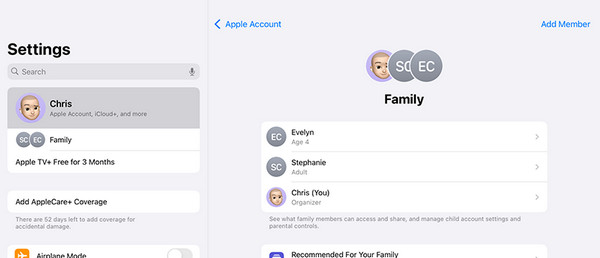
1. Enable Family Sharing: Open iPad Settings. Select the account name at the top. Select the Family button. Tap Add Member and enter the Apple ID of your child.
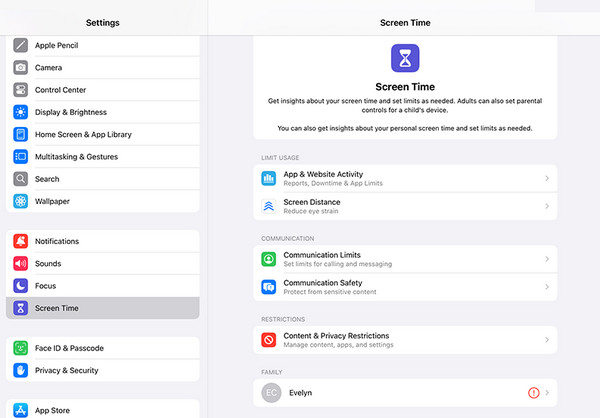
2. Set Up Screen Time Controls: Open the Settings app. Select Screen Time and tap This is My Child’s iPad. Create a Screen Time passcode, and you can finally set up the restrictions.
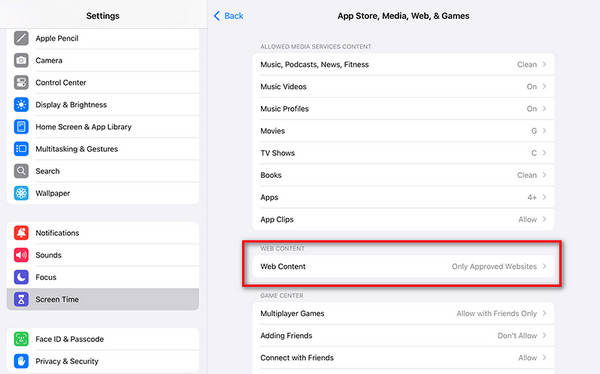
3. Block Websites: Open Settings and choose Screen Time. Tap Content & Privacy Restrictions. Enable the slider and choose an appropriate age. Tap Content Restrictions and select Web Content. Tap Allowed Websites Only. You can also enter the URLs you prefer to block.
Part 3. How to Turn Off iPad Parental Controls With or Without Passcode
How to turn off parental controls on iPad? You can do this with or without the passcode. See the 2 methods below.
1. Turn Off Parental Controls with Passcode
Turning off the parental controls on your iPad is easy. Screen Time is the main feature that supports it. So, it is the main feature that needs to be turned off to turn off parental controls. This method requires the correct passcode from the feature. See how below.
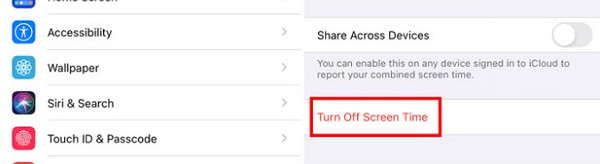
Open the iPad Settings app. Then, tap the Screen Time button on the left side. Select the Turn Off App & Website Activity button and enter the Screen Time passcode. Confirm the procedure afterward.
2. Turn Off Parental Controls Without Passcode

FoneLab Helps you unlock iPhone screen, Removes Apple ID or its password, Remove screen time or restriction passcode in seconds.
- Helps you unlock iPhone screen.
- Removes Apple ID or its password.
- Remove screen time or restriction passcode in seconds.
On the other hand, you need to bypass Screen Time passcode. You can use a third-party tool, which is FoneLab iOS Unlocker. This tool can bypass the mentioned security feature if the passcode is accidentally forgotten. The best thing about it is that it does not affect your content and settings from the iPad. Please see the steps below to know how to use the tool to bypass the Screen Time passcode.
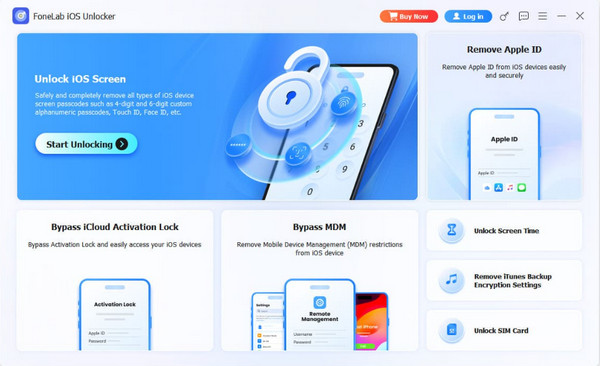
Step 1Download FoneLab iOS Unlocker. Set up, install, and open it afterward. Then, select the Unlock Screen Time feature on the right.
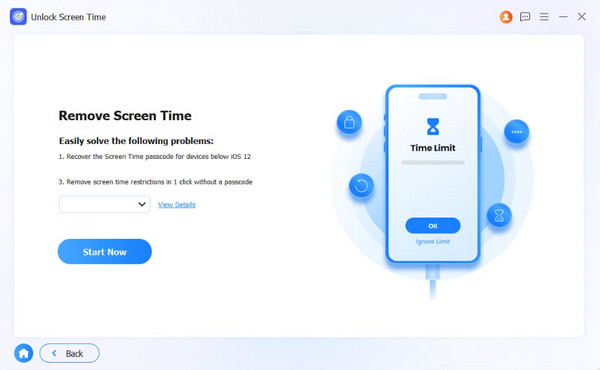
Step 2Plug the iPad into the computer. Then, click Start Now at the bottom left. Perform the on-screen instructions to proceed with the process. Later, click the Continue button at the bottom right.
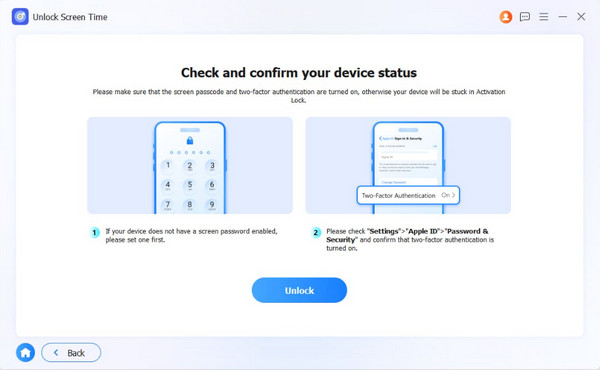
Step 3Click the Unlock button in the center. Later, the bypass process will start. Wait for the procedure to be completed. Finally, click the Finish button.
Part 4. 3 iPad Parental Control Apps Alternatives
Besides Screen Time, there are also iPad Parental Control apps. However, these applications are not supported by Apple. But don’t worry. These applications are safe for restricting your operations or features on your iPad. Please see them as you scroll from the list below.
1. Bark
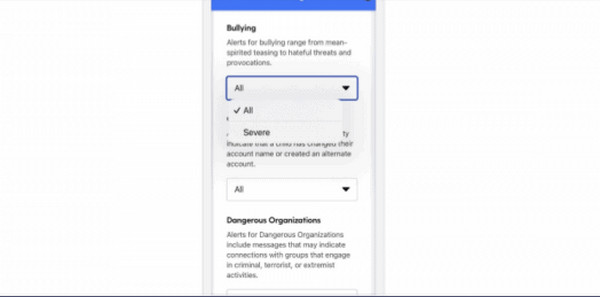
Bark is popular for parents who want to block the famous services on iPad and other Apple devices. It can monitor 15+ applications that are supported by iOS. It includes Tumblr, Spotify, Kik, Instagram, and more. It has great account-level monitoring. It automatically detects bullying and violence. You can also use the driving summary reports. However, the application does not support time limit controls and uninstall protection.
2. Qustodio
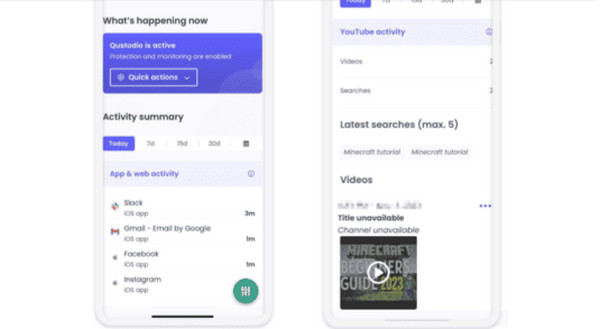
Qustodio is one of the best parental control apps for iPad. It has an intuitive interface that can block different websites and features on your iPad. Also, it blocks the unsupported browsers from your iPad, especially if they are installed to visit blocked websites from a particular website. It also has an uninstall protection for kids, and it prevents VPN circumvention. However, the call and SMS monitoring of the application requires a desktop.
3. FamiSafe
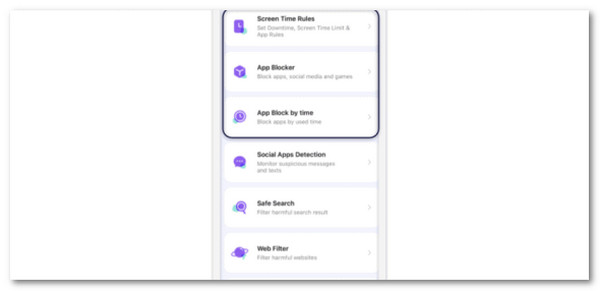
FamiSafe is good for tracking teen driving habits on iOS devices. It supports web filtering and a money-back guarantee on the first purchase. It has a Drive Safety feature that allows you to gain information during your child’s driving time, average speed, highest speed, and more. It can also be used to remove MDM from iPhone if managed. It has reliable teen driving reports, SOS panic alerts, app filtering, and more. However, it has a limited web filter category and uninstall protection on iOS.
Part 5. FAQs about Parental Controls on iPad
Do parental controls turn off at 13?
Parental controls from different Apple devices do not turn off automatically when the child turns 13. Apple only gives them the option that they can manage their own iPad without the supervision of their parents.
Is 15 too old for parental controls?
15-year-olds can handle their own iPad without the parental controls supervision of their parents. In short, they are mature enough to manage their screen time. However, it still depends on the parenting and the teenager.
The parental control on iPad, including other Apple devices, allows you to manage someone’s screen time and operations. In this article, you will know how to set it up. FoneLab iOS Unlocker helps you turn off the parental controls without the passcode. You can also use it to remove your Apple ID, iTunes backup restriction passcode, and other security features. Download it now to know more about it!



