
 iPhone Data Recovery
 iOS System Recovery
 iOS Data Backup & Restore
 iOS Unlocker
 iPhone Password Manager
 Location Changer
 Android Data Recovery
 Broken Android Data Extraction
 Android Data Backup & Restore
 Android Unlocker
 FoneTrans for iOS
 iPhone Data Eraser
 iPhone Cleaner
 HEIC Converter
 HyperTrans
 WhatsApp Transfer for iOS
 Mac Sweep
 Data Retriever
 Mac Data Retriever
 Video Converter Ultimate
 Screen Recorder
 Phone Mirror
- Unlock Apple ID
- Bypass iCloud Activation Lock
- Doulci iCloud Unlocking Tool
- Factory Unlock iPhone
- Bypass iPhone Passcode
- Reset iPhone Passcode
- Unlock Apple ID
- Unlock iPhone 8/8Plus
- iCloud Lock Removal
- iCloud Unlock Deluxe
- iPhone Lock Screen
- Unlock iPad
- Unlock iPhone SE
- Unlock Tmobile iPhone
- Remove Apple ID Password
A Comprehensive Guide on How to Set Up Screen Time on iPhone
 Updated by
 Good day! My son turned 13 today. I bought him an iPhone as a gift. It is his first time having an Apple device. However, I still prefer to manage the contents he can view and access. How to set Screen Time passcode and its features? Please help me. Thank you!
Managing your child’s iPhone is recommended to ensure there is no inappropriate content they can access. Screen Time is one of the iPhone’s features that can help you with the issue. This article will show you all the important information about it. So, scroll below to discover these details.

Guide List
Part 1. What is Screen Time?
Are you worried about the content your child can access every single day? Apple got your back! It releases the Screen Time feature to help you limit the apps and content your child can access on your iPhone and other devices.
Screen Time is a feature on your iPhone and other Apple devices that helps you restrict content and apps that are not suitable for a child’s age. This way, parents can still guide their children when it comes to browsing on the internet and other operations on an iPhone.
Part 2. How to Set Screen Time on iPhone
Screen Time needs to be set up on your iPhone. Apple does not automatically turn it on. So, iPhone users can set up the feature to their convenience. Please refer to the steps below to know how to set a password for Screen Time, including other features.
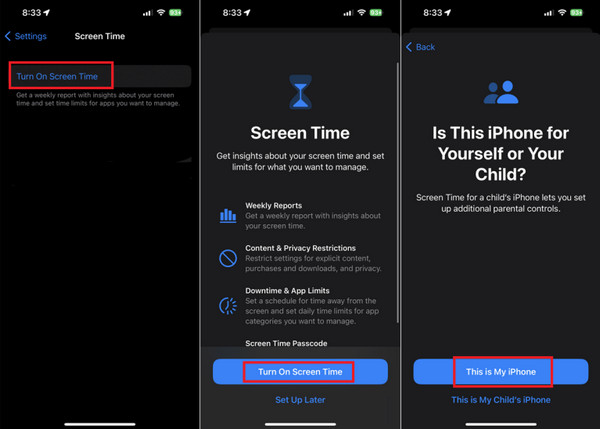
Step 1Please open your iPhone Settings app. Then please swipe down on the screen and tap the Screen Time button in the list. Select the Turn On Screen Time button afterward.
Step 2Tap the Continue button on the screen and choose the This is My iPhone or This is My Child’s iPhone button. Tap the Use Screen Time Passcode button. Set a 4-digit code and enable the features you prefer to use, including Communication Limits, App Limits, Downtime, Content & Privacy Restrictions, and Always Allowed.
Part 3. Core Features of iPhone Screen Time
The core features of Screen Time on your iPhone are mentioned in the previous section, which is the guide on how to set up Screen Time. This part will help you know more about them. See the list below.
- Communication Limits: It helps you restrict communication features or apps, including messages, calls, etc.
- App Limits: It sets daily limits for your iPhone apps.
- Downtime: You can schedule your iPhone to block features or apps.
- Content & Privacy Restrictions: You can restrict content online, App Store purchases, and other operations.
- Always Allowed: Chooses the apps that can be used while Screen Time is operating.
Part 4. How to Manage a Child's Device
The parental controls on iPhone can be done with Family Sharing. It permits parents to manage their child’s iPhone. They can even share purchases or subscriptions. The features support 6 members. See how to include your child in the Family Sharing feature to manage their iPhone.
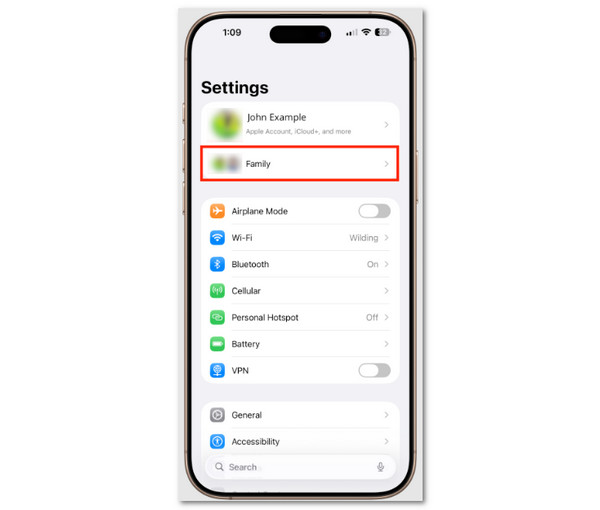
Access the iPhone Settings. Then, choose the Screen Time button on the first screen. Go to the Family Sharing section. Alternatively, you can choose the button from the first interface of the mentioned app. Later, select the Add Member button on the list. Choose the Create a Child Account button. Enter the child’s information and set up the Screen Time on their devices.
Part 5. How to Bypass Screen Time Passcode When You Forgot
There are instances when users forget the Screen Time passcode. No modifications can be made to the feature if that’s the case. So, you can choose to reset or bypass the mentioned feature’s passcode. You can do that with the methods below.
1. Reset Screen Time Passcode With Associated Apple ID
Resetting the Screen Time passcode is possible with the Apple ID associated with the iPhone. This process is simple and can be done without data loss. Not knowing the Apple ID prevents you from completing the process. You should reset the Apple ID account first, or bypass the Screen Time passcode with a third-party tool, which is the next method. Refer to the steps below to know how.
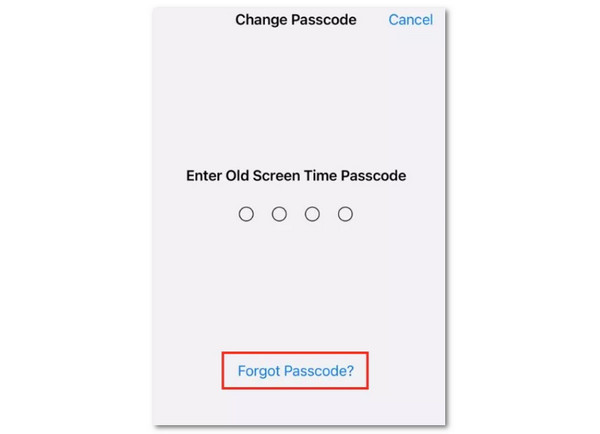
Open the iPhone Settings. Select the Screen Time button. Tap the Change Screen Time Passcode button twice. Later, tap the Forgot Passcode button on the screen. Enter your Apple ID and create the new passcode on the next interface. Follow the on-screen instructions to complete the process.
2. Bypass Screen Time With FoneLab iFoneWiz
You can also bypass Screen Time passcode on your iPhone when the Apple ID is unknown. FoneLab iFoneWiz is the tool that can help you! This third-party tool can do the mentioned procedure without losing your data, same as the previous Apple way. It works offline, so no internet connection is required.

iFoneWiz Helps you unlock iPhone screen, Removes Apple ID or its password, Remove screen time or restriction passcode in seconds.
- Helps you unlock iPhone screen.
- Removes Apple ID or its password.
- Remove screen time or restriction passcode in seconds.
Additionally, the tool has an intuitive interface that is easy to use for novices. Please use the steps below as a reference for using the tool.
Step 1Click the Free Download button. This step will download FoneLab iFoneWiz on your computer. Select the file and set it up afterward.
Step 2Select the Unlock Screen Time feature. Plug your iPhone into a computer and click the Start Now button. Choose the Unlock button to start the bypass process.
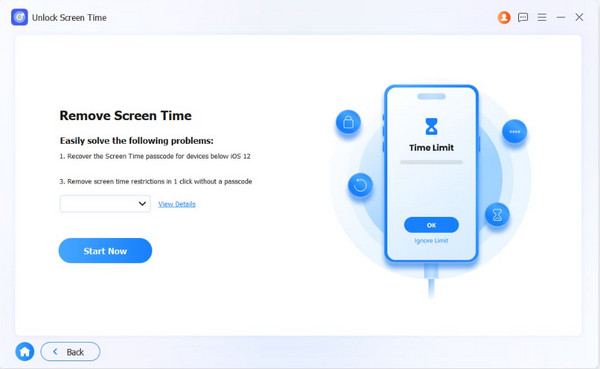
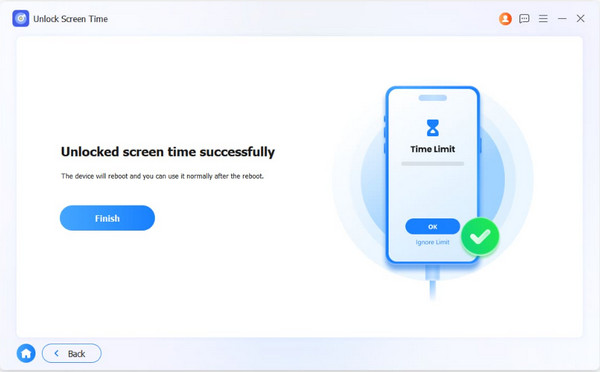
Step 3Wait for the process to be completed. Later, click the Finish button and unplug your iPhone from the computer.
Part 6. FAQs about How to Set Screen Time on iPhone
What happens to Apple parental controls when a child turns 18?
When the child turns 18, they will graduate to an adult account, which allows them to access content that was previously unavailable to them. This process is automatic and cannot be avoided using the Apple ID age information.
Why can my kid ignore Screen Time limits on iPhone?
There might be a bug in your iPhone if your child can ignore Screen Time limits. It happens when you update to a new iOS version. You can fix it by adding limits again using the mentioned feature.
This article guides you on how to set Screen Time limits on iPhone. The important information, including its core features, is posted. FoneLab iFoneWiz is also here to help you bypass the Screen Time passcode if it is unknown. It can also be used to bypass iCloud Activation Lock, unlock SIM locks, and more. Downloading it will help you know more about it!



