
 iPhone Data Recovery
 iOS System Recovery
 iOS Data Backup & Restore
 iOS Unlocker
 iPhone Password Manager
 Location Changer
 Android Data Recovery
 Broken Android Data Extraction
 Android Data Backup & Restore
 Android Unlocker
 FoneTrans for iOS
 iPhone Data Eraser
 iPhone Cleaner
 HEIC Converter
 HyperTrans
 WhatsApp Transfer for iOS
 Mac Sweep
 Data Retriever
 Mac Data Retriever
 Video Converter Ultimate
 Screen Recorder
 Phone Mirror
- Unlock Apple ID
- Bypass iCloud Activation Lock
- Doulci iCloud Unlocking Tool
- Factory Unlock iPhone
- Bypass iPhone Passcode
- Reset iPhone Passcode
- Unlock Apple ID
- Unlock iPhone 8/8Plus
- iCloud Lock Removal
- iCloud Unlock Deluxe
- iPhone Lock Screen
- Unlock iPad
- Unlock iPhone SE
- Unlock Tmobile iPhone
- Remove Apple ID Password
How to Limit Total Screen Time on iPhone in an Easy Way
 Updated by
 Good day! How to set a Screen Time limit on iPhone? My child will have his iPhone this week, and I want to limit his screen time. I hope you can help me with my query. Thank you in advance!
Limiting the screen time spent on your child’s iPhone is important to lessen the chance of addiction. Screen Time is a feature on your iPhone that can do that. Please proceed to read this article to know the full details about the topic.

Guide List
Part 1. How to Set Up Screen Time on iPhone
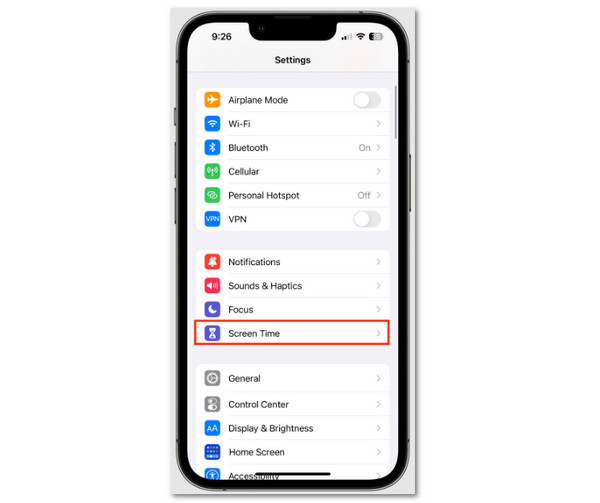
Screen Time is not automatically enabled on your iPhone, unlike other features. You need to set up limits on the screen time and content your child can view or access. Please refer to the steps below to set up or enable Screen Time on your iPhone.
Open your iPhone Settings application. Then, the available settings for the mentioned Apple device will appear. Please select the Screen Time button from the screen. Later, tap the Turn On Screen Time button. Follow the on-screen steps to complete the setup.
Part 2. Key Features of Screen Time
Also, Screen Time is more than just limiting your child’s iPhone screen time. It consists of features that help you limit the content and apps on your iPhone. Like the feature, they are not automatically turned on. You can choose to turn them on or not. You can access them during the setup process of your Screen Time on iPhone.
- • App Limits: You can set limits on the applications on your iPhone to prevent overuse.
- • Downtime: It blocks the applications on your iPhone during the scheduled hours. Only the allowed apps will work.
- • Always Allowed: It allows the applications to be accessible anytime, including when the Downtime and App Limits features are enabled.
- • Communication Limits: It controls who you can communicate with on your iPhone, including messages, FaceTime, and calls.
- • Content & Privacy Restrictions: It restricts certain content and system settings on your iPhone, including adult content.
- • Block at End of Limit: It is associated with the App Limits feature. It blocks the app or feature after the specified setup time.
- • Grayscale Mode: a feature that reduces app addiction. It turns the app’s interface to black and white. This way, they will not look more visually appealing.
Part 3. Family Controls to Set Up Screen Time on iPhone
How to set Screen Time on iPhone as a family member? You can set up Screen Time as a parent. The previous section is your best guide for turning on the mentioned features. Additionally, Screen Time has an Ask to Buy feature that lets you approve online or digital purchases on your child’s iPhone. Please follow the steps below to know the whole process.
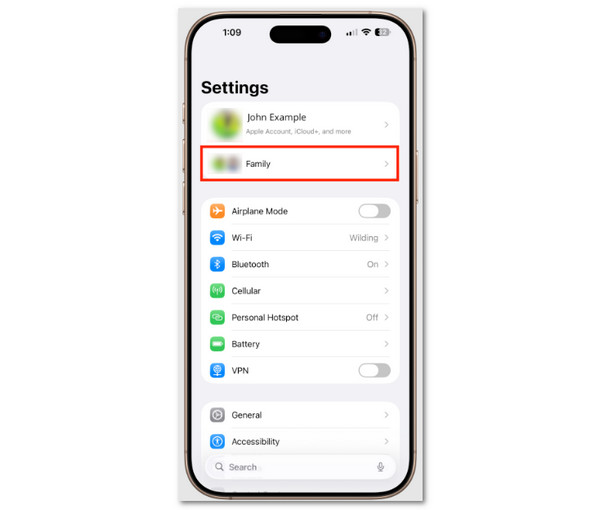
You can add the child to a Family Sharing group to set up Screen Time on their device. Open the Settings application and select the Apple ID name or the Family button at the top. Tap the Family Sharing button from the list. Later, choose the Add Family Member button. Enter the Apple ID of your child. Finally, you can now set up the Screen Time settings on your child’s iPhone.
Alternative: If you set it up on your iPhone, tap the Settings app. Select Screen Time and tap your child’s name. Tap the Turn On Screen Time button. Finally, select the This is My Child’s iPhone button.
To enable the Ask to Buy feature, toggle the slider at the bottom during the setup process for your iPhone’s Screen Time. In this case, there will be no accidental purchase digitally on your child’s iPhone account.
Part 4. How to Bypass Screen Time Passcode When You Forgot
The Screen Time feature requires the passcode to be unlocked and modified. But if you accidentally forget it, you cannot perform the mentioned operations unless you reset or bypass it. The methods below will guide you on how to do that.
1. Use Apple ID
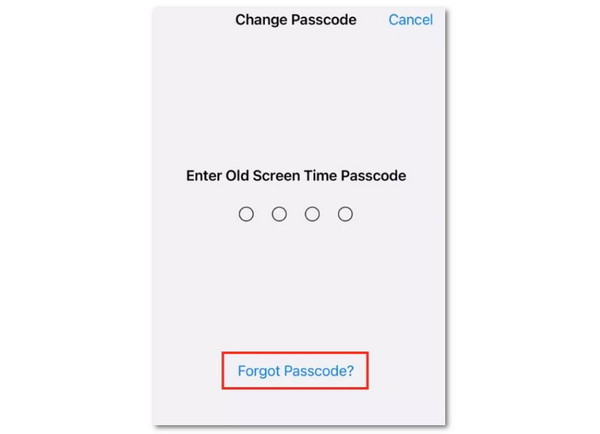
Without the Screen Time passcode, the Apple ID can be used to authenticate the reset. This method is simple and costs nothing. But if the Apple ID is also unknown, there is no alternative Apple way to reset your iPhone without losing your data. Use the steps below to learn how to obtain the process.
Open the iPhone Settings app. Select the Screen Time button from the list. Later, select the Change Screen Time button. Tap the Forgot Passcode button. Enter your Apple ID, then create a new Screen Time passcode.
2. Use FoneLab iFoneWiz
However, some users accidentally forgot the iPhone Screen Time passcode. So, you need to bypass Screen Time passcode on your iPhone to regain access. FoneLab iFoneWiz will help you bypass the Screen Time passcode on your iPhone. The good thing about it is that it will not delete even a single piece of data on the mentioned device. Besides that, it can also bypass other security features on your iPhone. It includes MDM, iCloud Activation Lock, and more. Please use the steps below to know how to use the tool.

iFoneWiz Helps you unlock iPhone screen, Removes Apple ID or its password, Remove screen time or restriction passcode in seconds.
- Helps you unlock iPhone screen.
- Removes Apple ID or its password.
- Remove screen time or restriction passcode in seconds.
Step 1Click the Free Download button. Set up, install, and open the tool. Plug your iPhone into the computer afterward. Click Unlock Screen Time.

Step 2Click the Start Now button. Then, follow the on-screen steps on the tool. Click the Unlock button to start the bypass process.
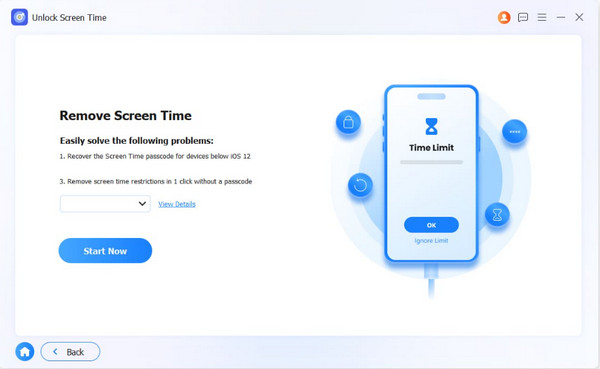
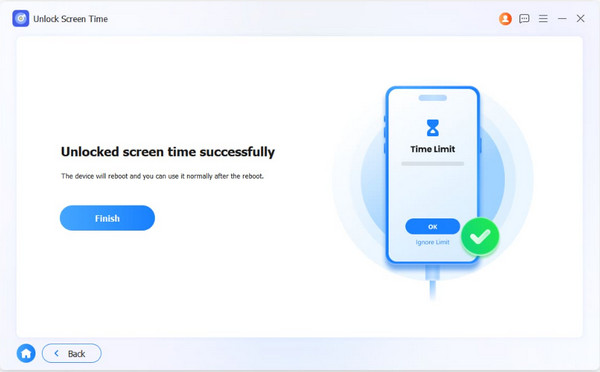
Step 3Wait for the unlocking process to be completed. You need to click the Finish button to end the process.
Part 5. FAQs about How to Limit Screen Time on iPhone
Can my child delete Screen Time on iPhone?
Yes. Your child can definitely delete or unlock the Screen Time passcode. However, it will only happen when she or he knows the 4-digit passcode. This issue is the main reason why you need to make the PIN code unique.
Is 7 hours of screen time okay?
The suggested screen time depends on the user's age. Adults can use their devices for 7 hours, but it is not recommended. It is better if it is less. Children are advised to limit screen time to 4 hours or less.
This post is all about how to limit Screen Time on iPhone. The full features of Screen Time are also included. FoneLab iFoneWiz is here to help you bypass Screen Time when you've forgotten your passcode. Besides the mentioned feature, you can also use it to remove MDM, iCloud Activation Lock, Apple ID, and more. Please download the tool to know more about it!



