
 iPhone Data Recovery
 iOS System Recovery
 iOS Data Backup & Restore
 iOS Unlocker
 iPhone Password Manager
 Location Changer
 Android Data Recovery
 Broken Android Data Extraction
 Android Data Backup & Restore
 Android Unlocker
 FoneTrans for iOS
 iPhone Data Eraser
 iPhone Cleaner
 HEIC Converter
 HyperTrans
 WhatsApp Transfer for iOS
 Mac Sweep
 Data Retriever
 Mac Data Retriever
 Video Converter Ultimate
 Screen Recorder
 Phone Mirror
How to Record Computer Screen in 3 Proven Practices
 Updated by
 Good day! I was using my computer to play my favorite game. I enjoyed it a lot, and I want to show it to my friends how fun it was. However, I do not know how to record my computer screen. Can you help me record my computer screen as a beginner? Thank you in advance!
Screen recording your computer screen is possible. Discover how to record your computer screen in this post! It has 3 proven and tested tools that can record your computer screen in a few clicks. Please know all the information about the tool by scrolling below.


Guide List
Part 1. Best Tool to Screen Record on Computer - FoneLab Screen Recorder
How to screen record on a computer? There are various ways to do that, but FoneLab Screen Recorder is the best tool you could ever experience. This tool has a simple interface that will be convenient for beginners who are first-time screen recorders. This third-party tool allows you to record the computer screen in full-screen and a specific portion. It enables you to adjust the settings of the video quality, which does not require professional skills.

FoneLab Screen Recorder allows you to capture video, audio, online tutorial, etc on Windows/Mac, and you can easily customize size, edit the video or audio, and more.
- Record video, audio, webcam and take screenshots on Windows/Mac.
- Preview data before saving.
- It is safe and easy to use.
Furthermore, the tool allows you to take snapshots during the screen recording. It does not cause any lagging or crashing issues in the program you record. The tool can also record your iPhone and Android phone screen through USB and wireless connection. How can I screen record on my computer with it? The steps are available below.
Step 1Go to the website of FoneLab Screen Recorder. After that, please tick the Free Download button on the page, depending on the operating system of your computer. Later, wait for the software to be downloaded. Then, locate the downloaded file and set it up. Install it on your computer, and it will launch automatically.

Step 2The primary features of the tool will appear on the main interface. After that, please choose the Video Recorder tool at the top left. Later, click the Full or Custom button on the left side. Then, use the cursor to trace the computer screen. Please click the REC button on the right afterward. A countdown will be prompted on the screen. Please wait for it to be finished. The screen recording will start afterward.
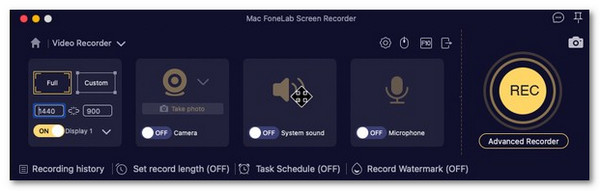
Step 3The small toolbar will appear on the main interface. Keep the screen recording ongoing and wait for the screen activities to be completed. Later, click the Box button from the toolbar to stop the screen recording on your computer. After that, the recordings will appear on the computer screen. Please save the recording on your computer as the final step.

Part 2. How to Screen Record on Windows
Windows computers have a built-in screen recorder to record your screen activities. Game Bar is that tool. It is commonly used to manage and monitor your PC’s CPU and other components while playing. This built-in tool will guide you on how to screen record on PC without the help of intensive tools on your PC. This tool is best for gamers who want to capture their gameplay using the built-in feature without lag.
However, this tool is not recommended for users who want to add additional editing to their screen recordings. The reason is that it does not support basic editing tools. Screen record on computer with Game Bar by following the detailed instructions below.
Step 1Please open Game Bar on your PC. You may search it from the Windows button at the bottom left of your PC. For quicker access, press the Windows + G key combination to open Game Bar. The tools of the software will be displayed on the screen. A small window will appear, and you only need to click the Yes box.

Step 2The screen recording toolbar of the software will be displayed on the screen. Please click the Circle button from the toolbar, and the screen recording will start immediately. Keep the screen recording ongoing until you record your preferred length.

Step 3Press the Windows + Alt + R key combinations to stop the screen recording. Alternatively, you can click the Box button from the toolbar. Finally, save the screen recordings to your PC as the final step of the process.
Part 3. How to Screen Record on Mac
On the other hand, how to screen record on Mac with audio? QuickTime Player is the answer! It is the built-in media player tool on your Mac. However, there is a limitation to the audio recorder feature of this program. It can only record the microphone audio on your Mac, not the internal system audio.
QuickTime Player is free. It is also easy to use, like the mentioned software from the previous section. But there are reports that this tool causes the programs that are being recorded to lag. How do you screen record on a computer with it? Use QuickTime Player on your Mac with the steps below.
Step 1Open the QuickTime Player tool on your Mac. After that, select the File button at the top left of the screen. Later, click the New Screen Recording button from the drop-down options list. A small toolbar will be prompted at the bottom of the main interface. It contains the features for screenshots and screen recordings.
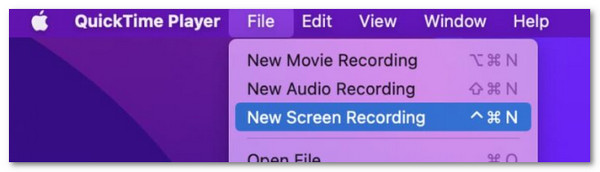
Step 2After that, you will see the six features from the toolbar. The left tools are for taking screenshots. On the other hand, the tools from the right are for screen recording. Please choose the screen recording tool on the right.

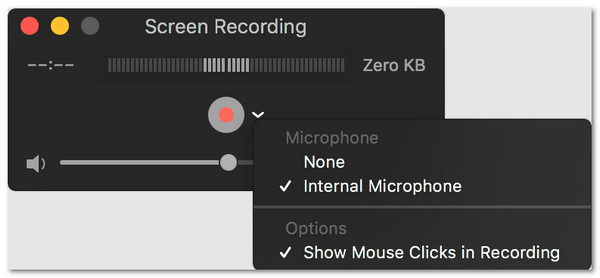
Step 3You may also click the Options button on the right. You can adjust the settings from this tool, depending on your preference. Click the Arrow button and click the Internal Microphone button.
Step 4Please open the program or screen you want to record. After that, click the Record button on the right. Then, keep the screen recording ongoing until you reach the recording you prefer. Finally, please click the Stop button from the toolbar to end the screen recording. Then, save the recordings to your Mac to keep them.
Part 4. Comparison Table about Screen Recorders on Computer
The computer screen recorders from the previous sections are the most convenient tools you could ever use. Some of you might want some quick information about them, including their summary. Let us guide you about that using the table below.
| Tool Name | Quality | Additional Features | Interface | Supported Operating Systems |
| FoneLab Screen Recorder | The tool can adjust the quality of the screen recording. It can make it high and low. | This tool allows you to record your iPhone and Android phone screens. | The software has a simple interface that new users or beginners will love to use. | Windows and Mac |
| Game Bar | The quality of the screen recording depends on the settings of Game Bar. | The software allows you to know and monitor the CPU and other components on your Windows computers. | Game Bar has a complex interface. It is due to the additional tools that it supports besides screen recording. | Windows |
| QuickTime Player | QuickTime Player offers high-quality screen recordings, but it cannot be adjusted. | It offers media playback for your files and basic video or audio editing. | QuickTime Player has a simple interface. However, it has complex settings that will be inconvenient for some users. | Mac |
Part 5. FAQs about How to Screen Record on Computer
Why can't I screen record on my PC?
When screen recording on your PC, you are required to enable multiple permissions from the system. If you cannot record on your PC, there might be issues with the device’s permissions.
Why is my screen recording not working in Windows 11?
Windows 11 allows you to screen record anything on your screen, except programs that prohibit screen recording. It includes online streaming platforms, such as Netflix, Prime Video, and more. If Windows 11 screen recording does not work, the screen might not allow recording. Also, Windows 11 might be experiencing system issues that cause the mentioned problem.
This article is all about how to record computer screen. It shows the 3 leading tools that can help you record the Mac and Windows screen. It includes the built-in screen recording tools of the computers and a third-party tool. FoneLab Screen Recorder enables you to capture your computer screen in high quality. You may download the mentioned software to explore more of the screen recording features it supports.



