
 iPhone Data Recovery
 iOS System Recovery
 iOS Data Backup & Restore
 iOS Unlocker
 iPhone Password Manager
 Location Changer
 Android Data Recovery
 Broken Android Data Extraction
 Android Data Backup & Restore
 Android Unlocker
 FoneTrans for iOS
 iPhone Data Eraser
 iPhone Cleaner
 HEIC Converter
 HyperTrans
 WhatsApp Transfer for iOS
 Mac Sweep
 Data Retriever
 Mac Data Retriever
 Video Converter Ultimate
 Screen Recorder
 Phone Mirror
 FoneLab iPhone Cleaner
Easily erase all contents and settings on iPhone, iPad or iPod completely and permanently.
- Clear iPhone Junk Files
- Clear iPad Cache
- Clear iPhone Safari Cookies
- Clear iPhone Cache
- Clear iPad Memory
- Clear iPhone Safari History
- Delete iPhone Contacts
- Delete iCloud Backup
- Delete iPhone Emails
- Delete iPhone WeChat
- Delete iPhone WhatsApp
- Delete iPhone Messages
- Delete iPhone Photos
- Delete iPhone Playlist
- Delete iPhone Restrctions Passcode
Efficient Techniques to Offload App with A Simple Guide
 Updated by
 What does offload app mean? Some of my apps are acting up, and I’m unsure if it’s due to insufficient space or another unknown issue. However, I don’t want just to delete them. So, I asked around and found out about the offload option. A friend said it would be a good solution, but I don't have any idea what it is all about. Can anybody explain how it works?
Offloading an app is a hassle-free process on iPhone and other Apple devices. However, it can seem unclear to some, especially for first-timers. Hence, we prepared helpful information in the following parts for you to learn what offloading an app means more easily. Afterward, continue browsing for the step-by-step instructions on how to offload your chosen app using different methods. Meanwhile, additional information is also included to help you manage your device.

Guide List
Part 1. What Does Offload App Mean
Have you ever asked, “What does it mean to offload an app?” If so, don’t be intimidated by the feature because it’s actually easy to understand. Offloading an app is a way to free up storage space on your phone by deleting the app itself, while carefully saving its data and documents, such as your login information, settings, game progress, etc. Then, once you’re ready to use the app again, you can quickly re-download it, restoring all the said information.
Part 2. How to Offload App Manually/Automatically
Now that you have a better understanding of Apple’s offloading feature, it’s time to learn the correct process to use it. The good news is that you don’t need advanced knowledge for the methods since they are all user-friendly. Also, Apple offers both manual and automatic processes, and you must only perform the one you prefer better.
Offload Applications Manually
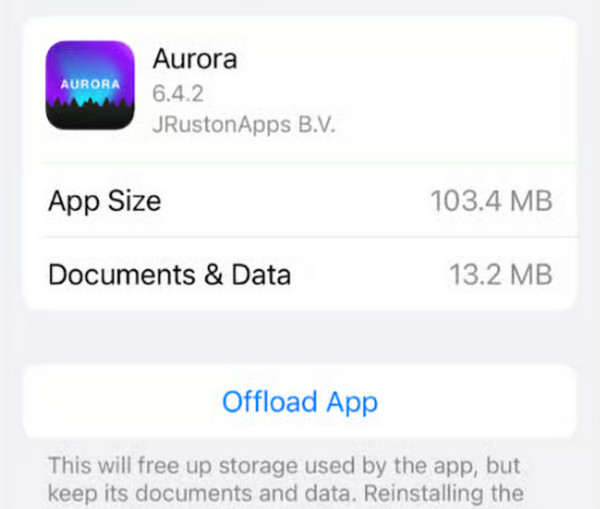
Manually offloading apps is done on the Settings app’s iPhone Storage section. If you only have one or a few apps to offload, this would be the ideal process, as it is performed individually for each app without affecting the others.
Mind the stress-free guide below to learn how to offload apps from iPhone or iPad manually:
Step 1On the iPhone or iPad Settings, tap General and head to the iPhone Storage section.
Step 2The installed apps are listed on the screen, so select the one you wish to offload. Once its options are available, opt for the Offload App tab to finish.
Offload Applications Automatically
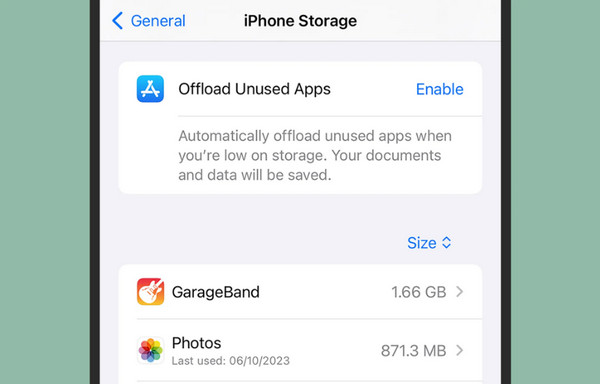
Meanwhile, this automatic method offloads the apps you haven’t used in a long time whenever your iPad or iPhone is running low on storage space. You can turn it on in Settings easily.
Observe the user-friendly instructions below to offload apps from an iPhone or iPad automatically:
Step 1Get to your iPhone or iPad’s Settings and pick General, then iPhone Storage.
Step 2In the top section of the interface, you will see Offload Unused Apps, so choose the Enable option beside it to offload your apps automatically.
Part 3. Alternative Ways to Free Up Space on iPhone/iPad
Freeing up space is among, if not the primary, reasons for offloading an app on iPhones or iPads. However, this sometimes isn’t enough because it doesn’t really eliminate significant data, especially if you only offload one or a few apps. Therefore, we added more processes below to help you gain more space on your device. Check them out.
Option 1. Clear Recently Deleted Album
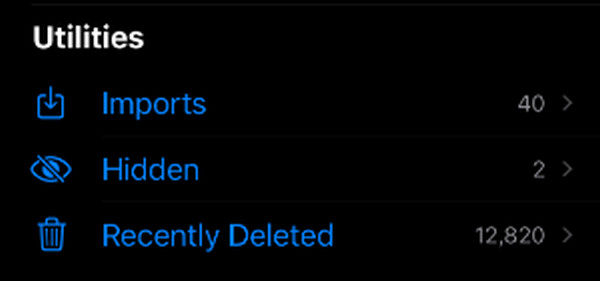
The first option we suggest is to clear the data from your iPhone or iPad that you have already decided to delete. If you’re unaware, the files you erase from the Photos app don’t instantly get removed from the devices. They will remain for 30 more days in the Recently Deleted album before getting deleted permanently. So, clearing this album immediately will help free up space.
Adhere to the effortless procedure below to free up space by clearing the Recently Deleted album:
Step 1View your Photos app on the iPhone or iPad and pick Collections at the bottom.
Step 2When various albums appear, choose Recently Deleted under Utilities and use your Face or Touch ID to see the files. Finally, select the three-dotted symbol, then hit Delete All.
Option 2. FoneLab iPhone Cleaner
Meanwhile, the suitable approach for those who wish to gain significant space on their devices is FoneLab iPhone Cleaner. It can clean your iPhone or iPad more deeply with its specialized features, such as Erase Junk Files, Uninstall Applications, Delete Large Files, and more. Unlike the regular deletion process on Apple devices, this program will immediately erase your chosen files, which also gives you more available storage without waiting for 30 days.
Apart from that, you can trust FoneLab iPhone Cleaner, regardless of your iOS device, as it supports almost all versions and models. Simply connect your device with ease, and the program will walk you through the seamless cleaning process to free up space on your iPhone or iPad storage. Additionally, its other functions, like Erase All Data and Erase Private Data, can also be used if you need them later—no need to proceed to different platforms.
FoneLab iPhone Cleaner is the best iOS data cleaner which can easily erase all contents and settings or specific data on iPhone, iPad or iPod Touch.
- Clean unwanted data from iPhone, iPad or iPod touch.
- Erase data quickly with one-time overwriting, which can save you time for plenty of data files.
- It is safe and easy to use.
Accept the hassle-free directions below as a model to free up space with FoneLab iPhone Cleaner:
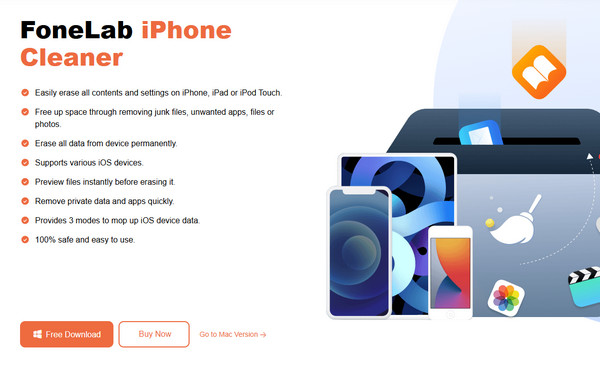
Step 1Start on FoneLab iPhone Cleaner’s website and click on the Free Download button. It will quickly save the program file to your Downloads, so launch it afterward for the installation. Once installed, open it to view the interface and attach your iPhone or iPad through a Lightning cord.
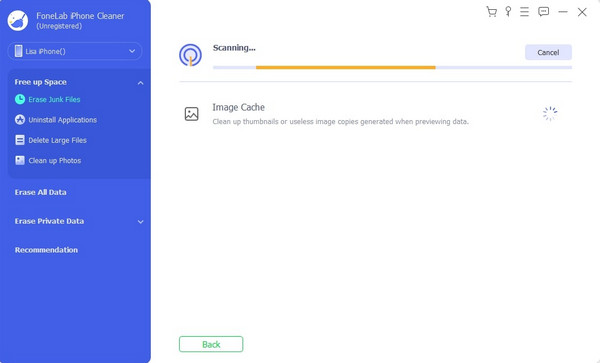
Step 2After connecting, hit Quick Scan to let the tool read your device. Then, proceed to the Free Up Space option on the left. You can click Erase Junk Files, Uninstall Applications, and the other features, depending on your desired cleaning option. For instance, you have chosen Erase Junk Files, mark the items you don’t need, and hit Erase afterward to free up space.
Option 3. Remove Unwanted Apps
Do you have apps you no longer use on your iPhone or iPad? If so, this must be the time to erase them, allowing you to gain more space on the device. Like the offloading process, you can easily delete iPhone apps you no longer want in Settings, so no worries about any complex procedures. It will also be straightforward, thanks to the user-friendly interface and comprehensive options.
Pay attention to the simple task below to free up space by removing unwanted apps:
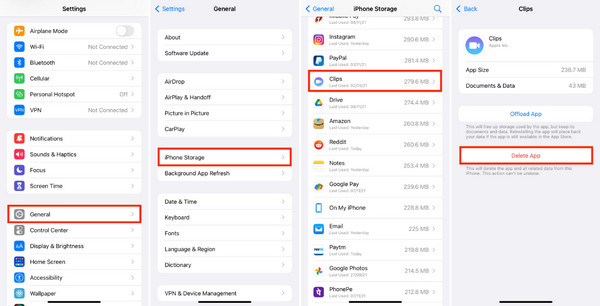
Step 1Navigate to your iPhone or iPad’s Settings > General > iPhone Storage. After that, find and choose the app you no longer want on the device.
Step 2Once the screen displays its options, tap Delete App and follow the prompts.
Part 4. FAQs about How to Offload Apps
How can I turn off Offload Unused Apps on my iPhone?
The process will still be on Settings, but tap the Apps tab on the initial screen this time. Next, select App Store, and scroll down to disable the Offload Unused Apps toggle.
Can I offload multiple apps without enabling the automatic option?
Unfortunately, you can’t. Without enabling the automatic offload option, you can only manually offload one app at a time.
Users offload their apps for different purposes, but regardless, learning all the strategies above will significantly help manage your iPhone or iPad more efficiently. After all, cleaning the device with a professional tool like FoneLab iPhone Cleaner can make its performance smoother. So, install it now!



