
 iPhone Data Recovery
 iOS System Recovery
 iOS Data Backup & Restore
 iOS Unlocker
 iPhone Password Manager
 Location Changer
 Android Data Recovery
 Broken Android Data Extraction
 Android Data Backup & Restore
 Android Unlocker
 FoneTrans for iOS
 iPhone Data Eraser
 iPhone Cleaner
 HEIC Converter
 HyperTrans
 WhatsApp Transfer for iOS
 Mac Sweep
 Data Retriever
 Mac Data Retriever
 Video Converter Ultimate
 Screen Recorder
 Phone Mirror
- Unlock Apple ID
- Bypass iCloud Activation Lock
- Doulci iCloud Unlocking Tool
- Factory Unlock iPhone
- Bypass iPhone Passcode
- Reset iPhone Passcode
- Unlock Apple ID
- Unlock iPhone 8/8Plus
- iCloud Lock Removal
- iCloud Unlock Deluxe
- iPhone Lock Screen
- Unlock iPad
- Unlock iPhone SE
- Unlock Tmobile iPhone
- Remove Apple ID Password
How to Lock iPad Screen for Kids in 2 Easy Techniques
 Updated by
 Hi! My son keeps using my iPad. I am afraid that he might watch or access apps that are not suitable for his age. Also, when watching, he accidentally touches the screen, which leads to different apps. Is there a way to lock iPad screen from touch on toddler? I hope you can help me with this serious matter. Thank you!
Every content and app on an iPad has age restrictions. If your child is using your iPad, it is better if you lock the screen to limit the screen time they can use. Alternatively, it is helpful not to let them experience accidental touches. In this article, you will find the 2 easy ways to lock your iPad screen.

Guide List
Part 1. How to Lock iPad Screen With Guided Access
By default, the iPad lock screen is the primary way to lock the screen. However, locking it will prevent you from accessing the entire feature and apps of your iPad. Guided Access is the solution for this issue. This feature can temporarily lock or restrict one application on your iPad. In this case, no other apps can be accessed during the session.
This feature allows you to customize the session settings. Therefore, you can set limitations, customize features, and more. Please be guided by the steps below to lock iPad screen from touch with Guided Access.
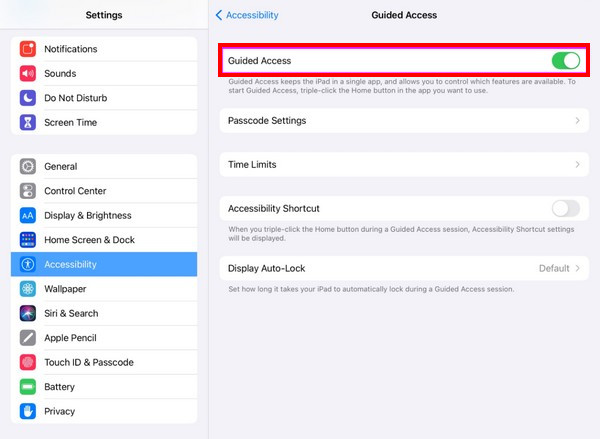
Step 1First, turn on the Guided Access feature on your iPad. Tap the Settings app to open it. Then, select the Accessibility button from the first options list. Tap the Guided Access button on the next screen and toggle it on afterward. Finally, set it up.
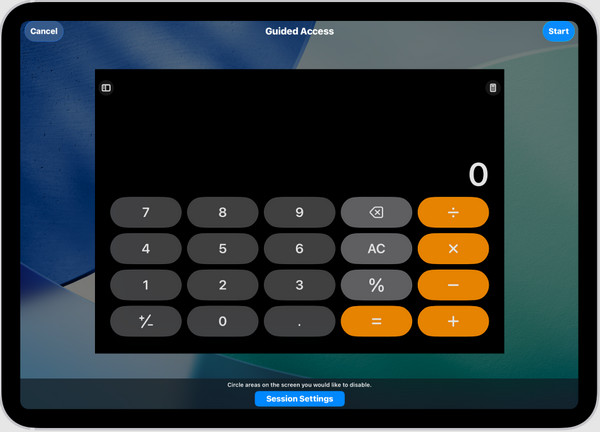
Step 2Open the app you want to lock from any touch. Then, swipe down at the top right to access Control Center. Tap the Guided Access button from the active tiles. Circle the areas you want to disable. Tap the Options button to set it up. Finally, tap the Start button to start using the Guided Access feature. To end the session, you need to triple-click the Top button of your iPad.
Part 2. How to Lock iPad Screen With Screen Time
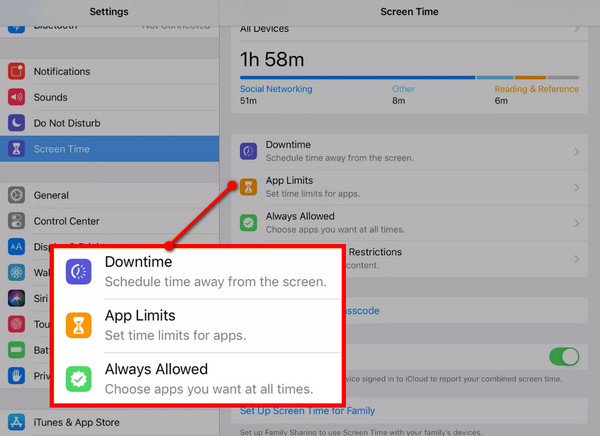
Screen Time is an Apple feature that can be used to limit the screen time of an individual. The Parental Control is included in its function that allows parents or guardians to monitor and control their children’s devices. This feature allows you to set time limits on your child’s iPad and other Apple devices. You can also schedule the downtime of their iPad.
Furthermore, you can block inappropriate content from the mentioned Apple device. In this case, your child cannot access content that is inappropriate to his or her age. Learn how to lock screen on iPad for kids by adding restrictions using Screen Time.
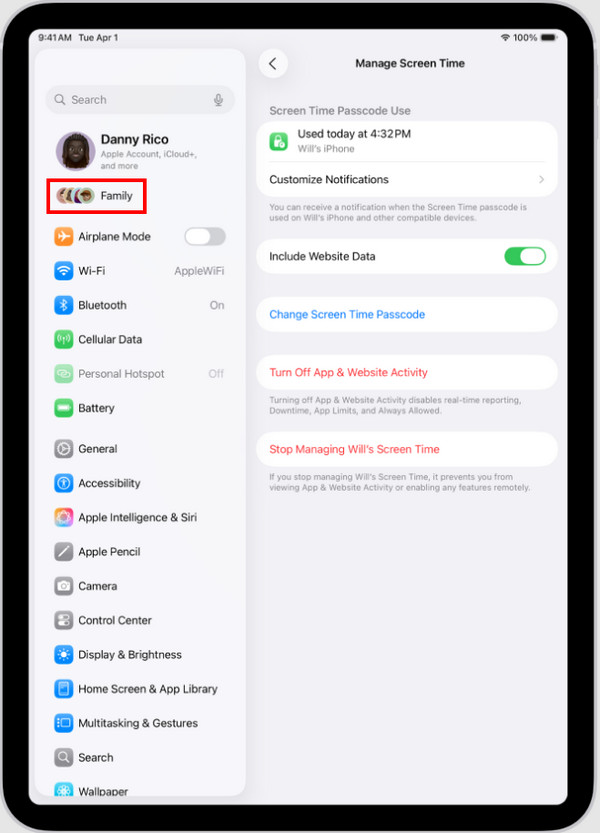
Step 1Set up Screen Time Parental Control first. Open your iPad and select the Family button at the top. Choose the name of your child’s iPad from the list. Later, select the Screen Time button from the main interface.
Step 2Please tap the See All App & Website Activity button from the All Devices section. Alternatively, you can tap the App Limits or Downtime button at the bottom by scrolling. Please tap the Add Limit button on the next screen. Then, select the app you prefer to block. Tap the Next button and choose the time limit, including other features. Finally, tap the Add button at the top right to apply the restriction.
Part 3. How to Remove Screen Time on iPad Without Passcode
Screen Time is indeed a great iPad feature to put limitations on someone’s screen activities. However, there are instances wherein the passcode is forgotten. If that’s the case, you cannot access some features and apps that are restricted by the feature. In this section, the 2 top ways to remove the Screen Time passcode on your iPad are included. Please browse below to know their full details.
1. Use Apple ID
Screen Time is associated with your Apple ID. Without the passcode of the mentioned feature, you can use the account to reset its passcode and regain access to it. There will be no authentication passcode needed in this method. Use Apple ID to bypass Screen Time passcode with the steps below.
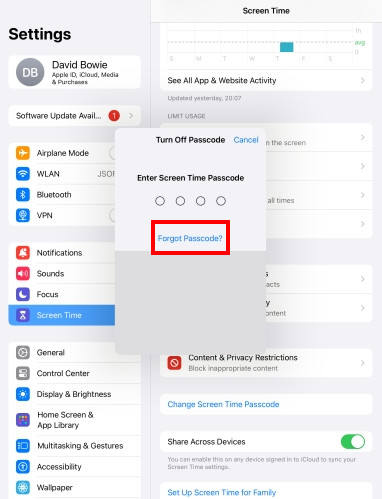
Open the Settings app. Then, select the Screen Time button from the list. Then, tap the Change Screen Time Passcode button on the list. Later, you will be asked for the current passcode. Tap the Forgot Passcode button from the list. Enter the Apple ID account of the parent from the screen for verification. Finally, enter your new Screen Time passcode, then confirm by entering it again.
2. Try FoneLab iOS Unlocker
In spite of that, there are other users who also forgot their Apple ID and cannot reset the Screen Time passcode. So, use FoneLab iOS Unlocker. This tool can bypass the Screen Time passcode without the Apple ID and other requirements to reset it. It can also be used to remove MDM from iPhone. Additionally, removing the iPad iCloud Activation Lock, screen lock, and other security features is attainable. Use the steps below to know how to use the tool.

FoneLab Helps you unlock iPhone screen, Removes Apple ID or its password, Remove screen time or restriction passcode in seconds.
- Helps you unlock iPhone screen.
- Removes Apple ID or its password.
- Remove screen time or restriction passcode in seconds.
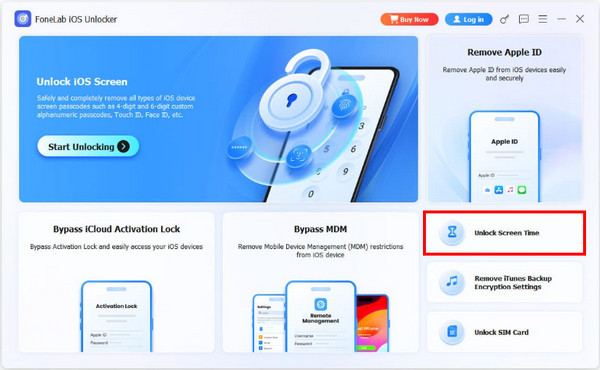
Step 1Download, install, and open FoneLab iOS Unlocker on your computer. Then, select the Unlock Screen Time feature at the bottom right. Plug your iPad into the computer using your USB cable.
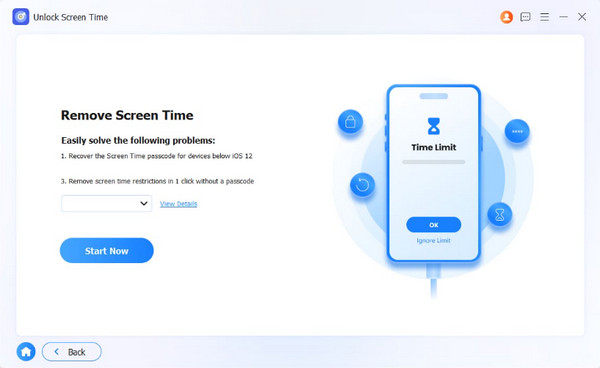
Step 2Click the Start Now button on the screen. Click the Continue button at the bottom right. Click the Unlock button at the bottom center to proceed.
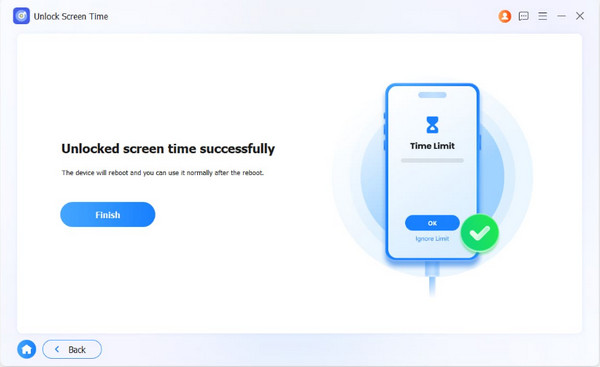
Step 3The unlocking procedure will start immediately. Later, please click the Finish button on the left to complete the process.
Part 4. FAQs about How to Lock iPad Screen
How do I turn off Tap to Wake on my iPad?
Open your iPad and unlock it. Then, please tap the Settings application from the main interface to open it. Later, tap the Accessibility button from the options list. Later, select the Touch button from the screen. Finally, turn off the Tap to Wake slider.
How do I make my iPad screen stay on?
Grab your iPad and tap the Settings app to access it. Then, tap the Display & Brightness button from the list that will appear. Select the Auto-Lock button from the screen. Finally, please tap the Never button from the options.
All in all, this post is about how to lock iPad screen from touch and screen time purposes. The 2 leading ways are included. FoneLab iOS Unlocker can be used to remove the Screen Time passcode when forgotten. Also, it can be used to remove the iPad lock screen when the password is also forgotten. Download the tool now to explore more of its features!



