
 iPhone Data Recovery
 iOS System Recovery
 iOS Data Backup & Restore
 iOS Unlocker
 iPhone Password Manager
 Location Changer
 Android Data Recovery
 Broken Android Data Extraction
 Android Data Backup & Restore
 Android Unlocker
 FoneTrans for iOS
 iPhone Data Eraser
 iPhone Cleaner
 HEIC Converter
 HyperTrans
 WhatsApp Transfer for iOS
 Mac Sweep
 Data Retriever
 Mac Data Retriever
 Video Converter Ultimate
 Screen Recorder
 Phone Mirror
- Part 1. Reset Screen Time Passcode Not Working with Apple ID
- Part 2. Reset Screen Time Passcode Not Working with Family Members
- Part 3. Reset Screen Time Passcode Not Working in Recovery Mode
- Part 4. Reset Screen Time Passcode Not Working with iCloud
- Part 5. Reset Screen Time Passcode Not Working Using FoneLab iOS Unlocker
- Part 6. Comparison Table of Methods to Reset Screen Time Passcode Not Working
- Part 7. FAQs about How to Reset Screen Time Passcode Not Working
- Unlock Apple ID
- Bypass iCloud Activation Lock
- Doulci iCloud Unlocking Tool
- Factory Unlock iPhone
- Bypass iPhone Passcode
- Reset iPhone Passcode
- Unlock Apple ID
- Unlock iPhone 8/8Plus
- iCloud Lock Removal
- iCloud Unlock Deluxe
- iPhone Lock Screen
- Unlock iPad
- Unlock iPhone SE
- Unlock Tmobile iPhone
- Remove Apple ID Password
Fix Screen Time Passcode Not Working in 5 Effective Ways
 Updated by
 Hi! My son was using my iPhone this morning. I set a limit this morning using the Screen Time feature. However, as I turn it off, the passcode of the security feature does not work. I do not know what’s happening. Can you help me? Thank you!
A Screen Time passcode not working can be due to multiple issues. It can be a human or system issue, including a forgotten passcode, system glitch, and more. Regardless of the cause, this article will help you fix it easily in 5 ways. Please continue browsing the post to see the complete information about it.

Guide List
- Part 1. Reset Screen Time Passcode Not Working with Apple ID
- Part 2. Reset Screen Time Passcode Not Working with Family Members
- Part 3. Reset Screen Time Passcode Not Working in Recovery Mode
- Part 4. Reset Screen Time Passcode Not Working with iCloud
- Part 5. Reset Screen Time Passcode Not Working Using FoneLab iOS Unlocker
- Part 6. Comparison Table of Methods to Reset Screen Time Passcode Not Working
- Part 7. FAQs about How to Reset Screen Time Passcode Not Working
Part 1. Reset Screen Time Passcode Not Working with Apple ID
A system issue on your iPhone that causes the Screen Time passcode not to work can occur. A simple restart of your device will fix it. But what if the passcode has been accidentally forgotten? You may reset it with your Apple ID! Please act by following the steps below.
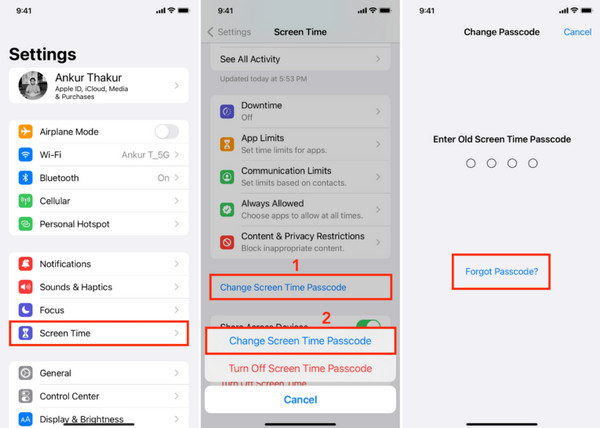
Step 1Access the Settings app on your iPhone. After that, select the Screen Time button from the options list. Later, please select the Change Screen Time Passcode button on the main screen.
Step 2Select the Change Screen Time Passcode button again. Tap the Forgot Passcode button. Then, you will be asked for the Apple ID account associated with the iPhone. Enter the correct credentials for the account. Once authenticated, please set up the new Screen Time passcode on your iPhone.
Part 2. Reset Screen Time Passcode Not Working with Family Members
The Screen Time feature can be shared with family members using the Family Sharing feature. You should use the organizer’s device. The associated Apple ID account is needed. Please use the steps below to know how to use it.
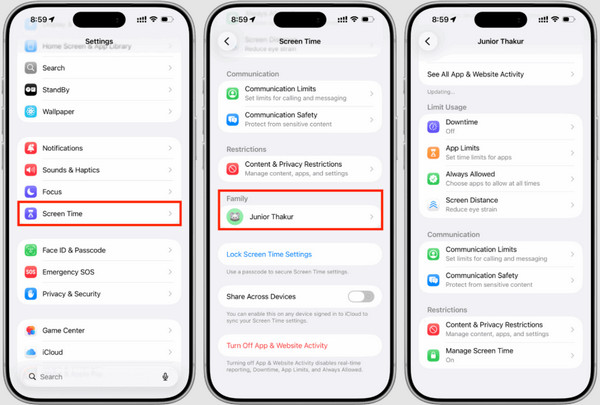
Step 1Open the Settings app on the organizer’s device. Then, tap the Screen Time button. Swipe down on the screen and choose the name of the device that you want to change the passcode for.
Step 2Go to the Restrictions button. Tap the Manage Screen Time button. Later, tap the Change Screen Time Passcode button two times. Authenticate the process and set up the new Screen Time passcode.
Part 3. Reset Screen Time Passcode Not Working in Recovery Mode
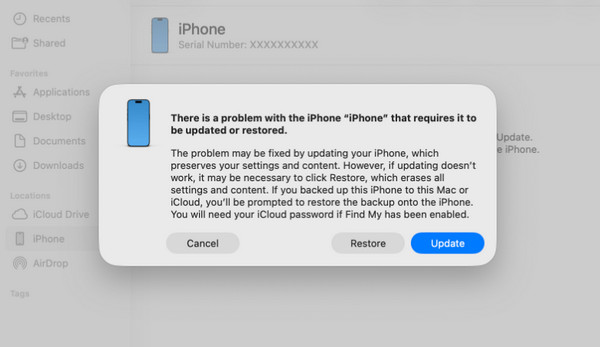
If you suspect that the iPhone has a current issue that is causing the passcode of Screen Time not to work, you can use iTunes, Apple Devices, Finder. You only need to put iPhone into recovery mode. This way, the iPhone will be scanned if there is a system issue. The tool will restore the iPhone to its factory settings.
If so, it is recommended to back up your iPhone content and settings. They will be deleted due to the process. Please refer to the steps below to put the iPhone into recovery mode and restore it to factory settings.
Step 1Enter the iPhone recovery mode. To do that, press and hold Side and Volume Down or Side and Home for the iPhone models without the Home button. If it has, press and release Volume Up and Down. Wait for the Connect to Computer screen to appear.
Step 2Plug your iPhone into a computer and access iTunes, Apple Devices, or Finder, depending on the available. After that, click the Restore button on the screen. The restore process will start. Complete the setup process of the iPhone afterward.
Part 4. Reset Screen Time Passcode Not Working with iCloud
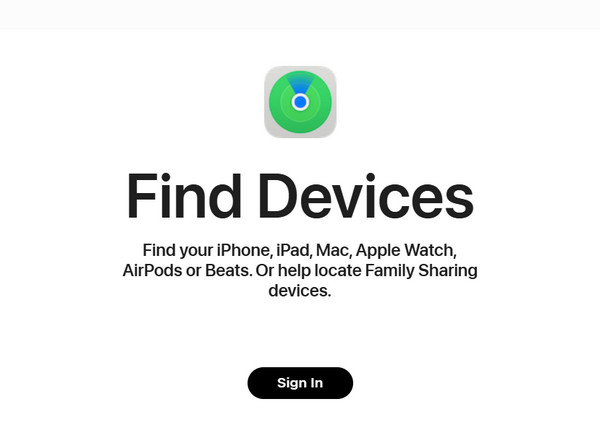
Apple officially offers iCloud Find My to help you erase iPhone. You can do this procedure remotely. The process will also wipe out your iPhone data, like the previous method. The iCloud Activation Lock will be enabled after the process. So, the Apple ID account is the most essential information for this process. Use the steps below to know how to perform it efficiently.
Open the iCloud Find My website. After that, click the Sign In button in the center. Later, please enter the Apple ID credentials. Then, select the All Devices section at the top left. Select the iPhone name from the list. Click the Erase This Device button to start the factory reset.
Part 5. Reset Screen Time Passcode Not Working Using FoneLab iOS Unlocker

FoneLab Helps you unlock iPhone screen, Removes Apple ID or its password, Remove screen time or restriction passcode in seconds.
- Helps you unlock iPhone screen.
- Removes Apple ID or its password.
- Remove screen time or restriction passcode in seconds.
Some methods require a factory reset to fix the Screen Time passcode not working issue. FoneLab iOS Unlocker can be your best way! It helps you bypass the Screen Time passcode without data loss. Also, it is a user-friendly tool that can be used for both beginners and professionals. It supports your latest version of iOS and iPadOS. Besides that, it can be utilized to remove the iPhone Apple ID, MDM profile, iCloud Activation Lock, SIM lock, screen lock, and more. Do you want to use the tool? Please refer to the steps below.
Step 1Download the tool and set it up. Install and open it afterward. Later, click the Unlock Screen Time featur on the screen. Please plug the iPhone into the computer to proceed.
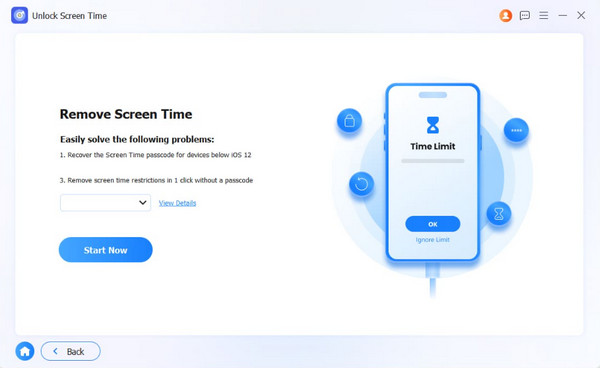
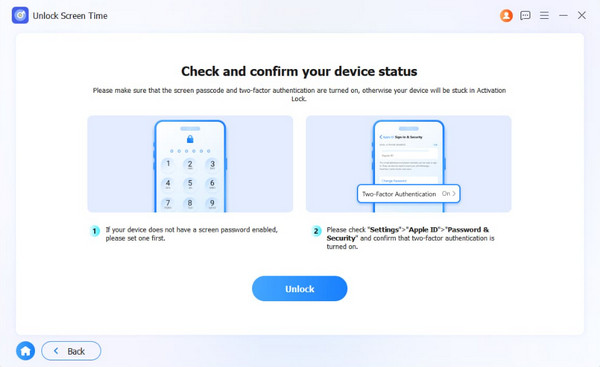
Step 2Select your device name. Click the Start Now option and follow the on-screen instructions. Click the Unlock button to start the bypass process.
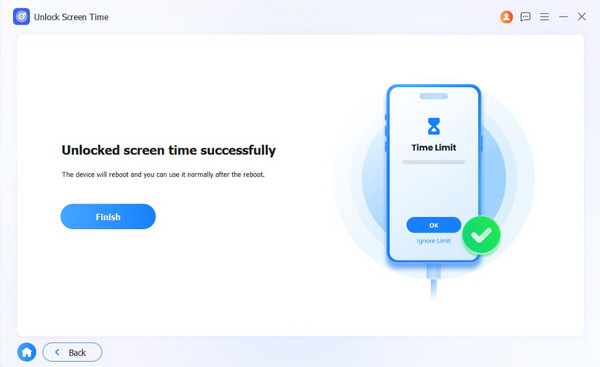
Step 3Wait for the procedure to be completed. Then, click the Finish button.
Part 6. Comparison Table of Methods to Reset Screen Time Passcode Not Working
| Method | Data Loss? | Required Apple ID? | Difficulty | Erase All Data? |
| Using Apple ID | No | Yes | Medium | No |
| Using Family Members | No | Yes | Medium | No |
| Recovery Mode | Yes | Yes | Hard | Yes |
| iCloud | Yes | Yes | Hard | Yes |
| FoneLab iOS Unlocker | No | No | Easy | No |
Part 7. FAQs about How to Reset Screen Time Passcode Not Working
What happens after the 10 failed Screen Time passcode attempts?
The iPhone will lock you out from trying the Screen Time passcode. Unlike the locked-out iPhone screen lock, this Screen Time lockout will not delete even a single piece of data on your Apple device.
What is the 4-digit Screen Time passcode?
There is no default 4-digit Screen Time passcode on your iPhone. You need to manually set it up. But some users prefer to set an ordinary passcode that is easy to remember. It includes 1234 and 0000. However, it is not suggested because they are easily guessed.
This article has shown you the 5 leading ways to reset the Screen Time passcode not working. FoneLab iOS Unlocker is one of the best choices. It can bypass the Screen Time passcode on your iPhone. It will not delete your data from the devices. You can also use it to remove the iPhone screen lock passcode. Download the tool if you want to use it more!



