
 iPhone Data Recovery
 iOS System Recovery
 iOS Data Backup & Restore
 iOS Unlocker
 iPhone Password Manager
 Location Changer
 Android Data Recovery
 Broken Android Data Extraction
 Android Data Backup & Restore
 Android Unlocker
 FoneTrans for iOS
 iPhone Data Eraser
 iPhone Cleaner
 HEIC Converter
 HyperTrans
 WhatsApp Transfer for iOS
 Mac Sweep
 Data Retriever
 Mac Data Retriever
 Video Converter Ultimate
 Screen Recorder
 Phone Mirror
- Unlock Apple ID
- Bypass iCloud Activation Lock
- Doulci iCloud Unlocking Tool
- Factory Unlock iPhone
- Bypass iPhone Passcode
- Reset iPhone Passcode
- Unlock Apple ID
- Unlock iPhone 8/8Plus
- iCloud Lock Removal
- iCloud Unlock Deluxe
- iPhone Lock Screen
- Unlock iPad
- Unlock iPhone SE
- Unlock Tmobile iPhone
- Remove Apple ID Password
How to See Screen Time on iPhone in 2 Easy Techniques
 Updated by
 Hi! My husband said that he set up the Screen Time on my iPhone last night for our child. However, I do not know how to check the changes and restrictions he made. How to see my Screen Time on iPhone? I hope you can help me. Thank you!
Screen Time is the ultimate feature that can set different restrictions on your iPhone. However, some users do not know how to check the changes made by the mentioned feature. In this article, you will learn how to check Screen Time on your iPhone. See the details about it, including the additional information, as you scroll below.

Guide List
Part 1. How to Check Screen Time on iPhone Settings
The iPhone Settings app offers extensive customization. It includes your iPhone behavior, appearance, security, and more. It can manage your applications, brightness, battery life, data usage, etc. This app can also manage your Screen Time setups. Learn how to see your Screen Time on iPhone with the detailed steps below.
If you want to see your Screen Time summary for a week or a day, tap the Settings app. Then, select the Screen Time button from the options list. Tap the See All App & Website Activity. Tap the Devices button and choose yours. Tap Week or Day to show the summary for a certain timeframe.
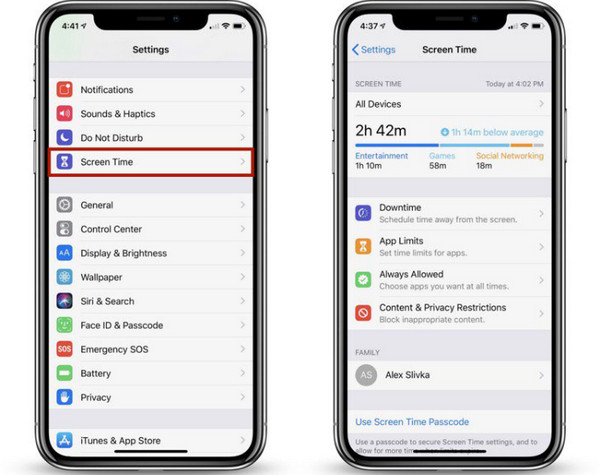
The setup of the Screen Time restrictions can also be checked. From the steps below, you will see the Downtime, App Limits, Always Allowed, and Content & Privacy Restrictions. You only need to tap the mentioned buttons to see their setups. Their further explanation will be discovered below.
- Downtime: You will see the scheduled hour of your screen time. Also, you will see the blocked apps when the feature is enabled. The allowed apps and downtime reminders can also be known.
- App Limits: It shows the daily usage of an app. The app categories that are limited, usage progress, and the limit reached notifications can also be checked.
- Always Allowed: The list of allowed apps will be seen. The applications that are added, removed, or can be accessed during the restriction can be checked.
- Content & Privacy Restrictions: It is a feature that has multiple features that can be checked. It includes the content restrictions, privacy settings, system changes, and more.
Part 2. How to Check Screen Time on iPhone Using a Widget
Widgets are special features on your iPhone that allow you to get timely information from a specific app. You will see a glance at them from your iPhone Home Screen. How to check my Screen Time on iPhone? Use the iPhone widgets with the steps below.
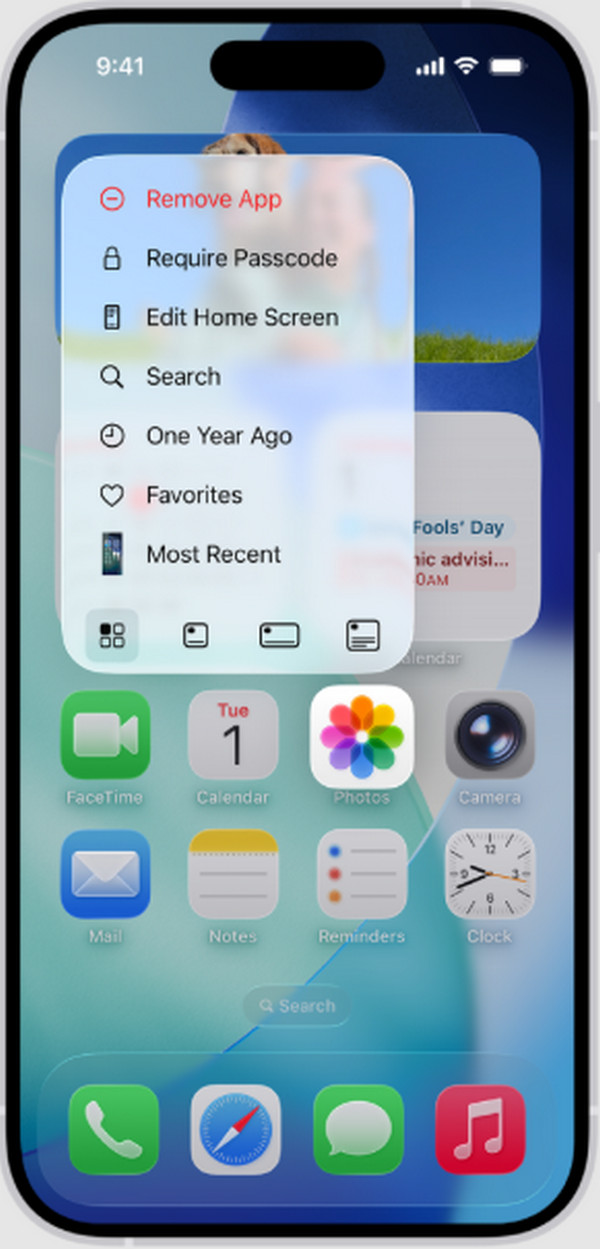
Open your iPhone. Tap and hold the empty screen from the Home Screen section of your iPhone. Alternatively, you can long-press an app. Select the Edit Home Screen button. Tap the Plus button at the top right. Later, type the Screen Time keyword. Later, tap the Screen Time button and choose the widget size. Tap the Add Widget button. Finally, tap the Done button on the screen to apply the changes.
Part 3. How to Bypass Screen Time Passcode on iPhone When You Forgot
All the changes that can be made to your Screen Time require the current passcode. It serves as the authentication procedure for the feature. However, some users forgot their Screen Time passcode, and they cannot make changes to the mentioned feature. The 2 methods below show how to reset or bypass the Screen Time passcode.
1. Use Apple ID
You may reset the Screen Time passcode with an Apple ID if you forgot the passcode. But if you forgot Apple ID password, you cannot proceed with the process. You need the next method in this case. Please use your Apple ID to reset your Screen Time passcode as you scroll below.
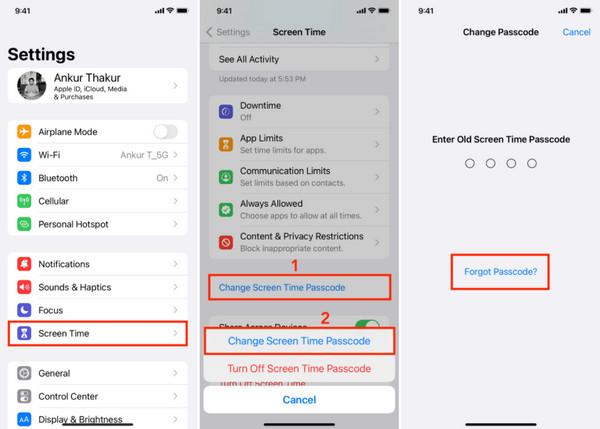
Open the Settings app on your iPhone. Then, tap the Screen Time button from the list. Tap the Change Screen Time Passcode button on the screen. Tap the same button again. Later, the iPhone will ask for the current passcode. Tap the Forgot Passcode button. Enter your Apple ID email and password to proceed. Create a new Screen Time passcode and confirm it afterward. You can now use the new Screen Time passcode for new changes.
2. Utilize FoneLab iOS Unlocker

FoneLab Helps you unlock iPhone screen, Removes Apple ID or its password, Remove screen time or restriction passcode in seconds.
- Helps you unlock iPhone screen.
- Removes Apple ID or its password.
- Remove screen time or restriction passcode in seconds.
If the Apple ID is also unknown, you can bypass Screen Time passcode with FoneLab iOS Unlocker. It is a third-party tool that can be used without losing even a single piece of data on your iPhone. Also, it can be used with different models and versions of iPhone, including the latest and earlier ones. Besides Screen Time, you can also use the tool to bypass iCloud Activation Lock, SIM lock, iTunes backup restriction passcode, and more. Please use the steps below as your guide to know how to use the tool.
Step 1Download FoneLab iOS Unlocker. Click the Free Download button to get the tool. Locate the file and set it up. Later, install and open it to start the process. Select the Unlock Screen Time feature afterward.

Step 2Plug your iPhone into the computer using your compatible USB. Later, please choose the iPad at the bottom left. Click the Start Now at the bottom left. Follow the on-screen steps to turn off Find My. Click the Continue button to proceed.
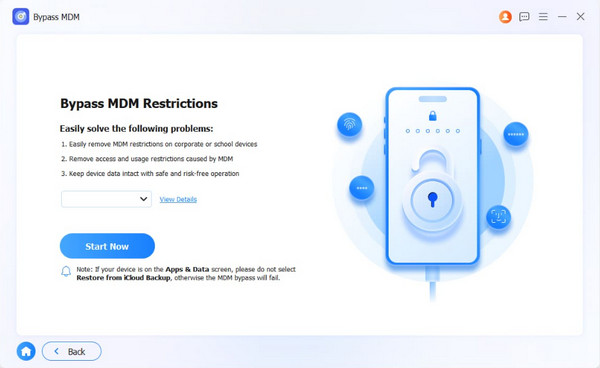
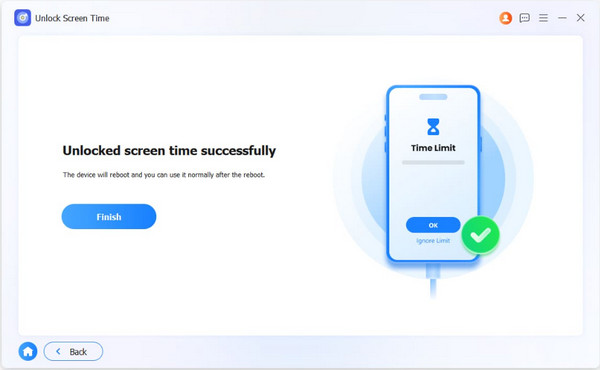
Step 3Click the Unlock button at the bottom. Later, the tool will start to bypass the Screen Time passcode. Finally, please click the Finish button to complete the process.
Part 4. FAQs about How to Check Screen Time on iPhone
How to turn off Screen Time on iPhone?
Open the iPhone Settings app. Then, the options list will appear on the main interface. Tap the Screen Time button from the list. Later, swipe down on the screen and tap the Turn Off App & Website Activity button. Enter the Screen Time passcode correctly for authentication. Confirm the action afterward.
Does Screen Time track everything I do?
Screen Time tracks your usage of your apps, including your iPhone websites. It records the active foreground usage. However, Screen Time does not track everything you do. It cannot track your private content, specific emails, passwords, and more.
You will learn how to check your Screen Time on iPhone using this post. The 2 leading ways can be found in this helpful article. FoneLab iOS Unlocker will be a helpful tool to bypass the Screen Time passcode if it is unknown. Besides that, it can also bypass MDM profiles, iCloud Activation Lock, and more security features. Download the tool on your computer to explore more of the operations it can do!



