
 iPhone Data Recovery
 iOS System Recovery
 iOS Data Backup & Restore
 iOS Unlocker
 iPhone Password Manager
 Location Changer
 Android Data Recovery
 Broken Android Data Extraction
 Android Data Backup & Restore
 Android Unlocker
 FoneTrans for iOS
 iPhone Data Eraser
 iPhone Cleaner
 HEIC Converter
 HyperTrans
 WhatsApp Transfer for iOS
 Mac Sweep
 Data Retriever
 Mac Data Retriever
 Video Converter Ultimate
 Screen Recorder
 Phone Mirror
- Part 1. Can You Figure Out or Recover Screen Time Passcode
- Part 2. Reset Screen Time Passcode with Apple ID
- Part 3. Restore Device with iTunes/Finder/Apple Devices
- Part 4. Erase Device with iCloud Find My
- Part 5. Remove Screen Time Passcode with Fonelab iFoneWiz
- Part 6. Comparison of Ways to Manage Screen Time Password
- Part 7. FAQs about How to Figure Out Screen Time Password
- Unlock Apple ID
- Bypass iCloud Activation Lock
- Doulci iCloud Unlocking Tool
- Factory Unlock iPhone
- Bypass iPhone Passcode
- Reset iPhone Passcode
- Unlock Apple ID
- Unlock iPhone 8/8Plus
- iCloud Lock Removal
- iCloud Unlock Deluxe
- iPhone Lock Screen
- Unlock iPad
- Unlock iPhone SE
- Unlock Tmobile iPhone
- Remove Apple ID Password
Alternative Guide on How to Figure Out Screen Time Password
 Updated by
 Before trying to learn how to figure out Screen Time password, let us first discover if it's possible to figure out your current passcode on your Screen Time. Many users set up this restriction to manage their own or a child's device usage, only to forget the passcode weeks or months later. Meanwhile, others deal with a passcode set by a previous owner.
Regardless, allow this article to walk you through the logic behind Screen Time's security, whether or not Apple offers any official solution for finding your desired passcode, and what realistic options exist when you can't. Each method contains information to help you choose the most suitable method, along with a step-by-step process that will make everything easier for you.

Guide List
- Part 1. Can You Figure Out or Recover Screen Time Passcode
- Part 2. Reset Screen Time Passcode with Apple ID
- Part 3. Restore Device with iTunes/Finder/Apple Devices
- Part 4. Erase Device with iCloud Find My
- Part 5. Remove Screen Time Passcode with Fonelab iFoneWiz
- Part 6. Comparison of Ways to Manage Screen Time Password
- Part 7. FAQs about How to Figure Out Screen Time Password
Part 1. Can You Figure Out or Recover Screen Time Passcode
Before diving into any techniques, it's important to clarify if you can indeed figure out or recover your Screen Time passcode, whether using official or other methods. First of all, the Screen Time passcode is not stored in plain text on your device, nor can you simply look it up in a settings menu like the other passwords or codes in the Passwords app.
Apple intentionally designed it this way to prevent anyone, including the device owner, from easily bypassing restrictions once the passcode is set. Hence, what you can do instead is rely on other options, such as resetting the Screen Time passcode, removing the feature, or erasing the device. Unfortunately, you won't directly see your passcode ever again, but you may be able to regain control over Screen Time settings by other means, which will be discussed below.
Part 2. Reset Screen Time Passcode with Apple ID
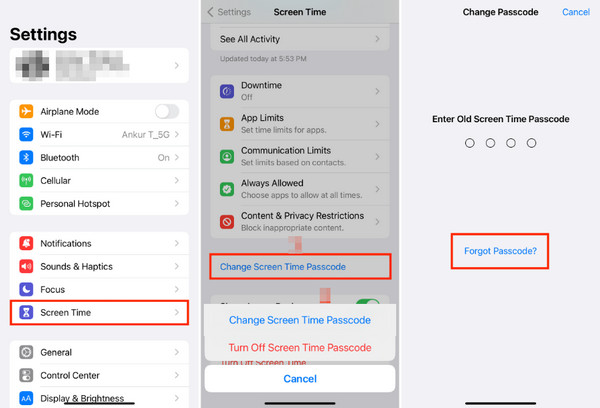
Since you can't figure it out, the next best option is to reset Screen Time passcode. The only official way Apple provides to do this without erasing your device involves using your Apple ID. This method does not reveal your old passcode. Instead, it allows you to create a brand new one. However, this option is only available under specific conditions. First, you must have turned Share Across Devices on when you set up Screen Time, and second, you must be signed into the same Apple ID.
Follow the task below to reset a Screen Time passcode with your Apple ID:
Step 1Head to Settings > Screen Time, then tap Change Screen Time Passcode tab.
Step 2Next, pick Forgot Passcode under the passcode field and verify your identity by providing your Apple credentials. Afterward, you will be allowed to set a new passcode.
Part 3. Restore Device with iTunes/Finder/Apple Devices
If you can't reset the Screen Time passcode using your Apple ID, your next option is to restore the device. Unlike the previous method, restoring does not keep your data intact, as it erases the device completely, which also removes the forgotten Screen Time passcode. Meanwhile, restoring requires a computer running iTunes, Finder, or Apple Devices. Afterward, you can set up the device as new with the unmodified Screen Time feature and its passcode.
Follow the directions below to restore the Apple device with iTunes/Finder/Apple Devices:
Step 1Attach your device via a USB cable while the available program runs on your desktop.
Step 2When the device's symbol or name materializes, click it to display the device management options. Then, from there, choose Restore (Device) on the upper interface.
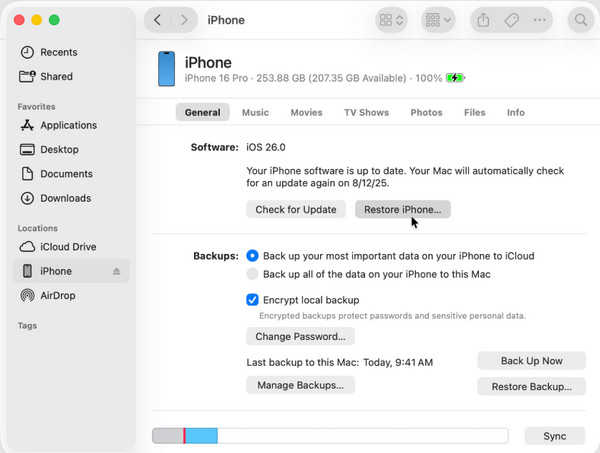
Other than the usual method for connection an Apple device to iTunes, Finder, or Apple Devices, you can also access the options through Recovery mode while your device is attached to the computer with a USB cable. Just use the key combination to boot it into the mode.
Part 4. Erase Device with iCloud Find My
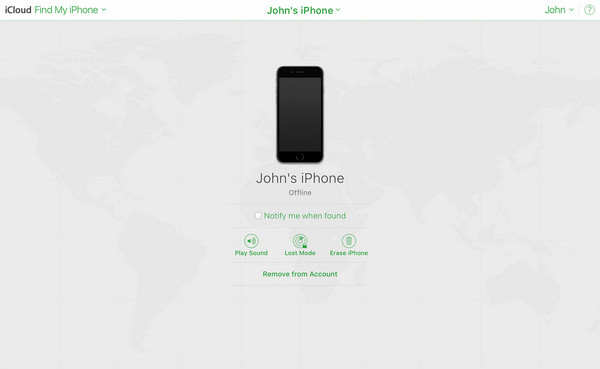
You can erase your device remotely using iCloud's Find My feature. Like the last option, this completely wipes the device, which removes the forgotten Screen Time passcode. The only difference is that you can do this entirely over the internet from any web browser. Just ensure that the Find My feature is enabled on the device so that you can access it on your iCloud account.
Follow the operation below to erase your device with iCloud Find My:
Step 1Use your trusted browser to access iCloud's website, then log in by entering your Apple credentials. After that, head to the Find My page.
Step 2An All Devices tab is available at the top of the page; hence, click it and pick your Apple device. Once further options are exhibited, choose Erase (Device) and confirm it.
Part 5. Remove Screen Time Passcode with Fonelab iFoneWiz
Meanwhile, one of our top and most highly recommended solutions is FoneLab iFoneWiz. Unlike restoring or erasing your device, which deletes everything, this tool can remove or turn off Screen Time passcode without losing your photos, messages, or other personal data. Hence, you can ensure your data remains safe, and you don't have to worry about not having a backup.

iFoneWiz Helps you unlock iPhone screen, Removes Apple ID or its password, Remove screen time or restriction passcode in seconds.
- Helps you unlock iPhone screen.
- Removes Apple ID or its password.
- Remove screen time or restriction passcode in seconds.
FoneLab iFoneWiz is available for both Windows and Mac, specializing in bypassing various iOS locks, including screen passcodes, Apple ID, MDM restrictions, and more. It also caters to numerous iOS and iPadOS versions, so you can use the program to handle your lock concerns on almost any of your devices anytime. The best part? It is designed to be beginner-friendly.
Comprehend the easy process below as a pattern to remove the Screen Time passcode with FoneLab iFoneWiz:
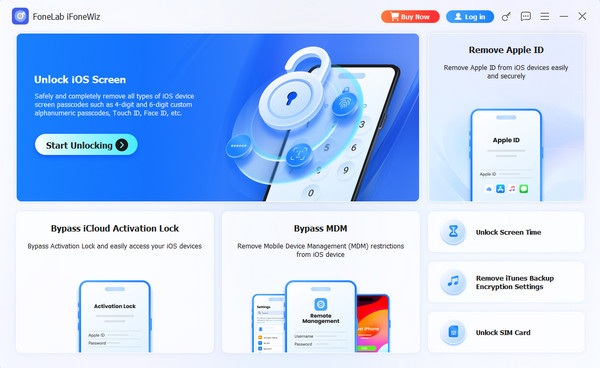
Step 1Download a copy of the FoneLab iFoneWiz installer, and once it's on your computer, launch the file to manage the initial setup. The setup should be quick, and shortly after, you will see the Start button. Select it to run the program, then on the key interface, opt for Unlock Screen Time.
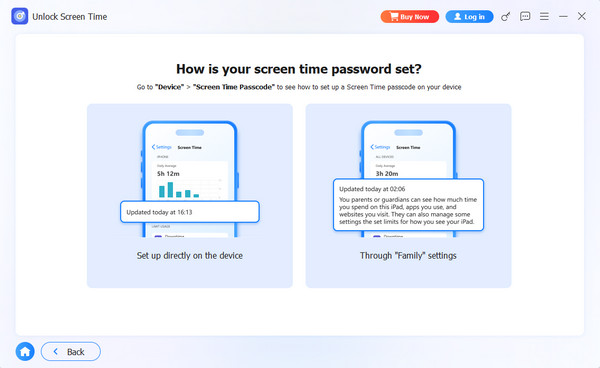
Step 2Connecting your device is necessary, so ensure you do that with a Lightning cable before reaching the 'How is your screen time password set?' screen. From there, select Set up directly on the device or Through “Family” settings. You can then continue with the prompts afterward to remove your device's Screen Time password.
Part 6. Comparison of Ways to Manage Screen Time Password
| Method | Apple ID | iTunes/Finder/Apple Devices | iCloud Find My | FoneLab iFoneWiz |
| Data Loss | No | Yes (all data erased) | Yes (all data erased) | No |
| Technical Difficulty | Very Easy | Moderate | Easy | Easy |
| Key Requirement | Share Across Devices enabled + Apple ID credentials | Computer with iTunes/Finder/Apple Devices + USB connection | Find My enabled + Apple ID credentials | Computer with FoneLab iFoneWiz + USB connection |
| iOS Version Limitation | Works on all versions (if the feature is enabled) | Works on all versions | Works on all versions (if Find My is on) | Works on all versions |
| Works without Apple ID password | No | Yes | No | Yes |
Part 7. FAQs about How to Figure Out Screen Time Password
Will the Screen Time passcode come back if I restore from a backup?
Yes, it may. Restoring from a backup that contains the passcode will bring back the passcode along with all other settings, so you should use a backup created before the passcode was set.
Can I guess the passcode many times without getting locked out?
Sadly, you have a limited number of attempts before the device locks you out. After several failed attempts, the device may be disabled entirely for hours or days.
You may not directly find your original passcode, but the methods above are still available to help you manage your Screen Time passcode appropriately. Besides, other locks and passwords can also be managed by FoneLab iFoneWiz for later purposes.



