
 iPhone Data Recovery
 iOS System Recovery
 iOS Data Backup & Restore
 iOS Unlocker
 iPhone Password Manager
 Location Changer
 Android Data Recovery
 Broken Android Data Extraction
 Android Data Backup & Restore
 Android Unlocker
 FoneTrans for iOS
 iPhone Data Eraser
 iPhone Cleaner
 HEIC Converter
 HyperTrans
 WhatsApp Transfer for iOS
 Mac Sweep
 Data Retriever
 Mac Data Retriever
 Video Converter Ultimate
 Screen Recorder
 Phone Mirror
- Part 1. Screen Time Passcode vs. Lock Screen Passcode
- Part 2. What Actually Happens After 10 Failed Attempts
- Part 3. Reset Screen Time Passcode with Apple ID
- Part 4. Use Fonelab iFoneWiz to Remove Screen Time Passcode
- Part 5. Erase Your iPhone with iCloud
- Part 6. Restore Device with iTunes/Finder/Apple Devices
- Part 7. FAQs about What Happens After 10 Failed Screen Time Passcode Attempts
- Unlock Apple ID
- Bypass iCloud Activation Lock
- Doulci iCloud Unlocking Tool
- Factory Unlock iPhone
- Bypass iPhone Passcode
- Reset iPhone Passcode
- Unlock Apple ID
- Unlock iPhone 8/8Plus
- iCloud Lock Removal
- iCloud Unlock Deluxe
- iPhone Lock Screen
- Unlock iPad
- Unlock iPhone SE
- Unlock Tmobile iPhone
- Remove Apple ID Password
What Happens After 10 Failed Screen Time Passcode Attempts
 Updated by
 Greetings! May I ask how many failed attempts for Screen Time passcode are allowed? And if I exceed 10 incorrect attempts, what would happen? I’m worried I’d get locked out and worsen the situation if I keep entering the wrong code. So, please help me understand it fully, and if you could also recommend a solution for my forgotten Screen Time passcode, it’d be appreciated.
Attempting multiple failed Screen Time passcode entries can feel stressful, especially when you are not sure what the limits are or what might come next. Screen Time is used to manage app usage and set content restrictions, but forgetting the passcode is a common problem. So, trying to recall and attempt different passcodes has also become a common occurrence. The problem is, this can be scary since you might reach a limit, and you never know what this can cause to your device. Luckily, you have found the right place to deep dive and resolve it.

Guide List
- Part 1. Screen Time Passcode vs. Lock Screen Passcode
- Part 2. What Actually Happens After 10 Failed Attempts
- Part 3. Reset Screen Time Passcode with Apple ID
- Part 4. Use Fonelab iFoneWiz to Remove Screen Time Passcode
- Part 5. Erase Your iPhone with iCloud
- Part 6. Restore Device with iTunes/Finder/Apple Devices
- Part 7. FAQs about What Happens After 10 Failed Screen Time Passcode Attempts
Part 1. Screen Time Passcode vs. Lock Screen Passcode
Before going further, let us first clarify a thought that confuses some users regarding passcodes on their iPhones. To set things straight, the Screen Time and lock screen passcodes can be similar since both can be 4 or 6-digit codes, which is also why people mix them up. However, they actually serve completely different purposes.
The Lock Screen passcode is what you enter each time you wake your phone. It protects everything on your device, from your apps to your personal photos. Without this code, you cannot get into the phone at all. Meanwhile, the Screen Time passcode controls Screen Time settings, such as app limits, downtime schedules, and content restrictions. It is not required to unlock your iPhone or open most apps. You only need it when you want to change those specific limits or turn off restrictions.
Part 2. What Actually Happens After 10 Failed Attempts
After 10 failed Screen Time passcode attempts, what actually happens is that your Screen Time will block further attempts, preventing you from trying for the eleventh time. From that point on, entering any code will simply not work. That specific passcode entry process stops, and you may need to rely on other types of solutions instead, which will be discussed later.
No worries, though. Nothing else will change on your device. It will remain fully usable, and you will still be able to unlock the iPhone, open apps, send messages, etc. The only thing affected is your ability to change Screen Time settings, such as app limits or downtime schedules.
On the other hand, what does not happen after ten failed attempts is also worth stating clearly. Thankfully, your iPhone won’t be disabled, as it would be with a failed passcode attempt. There is no permanent lockout, no data is erased, and no factory reset occurs. Your children or other family members using the device will not notice any difference in their daily usage.
Part 3. Reset Screen Time Passcode with Apple ID
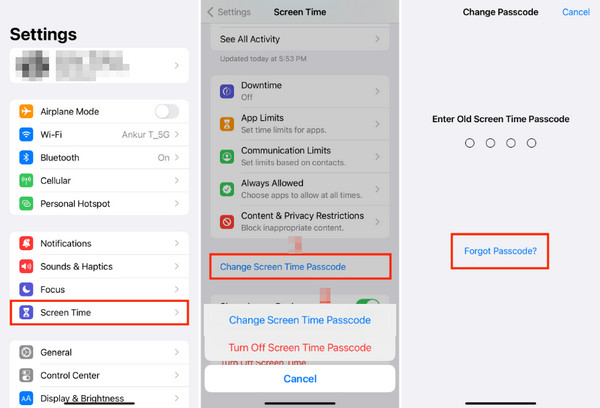
The initial action you can take if you have failed 10 attempts is to reset Screen Time passcode with your Apple ID. This built-in method lets you indicate that you have forgotten your passcode, and your iPhone will then verify your identity using your Apple ID password. After that, you can create a new Screen Time passcode. However, this requires that you have enabled the Apple ID recovery option for the feature. If not, it won’t be available.
Follow the procedure below to reset the Screen Time passcode with Apple ID:
Step 1Begin by opening Screen Time in your Settings interface.
Step 2Next, choose Change Screen Time Passcode> Forgot Passcode?. When asked, provide your Apple credentials and enter the new passcode you want.
Part 4. Use Fonelab iFoneWiz to Remove Screen Time Passcode
Another technique to bypass Screen Time passcode and doesn’t require data loss is FoneLab iFoneWiz. It is a renowned program for handling various lock and password issues on iOS and iPadOS devices; thus, it is the perfect alternative if the built-in solution doesn’t work or isn’t available. After all, it has a short learning curve and doesn’t require advanced skills.
Thanks to the tool’s user-friendly interface and functions, you can bypass and remove your Screen Time passcode with ease. Meanwhile, you also wouldn’t want to miss FoneLab iFoneWiz’s other offerings, like Unlock iOS Screen, Bypass MDM, etc., which can help later.

iFoneWiz Helps you unlock iPhone screen, Removes Apple ID or its password, Remove screen time or restriction passcode in seconds.
- Helps you unlock iPhone screen.
- Removes Apple ID or its password.
- Remove screen time or restriction passcode in seconds.
See the easy navigation below as an example to remove the Screen Time passcode using FoneLab iFoneWiz:
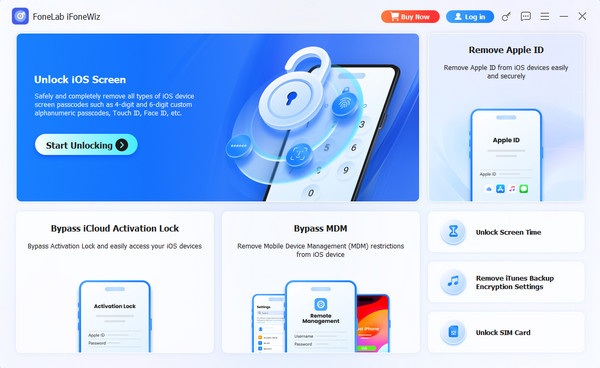
Step 1Save the FoneLab iFoneWiz installer, then launch it from your Downloads folder to start the initial setup. Finish it quickly, and shortly, initialize the program with the Start button. Then, select the Unlock Screen Time feature when the interface appears.
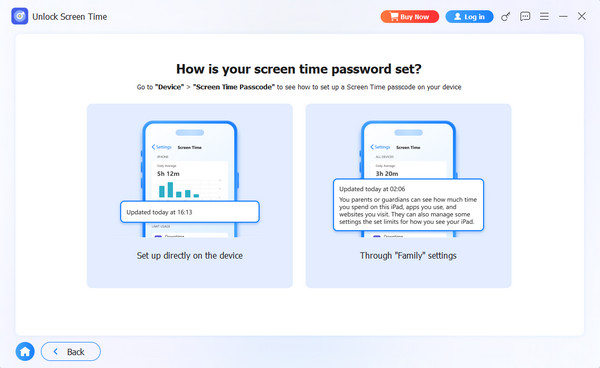
Step 2Before proceeding, ensure you attach your iPhone using a Lightning cable. Afterward, pick either Set up directly on the device or Through “Family” settings on the “How is your screen time password set?” interface. From there, simply follow the prompts to finish.
Part 5. Erase Your iPhone with iCloud
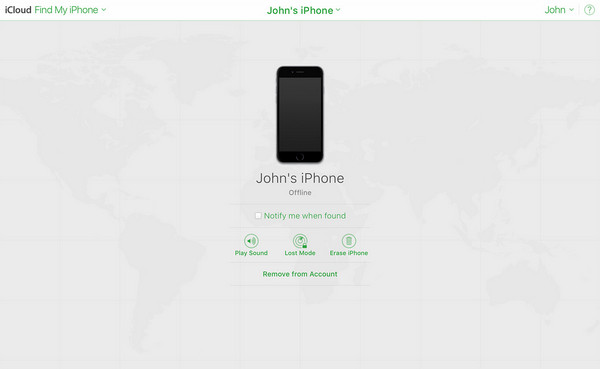
You can also erase your iPhone in iCloud to remove it from the device. As you might expect, this action will delete all your iPhone content and settings. Hence, it is recommended only if you have a backup or no important data on the device. The process takes place on iCloud’s Find My page, so you can do it in any browser to erase the device remotely.
Follow the guidelines below to erase your iPhone with iCloud, removing Screen Time:
Step 1Head directly to iCloud’s site, then use your credentials to log in. Next, tick Find My.
Step 2Once you’re on the Find My page, select All Devices, then select your iPhone with failed Screen Time passcode attempts. Finally, pick Erase iPhone from the selections.
Part 6. Restore Device with iTunes/Finder/Apple Devices
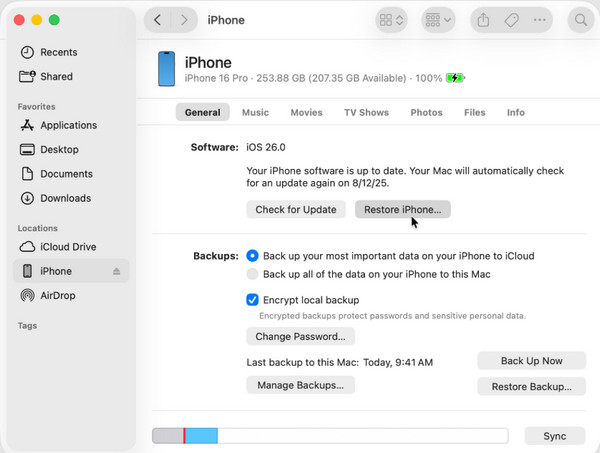
It’s also possible to remove the Screen Time passcode by restoring your iPhone with iTunes, Finder, or Apple Devices. By connecting the iPhone to the available program, you will be given a Restore option, which allows your device to be restored to its original state. Hence, it will return to how it was when Screen Time isn’t yet activated, bypassing the feature’s passcode.
Follow the task below to restore the device with iTunes/Finder/Apple Devices:
Step 1Launch the iTunes/Finder/Apple Devices on the desktop and link your iPhone with a Lightning cable. Afterward, select your device’s symbol or name on the interface.
Step 2The following display will immediately show the Restore iPhone tab in the upper section; thus, select it and navigate through the prompts to restore your device.
Part 7. FAQs about What Happens After 10 Failed Screen Time Passcode Attempts
Can I still regain access to Screen Time settings after 10 failures?
Yes, you can. Use the initial solution, which is discussed in Part 3, to keep your Screen Time settings. But if it’s unavailable, use the alternatives, which may reset the entire feature settings.
Is there any data loss risk from failing 10 times?
No, there is not. This lockout affects only Screen Time settings, not your personal data, unless you decide to use a solution that requires erasing your iPhone.
10 failed passcode attempts for your Screen Time passcode doesn’t mean a dead end for the feature, as the recommended solutions are still available to help you, especially FoneLab iFoneWiz.



