
 iPhone Data Recovery
 iOS System Recovery
 iOS Data Backup & Restore
 iOS Unlocker
 iPhone Password Manager
 Location Changer
 Android Data Recovery
 Broken Android Data Extraction
 Android Data Backup & Restore
 Android Unlocker
 FoneTrans for iOS
 iPhone Data Eraser
 iPhone Cleaner
 HEIC Converter
 HyperTrans
 WhatsApp Transfer for iOS
 Mac Sweep
 Data Retriever
 Mac Data Retriever
 Video Converter Ultimate
 Screen Recorder
 Phone Mirror
- Part 1. How to Block Websites on iPhone Using Screen Time
- Part 2. How to Block Websites on iPhone Using a Third-Party App
- Part 3. How to Block Websites on iPhone With DNS Filtering
- Part 4. Comparison Table of Methods to Block Websites on iPhone
- Part 5. How to Disable Restrictions on iPhone
- Part 6. FAQs about How to Block Websites on iPhone
- Unlock Apple ID
- Bypass iCloud Activation Lock
- Doulci iCloud Unlocking Tool
- Factory Unlock iPhone
- Bypass iPhone Passcode
- Reset iPhone Passcode
- Unlock Apple ID
- Unlock iPhone 8/8Plus
- iCloud Lock Removal
- iCloud Unlock Deluxe
- iPhone Lock Screen
- Unlock iPad
- Unlock iPhone SE
- Unlock Tmobile iPhone
- Remove Apple ID Password
How to Block a Website on iPhone in 3 Proven Techniques
 Updated by
 Besides the iPhone's built-in and pre-installed applications, you can also browse online, wherein you can access your social media accounts, online games, etc. However, some websites contain content that is not suitable for different ages. Do you worry that your child might accidentally access websites that are not intended for them, including violent and adult content?
Browse this article to discover how to block sites on iPhone in 3 proven methods. Kindly scroll below to know all the details about the methods.

Guide List
- Part 1. How to Block Websites on iPhone Using Screen Time
- Part 2. How to Block Websites on iPhone Using a Third-Party App
- Part 3. How to Block Websites on iPhone With DNS Filtering
- Part 4. Comparison Table of Methods to Block Websites on iPhone
- Part 5. How to Disable Restrictions on iPhone
- Part 6. FAQs about How to Block Websites on iPhone
Part 1. How to Block Websites on iPhone Using Screen Time
Screen Time allows you to track and limit the iPhone and other Apple devices usage. It is commonly used by parents who want to manage the screen time of their kids. Additionally, others use it for personal use to control their digital habits, like browsing on their social media accounts.
The mentioned feature can be used to block websites on your iPhone. It can block the website's different URLs. However, ensure that you include all of them to block the website completely. Please discover how to block certain websites on iPhone using Screen Time with the steps below.
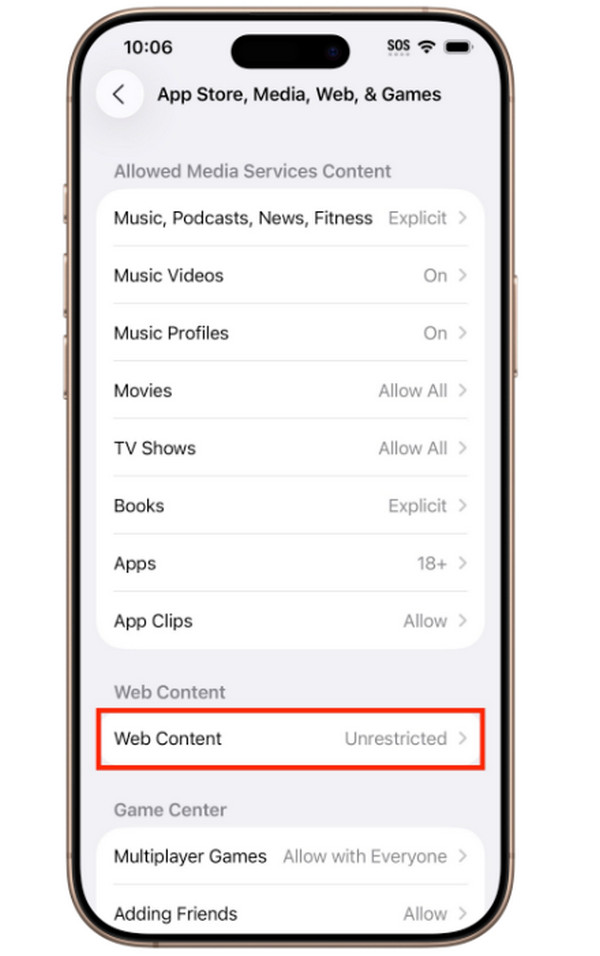
Go to the Settings application on your iPhone. Then, choose the Screen Time button from the options list. Later, please tap the Content & Privacy Restrictions button on the next interface. Toggle on the Content & Privacy Restriction. Tap App Store, Media, Web, & Games, then tap Web Content. Select the Limit Adult Websites. Tap Add Website and enter the URLs you want to block. You can also turn on the Only Approved Websites feature.
Part 2. How to Block Websites on iPhone Using a Third-Party App
Aside from Screen Time, which is a built-in feature of the iPhone, you can also use a third-party app. BlockSite is one of the applications that allows you to block websites on iPhone. It has a simple procedure for blocking websites on your iPhone. However, some users face security concerns while using the app. Additionally, if the website is not on the scanned list of the app, you cannot block the website. On the other hand, the application is convenient if you block multiple websites on your iPhone. The steps on how to use the app are available below.
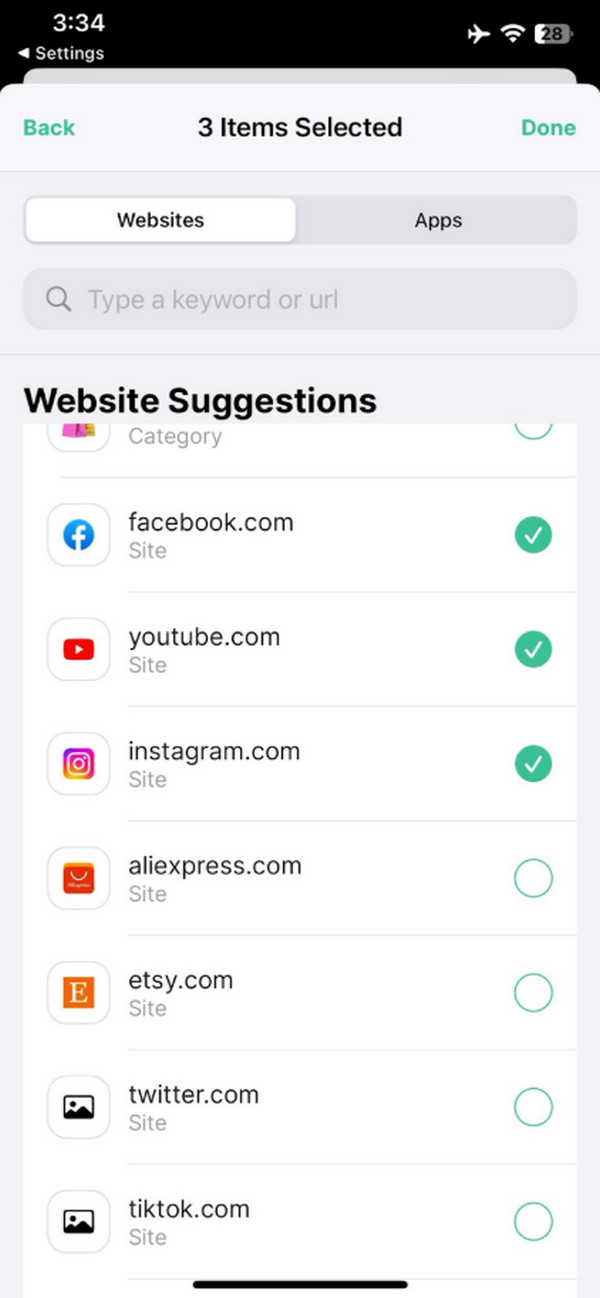
Step 1Download and open BlockSite on your iPhone. After that, the app will automatically scan the websites that you can block. Please select them from the Websites section at the top left. Tap the Done button afterward.
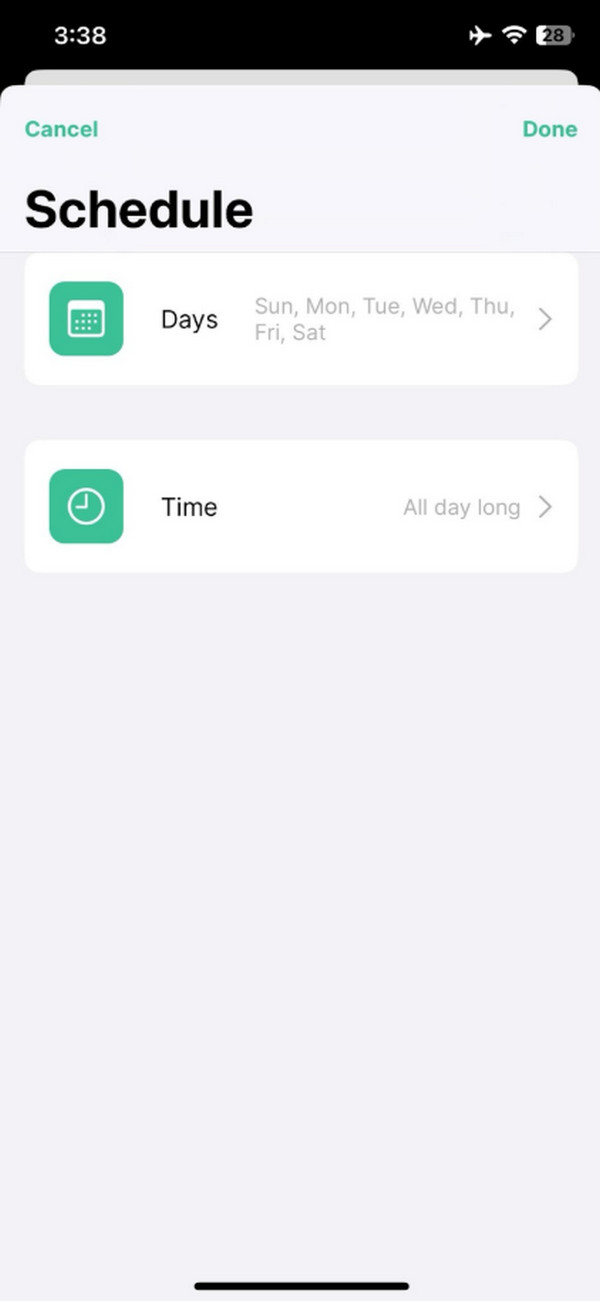
Step 2The Schedule section will appear. Please tap the Days and Time section. Set up your preferred data and time you prefer to block the websites. Finally, please tap the Done button at the top right.
Part 3. How to Block Websites on iPhone With DNS Filtering
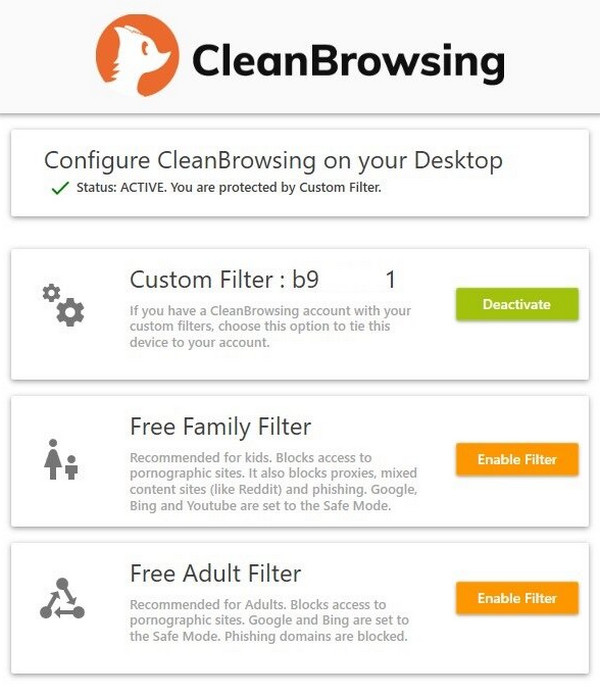
DNS filtering is a security measure that allows you to block websites that you find are not suitable for your child or other members of your family. CleanBrowsing is an app that can do the process in a few taps! It does not require professional skills. Please use the steps below.
Step 1Open and download CleanBrowsing on your iPhone. After that, please select the filter you prefer from the screen. Choose the Family Filter, Adult Filter, or Security Filter. Tap the Connect button afterward. Allow the VPN Configuration afterward. Tap the Allow button afterward.
Step 2Follow the DNS verification guide. Later, the websites that are included in the filter will be blocked. They will not be accessible on your iPhone.
Part 4. Comparison Table of Methods to Block Websites on iPhone
| Method | Difficulty | Required Download? | Speed |
| Screen Time | Moderate | No | Slow. It is due to the individual input for the different URLs. |
| BlockSite | Easy | Yes | Fast |
| CleanBrowsing | Easy | Yes | Fast |
Part 5. How to Disable Restrictions on iPhone
The restrictions on your iPhone websites are commonly caused by Screen Time, MDM profile, and third-party apps. Turn off retrictions on iPhone by turning them off. The best third-party tool to bypass the features is also included.
1. Disable Screen Time
Disabling the Screen Time feature means that the restricted websites will also be accessed. This process needs your Apple ID or iPhone screen lock. The steps below will help you do that.
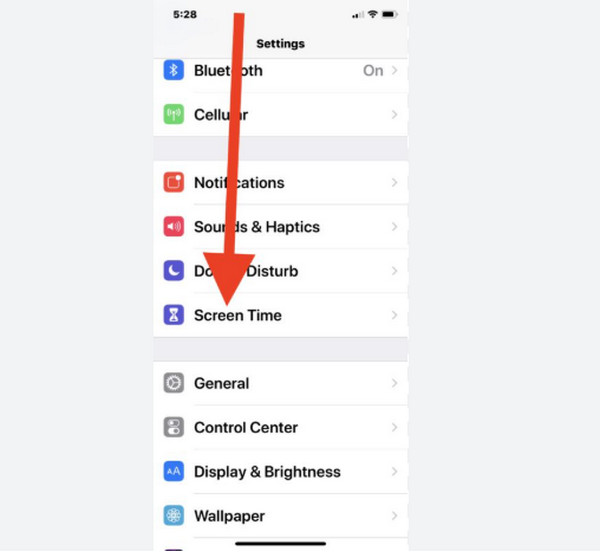
Open Settings. Then, choose Screen Time. Select the Turn Off Screen Time. Enter the Screen Time passcode. If you do not have it, tap the Forgot Passcode button and enter the Apple ID password. Set a new passcode afterward. Confirm the action by tapping Turn Off Screen Time.
2. Remove MDM Profile
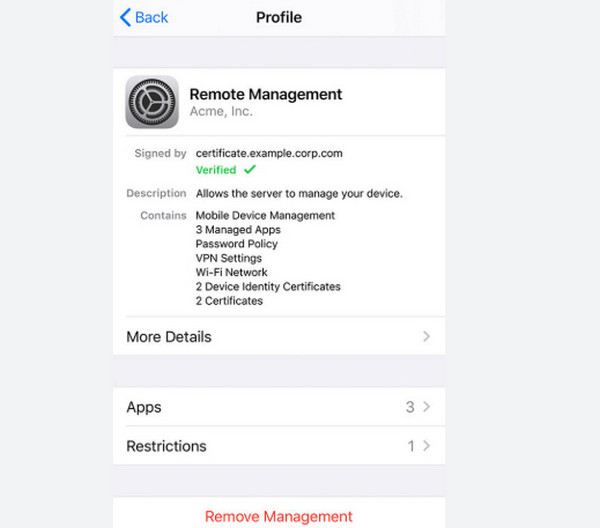
Also, MDM is a security feature that allows your iPhone to be remotely managed by an organization. It could be due to school or work policies. Turn off this restriction with the steps below.
Open Settings. Select General and tap VPN & Device Management. Select an MDM profile. Please tap the Remove Management button. Ensure that the profile information is known. Then, follow the on-screen instructions to complete the MDM profile removal.
3. Bypass Screen Time or MDM Profile with FoneLab iOS Unlocker

FoneLab Helps you unlock iPhone screen, Removes Apple ID or its password, Remove screen time or restriction passcode in seconds.
- Helps you unlock iPhone screen.
- Removes Apple ID or its password.
- Remove screen time or restriction passcode in seconds.
If you do not have the iPhone passcode and Apple ID, FoneLab iOS Unlocker is the best option for you! It helps you bypass the Screen Time passcode. Also, you can use it to remove MDM from iPhone, bypass screen lock, remove Apple ID, bypass iCloud Activation Lock, etc. Beginners will find it convenient due to its simple interface. Use the steps below to know the process.
Step 1Download and install FoneLab iOS Unlocker on your computer. Then, click the Unlock Screen Time or Bypass MDM feature on the screen. It will show you the connecting interface.
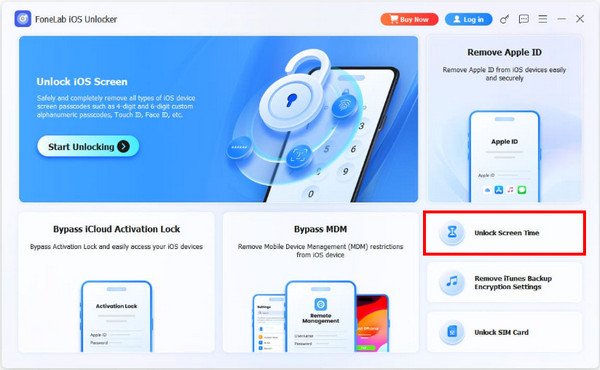
Step 2Plug the iPhone into the computer. Then, click the Start Now button at the bottom left. Later, please click the Continue button and the Unlock option at the bottom center. The bypass process will start.
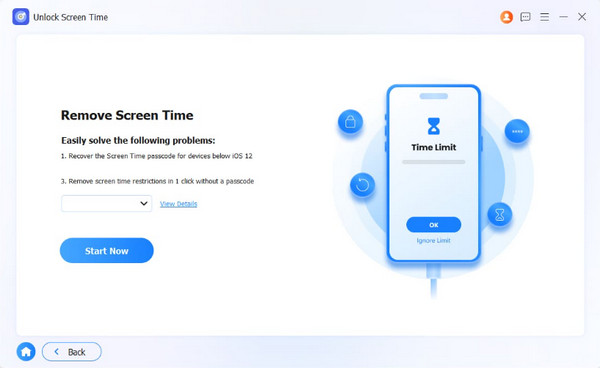
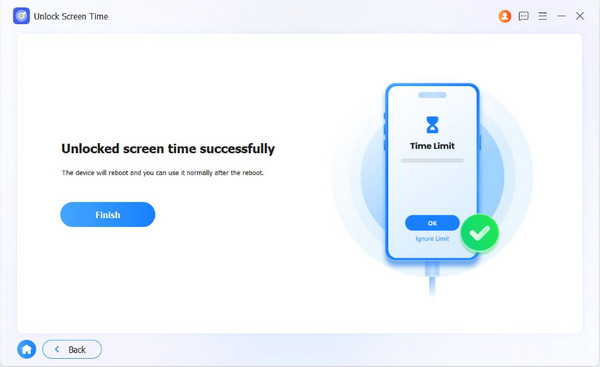
Step 3The bypass process will start immediately. Wait for the process to be completed. Later, click the Finish button.
Part 6. FAQs about How to Block Websites on iPhone
How can I monitor everything on my child's iPhone?
You can manage your child’s iPhone using the Parental Control feature of Screen Time. You can set it up. Open the Settings app and select the Family button. Tap the Add Member button from the list. Then, tap the Create Child Account button. Later, tap the Continue button. Enter the child’s name and birth date. Follow the on-screen instructions to complete the process afterward.
What can I remotely control on my kids' iPhone screens?
No. Apple does not allow controlling one’s iPhone screen remotely. You can also restrict operations, but not by controlling them. You can use Screen Time to restrict them, which you can find in this article.
Can you block a website on iPhone? This article proves that you can! Its 3 easy methods are included. FoneLab iOS Unlocker is here to help you bypass Screen Time and MDM profiles on your iPhone. It can also be used to remove Apple ID, screen lock, and other features on your iPhone. Download it now!



