
 iPhone Data Recovery
 iOS System Recovery
 iOS Data Backup & Restore
 iOS Unlocker
 iPhone Password Manager
 Location Changer
 Android Data Recovery
 Broken Android Data Extraction
 Android Data Backup & Restore
 Android Unlocker
 FoneTrans for iOS
 iPhone Data Eraser
 iPhone Cleaner
 HEIC Converter
 HyperTrans
 WhatsApp Transfer for iOS
 Mac Sweep
 Data Retriever
 Mac Data Retriever
 Video Converter Ultimate
 Screen Recorder
 Phone Mirror
- Unlock Apple ID
- Bypass iCloud Activation Lock
- Doulci iCloud Unlocking Tool
- Factory Unlock iPhone
- Bypass iPhone Passcode
- Reset iPhone Passcode
- Unlock Apple ID
- Unlock iPhone 8/8Plus
- iCloud Lock Removal
- iCloud Unlock Deluxe
- iPhone Lock Screen
- Unlock iPad
- Unlock iPhone SE
- Unlock Tmobile iPhone
- Remove Apple ID Password
How to Block YouTube on iPhone in Proven and Tested Ways
 Updated by
 Hi! I saw my son watching YouTube videos this morning. He is watching movies that have violent scenes, which I think is not appropriate for his age. Can I block YouTube on iPhone? Please help me with this matter to manage his screen time. Thank you!
YouTube has unlimited content that can be watched by users around the globe. These contents contain different genres. However, some content is not suited for minors. It is one of the main reasons why people want to block YouTube on iPhone. Kindly scroll below to discover the easy methods to block YouTube on iPhone.

Guide List
Part 1. Use App Limits to Block YouTube on iPhone
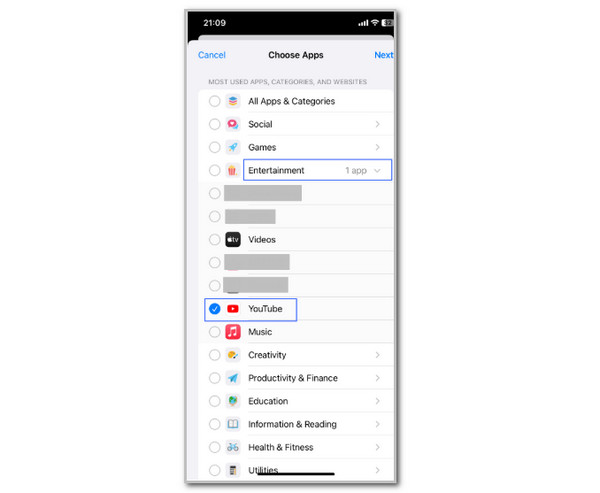
The App Limits feature is included in the Screen Time feature. Screen Time is a security feature that permits you to manage your screen time activities. You can set a limit to the YouTube application. Also, the Block at End of Limit feature can be used. Exceeding the screen time limit for YouTube will automatically block it. Please set up Screen Time to add a limit to the YouTube app and block it afterward using the steps below.
Open the Settings app. Then, select the Screen Time button and select the App Limits button. Please tap the Add Limit button. Choose the Entertainment button and select the YouTube button. Tap the Next button and set the time. Tap the Add button, enable the Block at End of Limit.
Note: You can also limit the YouTube app from installing. Turn on Content & Privacy Restrictions and tap iTunes & App Store Purchases. Select App Store, Media, Web & Games. Choose an age restriction. Tap Installing App and tap Don’t Allow.
Part 2. How to Block YouTube on iPhone by Deleting the App
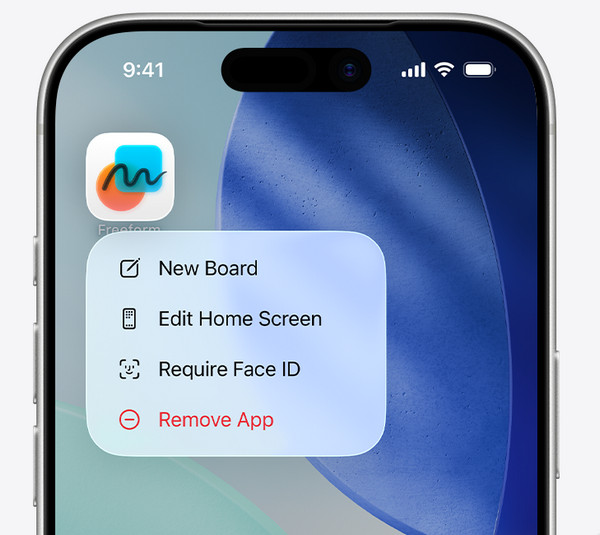
YouTube is pre-installed on iPhone. It means that you can uninstall it since it is not the system’s built-in applications. Deleting the application can restrict someone from watching content from it since they cannot access the app. Don’t worry. You can reinstall YouTube from the App Store if you need to use it again. Use the steps below to uninstall YouTube on your iPhone.
Open your iPhone and ensure that you are on the Home Screen section. After that, tap and hold the YouTube application on your screen. Later, a small window will be prompted. Please select the Remove App button from the list. Then, tap the Delete App button from the prompted window and tap the Delete button to confirm the action.
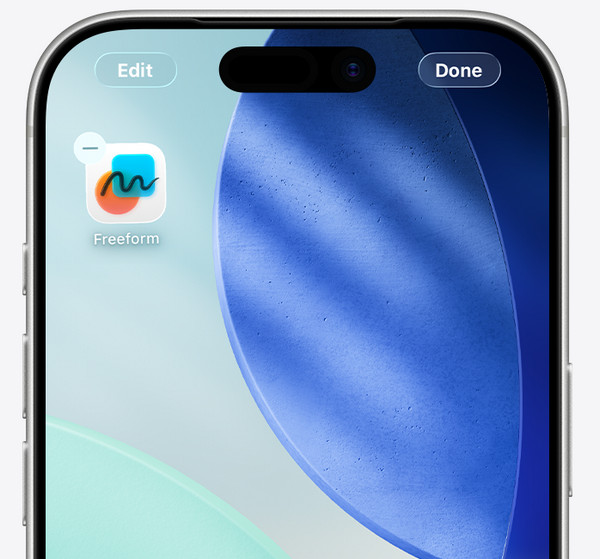
Alternatively, tap and hold the empty section of your iPhone Home Screen. Then, release the screen when the applications start to wiggle. Locate the YouTube app and tap the Minus button at the top left corner. Options will appear. Tap the Delete App button and tap the Delete button to confirm. Finally, tap the Done button to bring the Home Screen to its normal state.
Part 3. How to Block YouTube on iPhone in Safari
YouTube is also available on your Safari web browser. It is the built-in web browser of your iPhone. In this case, accessing the YouTube content on your iPhone web browser might be possible online. Screen Time can be used to filter the content from different websites, including the YouTube website. Ensure that the possible URL of YouTube is included. Additionally, this method is also applicable to other web browsers, including Google Chrome. Learn how to block YouTube from Safari iPhone using the steps below.
Step 1Please grab your iPhone and unlock it. After that, please tap the Settings button from the first interface. Then, a new screen will be prompted. Then, tap the Screen Time button from the main interface. Later, select the Content & Privacy Restrictions button on the next screen.
Step 2Please tap the Content Restrictions button from the list. Then, tap the Web Content button on the interface. Later, select the Limit Adult Websites button. Go to the Never Allow section and add the following websites:
- • youtube.com
- • m.youtube.com
- • youtube-nocookie.com
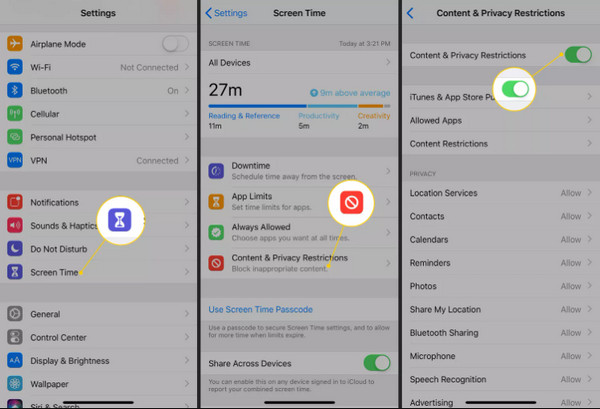
The mentioned websites will no longer be accessible from the websites afterward. You can only access them again if you turn off Screen Time or remove them from the list.
Part 4. Reset Screen Time Passcode on iPhone
However, some iPhone users accidentally forgot their Screen Time passcode. In this case, they cannot reaccess YouTube. You can reset or bypass Screen Time passcode to unblock your YouTube on your iPhone. The 2 methods below will help you.
1. Use Apple ID
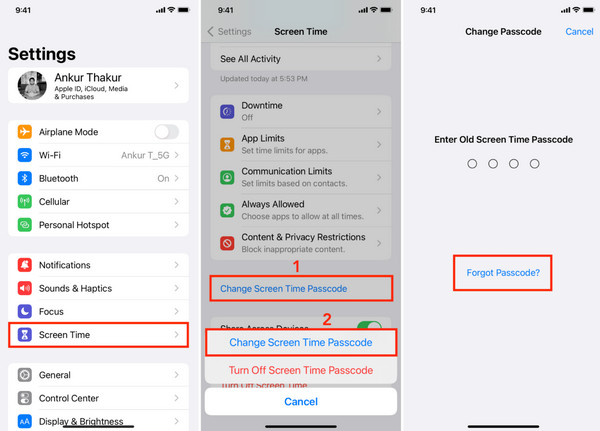
The Screen Time passcode can be reset with the Apple ID account. Without it, you cannot proceed with the reset process. You may need to reset the Apple ID password first if that’s the case. Please use the steps below to reset the Screen Time restriction passcode with your Apple ID.
Open the Settings app. Then, tap the Screen Time button. Later, select the Change Screen Time Passcode button. After that, tap the Forgot Passcode button. Enter your Apple ID password. Finally, enter the new Screen Time passcode. Enter it again to apply the changes.
2. Use FoneLab iOS Unlocker
If you do not have the Apple ID credentials to reset the Screen Time restrictions, use FoneLab iOS Unlocker. It can bypass the mentioned feature on your iPhone. It can also do the process on your iPad. Additionally, the tool can remove MDM from iPhone, unlock the iOS screen, bypass iCloud Activation Lock, and more. Use the steps below to know how to use the tool.

FoneLab Helps you unlock iPhone screen, Removes Apple ID or its password, Remove screen time or restriction passcode in seconds.
- Helps you unlock iPhone screen.
- Removes Apple ID or its password.
- Remove screen time or restriction passcode in seconds.
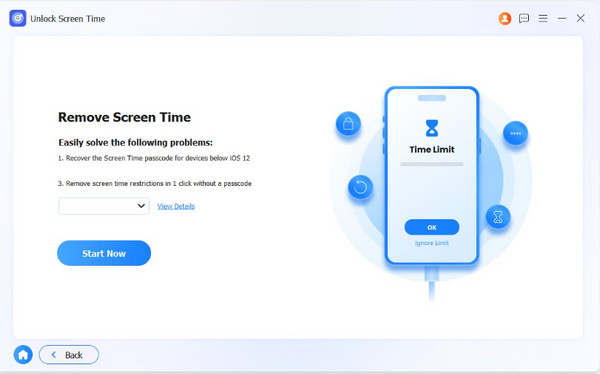
Step 1Download, install, and open the tool. Then, click the Unlock Screen Time feature. Choose how you prefer your Screen Time to be set up. Later, click the Start Now button.
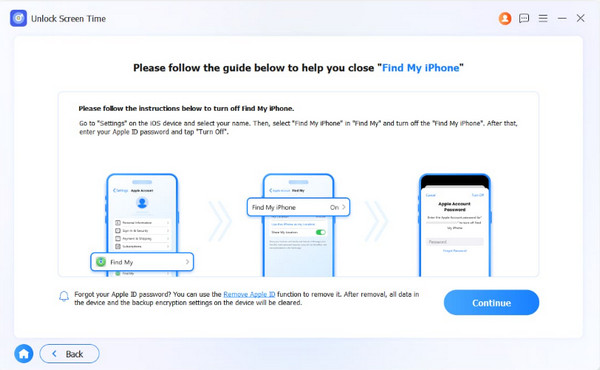
Step 2Turn off Find My by following the on-screen instructions. Later, click the Continue button to proceed. Click the Unlock button afterward.
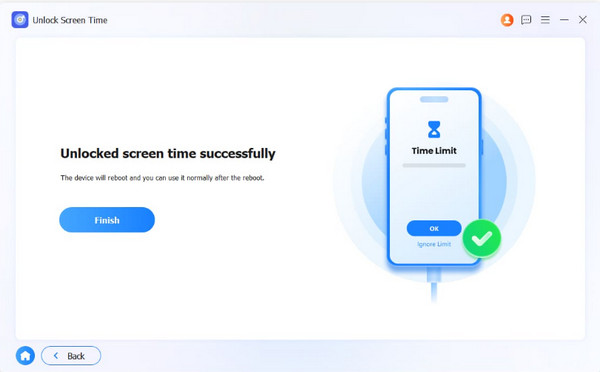
Step 3The unlocking process will start. Finally, click the Finish button.
Part 5. FAQs about How to Block YouTube on iPhone
How to block YouTube Shorts on iPhone?
You cannot block YouTube Shorts directly from the YouTube app. There is no way to do this because it is part of the content and features that YouTube has. But you can use the methods in this post to block YouTube instead. However, all of its contents will be unavailable.
How to lock YouTube on an iPhone?
Instead of blocking YouTube on an iPhone, you can set a restriction passcode to lock it with Face ID. Long-press the app. Then, tap Require Face ID and authenticate it. Accessing the app will require the mentioned lock type.
To summarize, you can block YouTube on iPhone using the built-in restrictions that the mentioned Apple device has. Also, this post introduces FoneLab iOS Unlocker to help you remove the Screen Time passcode restrictions when forgotten. You can also use the tool to remove the Apple ID account, bypass iCloud Activation Lock, and more. Download it if you want to explore more of the operations it can do.



