
 iPhone Data Recovery
 iOS System Recovery
 iOS Data Backup & Restore
 iOS Unlocker
 iPhone Password Manager
 Location Changer
 Android Data Recovery
 Broken Android Data Extraction
 Android Data Backup & Restore
 Android Unlocker
 FoneTrans for iOS
 iPhone Data Eraser
 iPhone Cleaner
 HEIC Converter
 HyperTrans
 WhatsApp Transfer for iOS
 Mac Sweep
 Data Retriever
 Mac Data Retriever
 Video Converter Ultimate
 Screen Recorder
 Phone Mirror
- Part 1. Best Video Background Remover - FoneLab Video Converter Ultimate
- Part 2. Online Video Background Remover - Canva Online Video Background Remover
- Part 3. AI Video Background Remover - Adobe Express AI Video Background Remover
- Part 4. Video Background Remover App - CapCut
- Part 5. Comparison Table of Video Background Removers
- Part 6. FAQs about Video Background Removers
- Convert AVCHD to MP4
- Convert MP4 to WAV
- Convert MP4 to WebM
- Convert MPG to MP4
- Convert SWF to MP4
- Convert MP4 to OGG
- Convert VOB to MP4
- Convert M3U8 to MP4
- Convert MP4 to MPEG
- Embed Subtitles into MP4
- MP4 Splitters
- Remove Audio from MP4
- Convert 3GP Videos to MP4
- Edit MP4 Files
- Convert AVI to MP4
- Convert MOD to MP4
- Convert MP4 to MKV
- Convert WMA to MP4
- Convert MP4 to WMV
4 Most Convenient Background Video Removers to Consider
 Updated by
 Hi! I have a project for our main subject, which is editing videos. We are required to submit a short video. However, some of the videos need to have the background removed for aesthetic purposes. Are there any background removers for video? Please help me find the best one. Thank you!
Sometimes, there are unnecessary objects in the background of your videos. So, you decided to remove the background. In this post, we recommend the easy apps and tools that can be used on your devices to remove your video backgrounds. Please continue browsing this post to see their full details and choose the best one for you!

Guide List
- Part 1. Best Video Background Remover - FoneLab Video Converter Ultimate
- Part 2. Online Video Background Remover - Canva Online Video Background Remover
- Part 3. AI Video Background Remover - Adobe Express AI Video Background Remover
- Part 4. Video Background Remover App - CapCut
- Part 5. Comparison Table of Video Background Removers
- Part 6. FAQs about Video Background Removers
Part 1. Best Video Background Remover - FoneLab Video Converter Ultimate
FoneLab Video Converter Ultimate is a third-party program that is the best video background remover. This tool can remove unnecessary objects from the background of your videos by blurring them for the entire duration of the video. This software permits you to edit the video before and after the process. You can add effects, text, subtitles, and more. You can also add music to video with it.

Video Converter Ultimate is the best video and audio converting software which can convert MPG/MPEG to MP4 with fast speed and high output image/sound quality.
- Convert any video/audio like MPG, MP4, MOV, AVI, FLV, MP3, etc.
- Support 1080p/720p HD and 4K UHD video converting.
- Powerful editing features like Trim, Crop, Rotate, Effects, Enhance, 3D and more.
Additionally, you can convert your video files to different formats if needed. The supported video formats of this program are MP4, M4V, MPG, VOB, etc. Beginners will have a smooth procedure with this tool because it has an intuitive interface that is easy to understand. The steps below will guide you on how to use the tool.
Step 1Please download FoneLab Video Converter Ultimate on your Mac or Windows. After that, please choose the Free Download button to start the download process. Set up, install, and open the tool to begin the process on your computer.

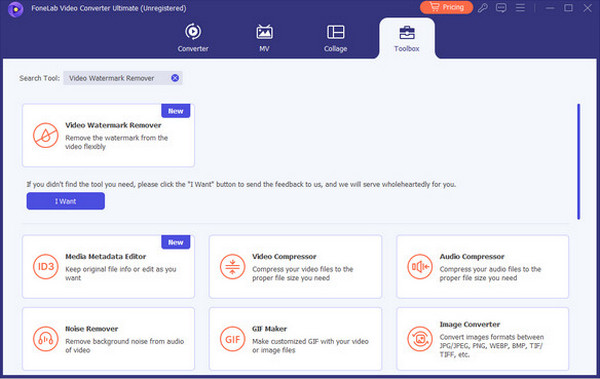
Step 2Click the Toolbox button at the top right of the screen. Then, use the Search Tool section at the top left and search for the Video Watermark Remover tool. Please click the Plus button in the center. Choose the videos you want to remove the background from, and import them to the software.
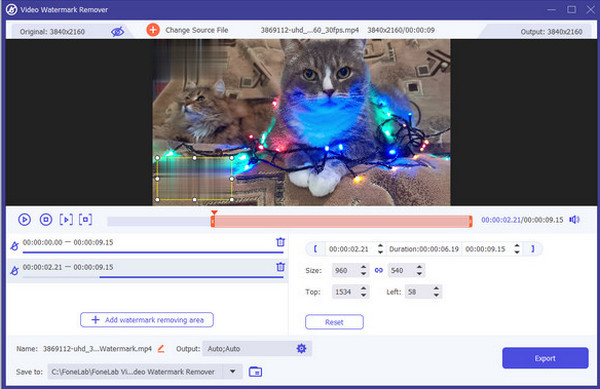
Step 3The video will be prompted on the main screen of the tool. Please select the Add Watermark Removing Area button at the bottom center. Then, choose the area of the background you need to remove. Finally, please click the Export button at the bottom right corner.
Part 2. Online Video Background Remover - Canva Online Video Background Remover
Canva Online Video Background Remover is one of the most famous free video background removers. Also, since it is an online tool, you will depend on the strength of an internet connection. If the connection is slow, you will have a longer process for removing the background of your videos. You are also required to sign in or sign up for an account. Use this video background remover online free with the steps below.
Step 1Open your web browser and search for the website of Canva Online Video Background Remover. After that, select the Upload Your Video button at the center of the screen. Then, sign in or sign up with an account to proceed.
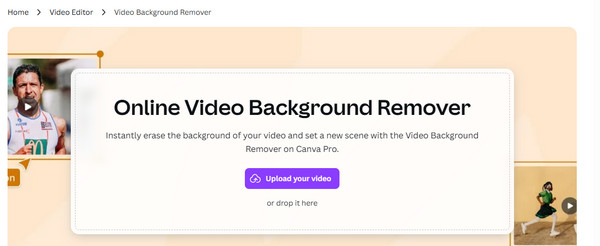
Step 2You can use your Google account for the procedure. Then, the video will be prompted on the screen. Use the tools to remove the background from the video. Finally, export the video to save it to your device.

Part 3. AI Video Background Remover - Adobe Express AI Video Background Remover
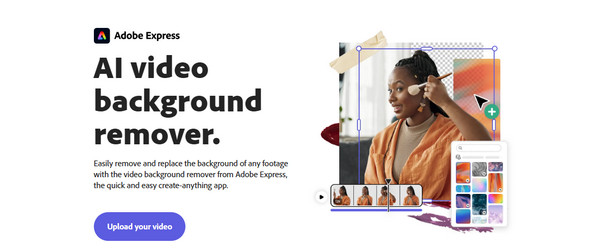
Adobe Express AI Video Background Remover is the leading AI video background remover. You can access it across devices because it is an online tool. It has a similarity with the previous tool, which requires you to sign in or sign up with different accounts. The tool allows you to add additional edits to your videos besides removing the background. However, its editing tools are designed for professionals. Follow the instructions below the tool to use it easily.
Open your web browser and search for the main website of Adobe Express AI Video Background Remover. Then, please select the Upload Your Video button from the screen. Import the video you want to eliminate the background from and use the tools to do it. Export the video afterward as the final step.
Part 4. Video Background Remover App - CapCut
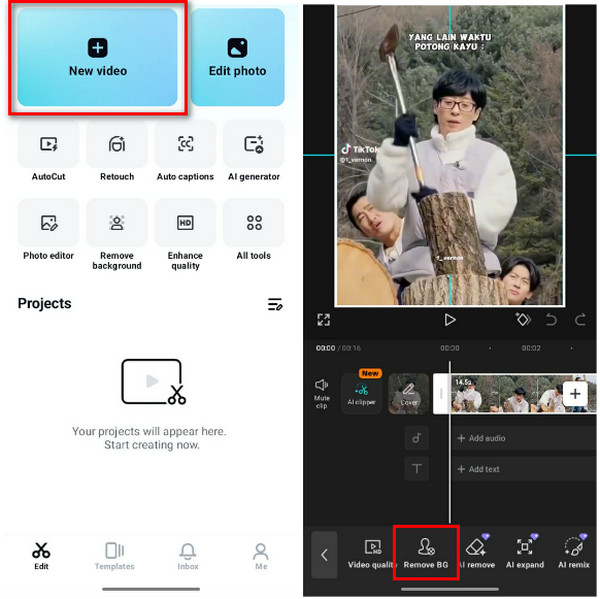
CapCut is a famous app for editing your videos on mobile devices. It is a video background remover free. This application can also remove background noise from video. You may access it on your iPhone, iPad, and Android devices. Ensure that you are familiar with the interface of the app because it has multiple features that can be used for your videos. Follow the steps below to know how to use it.
Open CapCut on your iPhone or Android phone. After that, select the New Video button at the top left. Select the video you want to remove the background from. Then, tap the video timeline and select the Remove BG button at the bottom. Finally, tap the Export button at the top right.
Part 5. Comparison Table of Video Background Removers
| App/Tool | Supported Video Formats | Compatibility | Process Speed |
| FoneLab Video Converter Ultimate | MP4, M4V, MPG, VOB, etc. | Windows and Mac | Fast |
| Canva Online Video Background Remover | MP4 and MOV | iOS, Android, Mac, and Windows | It depends on the internet connection. |
| Adobe Express AI Video Background Remover | MP4 and MOV | Web Browsers and Mobile Phones | It depends on the internet connection, video file size, and resolution. |
| CapCut | MP4, MOV, etc. | Web Browsers and Mobile Phones | It is fast on short clips, but slow in larger clips. |
Part 6. FAQs about Video Background Removers
How to fix common CapCut errors?
CapCut is one of the applications that can remove backgrounds from your videos. However, some users experience errors while removing the background from their videos. If so, you should check your internet connection and connect it to the strongest one.
What is the best background remover?
FoneLab Video Converter Ultimate is the best background remover tool. It supports multiple video types, which other tools do not possess. Also, it does not focus only on removing the background from the video. You can use its basic editing tool, which is convenient for beginners.
This post shows the background remover from video. FoneLab Video Converter Ultimate is the best as it can remove the background of your videos in a few clicks. Additionally, you can edit your videos with its basic and advanced editing tools, including adding subtitles, cropping, and more. You may download the tool on your Windows or Mac to experience its great features!



