
 iPhone Data Recovery
 iOS System Recovery
 iOS Data Backup & Restore
 iOS Unlocker
 iPhone Password Manager
 Location Changer
 Android Data Recovery
 Broken Android Data Extraction
 Android Data Backup & Restore
 Android Unlocker
 FoneTrans for iOS
 iPhone Data Eraser
 iPhone Cleaner
 HEIC Converter
 HyperTrans
 WhatsApp Transfer for iOS
 Mac Sweep
 Data Retriever
 Mac Data Retriever
 Video Converter Ultimate
 Screen Recorder
 Phone Mirror
- Part 1. What Does support.apple.com/passcode Mean?
- Part 2. Why support.apple.com Passcode Appears?
- Part 3. How to Unlock iPhone Without Computer Using Forgot Passcode Option
- Part 4. How to Unlock iPhone Without Passcode via FoneLab iOS Unlocker
- Part 5. Unlock iPhone with Recovery Mode
- Part 6. Erase iPhone with iCloud
- Part 7. Comparison Table of Methods to Unlock or Erase iPhone
- Part 8. FAQs about support.apple.com/passcode
- Unlock Apple ID
- Bypass iCloud Activation Lock
- Doulci iCloud Unlocking Tool
- Factory Unlock iPhone
- Bypass iPhone Passcode
- Reset iPhone Passcode
- Unlock Apple ID
- Unlock iPhone 8/8Plus
- iCloud Lock Removal
- iCloud Unlock Deluxe
- iPhone Lock Screen
- Unlock iPad
- Unlock iPhone SE
- Unlock Tmobile iPhone
- Remove Apple ID Password
supportapple.com.iphone/passcode: Complete Guide
 Updated by
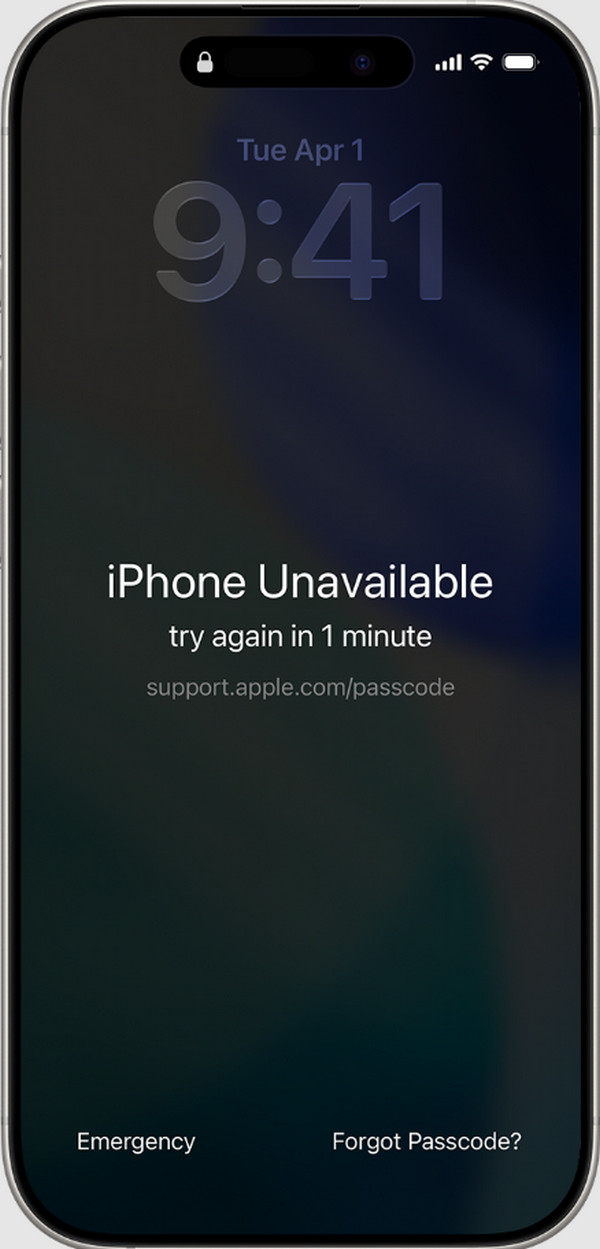
 Hi, guys! My iPhone says iPhone Unavailable. Also, there are small letters under the error message that read support apple.com/passcode. I cannot even tap it. What are they, and how can I access them? Please help me with this issue. Thank you!
The iPhone Unavailable error message prevents you from using the iPhone. The support.apple.com/passcode website will help you with the error message. Do you want to know more about the website? Please continue browsing this post to know all the details you need to know about the topic.

Guide List
- Part 1. What Does support.apple.com/passcode Mean?
- Part 2. Why support.apple.com Passcode Appears?
- Part 3. How to Unlock iPhone Without Computer Using Forgot Passcode Option
- Part 4. How to Unlock iPhone Without Passcode via FoneLab iOS Unlocker
- Part 5. Unlock iPhone with Recovery Mode
- Part 6. Erase iPhone with iCloud
- Part 7. Comparison Table of Methods to Unlock or Erase iPhone
- Part 8. FAQs about support.apple.com/passcode
Part 1. What Does support.apple.com/passcode Mean?
Have you seen the support.apple.com/passcode messages under the iPhone Unavailable error message? You might wonder what it is. It is a website that offers a solution to unlock your iPhone from the mentioned error message. It shows the requirements for the unlocking process. Additionally, it provides a step-by-step guide to unlocking an iPhone that is locked out.
Part 2. Why support.apple.com Passcode Appears?
The support.apple.com/passcode message appears under the iPhone Unavailable error because Apple tries to help you find the correct website to unlock it. Some websites mislead users about the unlocking process for a locked-out iPhone. It is the way of Apple to help you get a reliable source.
Part 3. How to Unlock iPhone Without Computer Using Forgot Passcode Option
The support.apple.com iphone/passcode website shows the unlocking procedure of your iPhone using the Forgot Passcode option. This feature is available on iPhones running iOS 17 or later. This feature allows you to unlock the mentioned Apple device when you forgot iPhone passcode. An Apple ID is needed for authentication and iCloud Activation Lock. Please use the steps below for the process.
The iPhone must be on the iPhone Unavailable screen. Then, tap the Forgot Passcode button at the bottom right. Then, tap the Start iPhone Reset button. Enter the Apple ID account associated with the iPhone. Tap the Erase iPhone button to start erasing.
Part 4. How to Unlock iPhone Without Passcode via FoneLab iOS Unlocker

FoneLab Helps you unlock iPhone screen, Removes Apple ID or its password, Remove screen time or restriction passcode in seconds.
- Helps you unlock iPhone screen.
- Removes Apple ID or its password.
- Remove screen time or restriction passcode in seconds.
The iPhone Unavailable error message is due to an unknown screen lock password. FoneLab iOS Unlocker is a great tool that can unlock iPhone without passcode. It helps beginners to have a smooth unlocking procedure without the need for professional skills or support. Besides the screen lock, you are also allowed to bypass the iCloud Activation Lock, remove the Apple ID, eliminate Screen Time restrictions, and more. It uses a USB connection for the unlocking procedure. Use the steps below to utilize the tool properly.
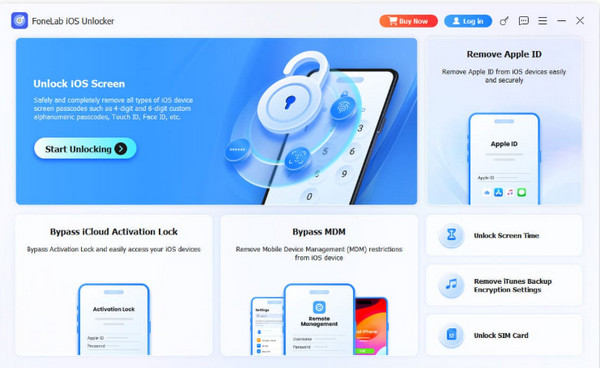
Step 1Download, install, and access the tool on your computer. After that, select the Unlock iOS Screen feature at the top left. Then, enter the iPhone into recovery mode by following the on-screen steps. Click the Next button to proceed.
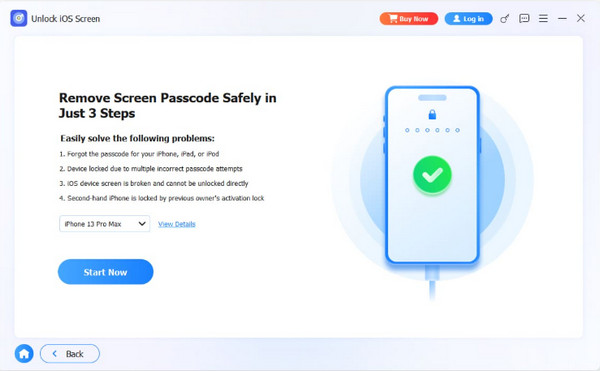
Step 2Click the Start Now button. The firmware package will be downloaded. Click the OK button afterward.
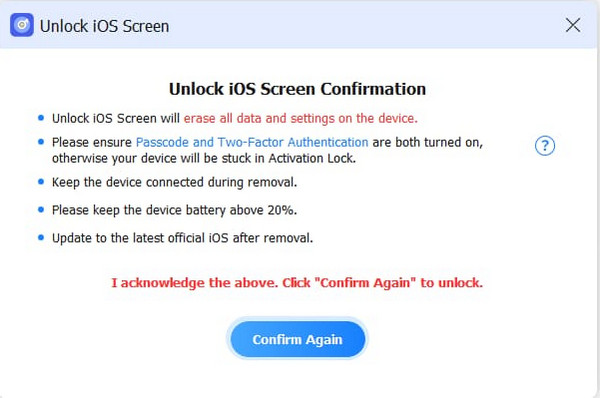
Step 3Click the Confirm Again button to start the unlocking process for your iPhone that is locked out. Finally, please click the Finish button at the bottom to complete the procedure. Unplug the iPhone from the computer afterward. Then, start setting it up.
Part 5. Unlock iPhone with Recovery Mode
When the iPhone is locked out, you cannot operate any of its features behind the screen lock. But the physical buttons are still accessible. Use these buttons to enter the iPhone into recovery mode. However, it requires a computer to reset your iPhone. Please learn how with the steps below.
Step 1If the iPhone has no Home button, press and immediately release the Volume Up physical button and Volume Down physical buttons. Then, press and hold Side to see the Connect to Computer screen. If the iPhone has a Home button, press and hold Side and Volume Down or Home.
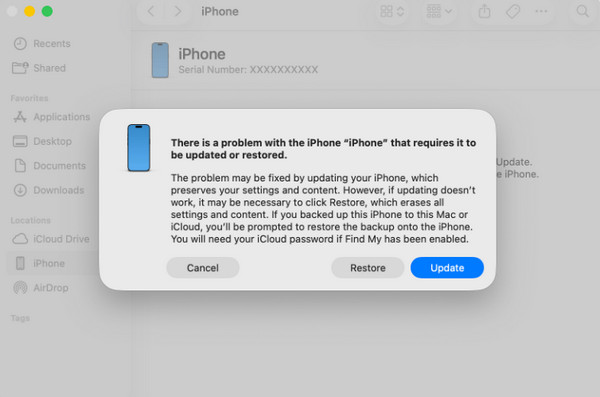
Step 2Plug your iPhone into the computer. Then, open iTunes, Apple Devices, and Finder. Later, click the Restore option at the bottom right to start resetting.
Part 6. Erase iPhone with iCloud
Apple devices, like the iPhone, use iCloud as the primary account. It offers additional features and services for your iPhone. The Find My service is one of them. It allows you to track your iPhone when you do not know where you placed or lost it. It can also erase your iPhone wirelessly. iCloud Find My has a website where you can erase your iPhone when locked out. Please use the steps below to know how to use it.
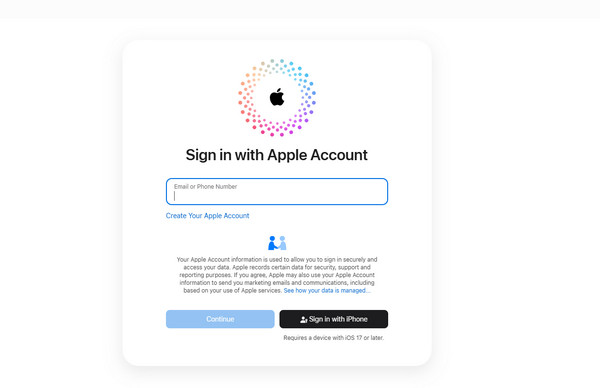
Step 1Get the device you will use for the erasing process. Then, access the most trusted web browser that it contains. Later, search for the iCloud Find My website. Also, you can search for the main website of iCloud. Enter your Apple ID account from the screen. Then click the Find My button on the available services.

Step 2You are required to enter the associated Apple ID from the iPhone that is locked out. Please select the Continue option at the bottom left. Go to the All Devices section and select the device you want to reset. Finally, select the Erase This Device button.
Part 7. Comparison Table of Methods to Unlock or Erase iPhone
| Method | Required Connection | Required Skills | Required Account |
| Forgot Passcode Option | Cellular or Wi-Fi Connection | Intermediate | Apple ID Account for Authentication |
| FoneLab iOS Unlocker | USB Cable | Beginner | None |
| Recovery Mode | USB Cable | Expert | Apple ID Account for iCloud Activation Lock |
| iCloud | Cellular Plan or Wi-Fi Network | Advanced | Apple ID Account for Signing In and iCloud Activation Lock |
Part 8. FAQs about support.apple.com/passcode
What is a typical 4-digit passcode on an iPhone?
Some prefer to use an ordinary passcode on an iPhone to prevent it from being locked out. It includes 1122, 1234, 0000, 2222, and more.
Can Apple unlock my iPhone for me?
Yes. Apple can unlock your iPhone. You can contact the Apple Support team. Alternatively, you can go to their physical stores. Ensure you have the proof of purchase for authentication.
To sum it up, support .apple.com/passcode is a website that helps you unlock your iPhone when it is locked out. In this post, you will see the methods that help you do that. It includes FoneLab iOS Unlocker. It can wipe out your iPhone to remove the screen lock passcode. You can also use it to remove the Apple ID, iCloud Activation Lock, and more. Download the tool and explore it more!



