
 iPhone Data Recovery
 iOS System Recovery
 iOS Data Backup & Restore
 iOS Unlocker
 iPhone Password Manager
 Location Changer
 Android Data Recovery
 Broken Android Data Extraction
 Android Data Backup & Restore
 Android Unlocker
 FoneTrans for iOS
 iPhone Data Eraser
 iPhone Cleaner
 HEIC Converter
 HyperTrans
 WhatsApp Transfer for iOS
 Mac Sweep
 Data Retriever
 Mac Data Retriever
 Video Converter Ultimate
 Screen Recorder
 Phone Mirror
How to Fix Cannot Connect to App Store in 6 Straightforward Ways
 Updated by
 Have you seen the Cannot Connect to App Store error message on your Apple devices, like iPad, iPhone, and Mac? This issue is a total disaster, especially if you need to download or update apps from your Apple device.
This issue happens when the Apple system has interruptions, Apple device software issues, and more. Read this article because it has 6 easy ways to fix the said error message. Continue browsing to see the full descriptions.

Guide List
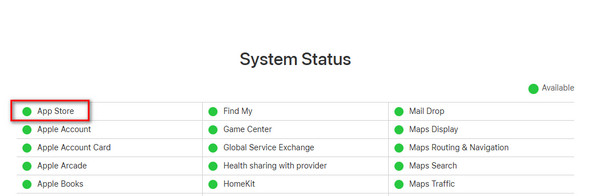
Part 1. Check Apple System Status Page
Apple allows you to check the status of the apps and features your devices contain. It has a support website called Apple Support System Status. You can check the App Store section. It must be green, which stands for normal status. If red, it means that there is a problem with the app. If so, you need to wait for it to be restored.
Part 2. Check and Set Date & Time Automatically
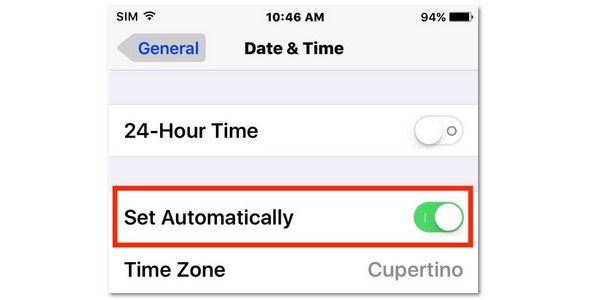
because some features will not function if they are not correct. It is time to check if the iPhone, iPad, or Mac needs to be changed when required. Follow the steps below to know how.
iPhone/iPad: Tap Settings and choose General from the first interface. Then, swipe down on the screen and tap Date & Time. It is recommended to turn off Set Automatically. Change the time zone and enter your zone.
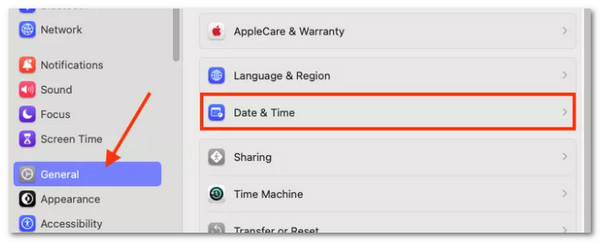
Mac: Open Mac and open System Settings from the screen. Select General and click Date & Time from the list. Turn off Set Time and Date Automatically. Enter your current date and time afterward.
Part 3. Checking and Resetting Network Settings
App Store relies on an internet connection to function. One of the reasons why Mac, iPhone, and iPad cannot connect to App Store is faulty network settings. If so, it is time to check and reset the network settings of the Apple device. Imitate the instructions below to reset network settings on iPhone, iPad, and Mac.
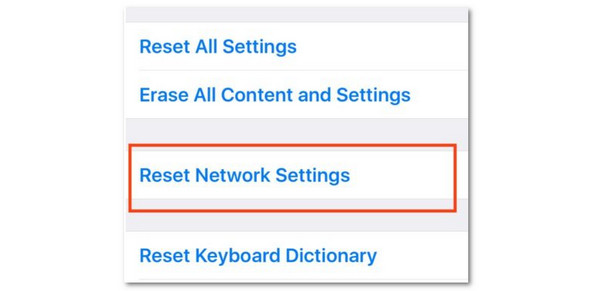
iPhone/iPad: Open Settings and choose General from the options list. After that, tap Transfer or Reset iPhone/iPad from the screen. Later, tap Reset and select Reset Network Settings.
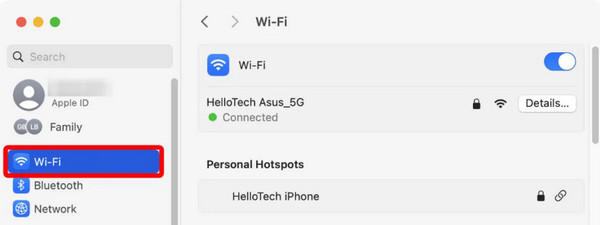
Mac: Open System Settings and select Wi-Fi on the left side of the screen. Later, click Details on one of the networks. Then, select Forget This Network from the screen and confirm. Reconnect to the network by encoding the correct password.
Part 4. Restart Device
Sometimes, the issue of not connecting to the App Store on an iPhone, iPad, or Mac is a result of a system glitch. If that’s the case, you can simply restart iPhone, iPad, and Mac to fix the issue. The steps on how to do that are listed below.
Mac: Open System Settings and click Restart. Confirm the action to restart your Mac afterward.
iPhone: Press and hold Side and Volume Down for iPhone without Home. For an iPhone with Home, press and hold Side or Top. Then, slide the slider to turn off iPhone. Turn it on again afterward.
iPad: For iPad without Home, press and hold Volume Down or Top. For iPad with Home, press and hold Top. Slide the Power-off slider to turn it off. Turn it on again afterward.
Part 5. Updating iOS/iPadOS/macOS
You may also update the iPadOS, iOS, and macOS of your Apple devices. This way, you can get the latest features that can fix the issue on your App Store. The steps are available below.
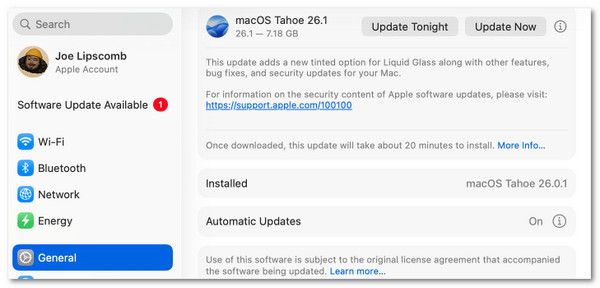
Mac: Open System Settings and choose General. Choose Software Update and click Update Now at the top right corner.
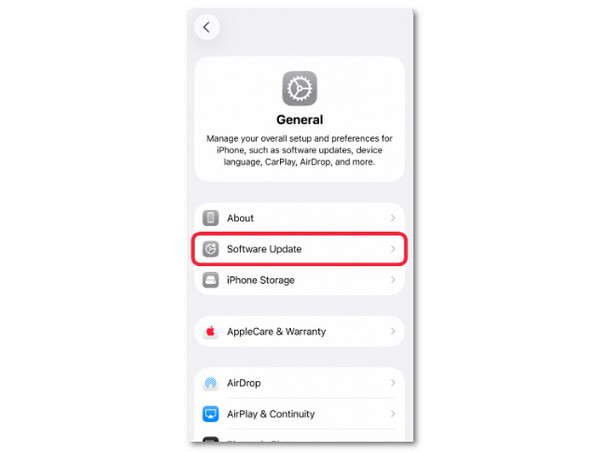
iPhone/iPad: Open Settings and tap General from the screen. Tap Software Update and tap Update Now if there is an available update.
Part 6. Try FoneLab iOS System Recovery
FoneLab iOS System Recovery is a third-party tool that can fix the Cannot Connect to App Store error message on your iPhone and iPad. Besides this issue, other 50+ software issues can be fixed using it. You can get this tool on your Mac and Windows. This tool does not need an internet connection to function. You only need a USB cable for the requirements.

FoneLab enables you to fix iPhone/iPad/iPod from DFU mode, recovery mode, Apple logo, headphone mode, etc. to normal state without data loss.
- Fix disabled iOS system problems.
- Extract data from disabled iOS devices without data loss.
- It is safe and easy to use.
Additionally, this tool supports the latest versions of iOS and iPadOS. You will love using this tool as a beginner because it has an intuitive interface, which will not cause confusion in the process. The steps below will help you use the tool.
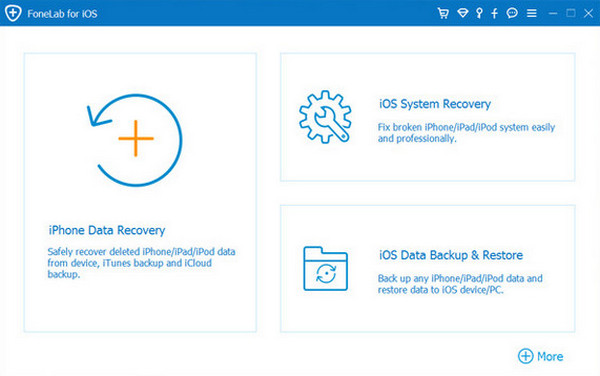
Step 1Select the Free Download button from the main interface of the tool’s website. Then, set up the downloaded file, and a small window will appear. Please install the software on a computer and open it afterward. Select iOS System Recovery from the list.
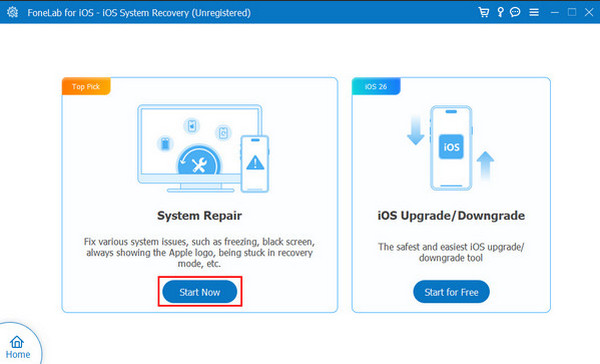
Step 2The 2 primary features of the tool will appear. Click the Start Now option on the left side of the screen to continue. Plug the iPhone or iPad into the computer using the working USB cable afterward. You must see the iPhone or iPad name afterward in the software.
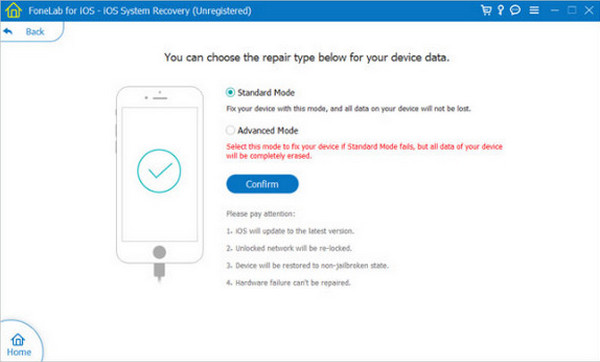
Step 3Click Advanced Mode or Standard Mode after the connection process on the screen. Finally, click Confirm to start fixing your iPhone or iPad.
Part 7. FAQs about How to Fix Cannot Connect to App Store
How to activate the App Store on iPhone?
Open Settings and tap Screen Time. Select Content & Privacy Restrictions. Then, tap iTunes & App Store Purchases. Later, tap Installing Apps / Deleting Apps / In-app Purchases and allow. Go back to the screen and tap Allowed Apps—Toggle on App Store.
How to fix App Store not updating apps on iPhone?
Sign out of the App Store account and sign in again. Tap Settings on iPhone and select your account. Tap Media & Purchases and select Sign Out. Sign in again afterward.
You cannot connect to App Store if there are Apple system problems or software issues on your Apple device. This article shows you the 6 easy methods to fix it. FoneLab iOS System Recovery is the most straightforward third-party tool to fix the issues. Download the tool to use it now!



