
 iPhone Data Recovery
 iOS System Recovery
 iOS Data Backup & Restore
 iOS Unlocker
 iPhone Password Manager
 Location Changer
 Android Data Recovery
 Broken Android Data Extraction
 Android Data Backup & Restore
 Android Unlocker
 FoneTrans for iOS
 iPhone Data Eraser
 iPhone Cleaner
 HEIC Converter
 HyperTrans
 WhatsApp Transfer for iOS
 Mac Sweep
 Data Retriever
 Mac Data Retriever
 Video Converter Ultimate
 Screen Recorder
 Phone Mirror
- Part 1. What Does SIM Not Supported iPhone Mean
- Part 2. Check Carrier Lock on Settings to Fix SIM Not Supported on iPhone
- Part 3. Contact Original Carrier to Fix SIM Not Supported on iPhone
- Part 4. Reset Network Settings to Fix SIM Not Supported on iPhone
- Part 5. Update iOS to Fix SIM Not Supported on iPhone
- Part 6. Re-insert SIM to Fix SIM Not Supported on iPhone
- Part 7. Remove SIM Lock With FoneLab iOS Unlocker to Fix SIM Not Supported on iPhone
- Part 8. FAQs about Fixing SIM Not Supported on iPhone
- Unlock Apple ID
- Bypass iCloud Activation Lock
- Doulci iCloud Unlocking Tool
- Factory Unlock iPhone
- Bypass iPhone Passcode
- Reset iPhone Passcode
- Unlock Apple ID
- Unlock iPhone 8/8Plus
- iCloud Lock Removal
- iCloud Unlock Deluxe
- iPhone Lock Screen
- Unlock iPad
- Unlock iPhone SE
- Unlock Tmobile iPhone
- Remove Apple ID Password
How to Fix SIM Not Supported on iPhone in 6 Quick Practices
 Updated by
 Hi! Have you experienced that your SIM is not supported on an iPhone? I am experiencing this issue right now, and it is stressing me out. I cannot receive any cellular service on my iPhone. Can you help me fix this issue? Thank you in advance!
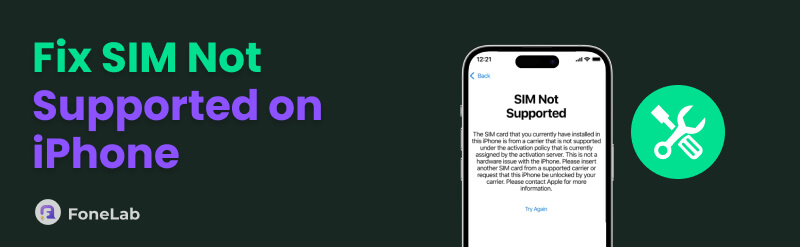
The SIM Not Supported error message on your iPhone is one of the inconvenient issues you can encounter for communication. Fix the issue in this article! It consists of the 6 quick methods to help you with the process. Please continue browsing to know more about the topic.

Guide List
- Part 1. What Does SIM Not Supported iPhone Mean
- Part 2. Check Carrier Lock on Settings to Fix SIM Not Supported on iPhone
- Part 3. Contact Original Carrier to Fix SIM Not Supported on iPhone
- Part 4. Reset Network Settings to Fix SIM Not Supported on iPhone
- Part 5. Update iOS to Fix SIM Not Supported on iPhone
- Part 6. Re-insert SIM to Fix SIM Not Supported on iPhone
- Part 7. Remove SIM Lock With FoneLab iOS Unlocker to Fix SIM Not Supported on iPhone
- Part 8. FAQs about Fixing SIM Not Supported on iPhone
Part 1. What Does SIM Not Supported iPhone Mean
The SIM Not Supported issue on your iPhone means that the carrier still locks your SIM. The SIM card you might be using is different from your carrier’s. There is a mismatch issue with the iPhone’s activation policy and network setup. The Activation Policy Mismatch or Invalid SIM error message can also be encountered.
In some rare cases, the issue is caused by software issues. There might be bugs and glitches that are encountered on your iPhone.
Part 2. Check Carrier Lock on Settings to Fix SIM Not Supported on iPhone
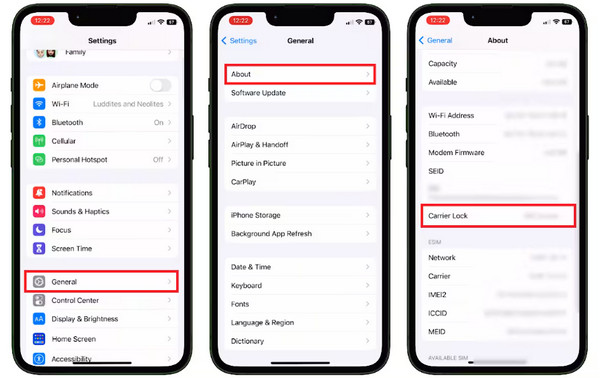
The “SIM Not Supported” issue appears when the iPhone is locked to its carrier’s network. To check whether your iPhone is SIM-locked, follow the steps below.
Go to the Settings app on your iPhone. After that, select the General button from the options list. Later, select the About button. Swipe down on the screen and find the Carrier Lock section. If the iPhone is locked to its carrier, you will see the SIM Locked message. You will see the No SIM Restrictions message if not.
Part 3. Contact Original Carrier to Fix SIM Not Supported on iPhone
If you cannot fix the issue on your iPhone, the problem or solution might be with the carrier. If that’s the case, you can contact your carrier to help you unlock it. They can give you the proper way to unlock your SIM-locked iPhone. You only need to ensure that you have the information for your SIM-locked iPhone that is needed for authentication. Below is the list of carriers’ hotlines:
- • AT&T: 1-800-331-0500
- • Verizon: 1-800-922-0204
- • T-Mobile: 1-800-937-8997
- • General Support: 611
Part 4. Reset Network Settings to Fix SIM Not Supported on iPhone
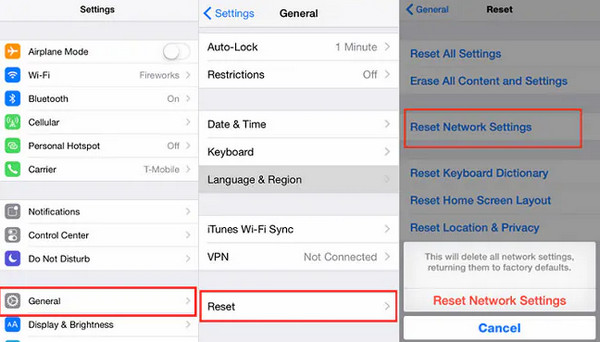
The SIM card on your iPhone uses a network to function. A faulty network setting can be the issue why the SIM Not Supported error message is encountered. So, reset network settings on iPhone to fix the issue. You can refer to the steps below as your reference.
Go to the Settings app on your iPhone. Tap the General button from the list. Later, select the Transfer or Reset iPhone button. Later, tap the Reset button. Finally, tap the Reset Network Settings button and enter the iPhone passcode to authenticate the process.
Part 5. Update iOS to Fix SIM Not Supported on iPhone
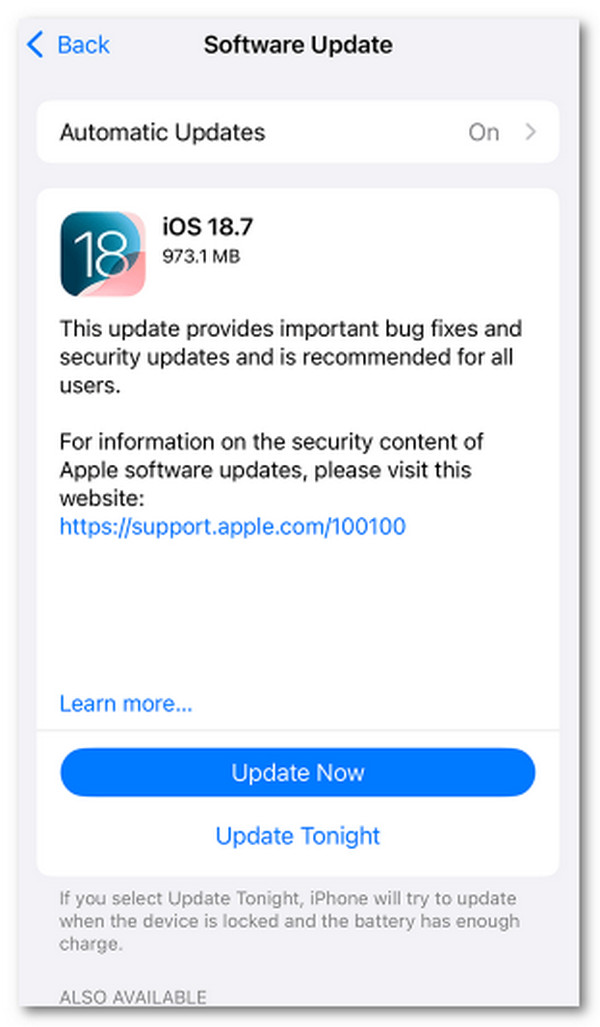
If the SIM is not working, but it is not locked by the carrier, there might be an error with your iPhone. Updating the iOS is one of the solutions you can use. Refer to the steps below to know how.
Please open the iPhone and tap the Settings app to open it. Select the General button and select the Software Update button. Wait for the available iOS version. Finally, tap the Download and Install or Update Now button.
Part 6. Re-insert SIM to Fix SIM Not Supported on iPhone
There are instances where the iPhone's physical SIM card is at fault. It is sometimes not properly inserted into the iPhone SIM card tray. So, it resulted in the SIM Not Supported error message. Reinserting your iPhone SIM card is the best solution to this issue.
Find the iPhone SIM card tray. Use a SIM-eject tool to open it. Then, remove and add the SIM card again. Check if the SIM is read afterward.
Part 7. Remove SIM Lock With FoneLab iOS Unlocker to Fix SIM Not Supported on iPhone
If the SIM is not supported on your iPhone due to your carrier restrictions, you can use FoneLab iOS Unlocker. You can use it to remove the SIM-locked iPhone without the help of your carrier. It supports different error messages on your iPhone, including the SIM Not Supported, Invalid SIM, and No Network errors. It unlocks your iPhone from different carriers around the globe! AT&T, Verizon, T-Mobile, and Sprint are some of them. The best thing about this tool is that your data is safe. Please use the steps below as your guide for this tool.

FoneLab Helps you unlock iPhone screen, Removes Apple ID or its password, Remove screen time or restriction passcode in seconds.
- Helps you unlock iPhone screen.
- Removes Apple ID or its password.
- Remove screen time or restriction passcode in seconds.
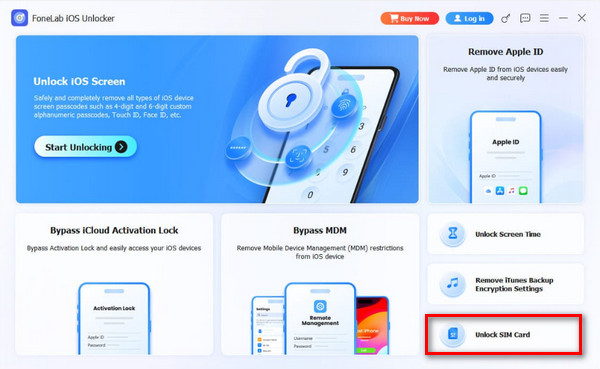
Step 1Please download FoneLab iOS Unlocker. After that, set up, install, and open the tool to start the process. On the first screen, please click the Unlock SIM Card button at the bottom right.
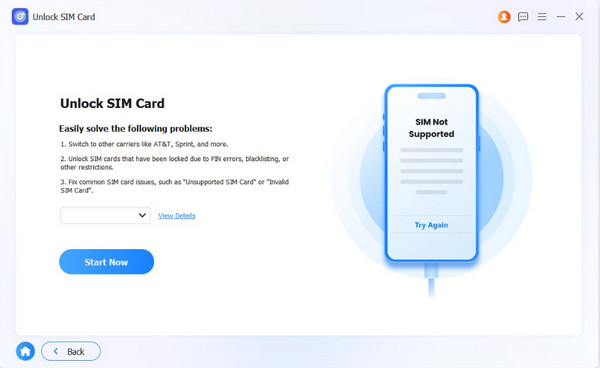
Step 2Plug your iPhone into the computer. You can use a USB cable for that. Click Start Now and follow the additional on-screen instructions. Please click OK at the bottom center.
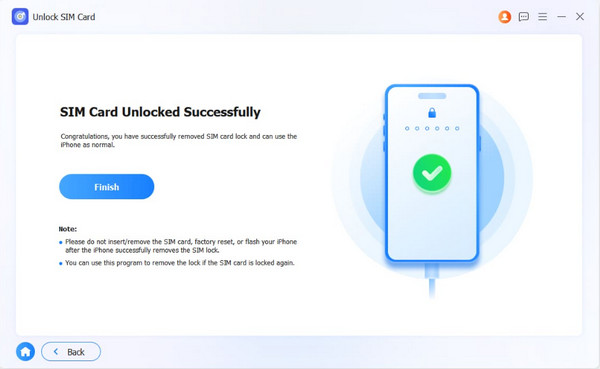
Step 3The unlocking process for an iPhone SIM card will appear. Please wait for the process to be completed. Then, click the Finish button on the left to complete the process.
Part 8. FAQs about Fixing SIM Not Supported on iPhone
Can I use an iPhone without my SIM card?
Yes. iPhone may be used without a SIM card. All of the apps and operations of the iPhone that are not related to the SIM functionality will work perfectly fine. The Phone and Messages app will be the one who will not be usable.
Which iPhones do not support physical SIMs?
The iPhone 14 series is the first model that does not support physical SIM cards. It has been continued with the iPhone 15 and 16 versions.
The SIM Card Not Supported error message can be removed in 6 ways, which are posted in this article. FoneLab iOS Unlocker can be used to unlock a SIM-locked iPhone. It can also be used to remove the Apple ID without the password on your iPhone, Screen Time passcode, MDM profile, and more. You can download the tool to explore more of its features.



