
 iPhone Data Recovery
 iOS System Recovery
 iOS Data Backup & Restore
 iOS Unlocker
 iPhone Password Manager
 Location Changer
 Android Data Recovery
 Broken Android Data Extraction
 Android Data Backup & Restore
 Android Unlocker
 FoneTrans for iOS
 iPhone Data Eraser
 iPhone Cleaner
 HEIC Converter
 HyperTrans
 WhatsApp Transfer for iOS
 Mac Sweep
 Data Retriever
 Mac Data Retriever
 Video Converter Ultimate
 Screen Recorder
 Phone Mirror
- Part 1. Why is There No Option for Forgot Screen Time Passcode
- Part 2. Restore Devices with iTunes/Finder/Apple Devices
- Part 3. Boot Into Recovery Mode to Erase Device
- Part 4. Visit iCloud Find My to Erase Device
- Part 5. Use FoneLab iFoneWiz to Remove Screen Time
- Part 6. Manage Family Sharing to Reset the Screen Time Passcode
- Part 7. FAQs about No Option for Forgot Screen Time Passcode
- Unlock Apple ID
- Bypass iCloud Activation Lock
- Doulci iCloud Unlocking Tool
- Factory Unlock iPhone
- Bypass iPhone Passcode
- Reset iPhone Passcode
- Unlock Apple ID
- Unlock iPhone 8/8Plus
- iCloud Lock Removal
- iCloud Unlock Deluxe
- iPhone Lock Screen
- Unlock iPad
- Unlock iPhone SE
- Unlock Tmobile iPhone
- Remove Apple ID Password
Fix No Option for Forgot Screen Time Passcode Easily
 Updated by
 Is there no option for Forgot Screen Time passcode on your Apple device? You’re not alone. Many users open their Screen Time settings hoping to reset their passcode, only to find the Forgot Passcode button missing. It can be frustrating, especially if you’re locked out of changing important limits or app restrictions.
Without the option, it feels like you’re stuck with a passcode you can’t remember and no way to reset it, but don’t worry. Just because the button isn’t there doesn’t mean you’re out of options. In this article, we will discuss the appropriate methods to fix this and help you regain control of your Screen Time settings. Analyze them and perform the suitable process.

Guide List
- Part 1. Why is There No Option for Forgot Screen Time Passcode
- Part 2. Restore Devices with iTunes/Finder/Apple Devices
- Part 3. Boot Into Recovery Mode to Erase Device
- Part 4. Visit iCloud Find My to Erase Device
- Part 5. Use FoneLab iFoneWiz to Remove Screen Time
- Part 6. Manage Family Sharing to Reset the Screen Time Passcode
- Part 7. FAQs about No Option for Forgot Screen Time Passcode
Part 1. Why is There No Option for Forgot Screen Time Passcode
The Forgot Passcode option may not appear for various reasons. First, Apple only shows this option on the parent or guardian’s device who has set up Screen Time. So, if a family member’s Apple ID manages your iPhone, Apple won’t provide this option for you.
Meanwhile, older versions of iOS and iPadOS may not include the Forgot Passcode button at all. Apple added this feature in later software updates, so if your device runs an earlier version, you simply won’t see it. Aside from that, restrictions or management profiles from a school or company can also hide the option. Or, it may only be due to a simple glitch or bug.
Whichever situation your device is facing, the following solutions have been prepared to walk you through the appropriate processes to resolve the absence of the forgotten Screen Time passcode option on your Apple device. Understand their details for a smoother procedure.
Part 2. Restore Devices with iTunes/Finder/Apple Devices
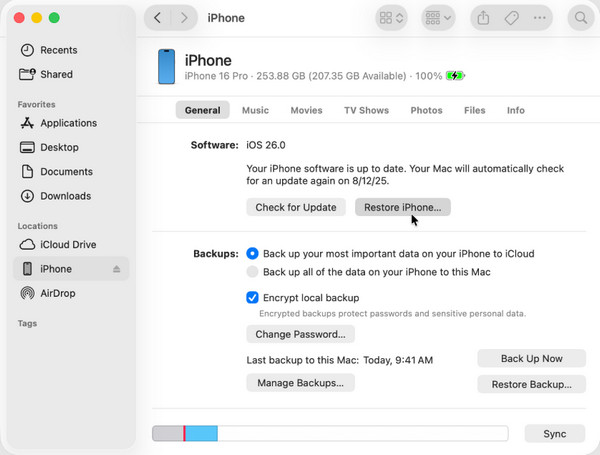
Restoring your device with iTunes, Finder, or Apple Devices is the first solution for the absence of the forgot Screen Time passcode option on an Apple device. It works by completely restoring your iPhone or iPad using a computer. Because a restore erases the device, it also removes the Screen Time passcode along with all other settings. Hence, any restriction that may have been preventing the option from showing up will also be removed, making it appear later if needed.
Follow the guidelines below to fix the no option for Forgot Screen Time passcode by restoring your device:
Step 1Launch iTunes/Finder/Apple Devices and attach your iPhone or iPad via a Lightning cable. When your device’s name or symbol appears on the interface, click it.
Step 2The following section will immediately show a Restore (Device) option on the upper part. Click it and go along with the prompts until your device is restored.
Part 3. Boot Into Recovery Mode to Erase Device
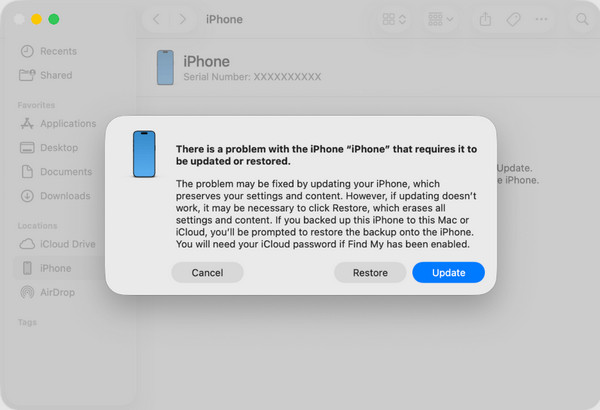
Booting your device into Recovery mode to erase the iPhone or iPad with its Screen Time settings is another effective action you can take. It is similar to the previous method since it heavily relies on your computer’s iTunes, Finder, or Apple Devices, depending on which is available. The only difference is that you will access the program’s designated restore or erase option through Recovery mode, which can be accessed by pressing the right button combination.
Follow the instructions below to resolve no option for Forgot Screen Time passcode using Recovery mode:
Step 1Open the accessible program and attach your device before entering Recovery mode.
For iPhone with Face ID: Press quickly the Volume Up, then the Volume Down keys successively. Right after, the Power key, but this time longer, until you enter Recovery mode.
For iPhone with Home button: Simply long-press both your device’s Home and Power buttons. After a few seconds, the screen will boot into Recovery mode.
Step 2Click Restore once the program detects your action and shows the option.
Part 4. Visit iCloud Find My to Erase Device
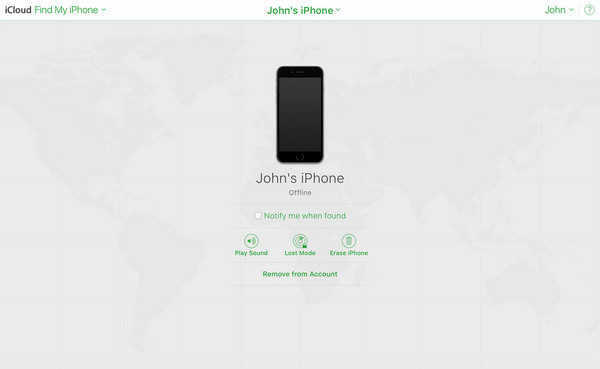
On the other hand, iCloud’s Find My page also offers an option to erase your device, so it would be an appropriate method, especially if you prefer to do it remotely. Like the other techniques, this will delete and restore your iPad or iPhone to its original state when Screen Time hadn’t yet been activated yet. So, you will be free to manage the feature again to create a new passcode and ensure no restrictions will stop the Forgot Passcode from showing up when needed later.
Follow the operation below to fix no option for Forgot Screen Time passcode via iCloud Find My:
Step 1Log in first using your Apple credentials on the iCloud site, then select Find My.
Step 2Following that, pick All Devices at the top and select your device without the Forgot Passcode option for Screen Time. Then, opt for Erase (Device) selection to erase it.
Part 5. Use FoneLab iFoneWiz to Remove Screen Time
Meanwhile, if you want a more professional approach to handling this, we are delighted to introduce FoneLab iFoneWiz. It can help you remove and turn off Screen Time without losing data, unlike the other methods. It’s also not a problem if you can’t provide the feature’s passcode since this program is designed to resolve lock and password-related concerns.

iFoneWiz Helps you unlock iPhone screen, Removes Apple ID or its password, Remove screen time or restriction passcode in seconds.
- Helps you unlock iPhone screen.
- Removes Apple ID or its password.
- Remove screen time or restriction passcode in seconds.
You can also expect not to struggle with compatibility issues since FoneLab iFoneWiz supports almost, if not all, iOS and iPadOS versions and models. That’s not all. This program is not only for one-time use. It is also reliable for other concerns, like bypassing MDM and more.
Recognize the painless navigation below as a model to resolve the no option for Forgot Screen Time passcode using FoneLab iFoneWiz:
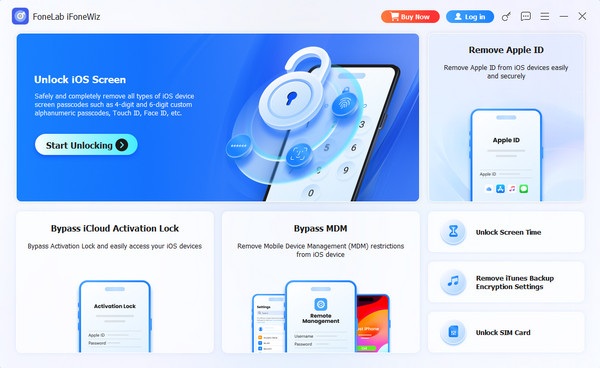
Step 1Using the Free Download selection, save the FoneLab iFoneWiz installer. It will be available shortly in your Downloads, so launch it from there to set up the program. Afterward, click Start to run the tool. Then, on the interface, select Unlock Screen Time.
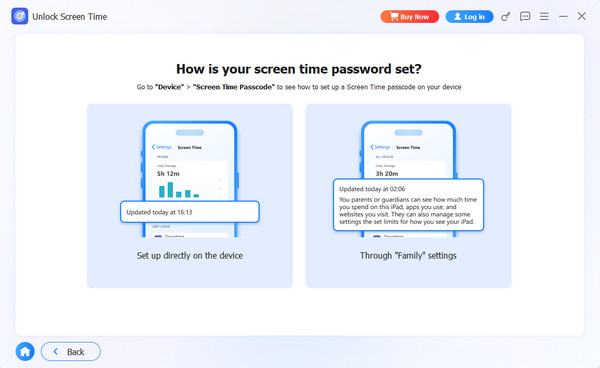
Step 2Right after entering the feature, attach your device with a Lightning cable to establish a connection. The Set up directly on the device and Through “Family” settings boxes will be your choices next, so choose accordingly and follow the prompts until Screen Time is removed.
Part 6. Manage Family Sharing to Reset the Screen Time Passcode
What if you’re the one who manages Screen Time on the devices under the Family Sharing feature? In this case, you can reset Screen Time passcode on your child’s device directly from your own. The process can be easily done on your parent device’s Screen Time section. However, this will require your own credentials, whether for Screen Time or an Apple account.
Follow the task below to fix no option for Forgot Screen Time passcode by managing Family Sharing:
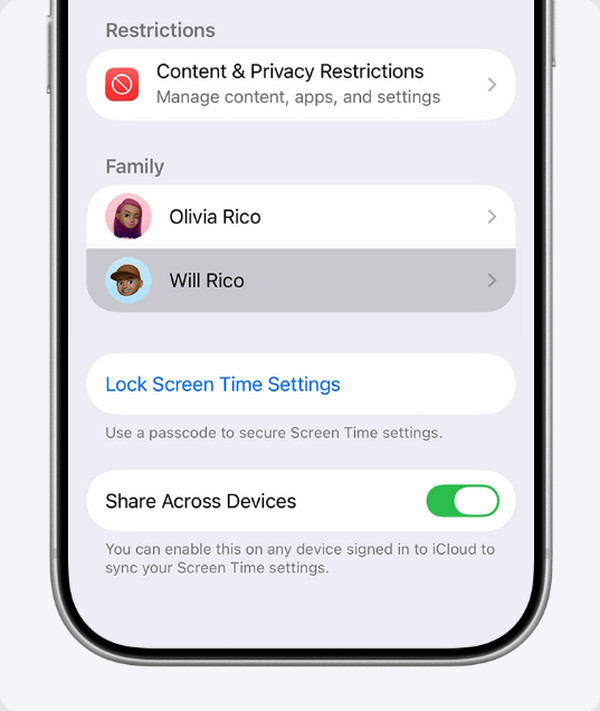
Step 1On Settings, open Screen Time using your own passcode, then tap your child’s name under Family.
Step 2Next, tap Change Screen Time, and if yours has the Forgot Passcode option, select it and authenticate using your Apple credentials. Afterward, you can reset the child’s passcode.
Part 7. FAQs about No Option for Forgot Screen Time Passcode
Can I remove the Screen Time passcode without losing my data?
Yes, you can. Only the in-demand tool, FoneLab iFoneWiz offers this, so install it anytime.
Will Apple support help me if there is no Forgot Passcode option?
Yes, if you are the device owner and have proof of purchase. However, they will likely guide you through erasing the device using recovery mode or iCloud, which are already covered above.
There are multiple actions you can take to handle the absence of the option for a forgotten passcode on Screen Time, but what we strongly suggest is FoneLab iFoneWiz, as it won’t risk your data. Its installation is also painless.



