
 iPhone Data Recovery
 iOS System Recovery
 iOS Data Backup & Restore
 iOS Unlocker
 iPhone Password Manager
 Location Changer
 Android Data Recovery
 Broken Android Data Extraction
 Android Data Backup & Restore
 Android Unlocker
 FoneTrans for iOS
 iPhone Data Eraser
 iPhone Cleaner
 HEIC Converter
 HyperTrans
 WhatsApp Transfer for iOS
 Mac Sweep
 Data Retriever
 Mac Data Retriever
 Video Converter Ultimate
 Screen Recorder
 Phone Mirror
- Part 1. Unlock iPhone Passcode Not Working by Trying Your Latest Apple Pay Password
- Part 2. Try A Force Restart to Fix iPhone Passcode Not Working
- Part 3. Unlock iPhone Passcode Not Working with Recovery Mode
- Part 4. Unlock iPhone Passcode Not Working Using Erase iPhone/Forgot Passcode Option
- Part 5. Unlock iPhone Passcode Not Working with iCloud
- Part 6. Unlock iPhone Passcode Not Working with FoneLab iOS Unlocker
- Part 7. Comparison Table of Methods to Unlock iPhone Passcode Not Working
- Part 8. FAQs about Unlock iPhone Passcode Not Working
- Unlock Apple ID
- Bypass iCloud Activation Lock
- Doulci iCloud Unlocking Tool
- Factory Unlock iPhone
- Bypass iPhone Passcode
- Reset iPhone Passcode
- Unlock Apple ID
- Unlock iPhone 8/8Plus
- iCloud Lock Removal
- iCloud Unlock Deluxe
- iPhone Lock Screen
- Unlock iPad
- Unlock iPhone SE
- Unlock Tmobile iPhone
- Remove Apple ID Password
How to Fix iPhone Passcode Not Working in 6 Quick Approaches
 Updated by
 Good day! My iPhone passcode is not working. I do not know what’s happening because I remember it. It is the correct passcode. Can you help me fix this issue? Thank you in advance!
The iPhone passcode must be correct to unlock it. However, there are instances when you think the passcode is correct, but it is not working. If that’s the case, there might be an issue with your iPhone or human error. Please continue browsing so this article can help you with the problem.

Guide List
- Part 1. Unlock iPhone Passcode Not Working by Trying Your Latest Apple Pay Password
- Part 2. Try A Force Restart to Fix iPhone Passcode Not Working
- Part 3. Unlock iPhone Passcode Not Working with Recovery Mode
- Part 4. Unlock iPhone Passcode Not Working Using Erase iPhone/Forgot Passcode Option
- Part 5. Unlock iPhone Passcode Not Working with iCloud
- Part 6. Unlock iPhone Passcode Not Working with FoneLab iOS Unlocker
- Part 7. Comparison Table of Methods to Unlock iPhone Passcode Not Working
- Part 8. FAQs about Unlock iPhone Passcode Not Working
Part 1. Unlock iPhone Passcode Not Working by Trying Your Latest Apple Pay Password
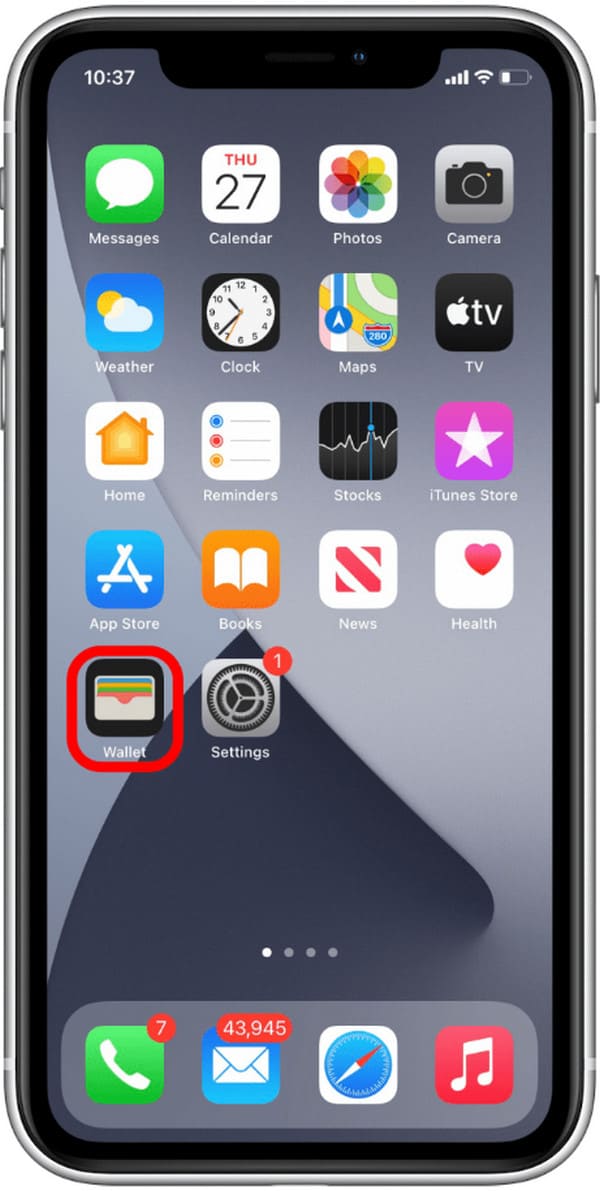
Have you tried setting up your Apple Pay password? This procedure sometimes requires changing the iPhone screen passcode. There are instances that the user is unaware of. If that’s the case, you can try your latest Apple Pay password to unlock the iPhone. If it does not work, you can try to change the Apple Pay password instead. Use the steps below for a quick process.
Try entering the passcode from your Apple Pay account. If it does not work, access your Apple ID in the Wallet app on another device. Remove and add your card. Try to reset the screen passcode afterward. Try to enter it again.
Part 2. Try A Force Restart to Fix iPhone Passcode Not Working
If you think the passcode is correct but it still doesn't work, the iPhone might be experiencing system issues. It could be a lagging or crashing issue. The problem is that the iPhone does not recognize the passcode you try to enter. Force restarting the iPhone is one of the most effective techniques to fix the issue. Please use the steps below to know how.
Press and quickly release the Volume Up physical button. Then, do the same with the Volume Down button. Later, press and hold the Side physical button. Finally, release the button when the Apple logo screen is prompted.

Part 3. Unlock iPhone Passcode Not Working with Recovery Mode
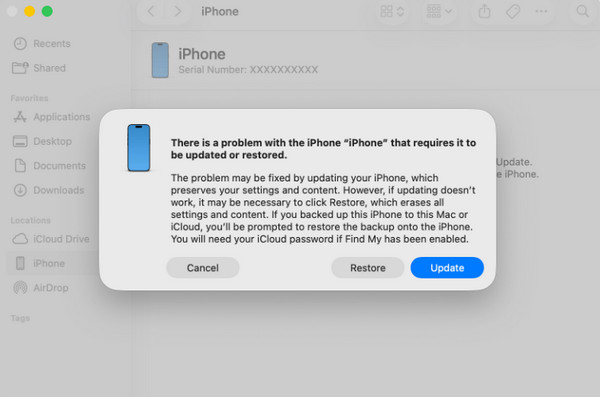
The iPhone Unavailable error message might appear if you cannot enter the iPhone passcode after multiple incorrect attempts. In this state, you cannot access your data. One of the methods you can use is to plug your iPhone into a computer and put iPhone into recovery mode. iTunes, Apple Devices, and Finder are required to restore the iPhone to its factory settings. The steps below will help you achieve the process easily.
Step 1Put your iPhone into recovery mode. Without the Home button, press and quickly release the iPhone Volume Down button. Do the same procedure with the Volume Up button. Then, long-press the Side button. If the iPhone has a Home button, press and hold Side and Volume Down or Home button.
Step 2Please click the Restore button. Then, the restore process will start.
Part 4. Unlock iPhone Passcode Not Working Using Erase iPhone/Forgot Passcode Option
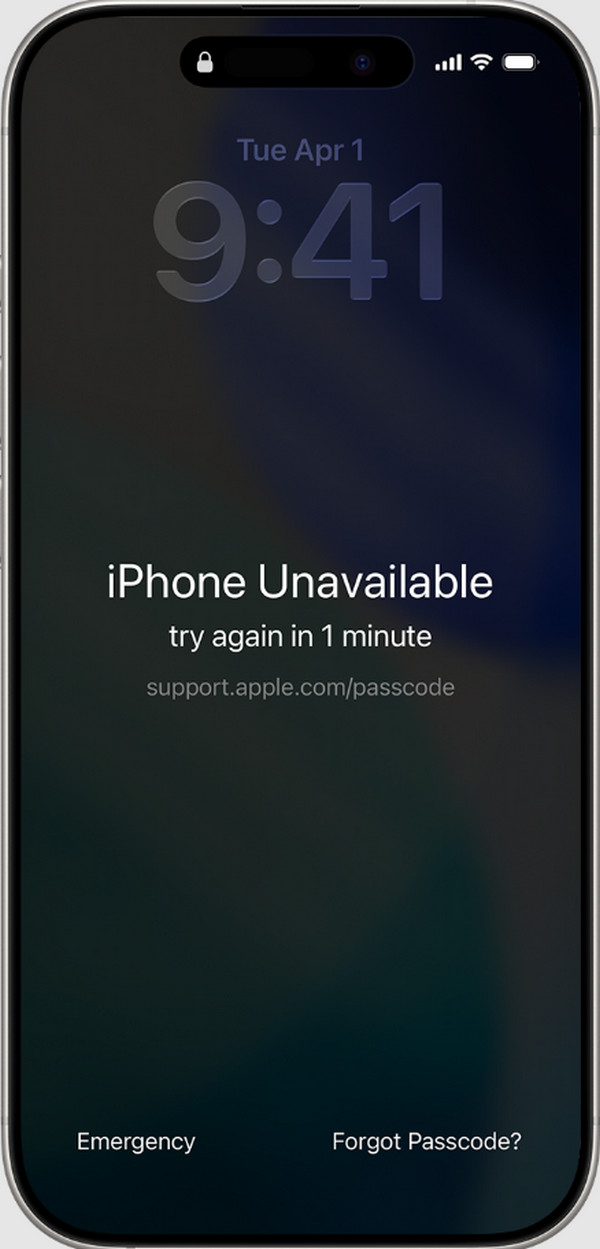
The Erase iPhone or Forgot Passcode options are features available while the iPhone is locked out. Accessing these features will delete the content and settings of your iPhone. An Apple ID is needed, which is the account associated with the locked-out iPhone. Use the steps below to factory reset your iPhone with the features.
Open your iPhone. After that, the iPhone Unavailable screen will be prompted. Please tap the Erase iPhone or Forgot Passcode button at the bottom right of the screen. Then enter your Apple ID and password. Follow the on-screen steps to complete the erasing process.
Part 5. Unlock iPhone Passcode Not Working with iCloud
You can also erase iPhone with iCloud Find My. However, you need a spare device to do the erasing process remotely by accessing its website. Please use the steps below as your guide.
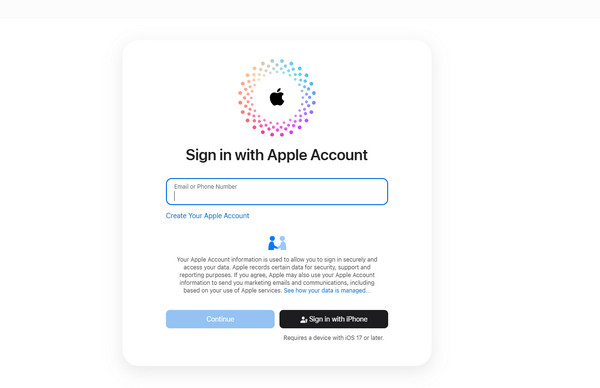
Open the iCloud Find My website. Then, sign in to an Apple ID account. Go to the All Devices section and choose the iPhone you need to erase. Then, click the Erase This Device button.
Part 6. Unlock iPhone Passcode Not Working with FoneLab iOS Unlocker
FoneLab iOS Unlocker may also help you unlock your iPhone without the passcode. It does not require an internet connection. The tool can be used to remove the iPhone passcode, numeric, alphanumeric, Touch ID, and Face ID. Also, you can process the latest and the earlier models and versions of iPhone and iPad. iCloud Activation Lock, iTunes backup encryption passcode, MDM profile, Screen Time, and SIM lock can also be bypassed. Use the steps below for the tool’s process.

FoneLab Helps you unlock iPhone screen, Removes Apple ID or its password, Remove screen time or restriction passcode in seconds.
- Helps you unlock iPhone screen.
- Removes Apple ID or its password.
- Remove screen time or restriction passcode in seconds.
Step 1Download and open the tool. Then, click the Unlock iOS Screen feature. Plug the iPhone into the computer.
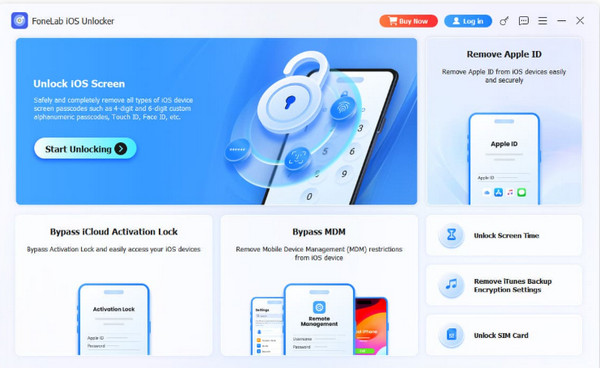
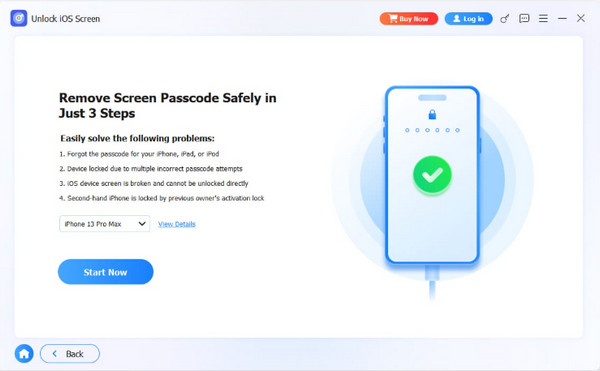
Step 2Click the Start Now option at the bottom left. Then, click the OK option at the bottom.
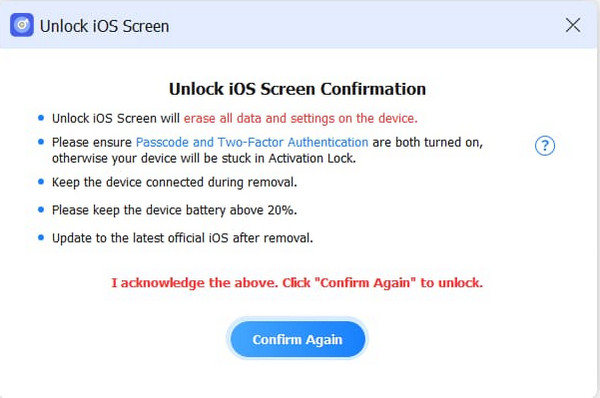
Step 3Confirm the procedure by clicking the Confirm Again button. Later, click the Finish button.
Part 7. Comparison Table of Methods to Unlock iPhone Passcode Not Working
| Method | What It Does | Difficulty | Requires Apple ID? |
| Enter Apple Pay Password | It tries to unlock the iPhone with the same Apple Pay password. | Easy | No |
| Force Restart | It forces a restart of the iPhone and tries to fix issues that are causing the passcode issue. | Hard | No |
| Recovery Mode | It restores the iPhone to its factory settings. | Very Hard | Yes. It happens when the iCloud Activation Lock is enabled after the process. |
| Erase iPhone/Forgot Passcode Feature | It helps you factory reset the iPhone when the iPhone Unavailable message appears. | Easy-Medium | Yes. The iCloud Activation Lock requires it. |
| iCloud Find My | It remotely factory resets the iPhone. | Hard | Yes. Enter it for iCloud Activation Lock. |
| FoneLab iOS Unlocker | It removes the iPhone passcode with a computer. | Very Easy | No |
Part 8. FAQs about Unlock iPhone Passcode Not Working
Why is my iPhone unavailable after failed passcode attempts?
The iPhone Unavailable screen is the lockout state of the iPhone. It secures the data from unauthorized access. In this state, you need to reset your iPhone to its factory settings.
Will iPhone erase after 10 attempts?
It depends on the iPhone settings. If you enable the Erase Data feature, the iPhone will be erased after 10 incorrect attempts. But if it is not enabled, your iPhone will enter a lockout state, prompting the iPhone Unavailable screen.
When the iPhone passcode not working, accessing its contents is impossible. So, this article helps you to unlock it without the password. FoneLab iOS Unlocker enables you to unlock the iPhone without a passcode or internet connection. It uses a USB cable. Apple ID, iCloud Activation Lock, Screen Time, MDM profile, and SIM lock can also be removed. Please download the tool to explore it more!



