
 iPhone Data Recovery
 iOS System Recovery
 iOS Data Backup & Restore
 iOS Unlocker
 iPhone Password Manager
 Location Changer
 Android Data Recovery
 Broken Android Data Extraction
 Android Data Backup & Restore
 Android Unlocker
 FoneTrans for iOS
 iPhone Data Eraser
 iPhone Cleaner
 HEIC Converter
 HyperTrans
 WhatsApp Transfer for iOS
 Mac Sweep
 Data Retriever
 Mac Data Retriever
 Video Converter Ultimate
 Screen Recorder
 Phone Mirror
- Part 1. How to Unlock iPhone Passcode with Forgot Passcode
- Part 2. How to Unlock iPhone Passcode without Computer via iCloud
- Part 3. How to Unlock iPhone Passcode without Apple ID through Recovery Mode
- Part 4. How to Delete iPhone Passcode Using FoneLab iOS Unlocker
- Part 5. Comparison of iPhone Unlocking Methods
- Part 6. FAQs about How to Unlock iPhone Passcode
- Unlock Apple ID
- Bypass iCloud Activation Lock
- Doulci iCloud Unlocking Tool
- Factory Unlock iPhone
- Bypass iPhone Passcode
- Reset iPhone Passcode
- Unlock Apple ID
- Unlock iPhone 8/8Plus
- iCloud Lock Removal
- iCloud Unlock Deluxe
- iPhone Lock Screen
- Unlock iPad
- Unlock iPhone SE
- Unlock Tmobile iPhone
- Remove Apple ID Password
4 Proficient Methods to Unlock iPhone Passcode Easily
 Updated by
 Having trouble accessing your locked device? Discover here how to unlock iPhone passcode. Finding yourself unable to access your iPhone is a stressful and common experience, as it also cuts you off from your device’s personal information, cherished photos, and other important data. So, whether your iPhone has been locked due to a forgotten passcode, a malfunctioning biometric sensor, etc., the need for a reliable solution is urgent.
The good news is that proven techniques exist to help you regain entry, and this guide will provide a clear overview of the best professional approaches to unlock your iPhone. Explore each part’s information to understand your options before proceeding with the most suitable process. Afterward, utilize the step-by-step guides to unlock your iPhone passcode smoothly.

Guide List
- Part 1. How to Unlock iPhone Passcode with Forgot Passcode
- Part 2. How to Unlock iPhone Passcode without Computer via iCloud
- Part 3. How to Unlock iPhone Passcode without Apple ID through Recovery Mode
- Part 4. How to Delete iPhone Passcode Using FoneLab iOS Unlocker
- Part 5. Comparison of iPhone Unlocking Methods
- Part 6. FAQs about How to Unlock iPhone Passcode
Part 1. How to Unlock iPhone Passcode with Forgot Passcode
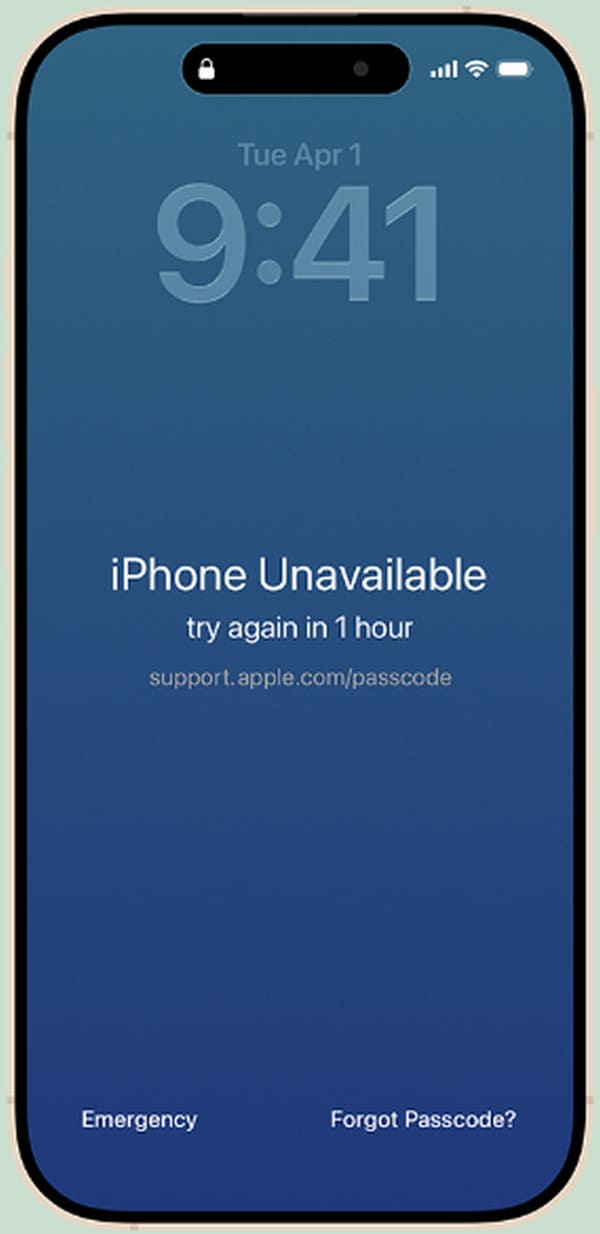
Starting with Apple’s very own built-in solution, the Forgot Passcode option. This feature provides the most immediate action when a passcode is forgotten. This option is available specifically for devices running iOS 15.2 or later. If you have tried several consecutive incorrect passcodes, you may have noticed that your device presented a recovery option, labeled Forgot Passcode that appeared on the iPhone Unavailable screen. It is not an external solution, but rather an official feature provided by Apple, which is designed to help legitimate owners regain access. You must only validate your identity through your Apple ID and password.
Mimic the stress-free task below to grasp how to unlock iPhone passcode without computer with Forgot Passcode:
Step 1If you haven’t yet, enter an incorrect passcode continuously on your iPhone until the iPhone Unavailable screen appears. You will then see Forgot Passcode? below, so tap it.
Step 2Afterward, opt for the Start iPhone Reset option on the Security Lockout screen. Once asked, provide your Apple account password and hit Erase iPhone to erase it with the passcode.
This solution is suitable for those who want a direct process and want to unlock iPhone passcode without computer. But as mentioned, your Apple account credentials are crucial; thus, you must be able to provide them. If not, kindly continue to the other solutions instead.
Part 2. How to Unlock iPhone Passcode without Computer via iCloud
Another official solution you can try from Apple is its iCloud service, particularly the Find My feature. It is accessible on almost any mobile or computer browser, and once you’re in, simply navigate the designated options to erase all the iPhone’s content, which will then include its passcode. Yes, that’s correct! iCloud’s Find My will securely wipe your device’s passcode, allowing you to reaccess it and set a new one afterward. Meanwhile, this method’s primary advantage is its remote capability. Even if your iPhone is not at hand, Find My will let you manage and erase it.
Yield to the painless instructions below to unlock iPhone passcode via iCloud:
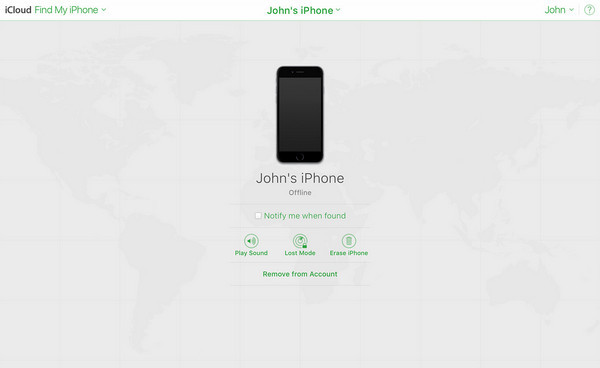
Step 1Find your way to iCloud’s official site on a browser and type in your Apple credentials in their designated fields. Once logged in, maneuver the screen to enter the Find My page and click its top tab.
Step 2The devices linked to your account will quickly appear, so pick your locked iPhone to view its options. Then, from there, select Erase iPhone to delete the device, including its passcode.
When performing this method, a stable internet connection is necessary. As you can see, the process is mainly done on a browser, particularly iCloud’s website; hence, every step requires the internet. Also, Find My is activated by default on iPhones, so you must not have turned it off beforehand.
Part 3. How to Unlock iPhone Passcode without Apple ID through Recovery Mode
Meanwhile, Recovery mode is Apple’s troubleshooting solution for its devices, like the iPhone. If you are not familiar, it is a process that forces the device into a special state where it can connect with your computer running Apple Devices, iTunes or Finder. It is many users’ universal fallback when anything goes wrong on the device. The available program will then provide the necessary option to help you restore your iPhone, erasing everything, together with its passcode, that you may have forgotten. Entering this mode involves a key combination and a USB cable to help establish a connection.
Adhere to the unchallenging operation below to learn how to unlock iPhone passcode with computer through Recovery mode:
Step 1Link your locked iPhone to the computer with a cable and initialize Recovery mode.
For iPhone without a Home button: Quick-press the iPhone’s Volume Up button, followed by the Volume Down button. Right after, hold down the Power button and wait until it enters the Recovery mode.
For iPhone with a Home button: Hold down the iPhone’s Home and Power buttons simultaneously. Shortly, the device will enter Recovery mode.
Step 2Afterward, your computer’s Apple Devices, iTunes or Finder will present a Restore option. Select it and confirm your choice to erase the iPhone, along with its passcode.
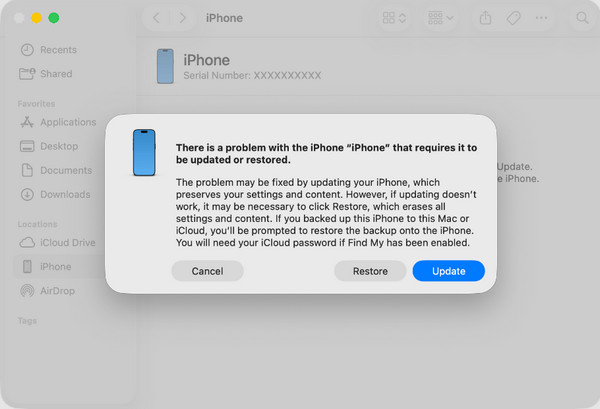
Note that the appropriate program you will use, whether Apple Devices, iTunes or Finder, will depend on your computer’s operating system. Finder is available only on later macOS versions, so if your computer runs Windows or older macOS, Apple Devices and iTunes would be suitable tools.
Part 4. How to Delete iPhone Passcode Using FoneLab iOS Unlocker
If all else fails, a capable program like FoneLab iOS Unlocker will significantly help. It can safely delete the iPhone’s passcode to let you access the device again and set a new secure one. After all, this program is known for its efficient performance and high success rate. Whether you’re having trouble with your iOS device’s passcode, Face ID, or Touch ID, it will remove the lock effectively without difficulty. After all, it’s also designed to be beginner-friendly.
That’s correct! You can delete iPhone passcode with ease, thanks to FoneLab iOS Unlocker’s intuitive interface and comprehensive functions. You will easily maneuver the passcode-removal process, even as a beginner. Additionally, your device lock isn’t the only thing this tool can wipe. You may also use it when you need to remove an Apple ID, MDM, iTunes backup password, and more on your iPhone and other iOS or iPadOS devices. It will be available anytime.

FoneLab Helps you unlock iPhone screen, Removes Apple ID or its password, Remove screen time or restriction passcode in seconds.
- Helps you unlock iPhone screen.
- Removes Apple ID or its password.
- Remove screen time or restriction passcode in seconds.
Absorb the effortless directions below as a model of how to unlock iPhone passcode without Apple ID using FoneLab iOS Unlocker:
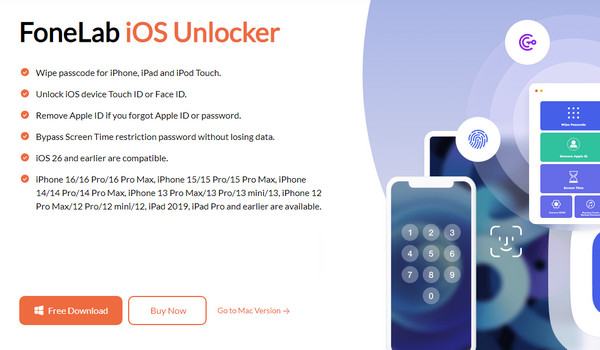
Step 1Open your trusted browser to find and visit FoneLab iOS Unlocker’s website. Its initial page contains a Free Download option in the left portion, so select it and initialize the file that will be saved in your Downloads. It will prompt the installation, allowing you to start the program afterward.
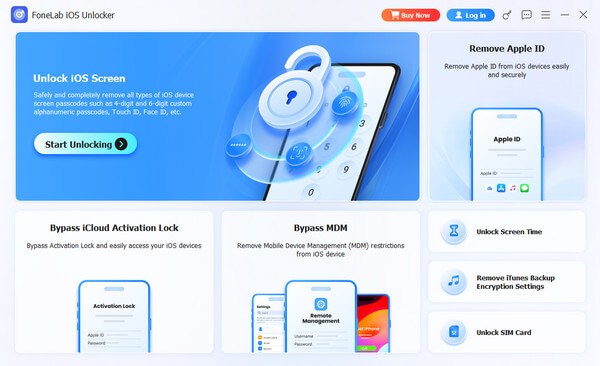
Step 2Then, when the interface is shown, tick Start Unlocking. Afterward, let a Lightning cable help you link your locked iPhone to the computer. The interface will then display further instructions, so use them correctly to unlock the device.
Part 5. Comparison of iPhone Unlocking Methods
| Method | Forgot Passcode | iCloud | Recovery Mode | FoneLab iOS Unlocker |
| Core Requirements | - Apple ID credentials - Internet connection |
- Find My iPhone pre-enabled - Apple ID credentials - Internet connection |
- Computer - USB cable - Internet connection |
- Computer - USB cable - Program |
| Best For | Users who remember their Apple ID credentials. | Users who prefer remote unlocking. | Users who have already tried previous methods and failed. | Users who prefer a secure and professional yet easy solution. |
| Ease of Use | Extremely Easy | Easy | Moderate | Very easy |
Part 6. FAQs about How to Unlock iPhone Passcode
How to unlock an iPhone with a passcode?
If you know your iPhone passcode, unlocking it would be much easier. But since the device initially asks for your Face ID or Touch ID, let your verification fail first a few times, and afterward, the screen will automatically proceed with verifying you with the passcode instead. So, simply enter it to unlock the iPhone.
Is there a universal passcode on the iPhone?
No, a universal passcode does not exist on the iPhone or other devices. A passcode is unique to each and should be heavily secured, as it serves as a protection for your device.
Several unlocking techniques or programs exist, and they are available on different platforms. However, we advise using only the proven and reliable ones, like the suggestions above, to ensure the safety of your device. Besides, we already included FoneLab iOS Unlocker if you encounter further locks on your iOS device. Install it to handle your problem smoothly.



