
 iPhone Data Recovery
 iOS System Recovery
 iOS Data Backup & Restore
 iOS Unlocker
 iPhone Password Manager
 Location Changer
 Android Data Recovery
 Broken Android Data Extraction
 Android Data Backup & Restore
 Android Unlocker
 FoneTrans for iOS
 iPhone Data Eraser
 iPhone Cleaner
 HEIC Converter
 HyperTrans
 WhatsApp Transfer for iOS
 Mac Sweep
 Data Retriever
 Mac Data Retriever
 Video Converter Ultimate
 Screen Recorder
 Phone Mirror
- Unlock Apple ID
- Bypass iCloud Activation Lock
- Doulci iCloud Unlocking Tool
- Factory Unlock iPhone
- Bypass iPhone Passcode
- Reset iPhone Passcode
- Unlock Apple ID
- Unlock iPhone 8/8Plus
- iCloud Lock Removal
- iCloud Unlock Deluxe
- iPhone Lock Screen
- Unlock iPad
- Unlock iPhone SE
- Unlock Tmobile iPhone
- Remove Apple ID Password
Reliable Guide on How to Turn Off Auto-Lock on iPhone
 Updated by
 Hello! What is Auto-Lock on iPhone, and how do I turn it off? I’m trying to learn a song on guitar using the chords I saw online. However, my iPhone screen keeps turning off, so a friend advised me to deactivate the Auto-Lock feature. But before that, I want to understand how it works first, so I’ll know how it will help with my situation. Please educate me on how to turn it off?
Do you need to keep your iPhone screen on, but it keeps turning off and locking every after a specific amount of time? Well, this situation has something to do with the device’s feature, Auto-Lock. If you’d like to grasp what it is all about fully, kindly take in the following parts, and afterward, we will assist you in turning it off with the provided info and step-by-step guidelines.

Guide List
Part 1. What is Auto-Lock on iPhone and Why Turn It Off?
Once and for all, what does Auto-Lock mean on iPhone? The simple answer is that it is a built-in power management feature on the iPhone designed to automatically put the device’s display to sleep and lock the screen after a set period of inactivity. Its primary purposes are to conserve battery life, prevent accidental touches when the phone is not in use, and enhance security by ensuring the screen locks itself if you step away from the device.
However, as in the earlier scenario, there are various reasons you might want to turn the Auto-Lock feature off. Perhaps you need to glance at the screen repeatedly without touching it— for example, reading a recipe while cooking, following a workout routine, or, as in the guitar learning scenario, viewing song lyrics or chord progressions while playing an instrument. By disabling Auto-Lock, the iPhone will stay on, letting you keep the screen visible for a longer period of time.
Part 2. How to Turn Off Auto-Lock
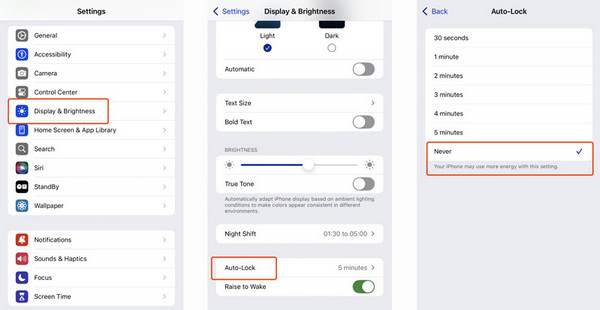
Turning off Auto-Lock on an iPhone is done through the Settings app, and the option is typically found under the Display & Brightness section. The process is straightforward, but before proceeding, it’s worth noting that the Never option, which is necessary, may not be available in certain scenarios that will be discussed later. If that happens, the methods in the next part will be more appropriate, so please move on instead.
Follow the guidelines below to determine how to turn Auto-Lock off on iPhone:
Step 1Simply head to Settings and choose the Display & Brightness option.
Step 2Tap Auto-Lock, and when its options appear, pick Never from the available selections.
Part 3. Why is Auto-Lock Greyed Out and How to Fix It
As mentioned, you may encounter situations that will prevent you from performing the official process to turn off the Auto-Lock feature. When the Auto-Lock option is greyed out, it’s usually because an organization manages your device, has certain restrictions enabled, or has some simple issues that need to be fixed. Whichever the problem is, the options below will help.
Option 1. Turn Off Low Power Mode
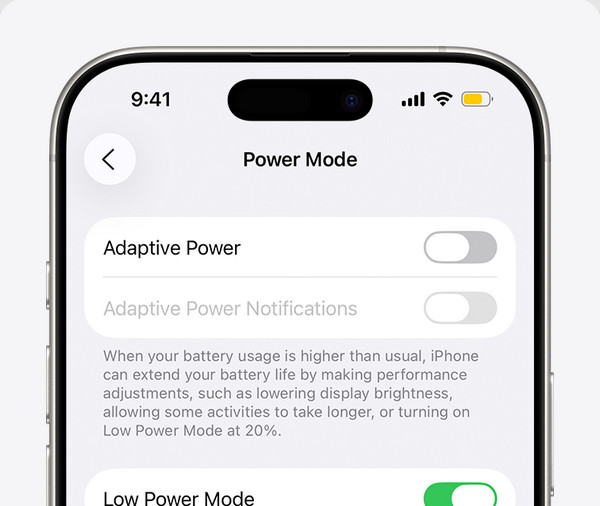
Low Power Mode is an iPhone feature that, when enabled, forces Auto-Lock to a maximum of 30 seconds and makes the option greyed out. It is by design to conserve battery life. If Auto-Lock is greyed out on your iPhone, the first thing to check is if Low Power Mode is turned on. Disabling it will restore full access to Auto-Lock settings, including the Never option.
Follow the simplified instructions below to turn off Low Power mode:
Step 1On the Settings’ initial screen, select Battery, then Power Mode.
Step 2Afterward, toggle the Lower Power Mode option to turn the feature off.
Option 2. Restart Your iPhone
Sometimes, a temporary glitch can cause the Auto-Lock setting to become unresponsive or appear greyed out even when no restrictions are enabled. A simple restart of your iPhone can clear these minor system errors and refresh the device's settings, often restoring full access to the Auto-Lock option without needing any additional troubleshooting.
Follow the straightforward navigation below to restart the iPhone:
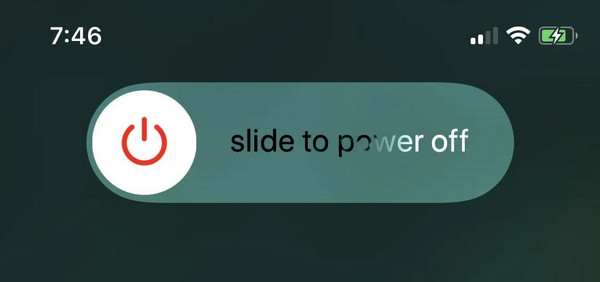
For iPhone X, 11, 12, 13, or later: Simultaneously press and hold the Side key and either Volume key. When the screen presents the Power Off slider, drag it accordingly and wait around 30 seconds before long-pressing the Side button to restart.
For iPhone 6, 7, 8, or SE (2nd or 3rd generation): Long-press your iPhone’s Side button to drag the Power Off slider to the right, turning it off. After around 30 seconds, press and hold the same button to restart the device.
Option 3. Check for MDM or Screen Time Restrictions
If Low Power Mode is off and restarting your iPhone didn't help, the Auto-Lock setting may be greyed out due to restrictions placed on your device. It commonly happens when an organization manages your iPhone through MDM. Alternatively, Screen Time can also lock the Auto-Lock option. In both cases, you should contact the administrator or passcode holder to request that they turn off or remove the restriction for managing Auto-Lock settings.
However, not everyone has this privilege or is free to request the administrator anytime. If you have checked Settings > General > VPN & Device Management and confirmed there’s an MDM profile, or Settings > Screen Time > Content & Privacy Restrictions and confirmed the restriction, but can’t turn it off with the passcode, bypass Screen Time passcode or MDM instead with the following option.
Option 4. Try FoneLab iFoneWiz
FoneLab iFoneWiz is the reliable program many people run to when experiencing lock or passcode issues on iOS devices. So, it is also the perfect solution if you forgot restriction passcode on iPhone or can’t provide the necessary MDM credentials to remove restrictions in modifying your Auto-Lock settings. The program will help you bypass these with ease.
Other than that, FoneLab iFoneWiz is also popular among those who cannot enter their screen passcode when needed, such as when you get locked out of your iPhone. Like bypassing the restrictions, it can also bypass your screen passcode to help you reaccess the device. It supports nearly all iOS versions and models, so there won’t be a problem with compatibility.

iFoneWiz Helps you unlock iPhone screen, Removes Apple ID or its password, Remove screen time or restriction passcode in seconds.
- Helps you unlock iPhone screen.
- Removes Apple ID or its password.
- Remove screen time or restriction passcode in seconds.
Discern the stress-free steps below as a sample to unlock your iOS screen with FoneLab iFoneWiz:
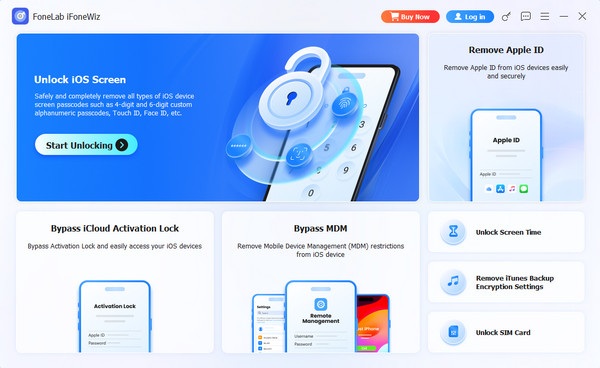
Step 1Save FoneLab iFoneWiz’s installer by clicking Free Download. This action will deliver the file to your Downloads, allowing you to install the program afterward. Simply set up the options, and when ready, click Start. Then, on the key interface, choose Unlock iOS Screen.
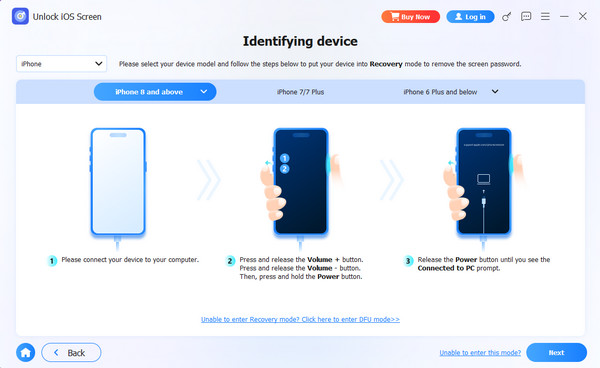
Step 2After that, it’s time to connect your iPhone using a working Lightning cable. Once detected, link the device according to the presented instructions on the interface. Then, simply follow through the prompts until you unlock your iOS screen.
Part 4. FAQs about How to Turn Off Auto-Lock on iPhone
Will turning off Auto-Lock drain my battery faster?
Yes, keeping your screen on continuously will consume more battery power than allowing it to turn off automatically.
Can I change Auto-Lock on iPhone to a longer time instead of turning it off?
Yes, you can choose durations such as 1, 2, 3, 4, or 5 minutes instead of selecting Never to keep the screen on for a longer time.
Turning off Auto-Lock on your iPhone is a simple setting change that can greatly improve hands-free activities like learning guitar chords. But if the device prevents you from doing so, feel free to rely on the solutions above, especially FoneLab iFoneWiz.



