
 iPhone Data Recovery
 iOS System Recovery
 iOS Data Backup & Restore
 iOS Unlocker
 iPhone Password Manager
 Location Changer
 Android Data Recovery
 Broken Android Data Extraction
 Android Data Backup & Restore
 Android Unlocker
 FoneTrans for iOS
 iPhone Data Eraser
 iPhone Cleaner
 HEIC Converter
 HyperTrans
 WhatsApp Transfer for iOS
 Mac Sweep
 Data Retriever
 Mac Data Retriever
 Video Converter Ultimate
 Screen Recorder
 Phone Mirror
- Unlock Apple ID
- Bypass iCloud Activation Lock
- Doulci iCloud Unlocking Tool
- Factory Unlock iPhone
- Bypass iPhone Passcode
- Reset iPhone Passcode
- Unlock Apple ID
- Unlock iPhone 8/8Plus
- iCloud Lock Removal
- iCloud Unlock Deluxe
- iPhone Lock Screen
- Unlock iPad
- Unlock iPhone SE
- Unlock Tmobile iPhone
- Remove Apple ID Password
How to reset Locked iPhone in Straightforward Ways
 Updated by
 Hi! How to reset a phone that is locked on iPhone? I really cannot remember my iPhone passcode because I was so sleepy last night when I changed it. I hope you can help me unlock it. I have various important files on my iPhone. Thank you in advance!
Screen lock and iCloud Activation Lock are some of the most important security features you should remember on your iPhone. Without them, you cannot access their data, information, app, and other components. In this post, we will help you unlock your locked iPhone in easy ways. Please continue reading to see the full information about this topic.

Guide List
Part 1. How to Reset a Locked iPhone without Lock Screen Passcode
Resetting a locked iPhone can be done in recovery mode, via iCloud Find My, or with a third-party tool. We have listed 4 methods; you can choose the one that is most convenient for you from the list below.
1. Forgot Passcode Option
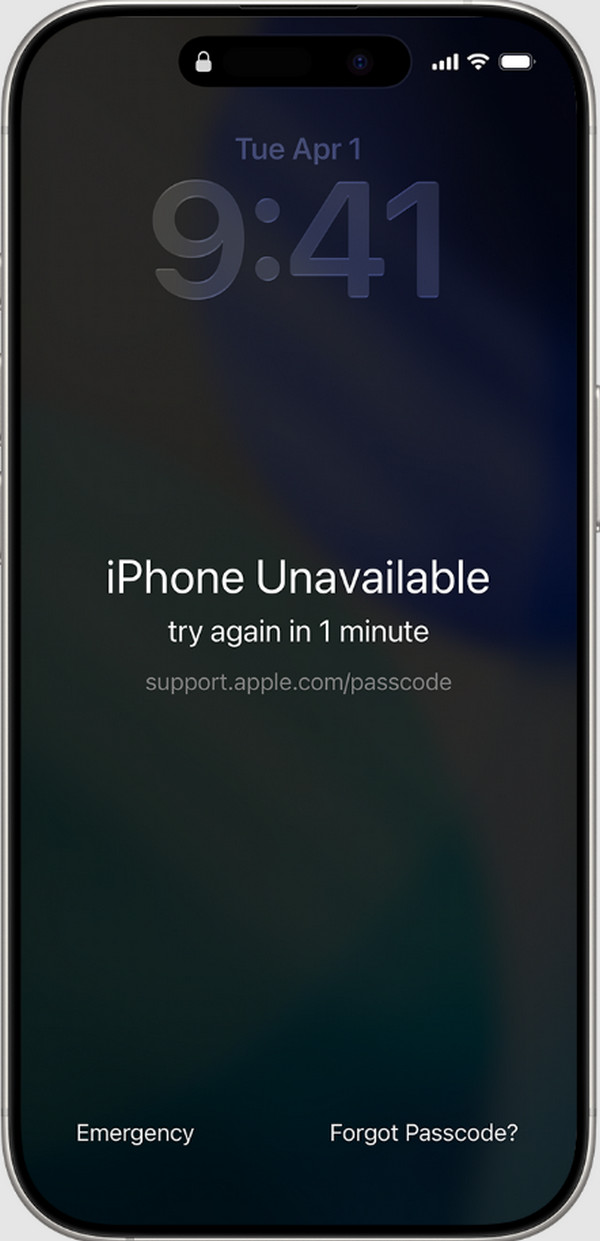
Some iPhone models, especially the latest versions, have the Forgot Passcode option on the screen when you enter multiple wrong passcode attempts. Use it to reset a locked iPhone with the steps below.
Enter multiple wrong passwords. Then, tap Forgot Passcode. Tap the iPhone Reset button.
2. Recovery Mode
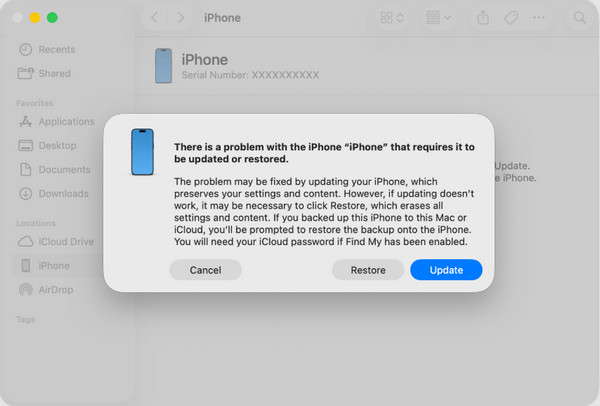
When you put iPhone in recovery mode, it forces you to connect it to a computer. This way, you can fix a corrupted system, minor or major issues, etc. The mode can also help you reset a locked iPhone. iTunes, Apple Devices, and Finder can be used in this process. The steps below will help you discover how.
Step 1Put your iPhone into recovery mode. For models without a Home button, press and release the Volume Up key. Do the same process with the Volume Down key. Press and hold the Side key to see the Connect to Computer screen. For models with a Home button, press and hold the Top and Volume Down keys. Alternatively, press and hold the Home and Side keys.
Step 2Plug the iPhone into the computer. After that, open iTunes, Apple Devices or Finder. There will be a tiny window that will pop up on the screen. Please click the Restore option to start the factory reset on your iPhone.
3. iCloud Find My
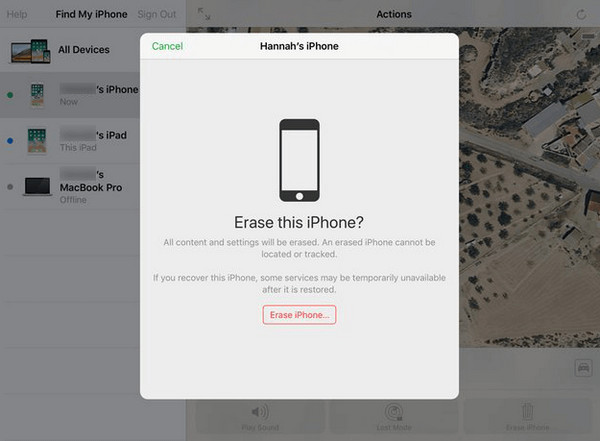
iCloud offers multiple features on your Apple devices, including Find My iPhone. It is a free service known for tracking your misplaced, lost, and stolen iPhone. But this service is flexible! It can also factory reset your iPhone. Though this feature is designed to factory reset the iPhone when it's stolen to activate Activation Lock, you can use it to erase your iPhone if you forget the screen lock. How to reset iPhone that is locked with Find My? The steps are available below.
Step 1Since your iPhone is locked, grab a spare device that has a web browser. Then, search for the Find My website. Sign in with the associated Apple ID on the website. Later, please click the All Devices section at the top. The associated devices with the Apple ID will appear.
Step 2Please select the iPhone you prefer to factory reset. Please ensure about it. Then, select the Erase iPhone button. Confirm the procedure from the website by choosing the button again from the smaller window.
4. FoneLab iOS Unlocker

FoneLab Helps you unlock iPhone screen, Removes Apple ID or its password, Remove screen time or restriction passcode in seconds.
- Helps you unlock iPhone screen.
- Removes Apple ID or its password.
- Remove screen time or restriction passcode in seconds.
Besides the Apple ways from the previous section, a third-party tool can also be used to unlock your locked iPhone. FoneLab iOS Unlocker is the software designed to unlock different security features on your iPhone, including its forgotten lock screen password. It supports the later and earlier versions of iOS. Face ID or Touch ID not working, disabled iPad, and second-hand purchased are some of the scenarios it supports. Please use the steps below to know how to use the tool.
Step 1Click the Free Download option on the official website of FoneLab iOS Unlocker. After that, set up, install, and open the tool to start the unlocking process.

Step 2The supported tools will be prompted. Please select the Start Unlocking button at the top left corner.
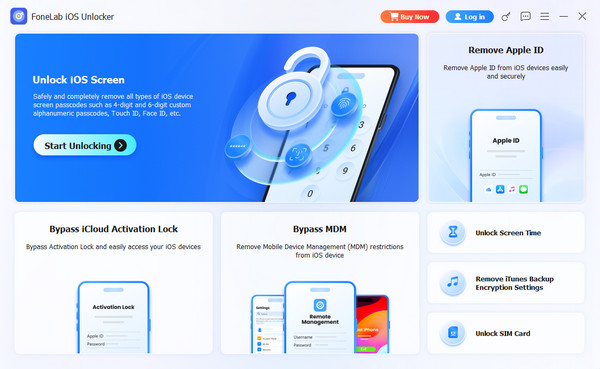
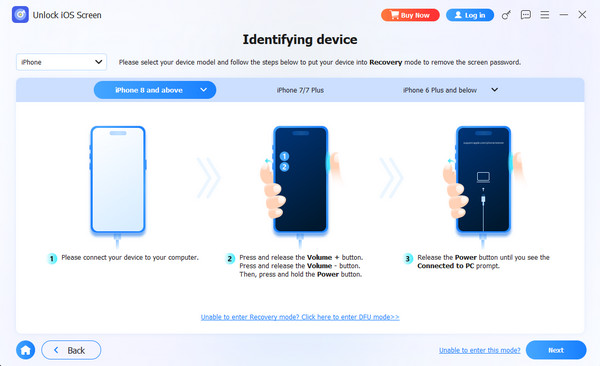
Step 3Plug the iPhone into the computer with your USB cable. After that, follow the on-screen instructions and click the Next button. Click the Start button and enter the 0000 code on the screen. The unlocking process will start immediately.
Part 2. How to Reset a Locked iPhone with Activation Lock
After the factory reset of a locked iPhone, an iCloud Activation Lock might be encountered. Some do not know how to unlock the iPhone in this state. The 2 methods below will show you how.
1. Correct Account and Password
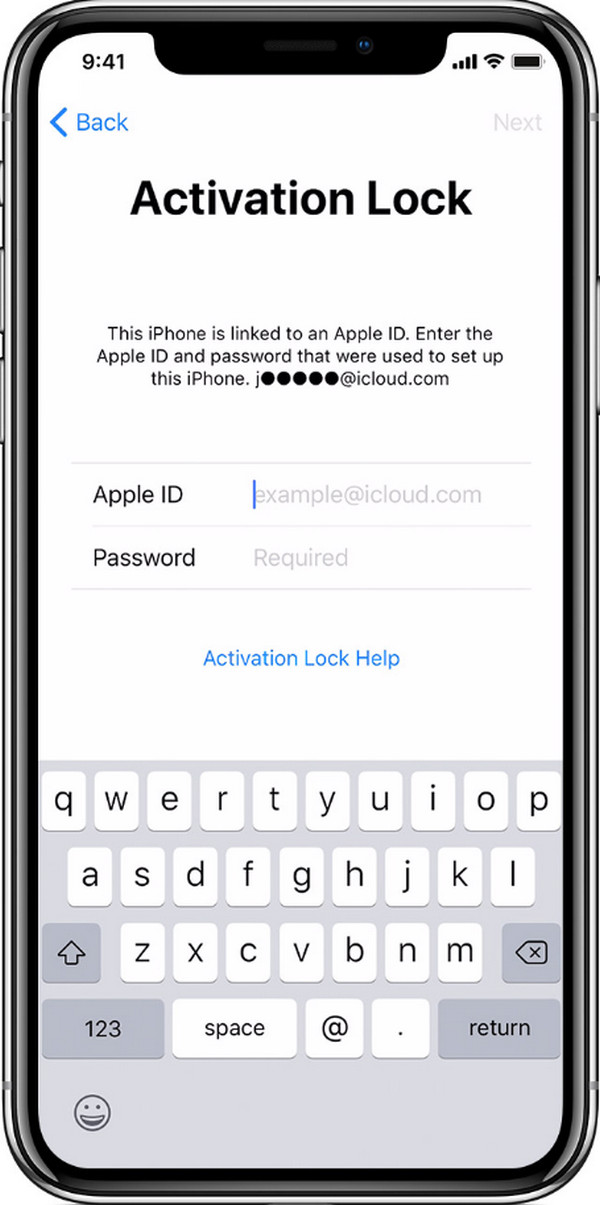
The proper way to unlock your iPhone with iCloud Activation Lock is with the correct Apple ID and password. During the setup, the Activation Lock screen will appear. The mentioned information can be filled out in this case.
2. FoneLab iOS Unlocker
FoneLab Helps you unlock iPhone screen, Removes Apple ID or its password, Remove screen time or restriction passcode in seconds.
- Helps you unlock iPhone screen.
- Removes Apple ID or its password.
- Remove screen time or restriction passcode in seconds.
However, not all iPhone users remember the iCloud Activation Lock account. If so, they need to bypass the security feature. Are you one of them? Use FoneLab iOS Unlocker. It can remove your iCloud Activation Lock without the correct credentials. You can refer to the steps below on how to do that with the tool.
Step 1Download, install, and access the software on your computer. After that, the various features of the tool will appear. Please click the Bypass iCloud Activation Lock option at the bottom left.
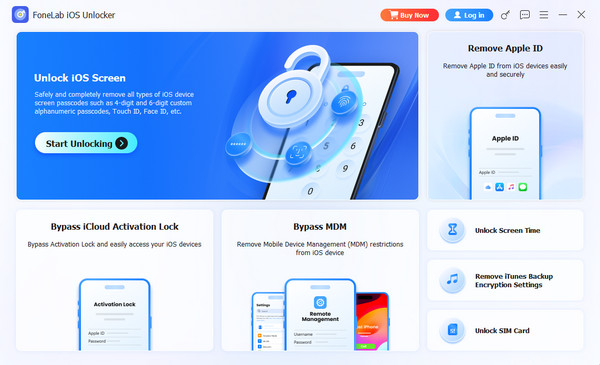
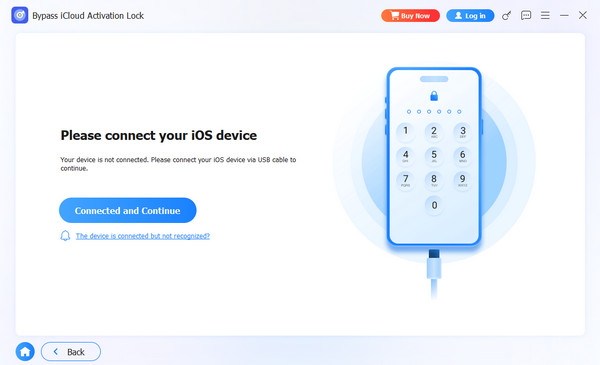
Step 2You will see a mini model on the right that requires you to plug your iPhone into the computer. You may do this by using a USB cable. Then, click the Connected and Continue button on the left side. Perform the on-screen instructions to start bypassing the iCloud Activation Lock on your iPhone.
Part 3. FAQs about How to Reset a Locked iPhone
How to reset a frozen iPhone?
You cannot use any screen activities when the iPhone is frozen. So, you can try forcing a restart of your iPhone first. If it is not working, you will need the help of a computer. Put the iPhone into recovery mode and use Finder, Apple Devices or iTunes on your computer. Section 1 of this post will show you the entire process. Alternatively, FoneLab iOS Unlocker can also help you get into a frozen iPhone.
Can someone access my data after I erase my iPhone?
Erasing your data through a factory reset will delete it permanently. They are not recoverable with a simple recovery process. On the other hand, professional tools or individuals can still retrieve these files from the iPhone.
All in all, this post is about how to reset an iPhone that is locked. The leading ways are posted for your reference. Unlocking and bypassing the Activation Lock afterward can also be learned. FoneLab iOS Unlocker is here to help you with both processes. It can remove your iPhone screen lock and iCloud Activation Lock. The tool can also bypass other security features on your iPhone, including Screen Time, SIM card, and more. Download the tool to know them better!



