
 iPhone Data Recovery
 iOS System Recovery
 iOS Data Backup & Restore
 iOS Unlocker
 iPhone Password Manager
 Location Changer
 Android Data Recovery
 Broken Android Data Extraction
 Android Data Backup & Restore
 Android Unlocker
 FoneTrans for iOS
 iPhone Data Eraser
 iPhone Cleaner
 HEIC Converter
 HyperTrans
 WhatsApp Transfer for iOS
 Mac Sweep
 Data Retriever
 Mac Data Retriever
 Video Converter Ultimate
 Screen Recorder
 Phone Mirror
- Unlock Apple ID
- Bypass iCloud Activation Lock
- Doulci iCloud Unlocking Tool
- Factory Unlock iPhone
- Bypass iPhone Passcode
- Reset iPhone Passcode
- Unlock Apple ID
- Unlock iPhone 8/8Plus
- iCloud Lock Removal
- iCloud Unlock Deluxe
- iPhone Lock Screen
- Unlock iPad
- Unlock iPhone SE
- Unlock Tmobile iPhone
- Remove Apple ID Password
Can Someone Unlock My iPhone in Lost Mode: Complete Guide
 Updated by
 Good day! Can someone unlock my iPhone in Lost Mode? I’m afraid that my missing iPhone will be accessed. It would be stressful if someone untrustworthy found it. I hope you can answer my query. Thank you!
It is indeed true that Find My Lost Mode is helpful when you lose your iPhone. However, some think that it can be unlocked. Is it true? This article will answer your query in detail. It will help you explain its description and how to disable or bypass it. Please see the full information about the security feature as you scroll below.

Guide List
Part 1. What is Lost Mode
Apple offers Find My to help you track or locate lost, misplaced, and stolen Apple devices, including iPhone. It has different tracking features that can be used. Lost Mode is one of them. This security feature of the free service can lock your iPhone when lost. It prevents unauthorized access, especially if you leave your iPhone unlocked before you lose it.
Adding a screen message can be displayed remotely. This way, you can post your contact details and the person who found your iPhone can see it. Also, the iPhone will continue sending its location. A factory reset is impossible in the Lost Mode. An Apple ID will be required as the Activation Lock will be enabled. This security feature required the said account to be unlocked. It is a protection for your iPhone after a factory reset.
Part 2. Can Someone Unlock My iPhone in Lost Mode
As mentioned, Lost Mode is important when you lose your iPhone. It is for your iPhone data not be accessed by the person who found it. You might wonder if they can unlock it from Lost Mode. Shortly, no. The iPhone Lost Mode cannot be unlocked because it asks for your passcode and Apple ID. It can only be unlocked if the mentioned requirements are known.
Part 3. How to Disable Lost Mode on iPhone
The Lost Mode on iPhone can be removed in 2 Apple ways. You can use its passcode or Find My. The detailed information and procedures about these methods are posted in the section below.
1. Enter iPhone Passcode
The Lost Mode feature on your iPhone can be disabled with the passcode. It can only be done when the iPhone is online. Please see the detailed steps below to know how.
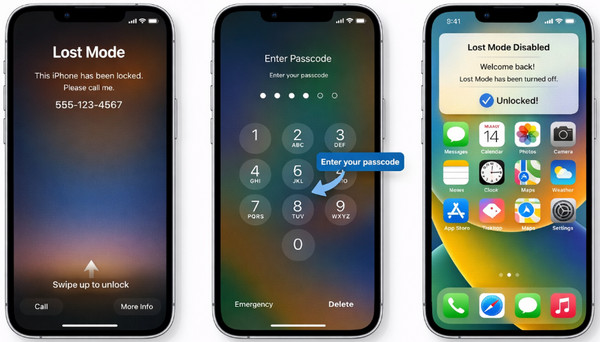
Open the iPhone, and the Lost Mode screen will be prompted. After that, swipe it up to see the Enter Passcode screen. Later, enter the correct iPhone passcode. The Lost Mode Disabled screen will appear at the top of the screen, included in a small window.
2. Use Find My
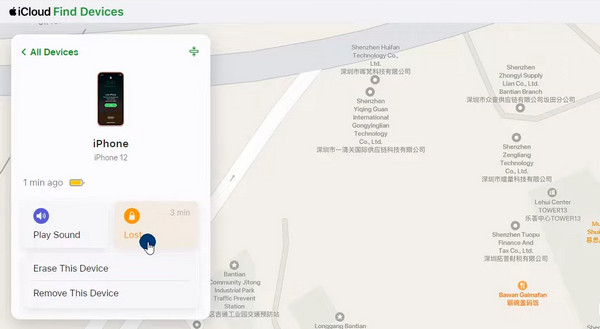
Find My can unlock your iPhone remotely, including when it is on Lost Mode. Since the iPhone is locked, you can use your spare device. The mentioned service is accessible online. Please follow the steps below to disable the iPhone Lost Mode quickly.
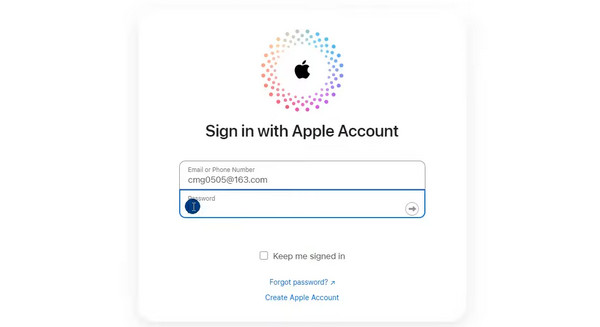
Step 1Search for the main website of Find My. Click the Sign In button in the center. After that, enter your Apple ID account, including your email, phone number, and password. After that, please click the Arrow button to sign in. Authenticate the procedure if it is required.
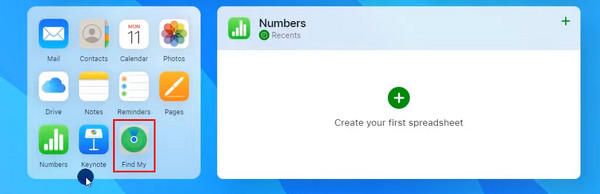
Step 2Please click the Find My section at the bottom. Then, go to the All Devices section at the top left of the screen. Later, choose your lost iPhone from the options list. The supported features will be prompted.
Step 3Please click the Lost button from the list. After that, click the Stop Lost Mode button at the bottom left of the small window. Please confirm the action by clicking the Continue button at the bottom right. The Lost Mode feature will be disabled afterward.
Part 4. How to Bypass Lost Mode from iPhone with FoneLab iOS Unlocker
FoneLab iOS Unlocker is a third-party tool that allows you to remove Apple ID from iPhone. If so, the Lost Mode on the mentioned device will be disabled. You can have complete access to your iPhone again. It can happen with only a few clicks! So, the Activation Lock will not be needed to sign in to your iPhone.

FoneLab Helps you unlock iPhone screen, Removes Apple ID or its password, Remove screen time or restriction passcode in seconds.
- Helps you unlock iPhone screen.
- Removes Apple ID or its password.
- Remove screen time or restriction passcode in seconds.
Also, you can unlock your SIM-locked iPhone using the software. There will be no restrictions from your carrier anymore. Please note that the tool is safe. So, there’s nothing to worry about additional issues from its system. There are other security features it can remove, including Screen Time, iTunes backup encryption passcode, and more. Please use the steps below to know how to use it.
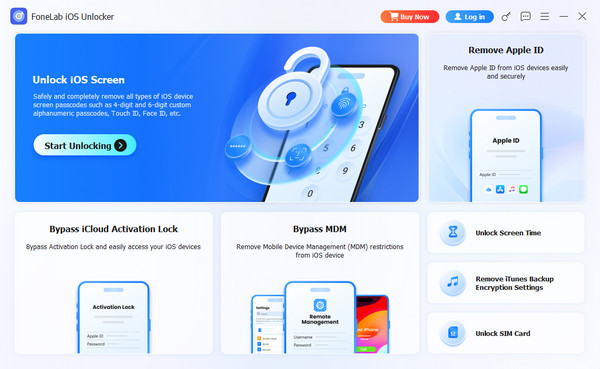
Step 1Click the Free Download button from the main interface. After that, select the downloaded file and set it up. Later, install the tool on your computer. The computer will prompt the tool on the main interface. Familiarize yourself with the tool for a faster process.

Step 2The tool will show you the supported features it contains. Please choose the Bypass iCloud Activation Lock feature at the top right of the screen. You will also see the full procedure description of the tool.
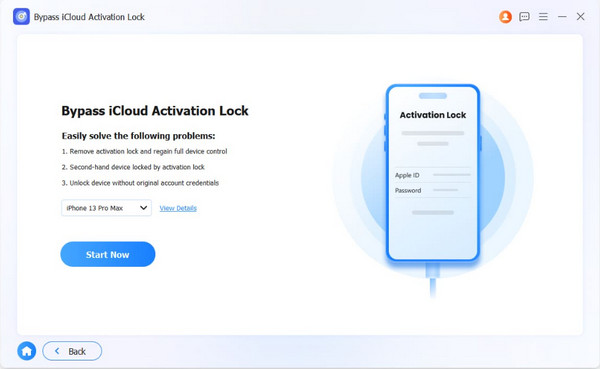
Step 3Please grab your USB cable. After that, plug the iPhone into the computer. Click the Start Now button at the bottom left. Follow the on-screen steps for the jailbreak process. You will see a quick tutorial. Later, click the Next button. The iCloud Activation Lock will start to be removed. Wait patiently and click the Finish button to complete the process.
Part 5. FAQs about iPhone in Lost Mode
How do I find my iPhone in Lost Mode?
Access the Find My service on your device. After that, select the Devices button from the main interface. After that, choose the name of your iPhone that is lost. Later, the current location of the iPhone will appear, including its battery percentage and Lost Mode status.
How long does an iPhone stay in Lost Mode?
There is no concrete limitation on how long your iPhone can stay in Lost Mode. The mentioned security will only be removed when you enter your passcode, use Find My, or a third-party tool, like FoneLab iOS Unlocker.
The iPhone in Lost Mode is secured from unauthorized access. In conclusion, someone can only unlock your iPhone in Lost Mode when they know your passcode and Apple ID. FoneLab iOS Unlocker is recommended if you want to bypass the security feature safely. It can also help you remove the Apple ID, SIM-locked iPhone, Screen Time restrictions, and more. Download the tool now if you want to know more about it.



